Add a Secret
This page explains how to add a new secret in API Test.
Open the Form
- Open API Test.
- Select the Secrets tab.
- Select + Add secret.
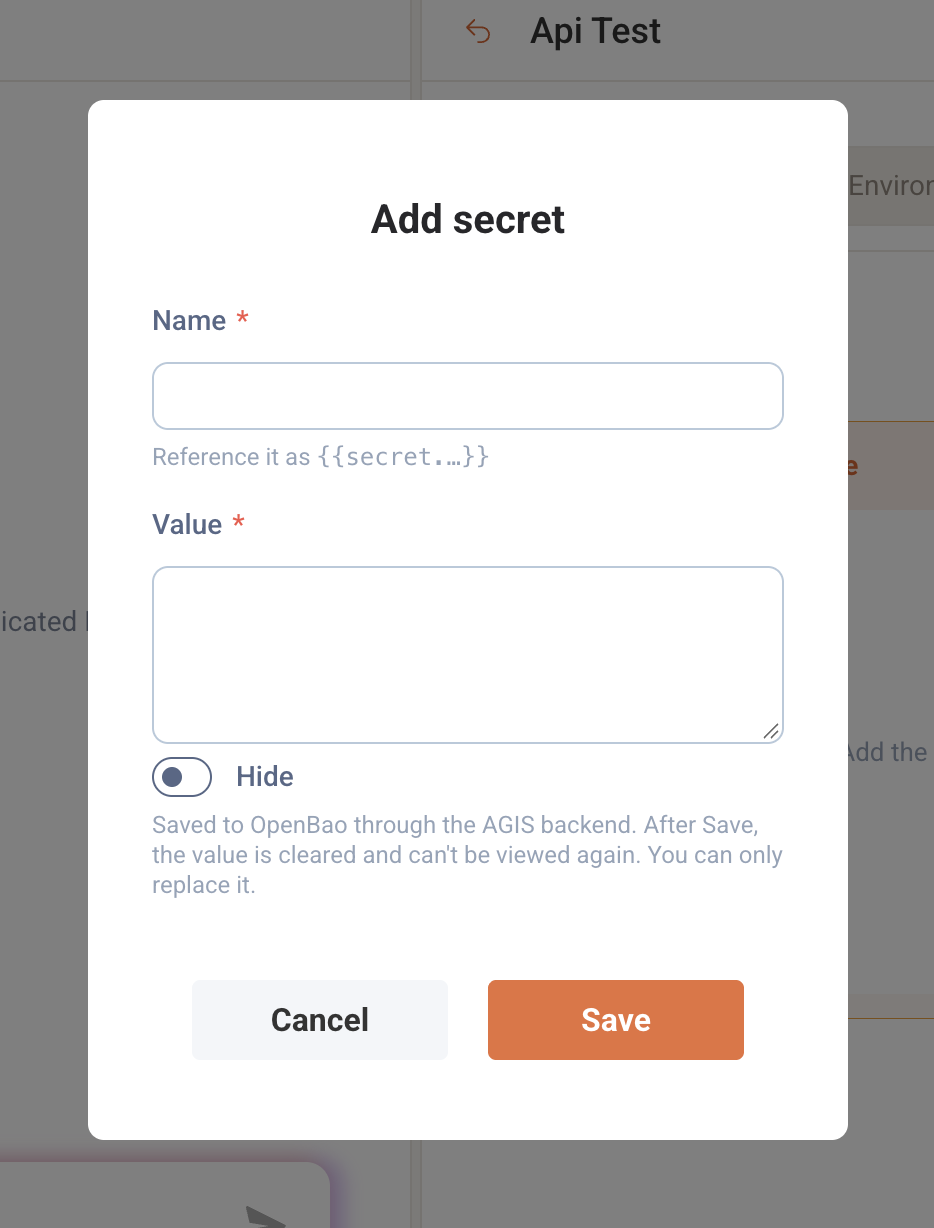
The Add secret dialog opens.
Fill In the Form
Fill in the following fields. Fields marked with * are required.
- Name — the name of the secret. Below the field, the dialog shows how to reference it:
{{secret.…}} - Value — the value of the secret
- Hide — a toggle below the Value field. It is off by default
The dialog also shows the following note:
- Saved to OpenBao through the AGIS backend. After Save, the value is cleared and can't be viewed again. You can only replace it.
Save the Secret
Select Save to save the secret. Select Cancel to close the dialog without saving.
After you save, the secret is added to the list in the Secrets Listing. Its value is always shown as masked dots. To change the value later, see Replace a Secret.
