Edit an Environment
This page explains how to edit an environment. The form has the same fields as the form for a new environment, so see Create a New Environment for what each field means.
Open the Environment
- Open API Test and select the Environments tab.
- Select the card of the environment you want to edit.
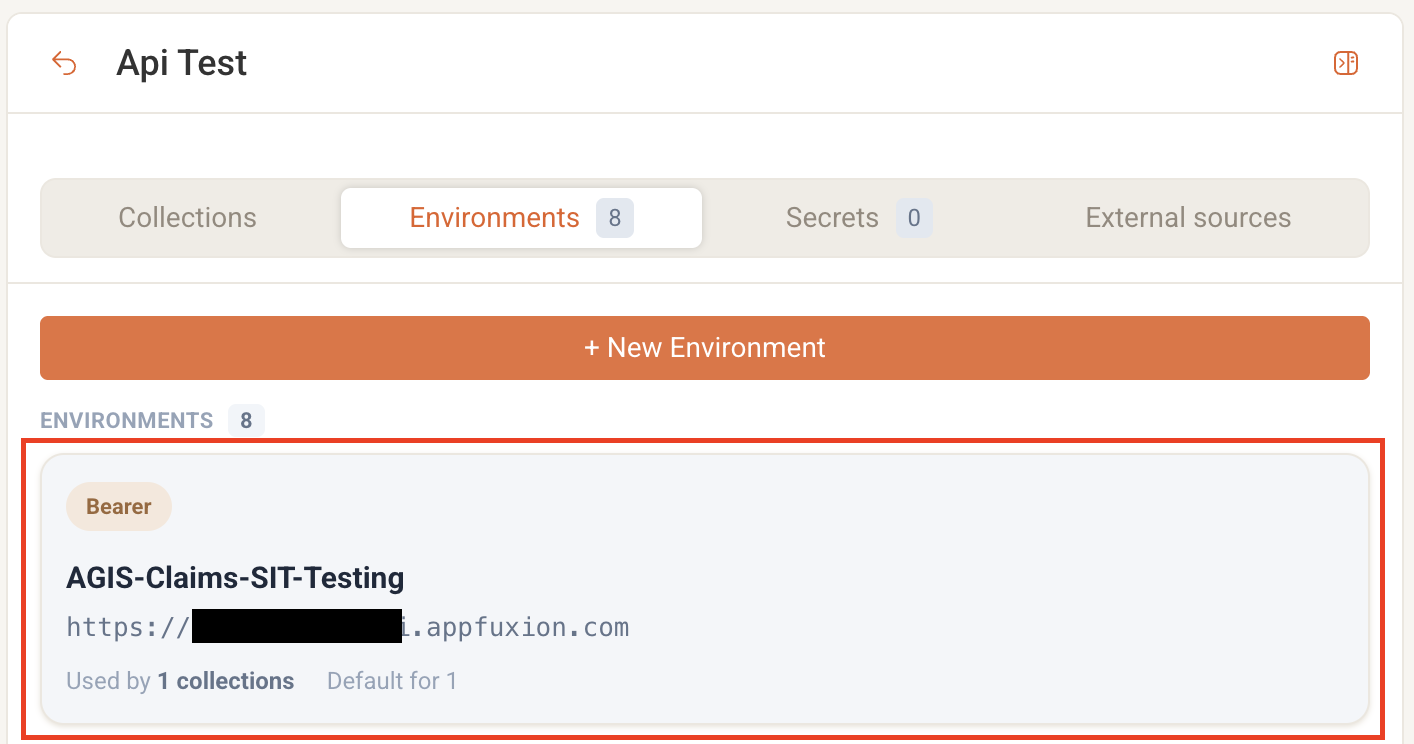
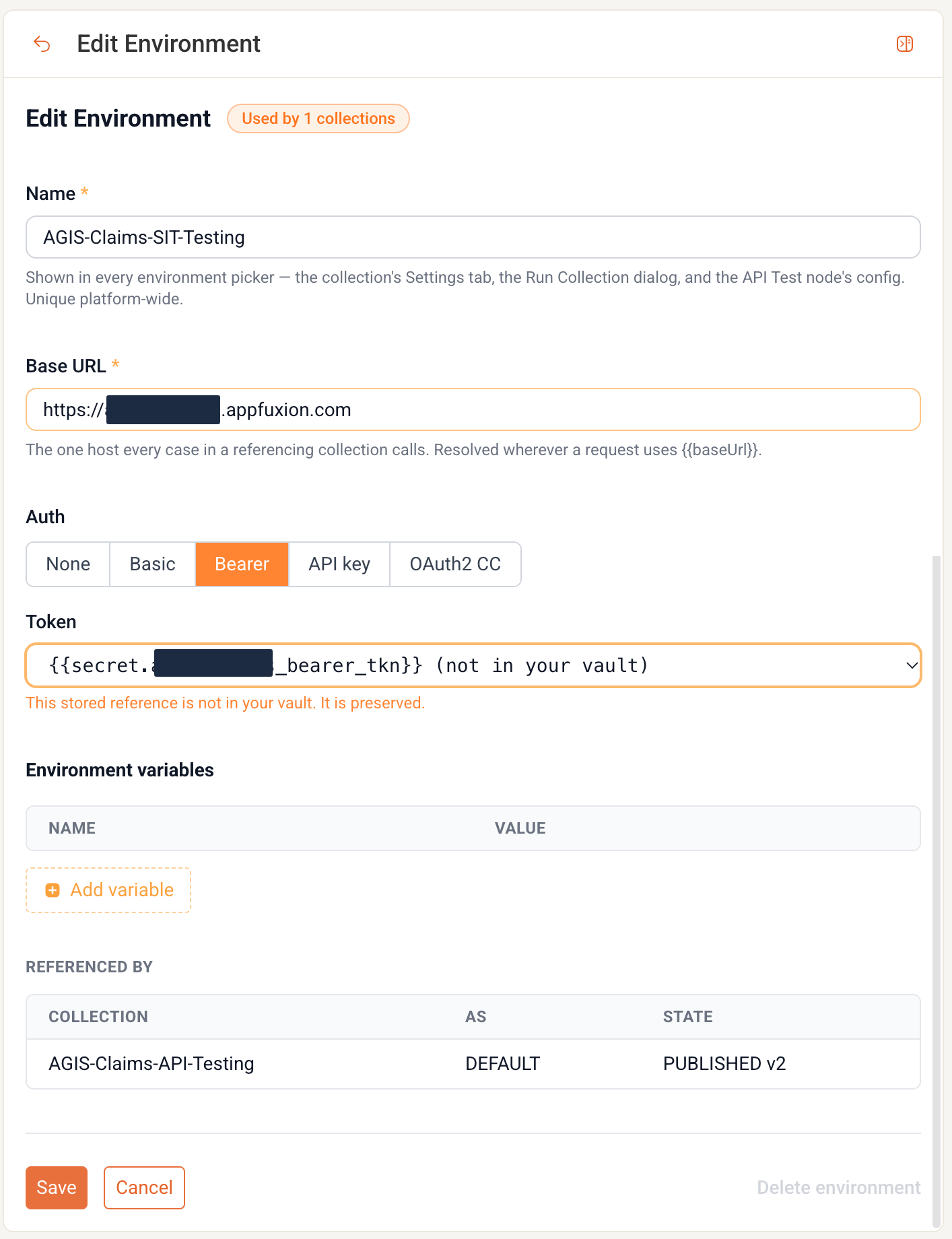
The Edit Environment form opens with the current values of the environment. The badge next to the title shows how many collections use the environment, such as Used by 1 collections.
Edit the Fields
You can change the following fields. They work as they do when you create an environment.
- Name
- Base URL
- Auth and the fields of the selected auth type
- Environment variables
Secret Not in Your Vault
When the auth of the environment uses a secret reference that is not in your vault, the field shows the reference followed by (not in your vault). A message below the field says This stored reference is not in your vault. It is preserved.
Referenced By
The Referenced by table lists the collections that use the environment. It has the following columns:
- Collection — the name of the collection, such as
AGIS-Claims-API-Testing - As — how the collection uses the environment, such as
DEFAULT - State — the state of the collection, such as
PUBLISHED v2
Save the Changes
Select Save to save your changes, or Cancel to leave the form without saving.
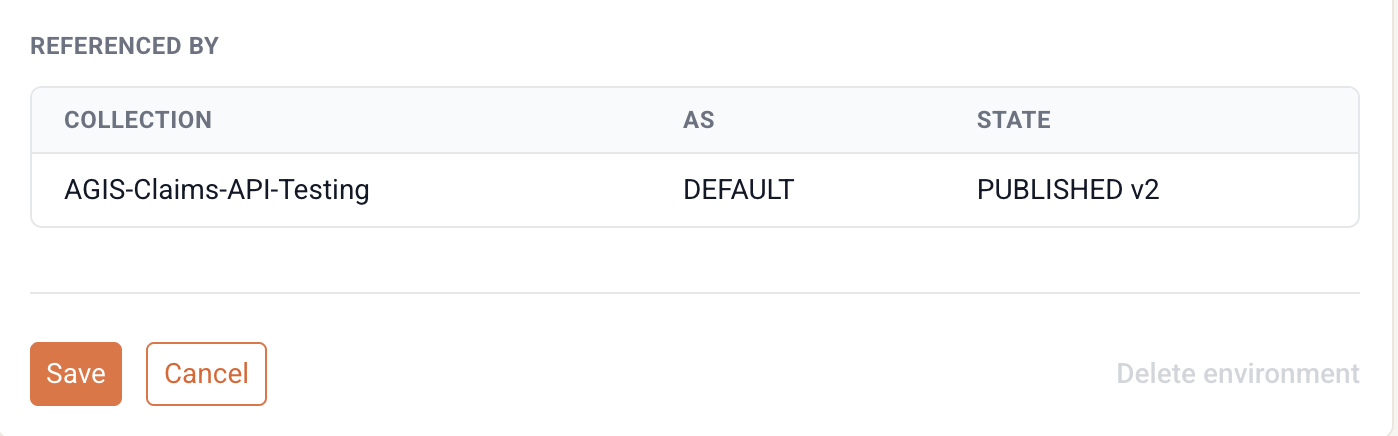
Delete environment is shown at the bottom right of the form. In the example above, it is disabled and the environment is used by 1 collection.
