Setup/Teardown
The Setup / Teardown tab in Collection Details lets you add steps that run before the first case and after the last case of a collection.
To open it, select the collection you want from the API Test listing, then select the Setup / Teardown tab.
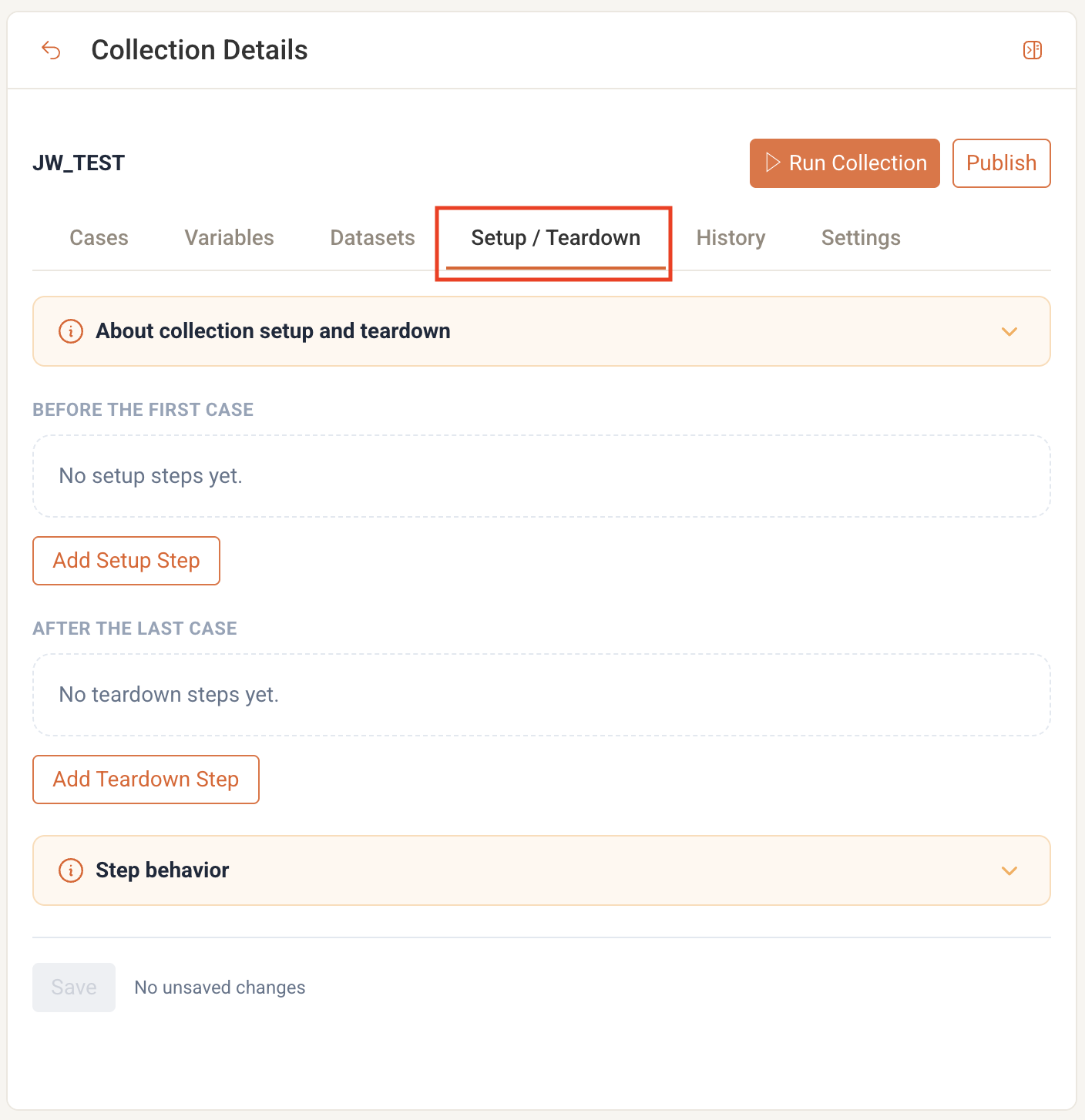
View the Setup / Teardown Tab
The tab contains the following sections:
- About collection setup and teardown — an expandable information panel about collection setup and teardown
- BEFORE THE FIRST CASE — the setup steps that run before the first case. If there are none, it shows
No setup steps yet. - AFTER THE LAST CASE — the teardown steps that run after the last case. If there are none, it shows
No teardown steps yet. - Step behavior — an expandable information panel about how steps behave
- Save button — saves your changes. It is disabled and shows
No unsaved changeswhen there is nothing to save, and showsUnsaved changesonce you make a change
Add a Setup Step
To add a step that runs before the first case:
- In the BEFORE THE FIRST CASE section, select Add Setup Step.
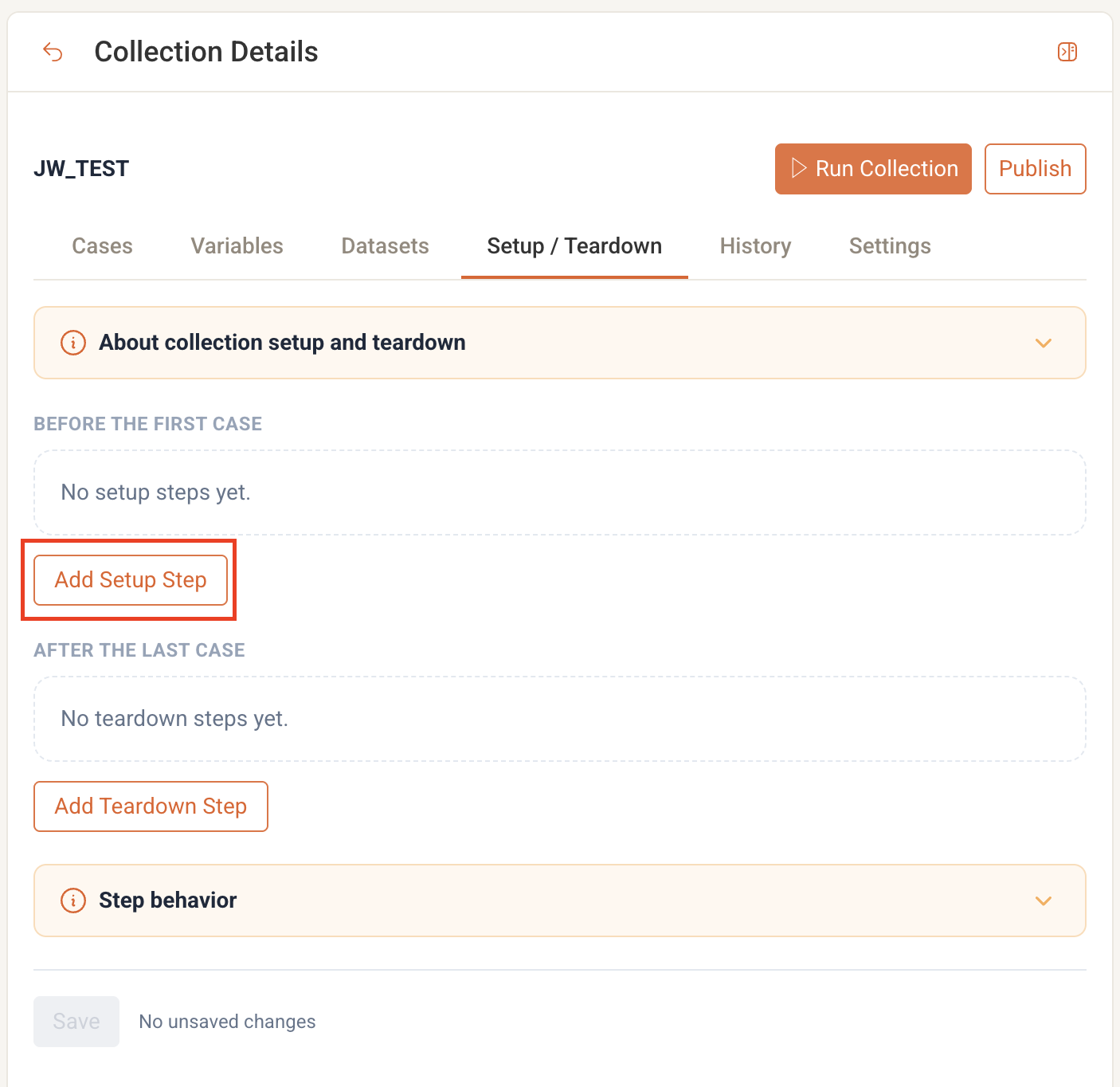
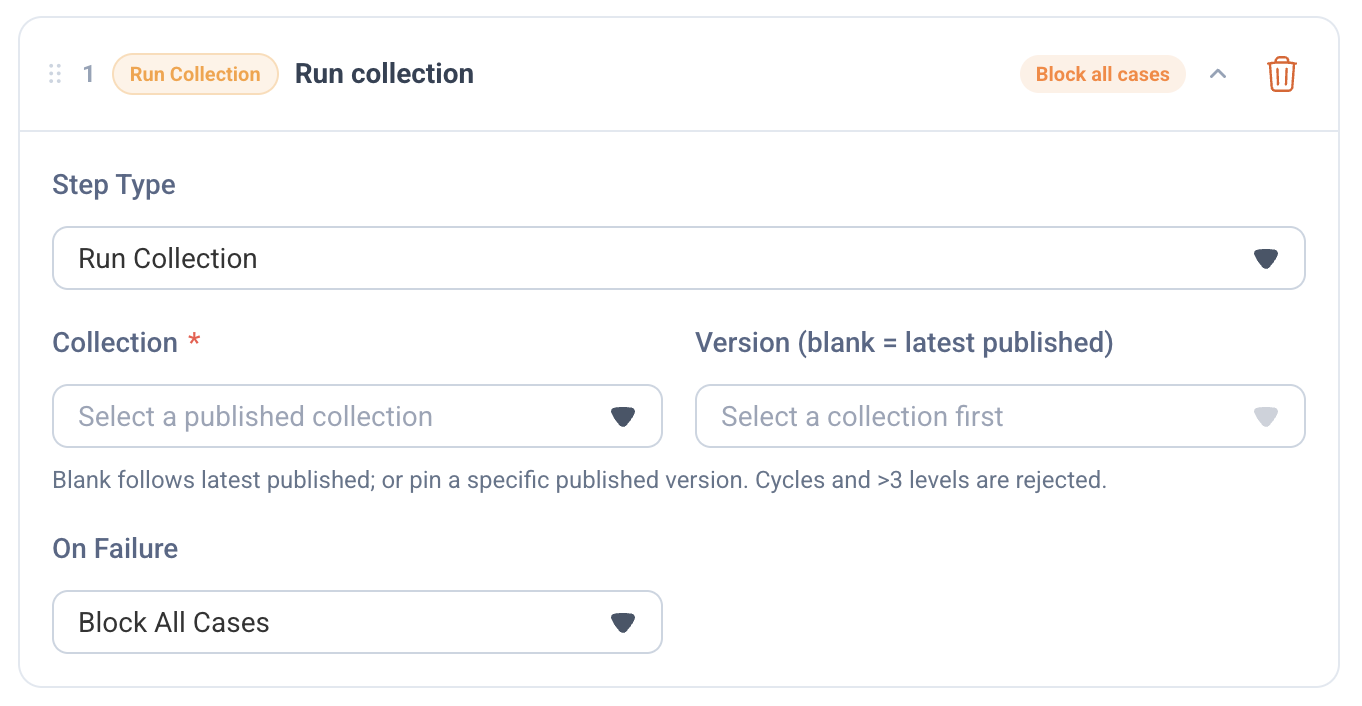
- A new step card appears. Select a Step Type and fill in the step's fields.
- Select Save to save your changes.
Each setup step card displays:
- Order number — the step's position in the list
- Step type badge — the type of the step, such as
Run Collection - Step name — the name of the step, such as
Run collection - Failure behavior badge — what happens if the step fails, such as
Block all cases - Collapse button — collapse or expand the step's fields
- Delete button — remove the step
- Drag handle — drag the step to change its order
The fields in the card depend on the step type you select. See Step Types for the available types.
Add a Teardown Step
To add a step that runs after the last case:
- In the AFTER THE LAST CASE section, select Add Teardown Step.
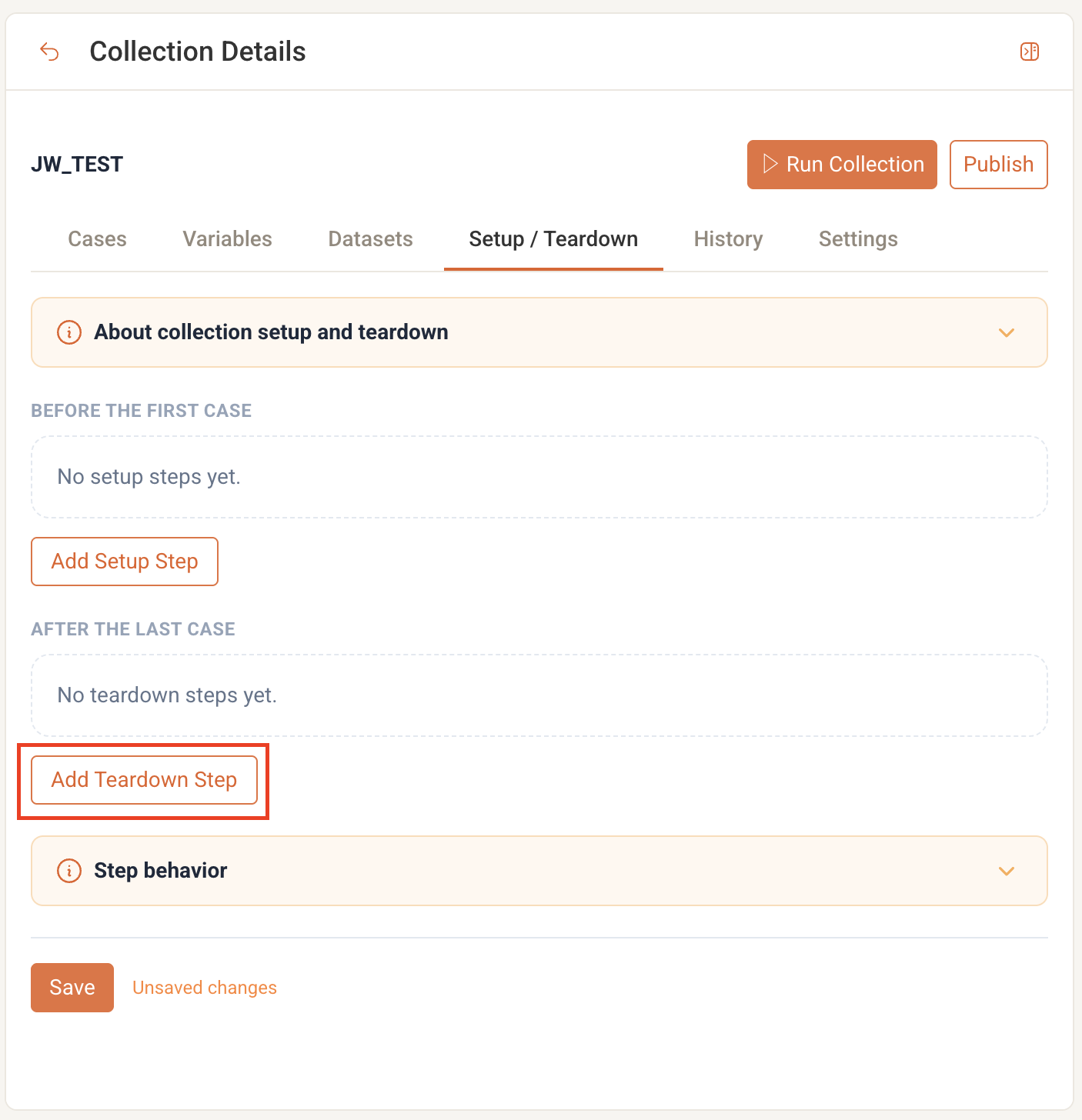
- A new step card appears. Select a Step Type and fill in the step's fields.
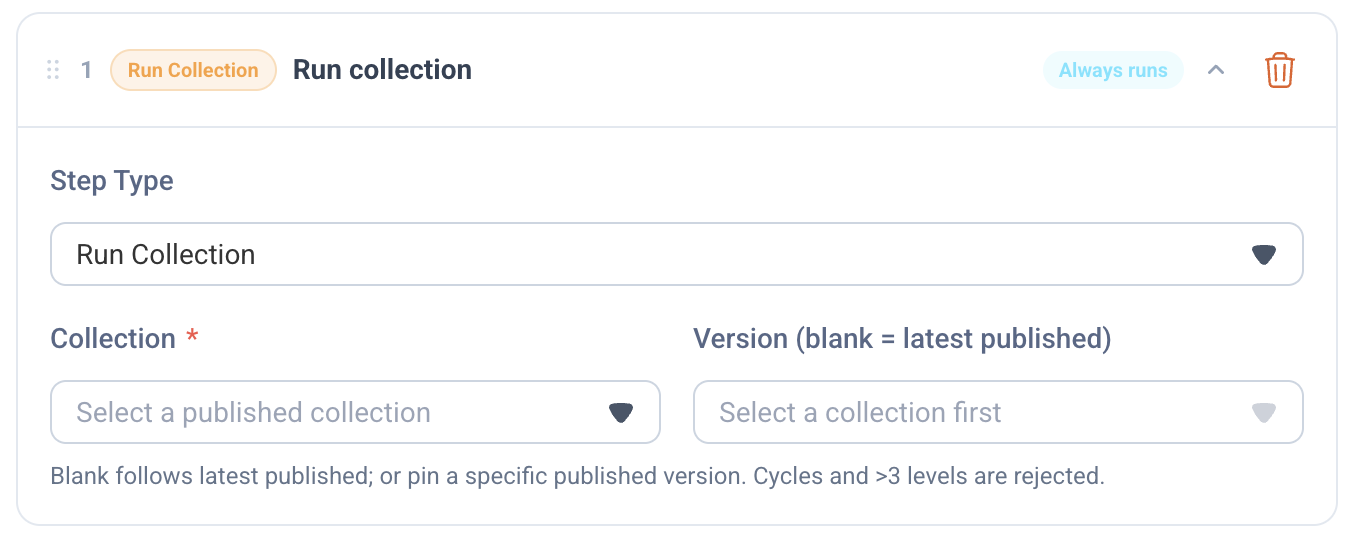
- Select Save to save your changes.
A teardown step card is similar to a setup step card, with the following differences:
- The behavior badge shows
Always runsinstead of the failure behavior - There is no On Failure field
The fields in the card depend on the step type you select. See Step Types for the available types.
Step Types
Each step has a Step Type. The step types available depend on whether you are adding a setup step or a teardown step.
Setup Step Types
| Step type | Description |
|---|---|
| Run Collection | Runs a published collection |
| Generate Value | Generates a value and stores it in a run variable |
| HTTP Request | Sends an HTTP request, and can extract values from the response into variables |
| Import Variables | Imports values from the caller into this collection |
Teardown Step Types
| Step type | Description |
|---|---|
| Run Collection | Runs a published collection |
| HTTP Request | Sends an HTTP request, and can extract values from the response into variables |
| Export Variables | Exports values from this collection to its caller |
