Run Results
The Run results page shows the result of a single run of a collection. To open it, go to the History tab in Collection Details and select the run you want. See History for the run list.
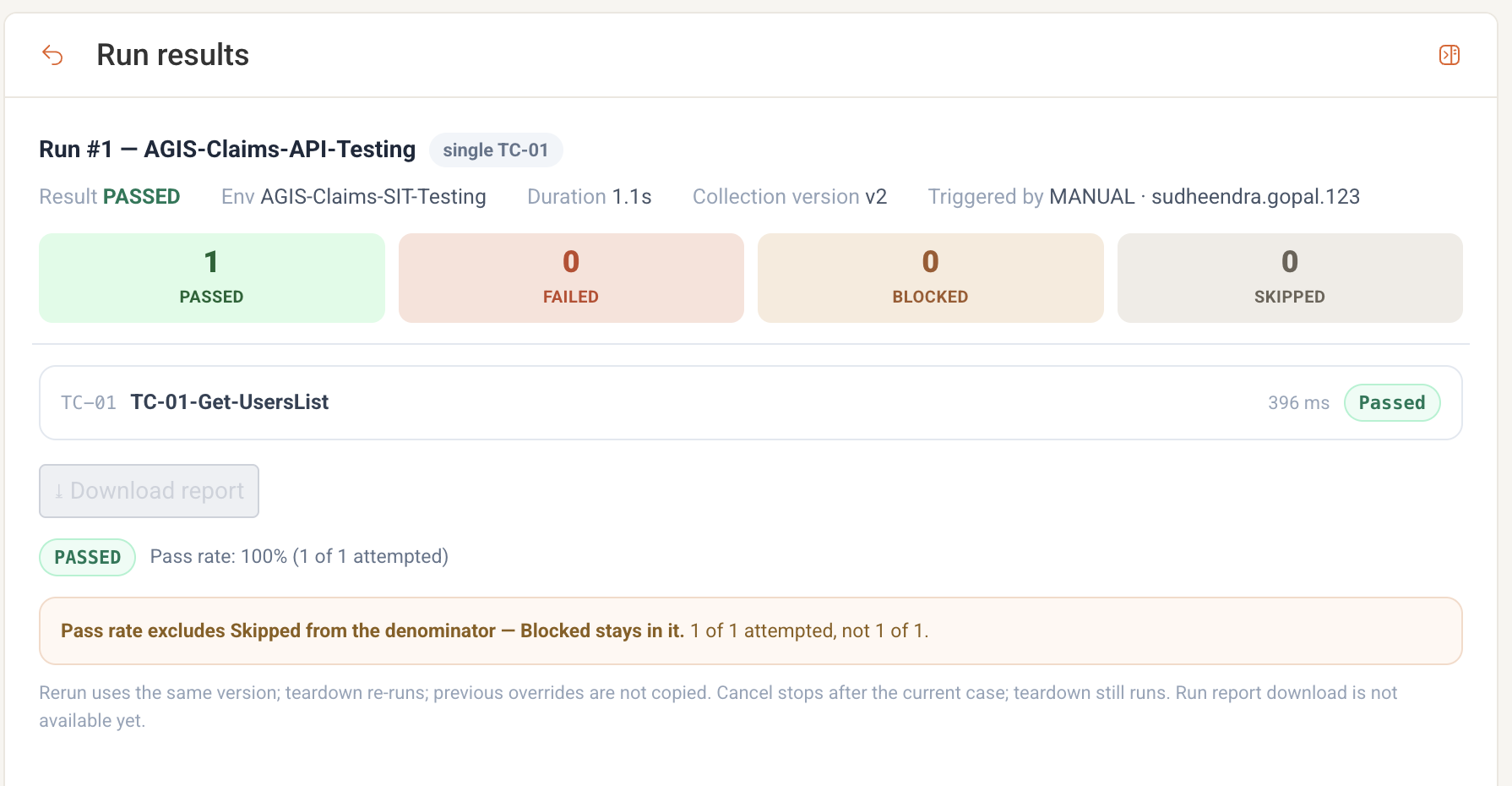
To go back to the run list, select the back button at the top left of the page.
Run Summary
At the top of the page, you can see the run number, the collection name, and a badge showing the scope of the run, such as single TC-01 for a run of a single case.
Below it, the page shows the following details of the run:
- Result — the result of the run, such as
PASSED - Env — the environment used by the run
- Duration — how long the run took
- Collection version — the collection version used by the run
- Triggered by — how the run was started and by whom, such as
MANUALfollowed by the user name
Result Counts
Four tiles show the number of cases for each result: Passed, Failed, Blocked, and Skipped. Blocked means AGIS could not determine the result of the case.
Case List
Below the tiles, each case of the run is listed with its case key, its name, its duration, and its result badge, such as Passed. Select a case to expand its details.
Assertions
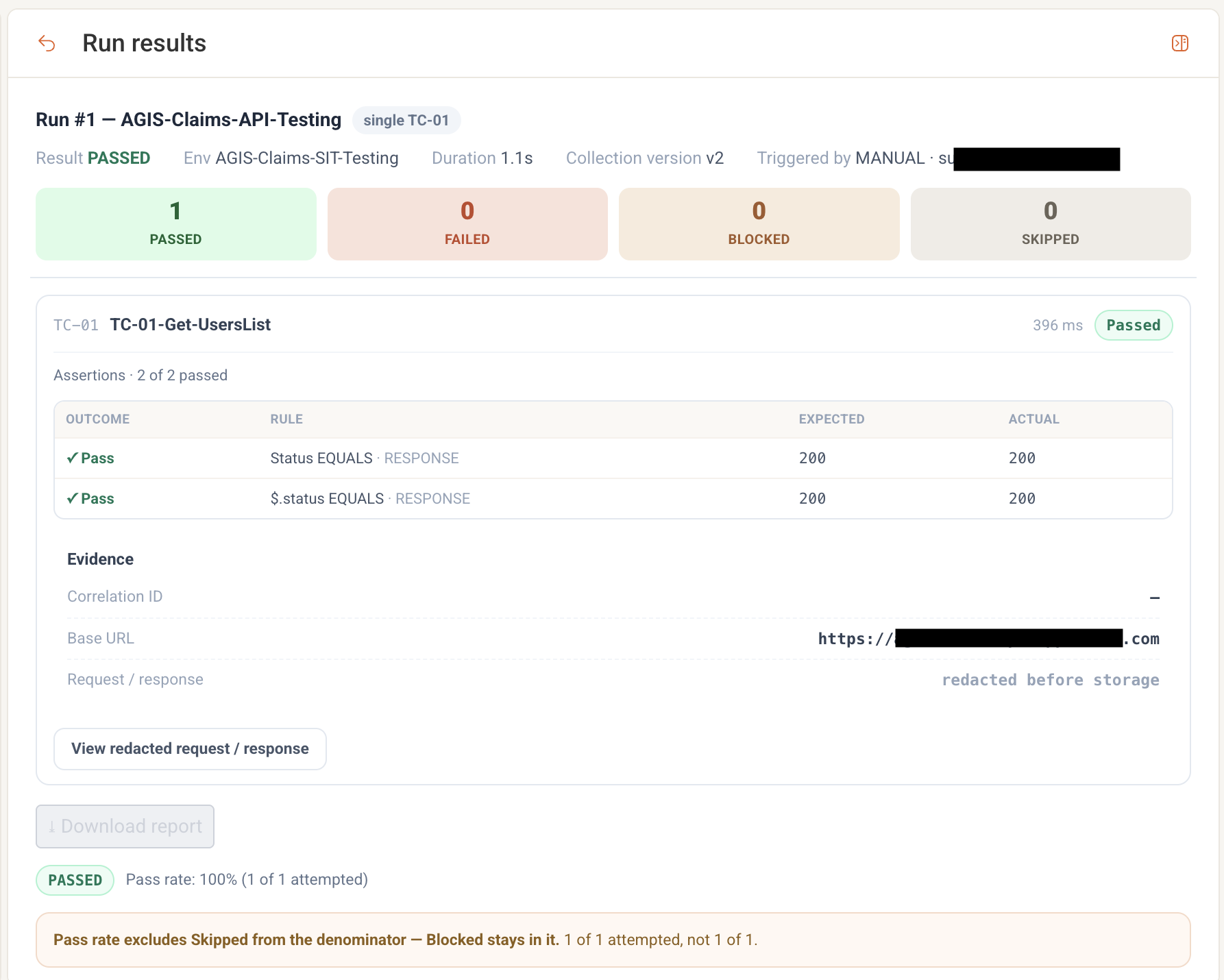
The Assertions section shows how many assertions passed, such as 2 of 2 passed, and a table with the following columns:
- OUTCOME — the result of the assertion, such as
Pass - RULE — the assertion rule and the part it checks, such as
Status EQUALS · RESPONSE - EXPECTED — the value the assertion expects
- ACTUAL — the value the run received
Evidence
The Evidence section shows the following information:
- Correlation ID — the correlation ID of the request. It shows
—when there is none - Base URL — the base URL the request was sent to
- Request / response — shows
redacted before storage, meaning sensitive values are removed before the request and response are stored
Select View redacted request / response to see the redacted request and response.
Redacted Request and Response
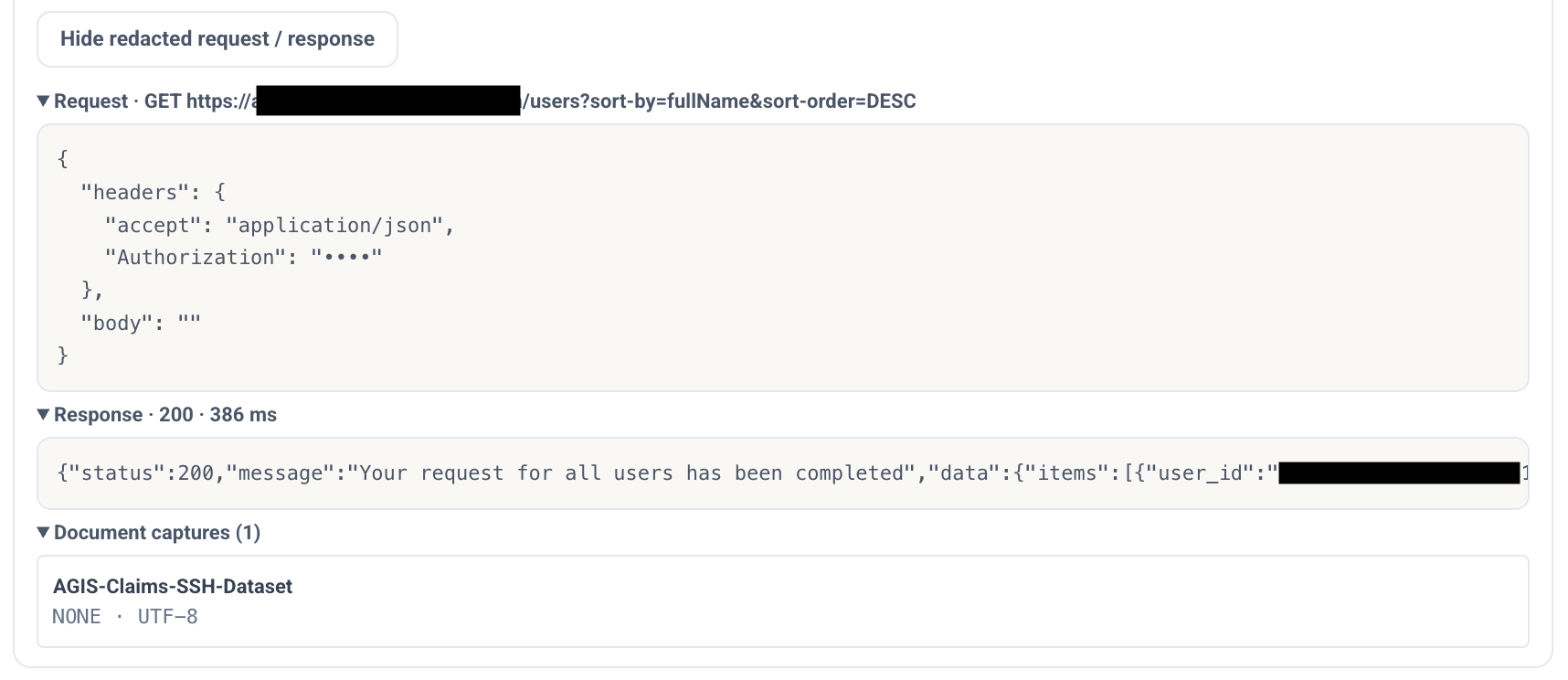
The view contains the following sections. Select the arrow next to a section title to collapse or expand it.
-
Request — the title shows the HTTP method and the URL of the request, such as
GET https://.../users?sort-by=fullName&sort-order=DESC. Below it, the request is shown as JSON with itsheadersandbody. Sensitive values are masked, such as theAuthorizationheader, which shows•••• -
Response — the title shows the HTTP status code and the response time, such as
200 · 386 ms. Below it, the response body is shown -
Document captures — shown when the case captures documents. The title shows the number of captures, such as
(1). Each capture shows the name of its document, such asAGIS-Claims-SSH-Dataset, and its settings, such asNONE · UTF-8The request and response are redacted before they are stored, so this view shows the redacted version.
Download Report
The Download report button is shown below the case list. It is disabled, because downloading the run report is not available yet.
Rerun Failed Only
When a run has a BLOCKED or FAILED result, the Rerun failed only button is shown next to Download report. The button is not shown on a run that passed.
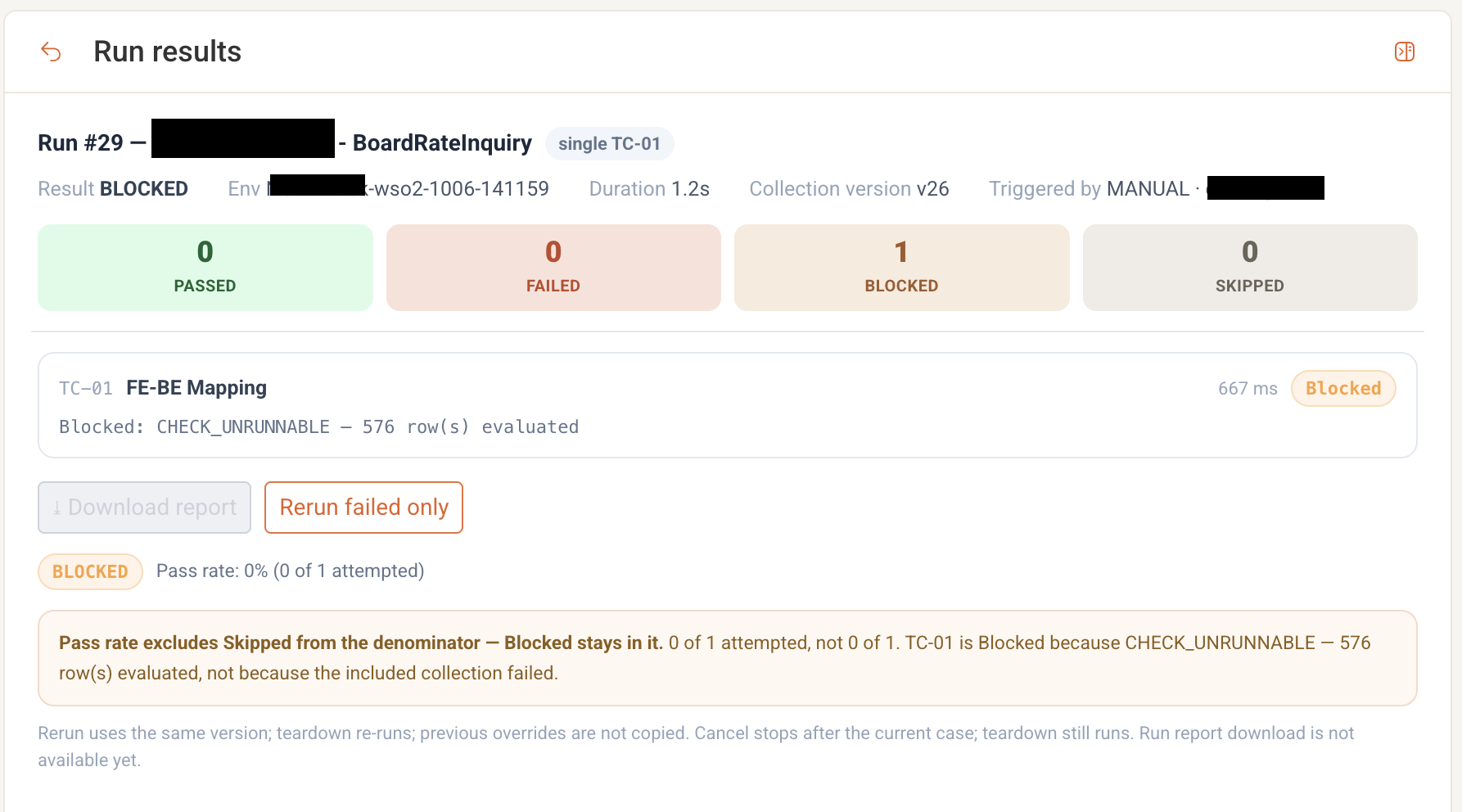
A rerun works as follows:
- It replays the failed and blocked cases of the run, plus the cases they depend on.
- It uses the same version as the run.
- The environment defaults to the one used by the run. Previous overrides are not copied.
- Teardown runs again.
- A rerun is listed as a run in History.
Pass Rate
At the bottom of the page, the pass rate of the run is shown with its result badge, such as Pass rate: 100% (1 of 1 attempted).
The pass rate is calculated from the attempted cases. Skipped cases are not counted, while Blocked cases are still counted.
