Compare
Before you start.
- You need a case with a Request.
- To compare against a file or log, the file must be available as a dataset. A log on a server needs an external source.
- Fixed-length fields needs a sample of the fixed-length payload to decode.
The Compare tab
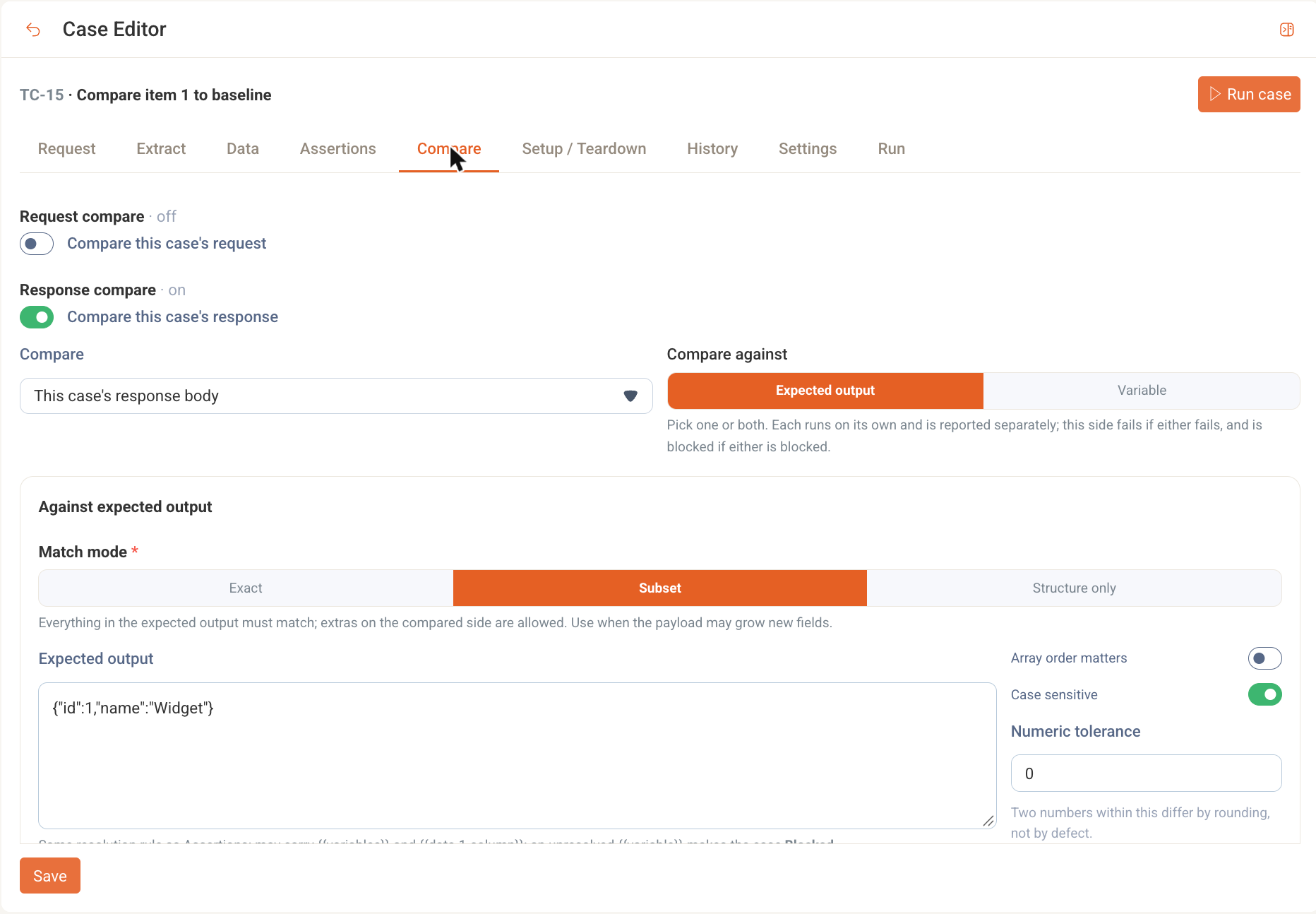
Compare enabled (TC-15): Response compare = on; Compare dropdown ("This case's response body"); Compare against = Expected output | Variable; Match mode = Exact / Subset / Structure only (Subset selected) with its explanation.
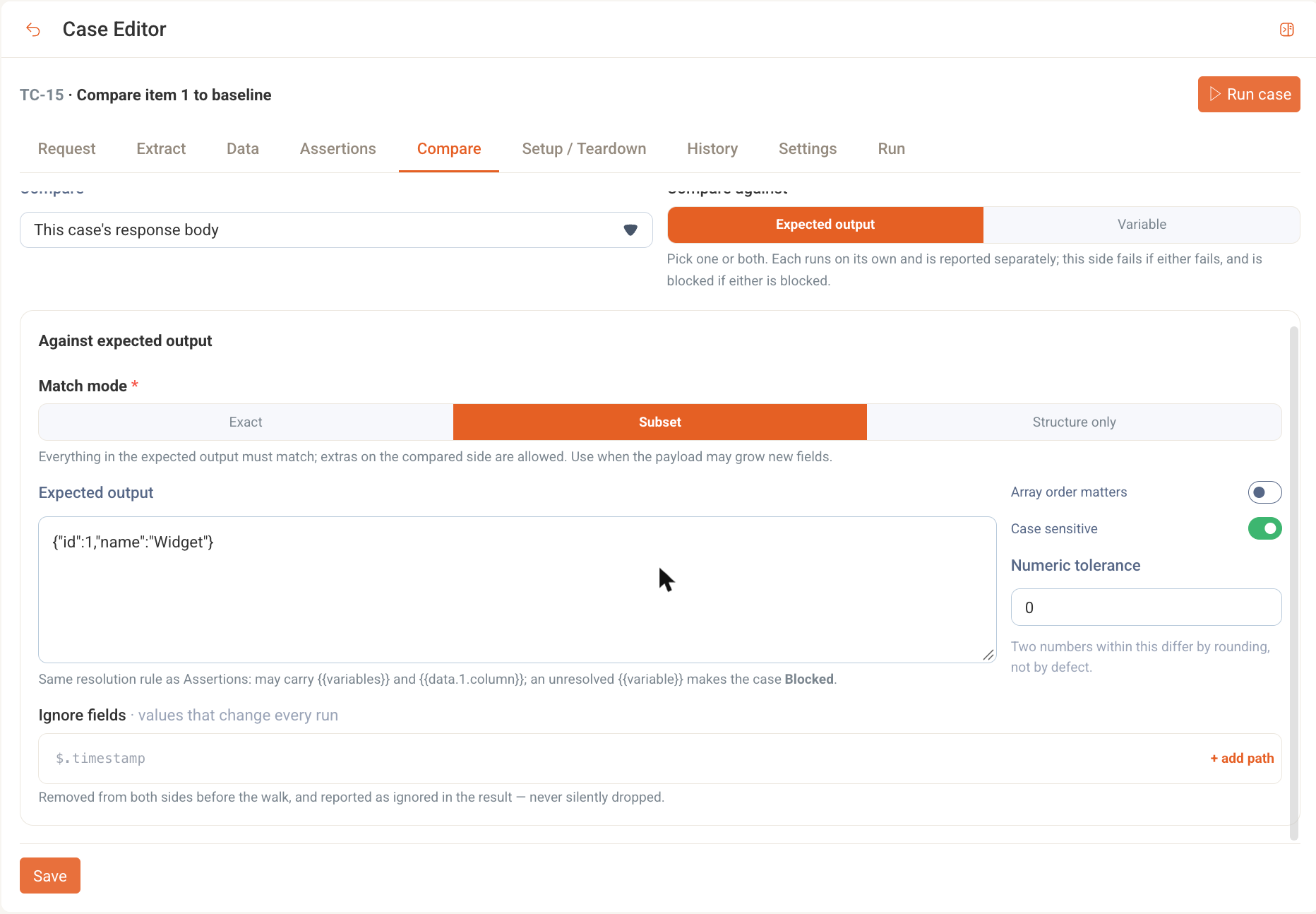
Bottom: Expected output (JSON), Array order matters and Case sensitive toggles, Numeric tolerance, Ignore fields (+ add path).
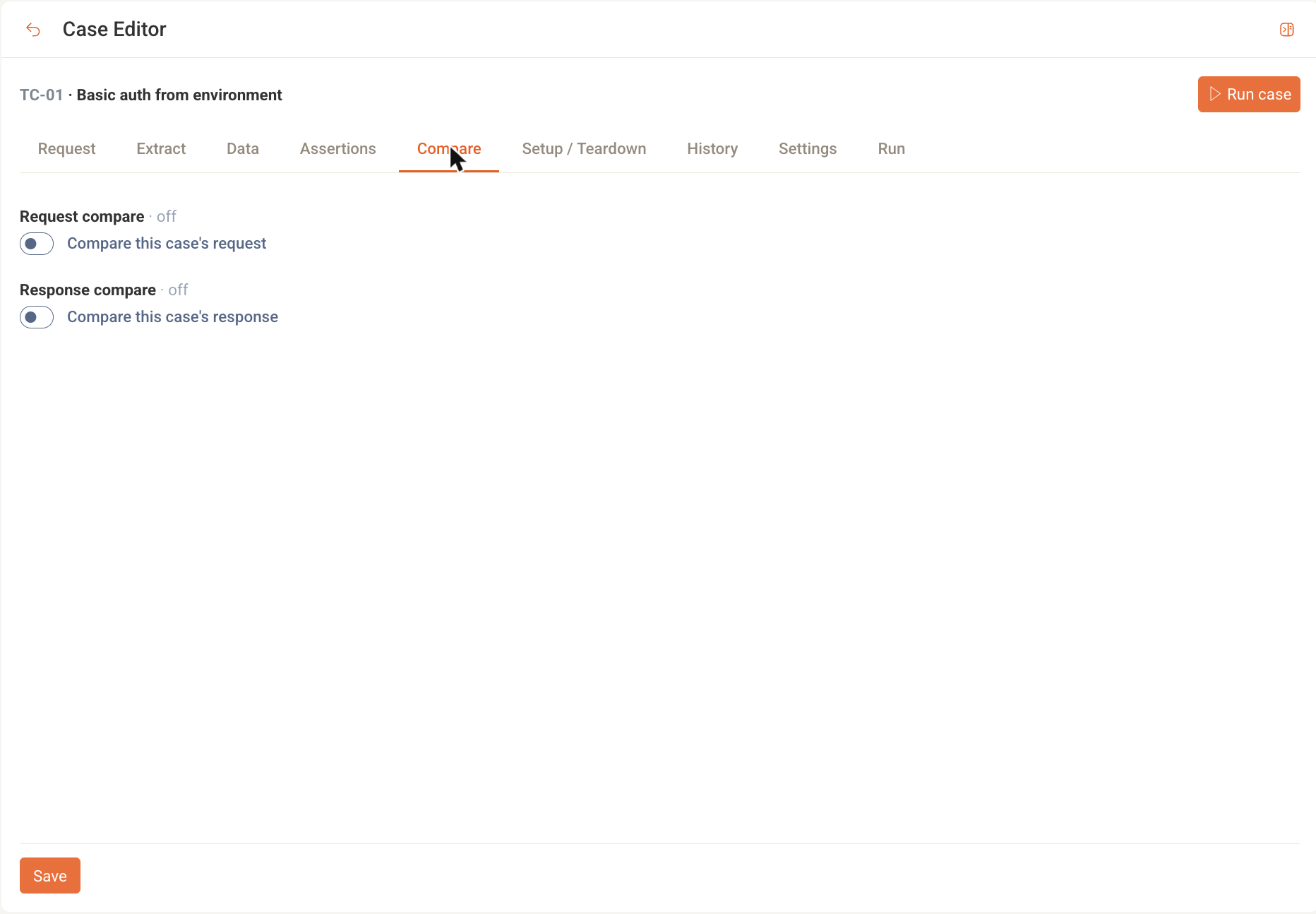
Compare off: two toggles "Compare this case's request" and "Compare this case's response".
Use Compare when a whole response (or request) should match an expected result, a captured value or a layout. Use Assertions for single checks such as a status code or one field value.
Purpose: compare request/response content with another source (document captures, spreadsheet, fixed values). Two sections: Request compare and Response compare; each has a "Compare this case's request/response" toggle.
| Element | Source / options | Function & result |
|---|---|---|
| Compare dropdown | "This case's response body" (or request body), "This case's … headers + body" | The side of this case that is checked. |
| Compare against (button group: Expected output | Variable) | Choice, one or both | "Pick one or both. Each runs on its own and is reported separately; this side fails if either fails, and is blocked if either is blocked." Expected output compares with text you write; Variable compares with a {{doc.x}} capture from a dataset bound in the Data tab (hint: "Choose a capture from a dataset bound on the Data tab"). |
| "Against expected output" card | — | Contains Match mode, Expected output and the options below. |
| Array order matters toggle | Toggle (default off) | When on, array elements must be in the same order. |
| Match mode | Exact, Subset, Structure only, Fixed-length fields | Exact: must be identical (an extra field = a difference). Subset: everything in the expected output must match; extras are allowed. Structure only: field names & value types must match; values may differ. Fixed-length fields: decode a fixed-length record and map per field. |
| Variable | Capture/variable choice | The source compared. Fixed-length needs exactly one {{doc.name}} capture. |
| Expected output | You enter; {{variables}} and {{data.1.column}} allowed | The expected content. Unresolved variable → Blocked. |
| Case sensitive | Toggle (default on) | Upper/lower-case differences count as differences. |
| Numeric tolerance | Number (default 0) | Two numbers whose difference is within this limit are treated as equal (rounding, not a defect). |
| Ignore fields · "values that change every run" | Path input (example $.timestamp) + + add path link; each path becomes a chip | Paths are removed from both sides before comparing and reported as ignored, never silently dropped. |
| "This call returns several blocks" + Which blocks | All blocks / Only one block + Block number | For "Use all" captures: compare every block or just one. A capture that keeps all matches without this setting gives COMPARE_SHAPE_MISMATCH. |
In the run results, a compare is reported per iteration: each dataset row and repeat shows its own outcome, expected value and actual value.
Fixed-length fields: when it appears and its two views
-
Availability. Fixed-length fields is offered as a Match mode only when Compare against = Variable, next to Exact, Subset and Structure only. When you compare against an Expected output, only Exact, Subset and Structure only are listed. The variable is normally a capture such as
{{doc.captureName}}read from a Document dataset (see the Data tab). -
If the server has no reader. If the server does not offer a fixed-length reader, payload encoding or character set, the editor shows a warning: "The server has not provided a supported fixed-length reader, payload encoding, or character set for Fixed-length fields."
-
Two views. The table in Step 3 has a tab strip named "Fixed-length fields workspace":
- Field definitions shows the layout columns (Field, Stored as, Type, Length, Decimals, Values, Actions) and the Create group builder. A line above the table counts "decoded-only field(s)" and "comparison rule(s)".
- Comparison rules shows, per field, Compare with, Expected path or value, Match and Rule. Adding or removing rules here does not change the layout.
-
Preview against a sample. The preview uses the case's capture from a bound Document dataset, or pasted text. If the case has no bound Document sample, the editor tells you to choose Paste sample text (for a dataset fetched at run time). With more than one bound capture dataset you must pick the dataset first. Press Preview fields; a pasted sample must contain the real document with the configured capture. Rows that read the request or response use the latest run.
-
Saving a total count. In the group builder, Save total count as (optional) takes a run variable name (placeholder
run.mbTotal). After Compare runs, the number of repeats, added up over every block compared, is stored there and later cases can read it.
Fixed-length fields: the editor
Choose Fixed-length fields as the match mode. The editor decodes a captured fixed-length payload (fields are read back to back, in byte order) and lets you decide what each field must equal. Open Full-width view if the table is too wide ("Wide table: scroll sideways, or open the full-width view"); Close full-width view returns.
| Part | Controls | Notes |
|---|---|---|
| Header | Payload encoding, Character set | How the document is decoded. "The payload is logged as…" shows the detected form. |
| Step 1 · Layout sheet | Layout dataset (XLS/XLSX), Sheet, Inspect sheets, Header row, First row, Last row (blank = first empty) | Optional. Without a sheet, define fields directly in Step 3. "No XLS/XLSX datasets are available in this collection." if none are bound. |
| Step 2 · Column mapping | Field name column, Length (column or one value for every field), Type (column or one value), and optional Additional sheet mappings: Stored as (column / same value), Decimals (column / fixed value, 0 = none; "Inside Length like 16,9"), Format / values (column / Type default / fixed), New rows compare with (default), Path column (pre-fills Expected path). Re-fill from sheet re-reads. | "Fields are read back to back, so include every byte from the start of the message, including any envelope." Review the proposed changes before replacing fields; review decimal scales against your specification before previewing. Applies only when a layout sheet is selected. |
| Step 3 · Fields & rules (table) | Field, Stored as, Type, Length, Decimals, Values (Allowed values, e.g. MYR,USD), Actions (Move up, Move down, Insert field below, Edit/Ungroup), then per field: Compare with (choose source), Expected path or value, Match, Rule, Path in other capture / XPath / JSONPath, Add rule / Remove rule | A field marked Decoded only has no comparison rule ("Decoded only — no comparison rule is configured."). "Fill a field layout or add fields to start mapping this capture." Buttons Add field and Replace table manage the layout. |
| Group builder | Create group → select consecutive fields (Select them) → Next → Group name, Repeat (Fixed count with Repeat count 1–500 / As many as a field says with Count field / Until end of message), Save total count as (optional), Back, Cancel | Existing groups and conditional fields cannot be selected. "Until end of message" must be the last part of the layout. The total count (added up over every block compared) is saved to the variable after Compare runs. |
| Fill source (per field) | REQUEST_BODY, RESPONSE_BODY, REQUEST_HEADER, RESPONSE_HEADER, VARIABLE, FIXED; plus Match as (value conversion rule) | Where the compared value comes from for each field. |
| Advanced layout: groups and variants | Layout JSON, Apply layout | Edit the layout as JSON when the visual editor cannot express it. |
| Problems panel | Messages such as "Layout or mapping needs attention", "Review fields inferred from unknown sheet values", "Rules reference fields outside this layout" (Remove stale rule), "Backend validation: …" | Fix these before saving. |
| Preview (Results section) | Sample source (which bound capture dataset to use), paste sample text | "Choose which bound capture dataset to use for this preview." Large stored bodies may show "Stored request/response bodies were cut." |
