Generate tests with chat
Let the AGIS chat agents write API test cases for you, then review them and add them to a collection. The agents can also edit a draft, run tests, explain failures and answer questions about your collections.
How it works
- An administrator makes the API Tests - … agents available on your AGIS server (see Before you start).
- The API definition (OpenAPI, WSDL or Postman) of the system you want to test is stored in a collection. The agent checks every generated field against it.
- In Studio you tick the agent for the job. Test writing is done by API Tests - Generate tests.
- You describe the scenario in plain language. The agent drafts test cases as a generation.
- You review the generation in the collection's Generated tab and fix any problems.
- You publish the collection and run it as usual.
Admin: API Tests agents available
You:   Environment → Collection → API definition (Read as definition)
       → Studio: tick "API Tests - Generate tests" → Chat: describe the scenario
       → Generated tab: review and add → Cases tab → Publish → Run
Before you start
On a new server nothing exists yet. Work through this list in order. Each item links to the page that explains it.
| # | You need | Who | Where to get it |
|---|---|---|---|
| 1 | The API Tests agents installed and showing Live | Administrator | See Ask your administrator for the agents below. |
| 2 | Permissions: Build Collection, Generate Test, Publish Collection, Run Test (and View Run to see results) | Administrator | Ask for these on your role. Without Generate Test the collection has no Generated tab. See Permissions. |
| 3 | An environment for the system under test (Base URL, authentication) | You | Environments. A new collection needs a default REST/SOAP environment. |
| 4 | A secret, if the API needs credentials | You | Secrets. |
| 5 | A collection | You | Creating a collection. |
| 6 | An API definition (OpenAPI, WSDL or Postman file) inside the collection. A new collection has none. | You | Step 1 to 3 below, then Definitions. |
| 7 | A clear scenario: which operation, what should succeed, what must be rejected | You | What to type. |
After the tests are generated you also need to publish and run the collection. Only a published collection can be run.
Ask your administrator for the agents
The chat agents are not created by users. An administrator installs them on the server. If you cannot find them, ask your administrator to make the API Tests agents available.
To check: open Build → Agent Builder and type API Test in the search box. A working setup lists the API Test agents, each with a green Live status and a tool count.
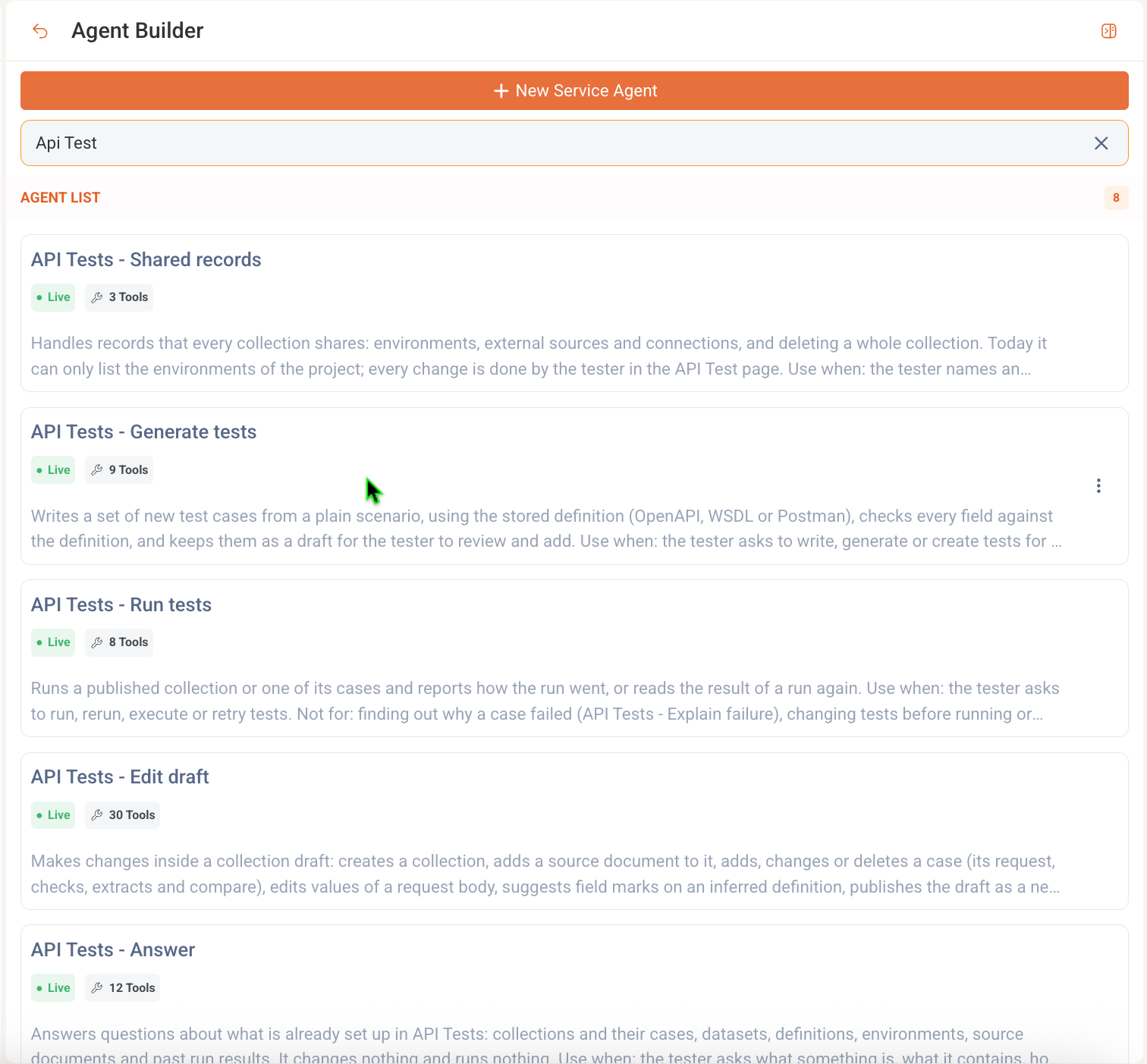
Agent Builder searched for "Api Test". Each API Test agent shows Live and its number of tools. For the general Agent Builder screen, see Agent Builder.
What your administrator should provide:
| Agent | Needed for | Required? |
|---|---|---|
| API Tests - Generate tests | Writing new tests from a scenario and the stored definition | Yes, for this page |
| API Tests - Edit draft | Changing a case, publishing, creating collections by chat | Recommended |
| API Tests - Run tests | Running a published collection or case by chat | Recommended |
| API Tests - Explain failure | Explaining why a case failed | Optional |
| API Tests - Map dataset | Mapping or creating dataset values for a case | Optional |
| API Tests - Answer | Questions about what is already set up | Optional |
| API Tests - Shared records | Environments and external sources | Optional |
| API Test Agent | General agent for jobs the specialised agents do not cover | Optional |
If an agent is missing or not Live, the chat cannot use the API Test tools. It will answer with generic text and will not create any cases (see What goes wrong).
Step by step
-
Add your API file in the Source panel. Open Build, then the left panel tab Source. Use + New Source to upload the OpenAPI, WSDL or Postman file, or use a file that already shows "Ready in Workspace". A file showing a red "Extracting Failed" cannot be used.
-
Submit the file to the collection. Click the file's ⋮ menu, then Submit to API test. In the dialog Submit to API Test Dataset, pick an existing collection from COLLECTION LIST, or open CREATE NEW COLLECTION to create one and submit the file together (collection name, description, default environment). Click Submit. Submit stays disabled until you pick a collection or fill the new-collection fields.
infoFile types:
.csvand.jsonbecome Rows datasets..xlsx,.xls,.logand.txtbecome Document datasets. An OpenAPI, WSDL or Postman file becomes a document you can read as a definition (next step). -
Turn the file into a definition. Open the collection in the API Test panel, go to the Datasets tab, and click Read as definition on the file you submitted. It changes to Reading… and then shows a Definition tag, and appears in the DEFINITIONS table. If you only have a sample response, you can instead paste it in a case's Request tab under Sample response and click Create definition from response. See Definitions.
-
Open Studio and pick the agent. In the left panel open Studio and type
apiin the search box. Under AGENTS, tick API Tests - Generate tests. You can also tick your collection under API TESTS as extra context. If the agent is not in the list, go back to Ask your administrator for the agents. -
Check the selection chip in the chat box. After ticking, the chat input shows a chip such as "1 Studios ⓧ". Ticking a collection as well makes it "2 Studios". The ⓧ clears the selection. If there is no chip, the chat uses only the general model and cannot create tests.
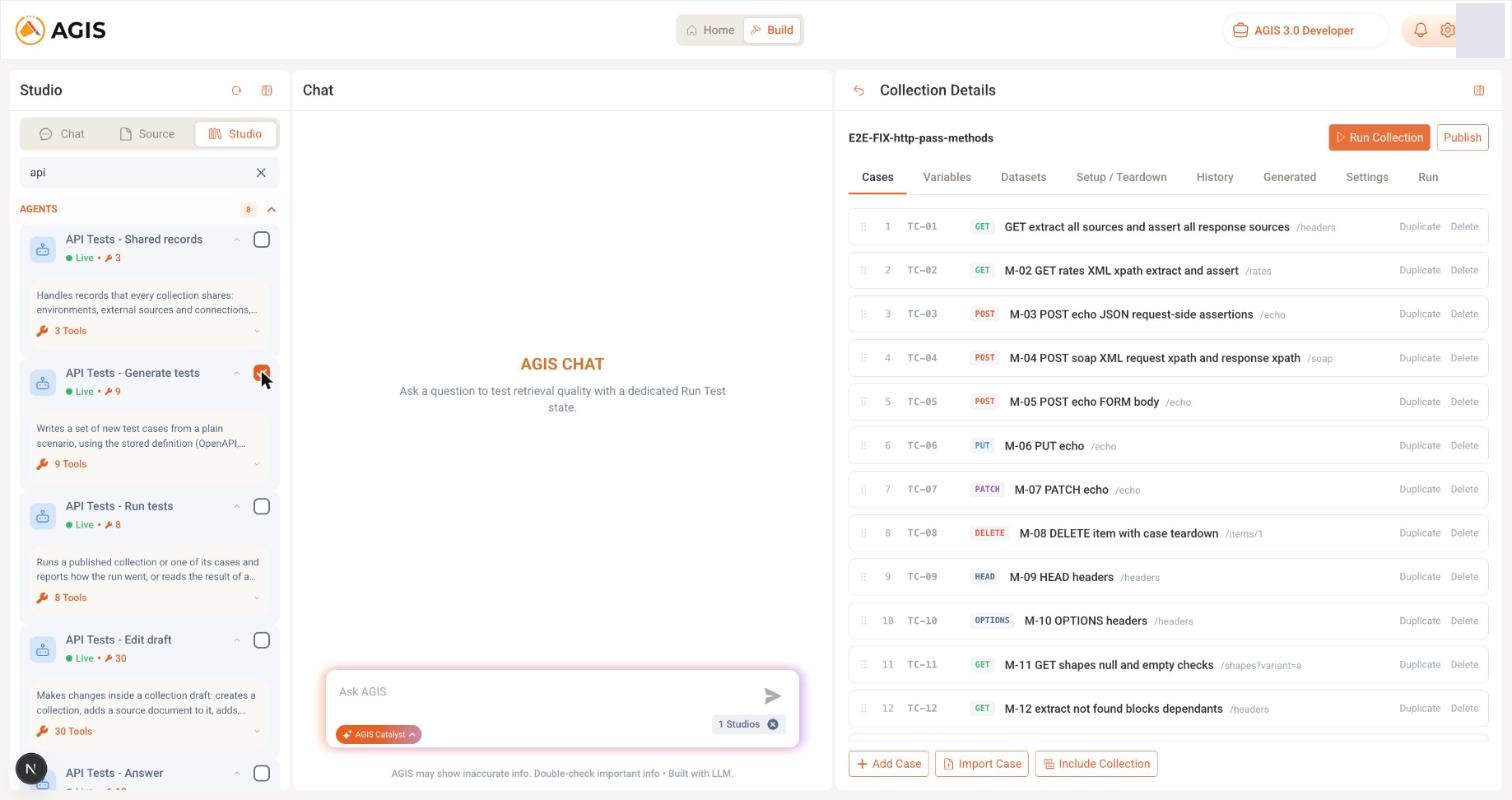
-
Start a new chat and describe the scenario. Switch to the Chat tab, click + New Chat, type your prompt and send it. Name the collection, the operation, what should succeed and what must be rejected. Examples are in What to type.
-
Answer clarifying questions. If the agent asks, reply briefly with the missing detail: which operation, which values, the expected status or rejection reason.
-
Open the generation in the Generated tab. When the chat turn finishes, the collection page reloads. Open the collection and go to the Generated tab. Each generation is one row with the scenario text, test count, date and status chips such as "1 added". Click the row to open Generated test case review.
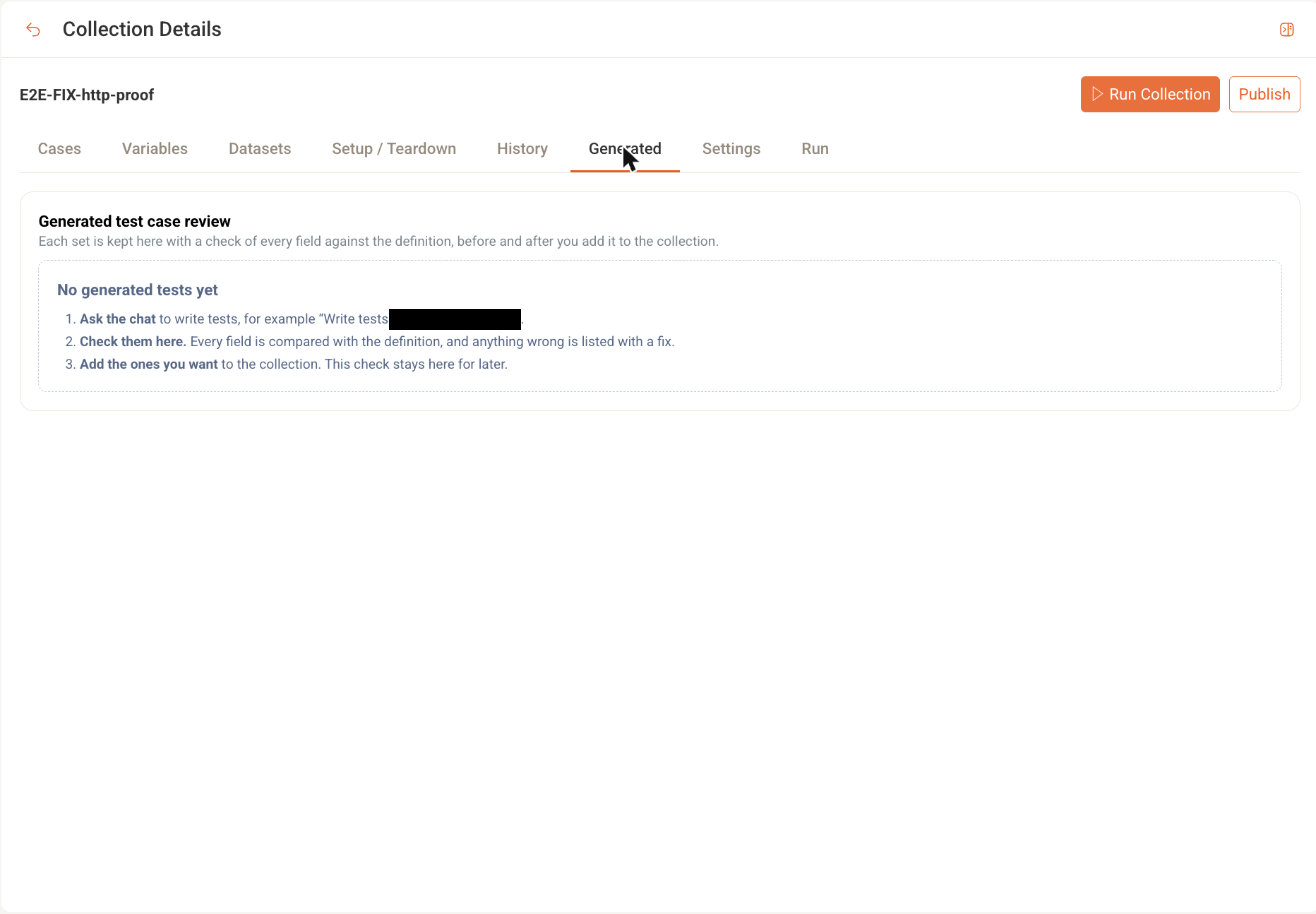
Before the first generation the tab shows "No generated tests yet".
-
Review and fix problems. For each test check What it sends, What it checks and Technical details. Fix flagged rows with Use definition (replace an unknown name), Edit (fix a value, for example one that is too long) or Keep (accept as is). A row that says Fix this in the case editor is fixed in the case itself. See Review the result.
-
Add the tests to the collection. Tick the tests you want and press Add. Tests that still need a fix (
FIX_NEEDED) cannot be added. Use Discard for the ones you do not want. Added tests show "Added as TC-n" with Open in Cases.cautionThe agent may have already added the cases for you. Always check the Cases tab and the Unpublished changes badge after a chat run.
-
Publish and run. In the Cases tab the new rows carry a Generated · report tag (click it to jump back to the report). Click Publish (fix anything listed under "Fix or review this case before publishing"). Then run the collection: see Running tests. You can also ask the chat to run it with API Tests - Run tests ticked.
What to type (prompts)
A good prompt names the target, the happy path and the rejections. Replace the placeholders in angle brackets with names from your own API definition and collection.
Generate tests (agent: API Tests - Generate tests)
| Goal | Prompt |
|---|---|
| Tests for one operation | Write tests for <operation name> |
| Positive plus one negative | Write tests for <operation name>: <valid input> should succeed, and a missing <field> must be rejected. |
| Only negative tests | Generate negative tests for <operation name>: missing <field>, wrong <field> |
| Cover everything | Create happy-path tests for every operation |
| Length or constraint | Write tests for <operation name> where <field> is too long. |
| Name the collection | In collection <collection name>, write tests for <METHOD /path>: <input> returns <expected result>, <other input> is rejected with <status>. |
Prompts for the other agents
| Agent | Prompt examples |
|---|---|
| API Tests - Edit draft | On <case id>, check the status is <code> and the <field> field exists · Create a collection for <API name> · Change the <field> in the <case id> body to <value> · Delete <case id> · Publish the <collection name> collection |
| API Tests - Run tests | Run <case id> on <environment name> · Run the <collection name> collection · Run it again on <other environment> · Did the last run pass? |
| API Tests - Explain failure | Why did <case id> fail? · What went wrong in the last run? · How do I fix the <field> check? |
| API Tests - Map dataset | Use <dataset name> for <case id> · Map the columns of <file name> onto <case id> · Make a dataset with a value at minimum, half and over maximum length |
| API Tests - Answer | What does <case id> check? · Which datasets does <collection name> use? · What is the base URL of <environment name>? · Why is the Run button greyed out? |
| API Tests - Shared records | Change the base URL of <environment name> · Add an SFTP source for <purpose> · Test the connection to <source name> |
Prompt tips. (1) Say which API operation. (2) State the expected outcome (status, value, rejection reason). (3) Ask for negatives explicitly, otherwise you may only get happy paths. (4) One scenario per prompt gives cleaner drafts. (5) Do not paste secrets; add secret values yourself on the Secrets screen. (6) Use only operations that exist in the stored definition.
Review the result
A generation can wait for your Add, but the agent can also save the cases straight into the collection. The report shows why each test can or cannot be trusted:
| Element | Meaning |
|---|---|
| Generation row (Generated tab) | Scenario text, collection key, test count, timestamp and status chips such as "1 added". |
| Test card | Test has (summary), What it sends (request preview, can be copied), What it checks (assertions, extractions, compare mapping), Technical details (field table). One panel opens at a time. |
| Parts (Request, Assertions, Extract, Compare) | Each shows Ready or Check, with the basis of every value: Plan (from your prompt) or Definition (from the API definition). |
| Problem rows | Name not in the definition → Use definition. Enter a value / too long → Edit. Keep for acceptable ones. Fix this in the case editor for path problems. On purpose for deliberately invalid tests. |
| Add / Discard | Add copies the ticked tests into Cases with the tag "Generated · report". Discard removes them from consideration. A generation becomes SAVED when nothing is left to decide. |
The Generated tab
The tab only appears if your account has the generate permission. Generations are not created from this screen; they come from the chat agent.
| Element | Function and result |
|---|---|
| Generation list | One row per generation: scenario, test count, status chips. Empty state: "No generated tests yet" with three steps. |
| "Generated test case review" report | Problem summary banner and test list; problem tests open first. |
| Use definition | Replaces a name that is not in the definition with the correct one. The row becomes Fixed. |
| Edit | Changes a value that breaks a limit (for example "That is N characters. Use M or fewer."). |
| Keep | Keeps the value as is. The row becomes Kept. |
| Add (action bar) | Adds the selected tests to the Cases tab. FIX_NEEDED tests cannot be added until fixed. |
| Discard | Discards a test after a confirmation. It stays visible, marked Discarded. |
| Generation log (bottom of a report) | A collapsible log of what the agent built: Built tests, Request fields and Response fields. |
Editing a generated test
A test that is not yet added can be edited before you add it.
| Element | Function and result |
|---|---|
| Edit on a test | Opens the case definition as JSON ("Edit the request, assertions, extractions or compare"). Invalid JSON shows "This is not valid JSON." Apply to draft saves your change into the generation and the server checks it again. |
| Draft comparison | Structured compare editor inside Edit: + Add comparison / Remove comparison, Compare (Response or Request), Scope (Body, or Headers and body), Against (a variable or Expected output), Match mode, Ignore fields, Array order matters, Case sensitive. See Compare. |
| Masked sensitive values | Passwords, keys and tokens from the definition are masked and not copied into generated cases. Enter them yourself in the case, or use a secret or variable, before running. |
| Cases with errors or a literal secret | Cases with errors are still saved with flags, and they block publishing until fixed or reviewed. A case that contains a literal secret is not saved. |
The 8 API Test agents
Tick the agent that matches the job in Studio. Tick several if one chat needs more than one, but see What goes wrong about short replies.
| Agent | What it does | Use it when… | Not for |
|---|---|---|---|
| API Tests - Generate tests | Writes a set of new test cases from a plain scenario using the stored definition, checks every field against it and keeps them as a draft for review. | You ask to write, generate or create tests for an API, an operation or a scenario. | One case described field by field (Edit draft); driving a case from a dataset (Map dataset). |
| API Tests - Edit draft | Changes inside a collection draft: creates a collection, adds a source document, adds, changes or deletes a case, edits body values, publishes, changes name, description or environments, reorders cases, edits includes, run variables and setup/teardown, duplicates or copies a case. | You describe a specific change. | Writing a set of tests from a scenario; datasets; environments and external sources; running. |
| API Tests - Run tests | Runs a published collection or one case and reports how the run went, or reads a run result again. | Run, rerun, execute, retry. | Why a case failed; changing tests. |
| API Tests - Explain failure | Explains why a case failed from its failed checks, request and response. It can propose one fix that you confirm before it is saved to the draft. | "Why did it fail / how do I fix it". | Re-running; a change you already described. |
| API Tests - Map dataset | Works out where each dataset column is used in a case and shows a card to accept before anything changes. Can also make a new CSV dataset from a described scenario. | A whole dataset should drive a case; you ask for a dataset of test values. | One named column in one place; MQ cases (not supported). |
| API Tests - Answer | Answers questions about what is already set up: collections, cases, datasets, definitions, environments, source documents, past run results. Changes and runs nothing. | "What is / what does / does it pass". | Changing, running, or explaining failures. |
| API Tests - Shared records | Handles records shared by all collections: environments, external sources and connections, deleting a whole collection. Today it can only list the environments; changes are made on the API Test page. | You name an environment, external source or connection. | Anything inside a collection draft; secret values. |
| API Test Agent | General API Test agent. | The specialised agents do not fit. | — |
What the chat can do that the screens cannot
| Capability | What it does |
|---|---|
| Draft snapshot and undo | Saves the collection draft before the agent changes it and can restore it. After an undo, reload the collection page. |
| Restore a deleted record | Brings back an environment or external source that was deleted. Records created or deleted by the agent can show a Restore chip. |
| Create and edit records by chat | Create a collection, case, include, environment or external source; edit a collection, case, variables, setup/teardown and request bodies; duplicate or copy a case; publish a collection. |
| Run and rerun | Run a collection or one case, rerun failed cases, cancel a run, read a run result. The agent asks for confirmation before it runs, because a run calls the real system under test. |
| Explain a failure | Reads the failure facts of a case and explains them. The verdict is TEST_FAULT, API_DEFECT or UNSURE. A fix is proposed only for TEST_FAULT, and saved only after you confirm. |
| Datasets | Add a source file as a dataset, generate a new dataset from a described scenario (one value column per dataset). |
| Look-ups | Find collections, list environments, external sources and secrets (names only), and read cases, datasets and definitions. |
What goes wrong
| What you see | Why | What to do |
|---|---|---|
| A generic answer such as "I lack the necessary tools", or generic questions about endpoints and frameworks. The chat creates nothing. | No API Test agent is selected (there is no "n Studios" chip), or the agents are not installed on this server. | Tick API Tests - Generate tests in Studio and check the chip. If the agent is not listed, ask your administrator (details). |
| A prompt that only names an environment gets nothing useful. | An environment is a connection, not an API definition. There is nothing to generate from. | Store the API definition in the collection first, then name the operation in the prompt. |
| The agent added a source file you did not choose. | The prompt did not say which definition to use, so the agent picked one from the project's source files. | Submit the definition yourself first, and name the collection and operation in the prompt. |
| Chained tests fail ("create, then fetch it by id"), while independent tests work. | A later case needs a value that an earlier case has not stored. | Start with independent tests. Declare the run variable first (Variables tab), or add the linking case by hand. |
The warning BASIS_MISSING appears on a value like {{run.x}}. | The test refers to a run variable that nothing sets. | Give the variable a value (collection Variables or a run override), or edit the request body. |
| A short reply such as "yes, go ahead" is picked up by the wrong agent. | Several agents are ticked and the reply carries no context. | Tick only the agent you need, or repeat the full instruction. |
| "Your session has expired". | The sign-in session ended. | Reload the page, tick the agent again and resend. |
| The dataset generator cannot make two columns. | It supports exactly one value column. | Create two datasets, or define the dataset manually. See Variables and datasets. |
Troubleshooting
| Symptom | Likely cause | What to do |
|---|---|---|
| The API Test agents are missing in Studio or Agent Builder | They are not installed on this server | Ask your administrator (details). |
| An agent is listed but not Live | The agent is not active | Ask your administrator. |
| No Generated tab | Missing Generate Test permission | Ask your administrator for the Generate Test permission. |
| Nothing in the Generated tab | The chat did not create a generation, or the page was not reloaded | Wait for the chat turn to finish, reopen the collection and check that the right agent was ticked. |
Test cannot be added (FIX_NEEDED) | A field name or value fails the definition check | Use definition, Edit, Keep, or fix it in the case editor. |
| Submit button disabled in the Submit dialog | No collection selected | Pick a collection, or fill in the new-collection fields. |
| File shows "Extracting Failed" | The source file could not be processed | Use the retry icon or upload a clean copy. |
| Publish fails after Add | Undeclared variables or invalid cases | Read "Fix or review this case before publishing" and declare the variables in the Variables tab. See Variables and datasets. |
| The collection cannot be run | It has not been published | Publish it first, then follow Running tests. |
For other problems see Troubleshooting.
Quick checklist
- ☐ Administrator has installed the API Tests agents, which show Live
- ☐ Your role has the build, generate and run permissions
- ☐ Environment and, if needed, secret exist
- ☐ Collection exists and has a definition inside (Datasets → Definition tag)
- ☐ Studio: API Tests - Generate tests ticked, chip shows "1 Studios"
- ☐ Prompt names the operation, the happy path and the rejections
- ☐ Generated tab: open the generation, fix flagged rows, Add
- ☐ Cases tab: tests tagged "Generated · report", Publish, Start run
