Connect External Sources
Users can add new source(s) by clicking on + New Source.
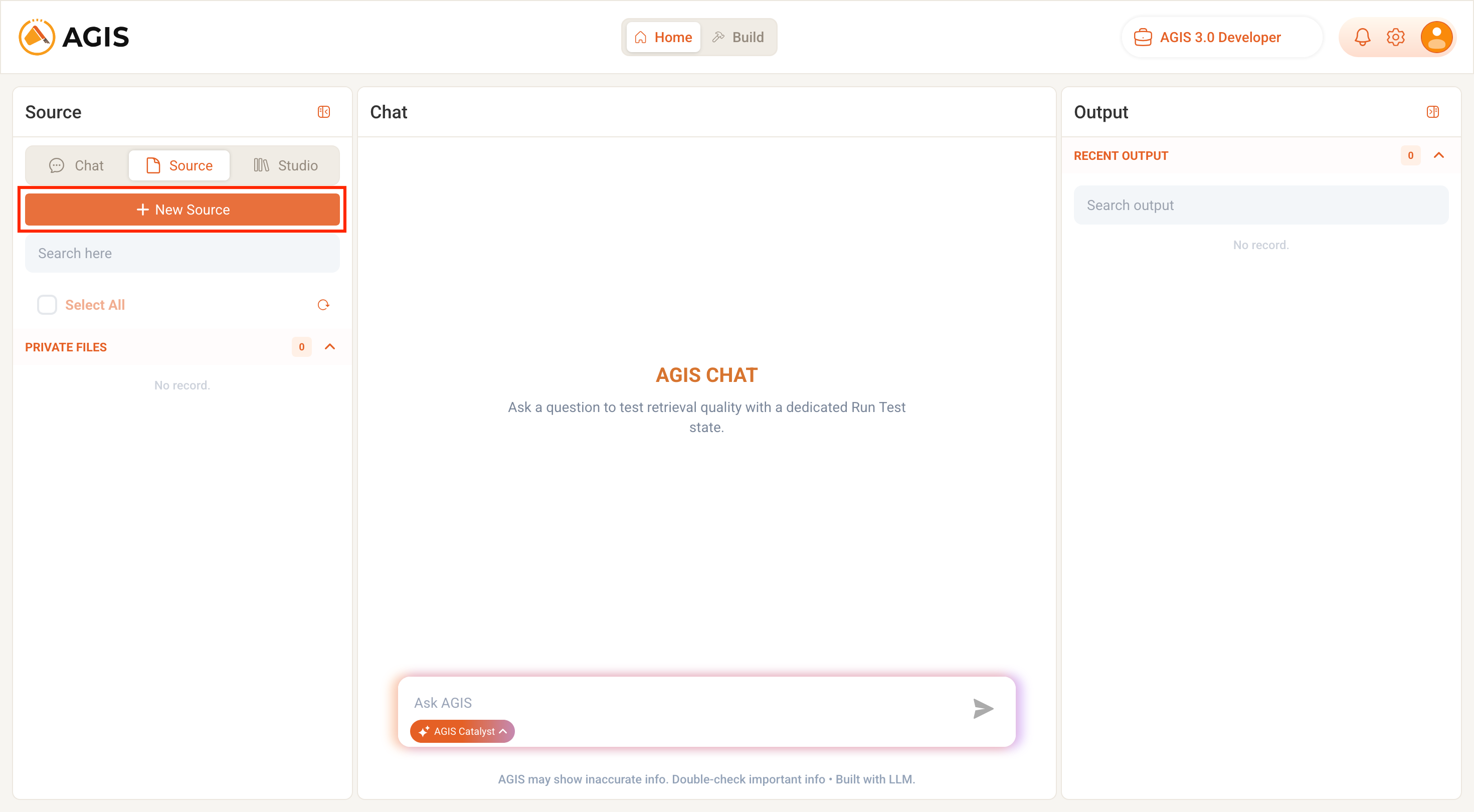
By connecting to External Sources, users will be able to import documents from an External Source. . The External Source's connector in Connectors for the respective workspace must first be configured before importing can be done.
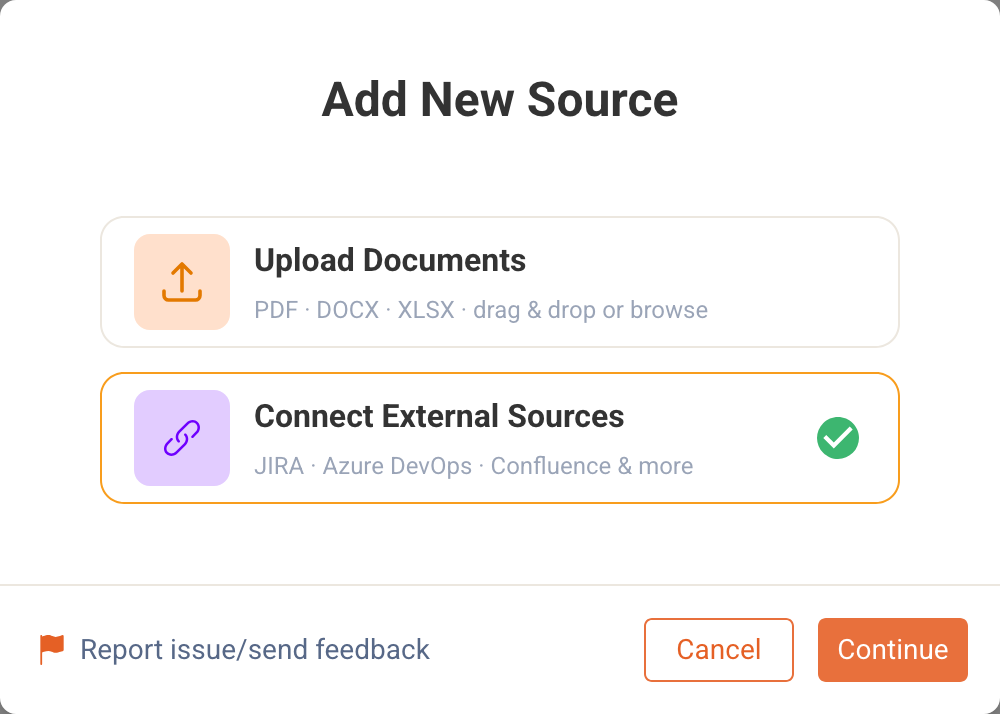
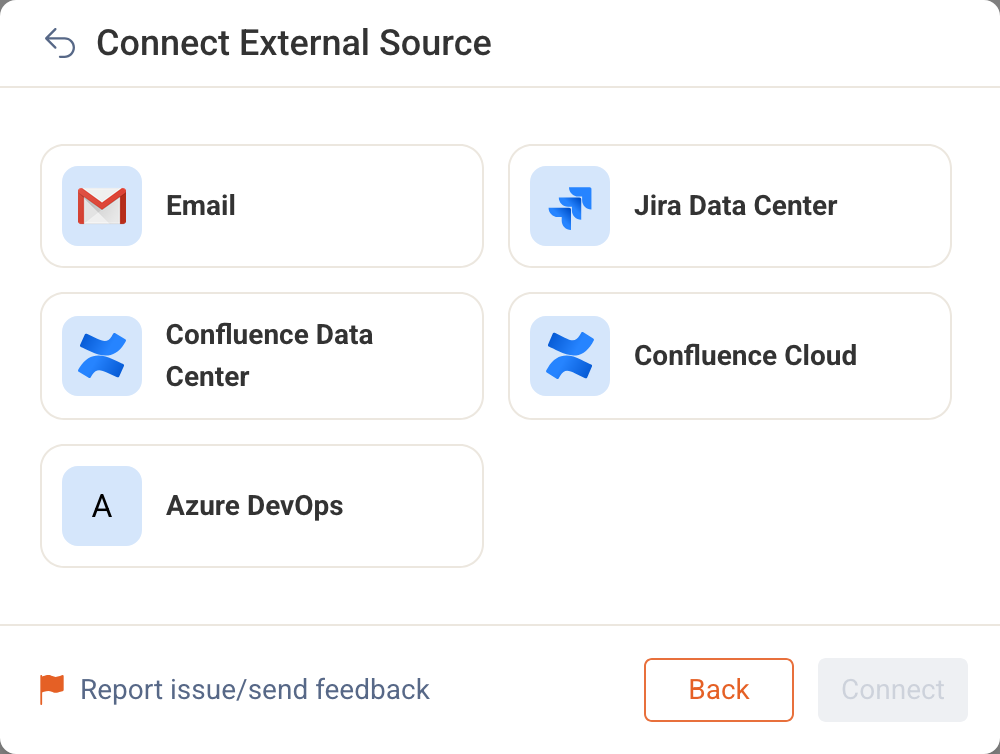
Upon clicking Connect, the Upload Documents modal will pop-up. Users will be able to select one or more documents to be imported from the selected External Source.
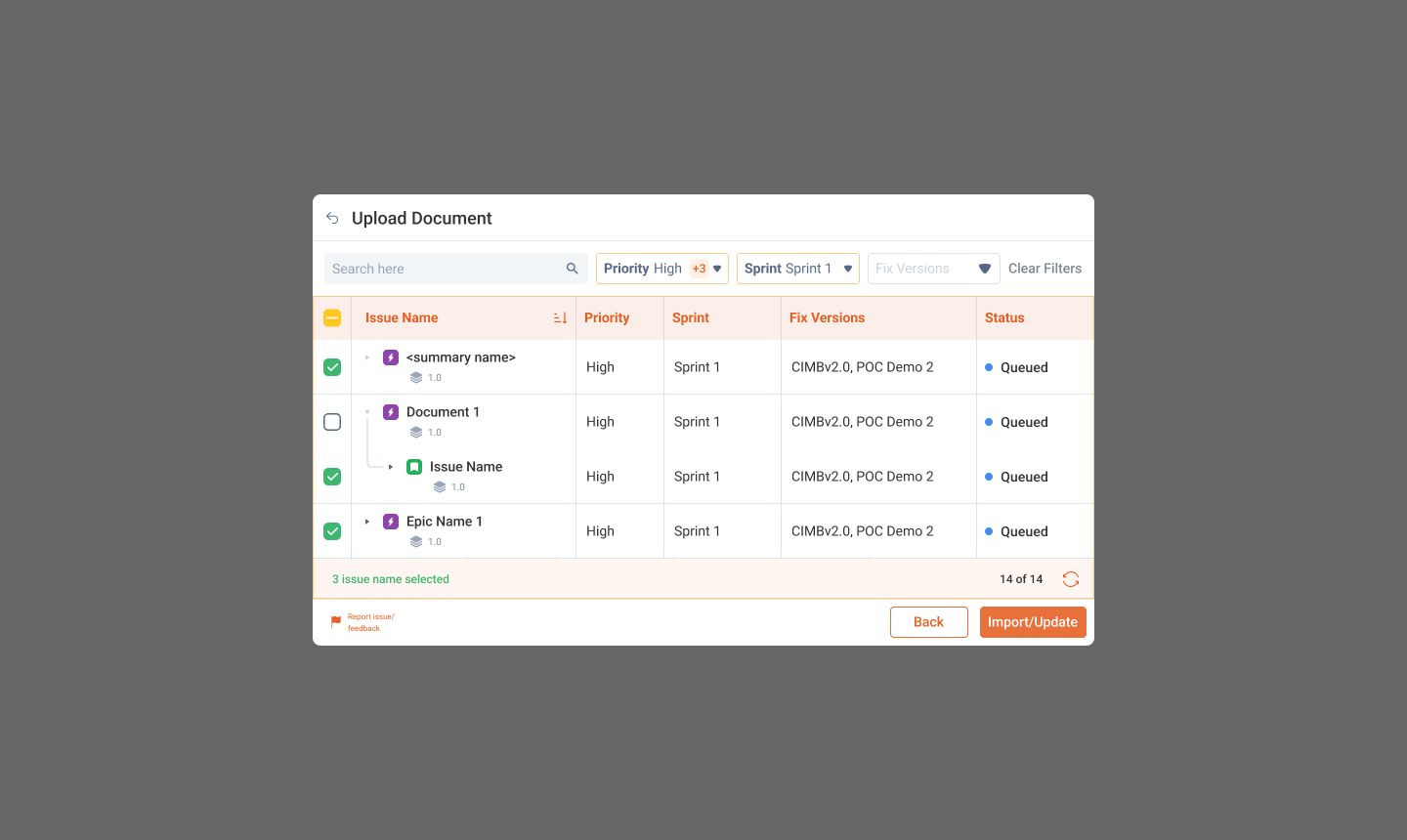
- Search and Filters, allows users to find documents by name, or narrow the list by Priority, Sprint, and Fix Versions.
Clicking on Clear Filters, resets any applied search of filters. - Checkboxes, select individual issues, or use the header checkbox to select or deselect all.
- Issue Name, displays each issue's name, type icon, and version. Expand parent items, such as documents and epics, to see their child issues.
- Priority, Sprint, and Fix Versions, displays the details of each issue.
- Status, displays the import status of each issue. Items not yet processed show
Queued.
Clicking Import/Update imports the selected file(s) into Source. If the file has previously been uploaded, it will be updated instead.
