Review Content
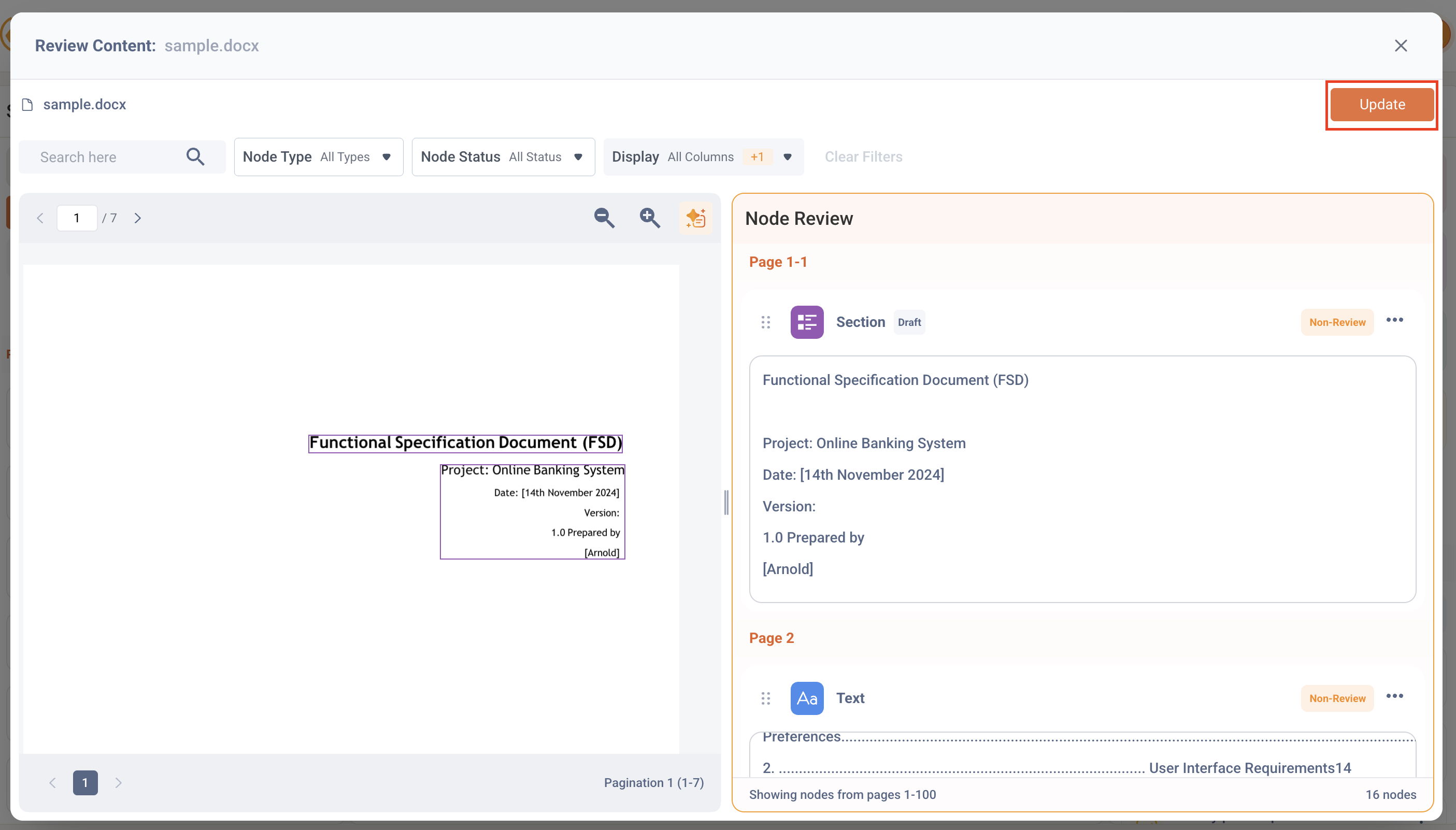
Review Content can be accessed by clicking on the three-dots menu on a document that has the Pending Content Review or Ready in Workspace status.
Allows the user to review and update the nodes in a document.
Review Content is available for DOCX, XLSX, and PDF files only.
Review Content Window
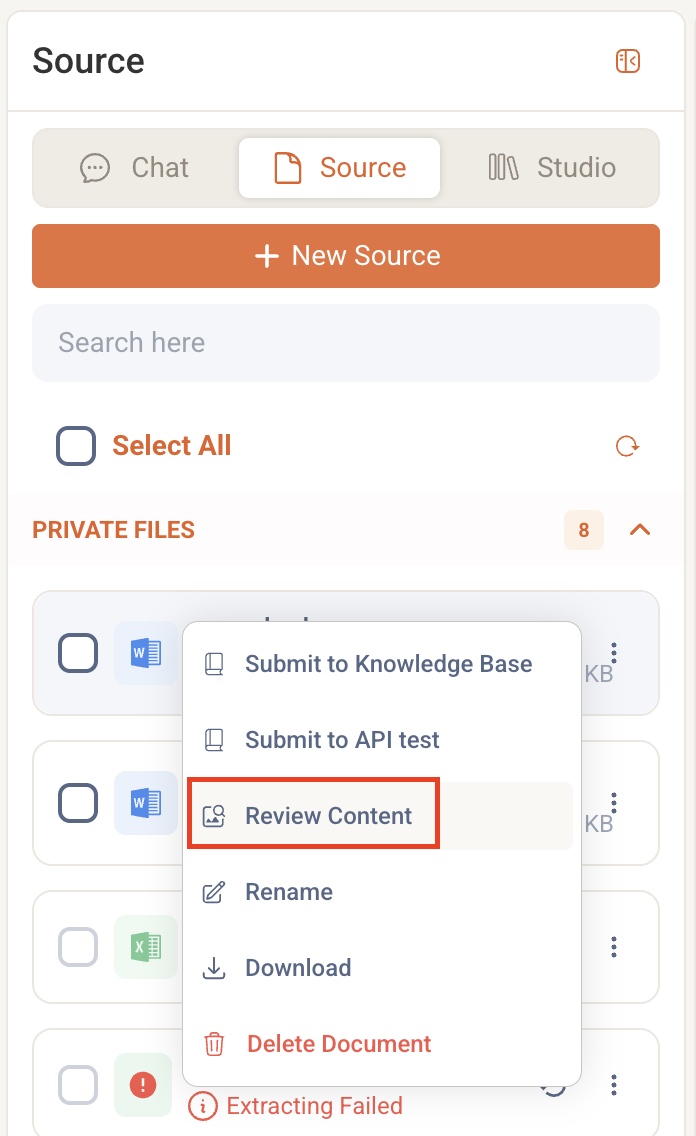
The Review Content window displays the extracted content of the selected document as nodes (e.g. Section, Text, Table, Image). Users can edit, merge, add, or delete nodes to correct the extracted content. Click Update to have the file reprocessed with the changes that have been made.
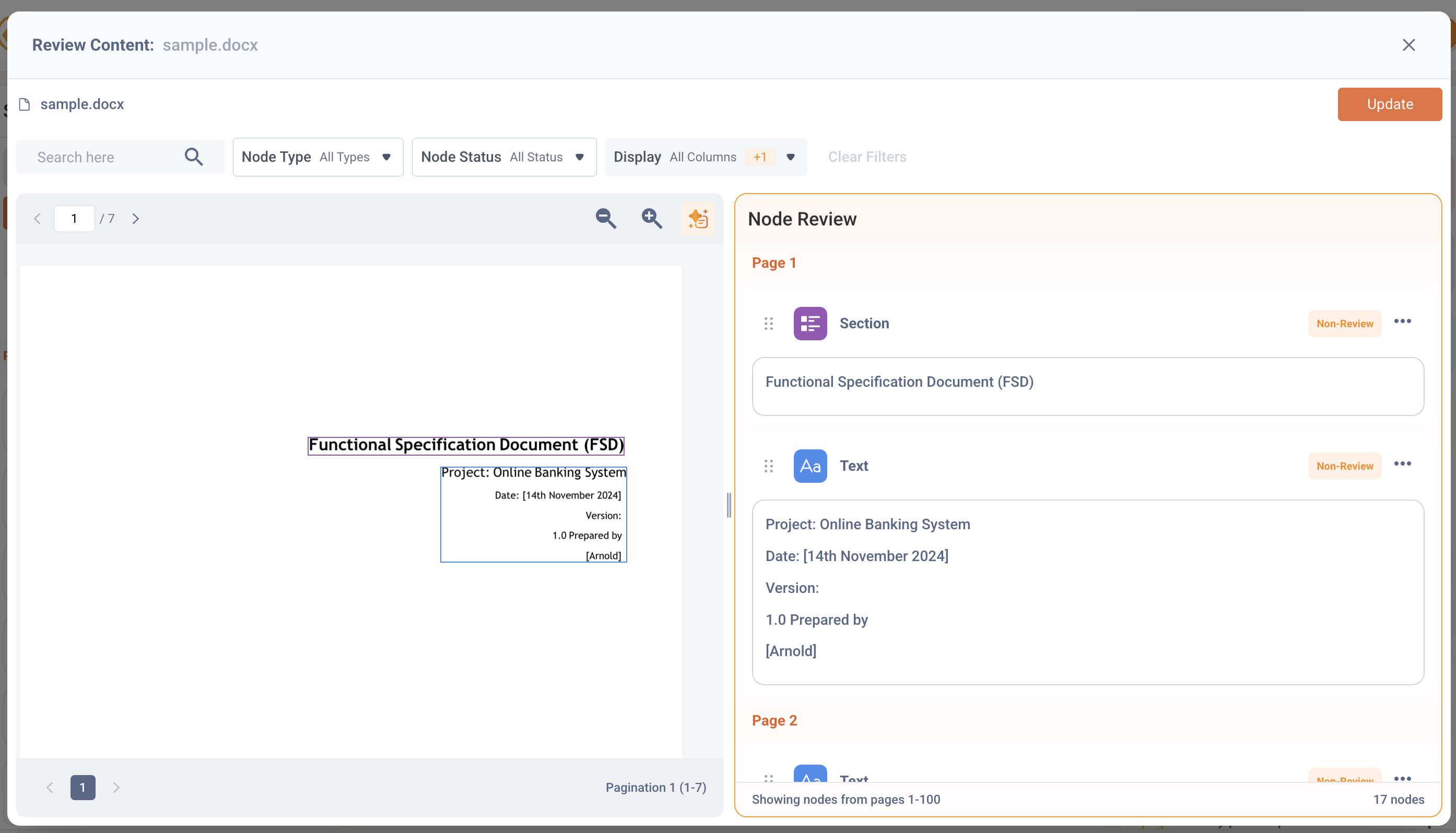
The window is divided into the following areas:
- Filters - Search, Node Type, Node Status, and Display (columns). Click Clear Filters to reset them.
- Document Preview (left) - Displays the document page by page, with page navigation, zoom in/out, and the Add/Edit Node button. Detected nodes are outlined on the page.
- Node Review (right) - Lists the nodes by page. The total number of nodes is shown at the bottom of the panel.
Node Status
Each node has one of the following statuses:
Non-Review- The node has not been reviewed.Draft- The node has been edited and the changes have not been finalized.Reviewed- The node has been reviewed.
Edit Node
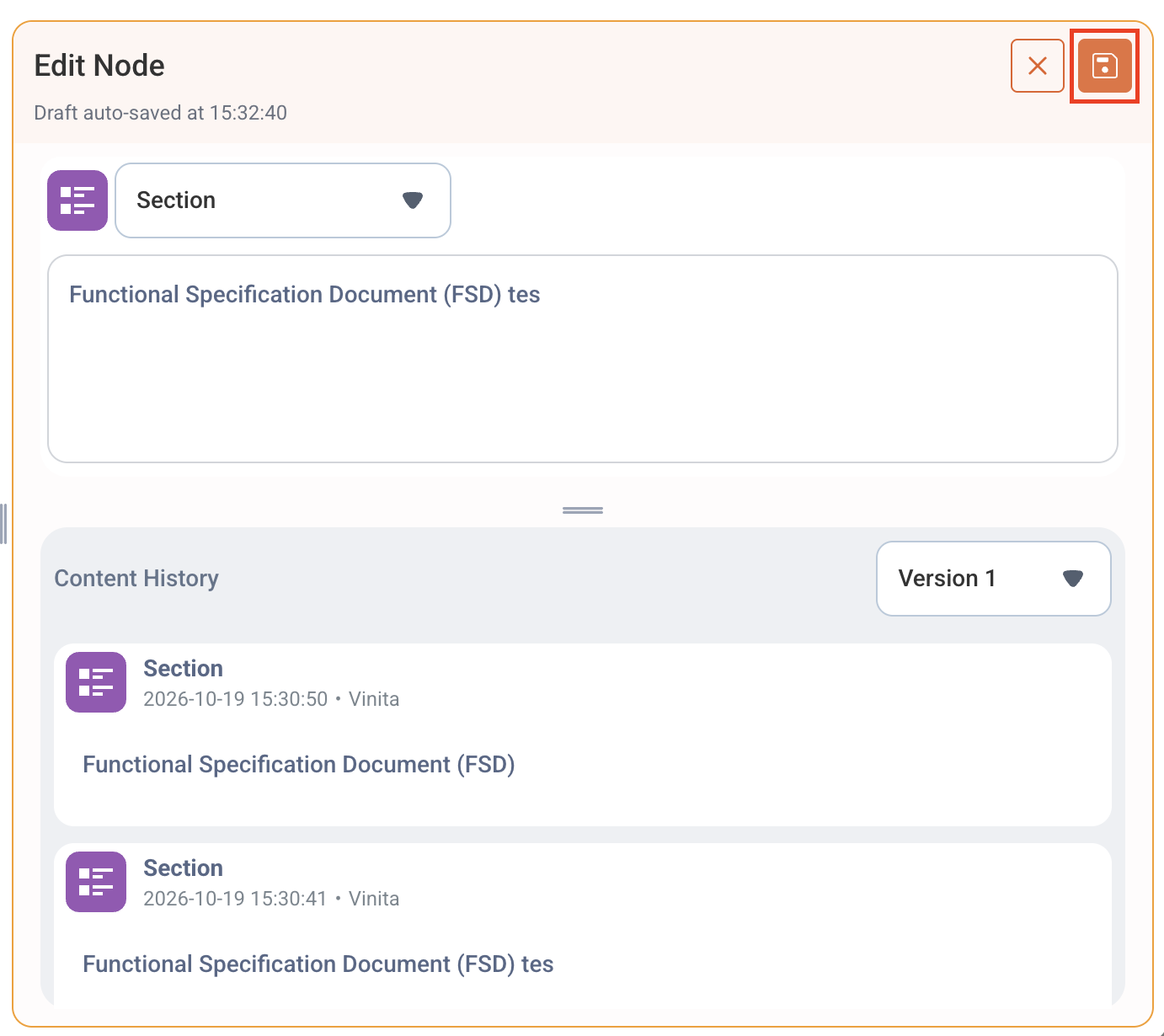
Edit can be accessed by clicking on the three-dots menu on a node in Node Review. Allows the user to change the node type and content of the selected node.
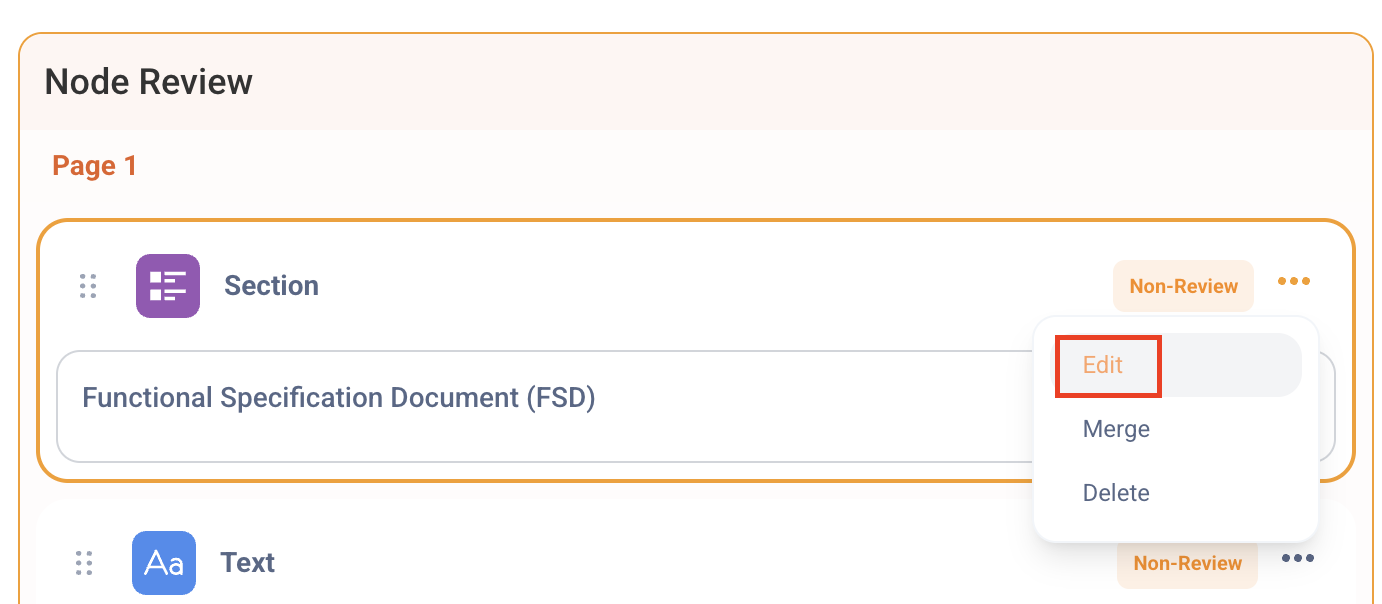
Changes are auto-saved as a draft, and the node will display a Draft tag.
Click on the save icon to confirm the changes or the X icon to cancel.
Content History
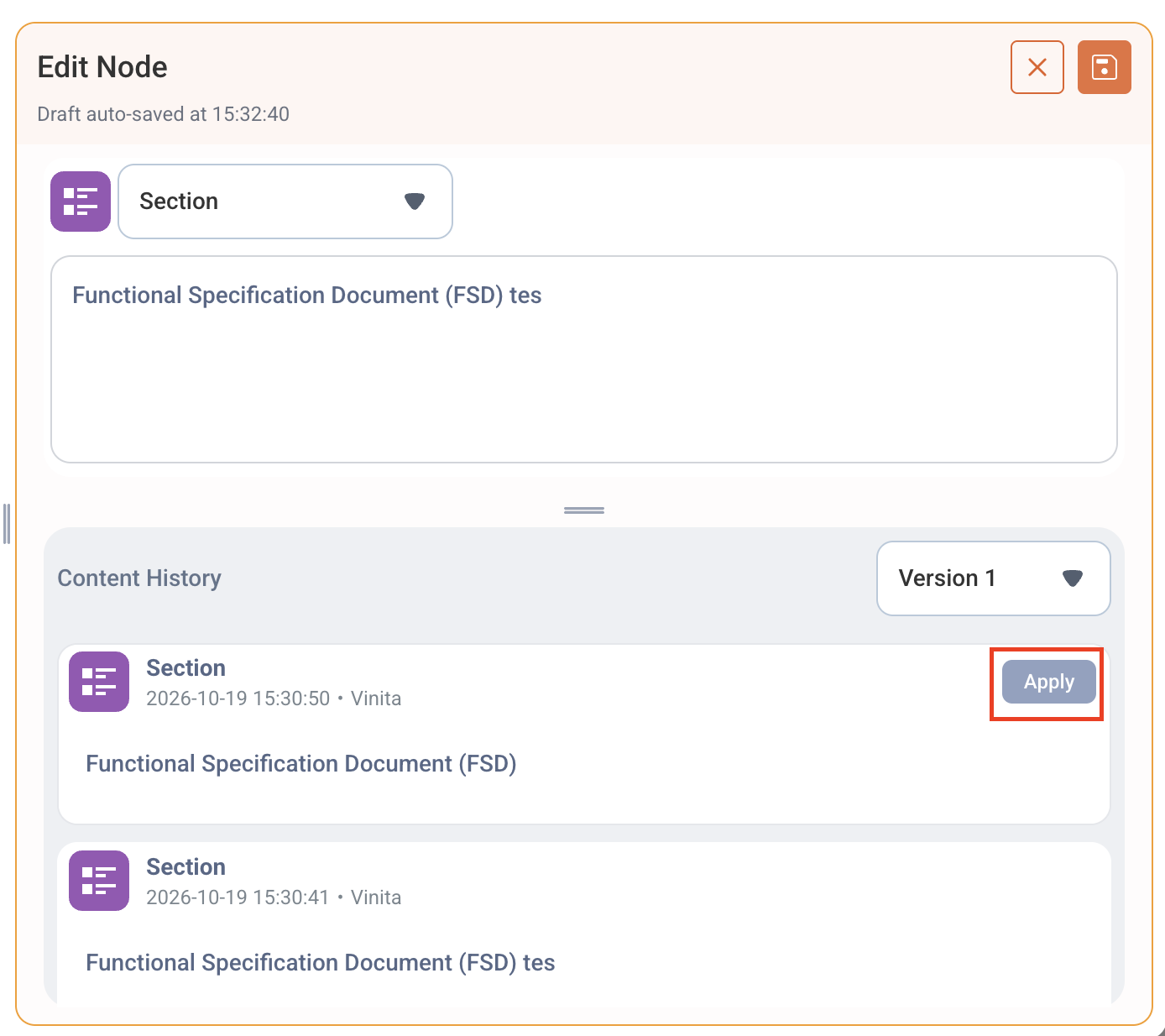
Content History is displayed below the editor in Edit Node. Shows the previous versions of the selected node, including the node type, date and time, and the user who made the change.
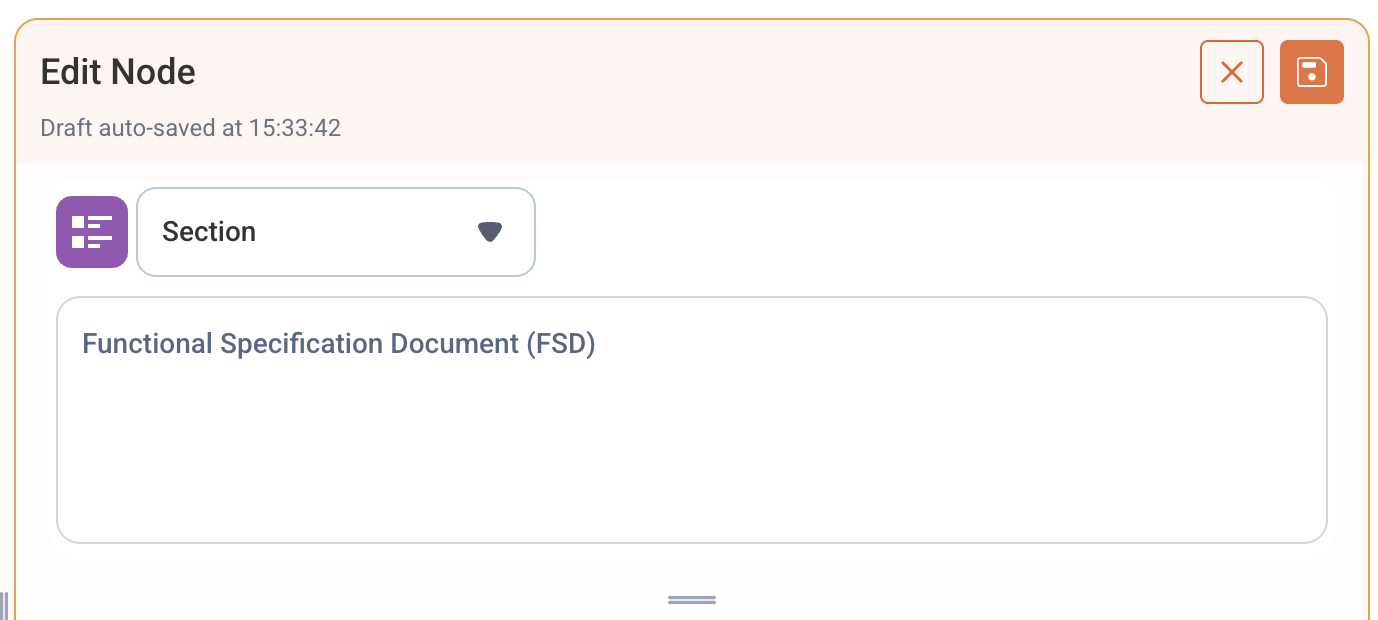
Select a version from the Version dropdown, then click Apply to replace the current content with that version. Click on the save icon to confirm.
Merge Node
Merge can be accessed by clicking on the three-dots menu on a node in Node Review. Combines the selected node with another node into a single node.
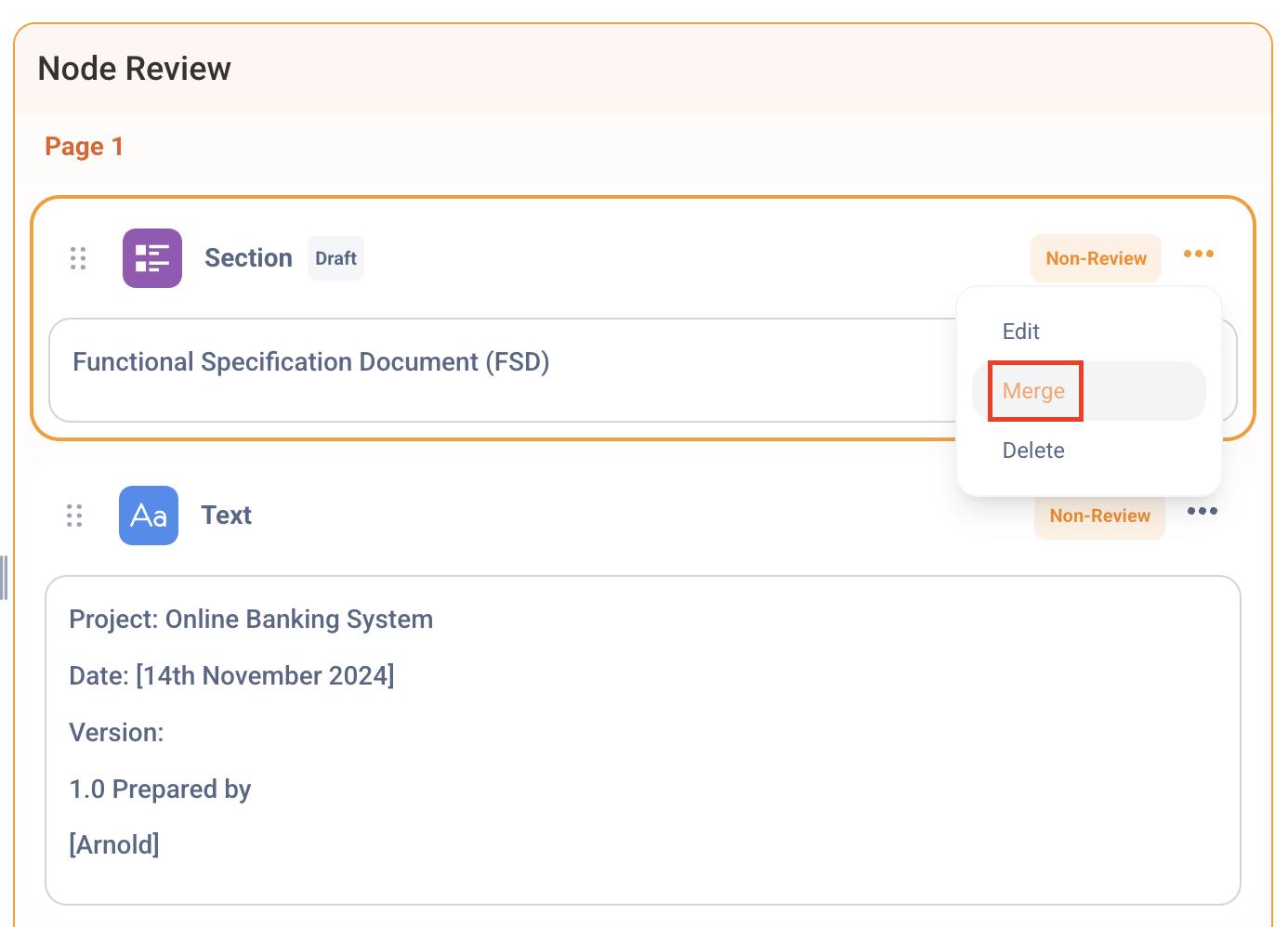
A merge icon will appear on the nodes. Click on the merge icon of the node to be combined with the selected node.
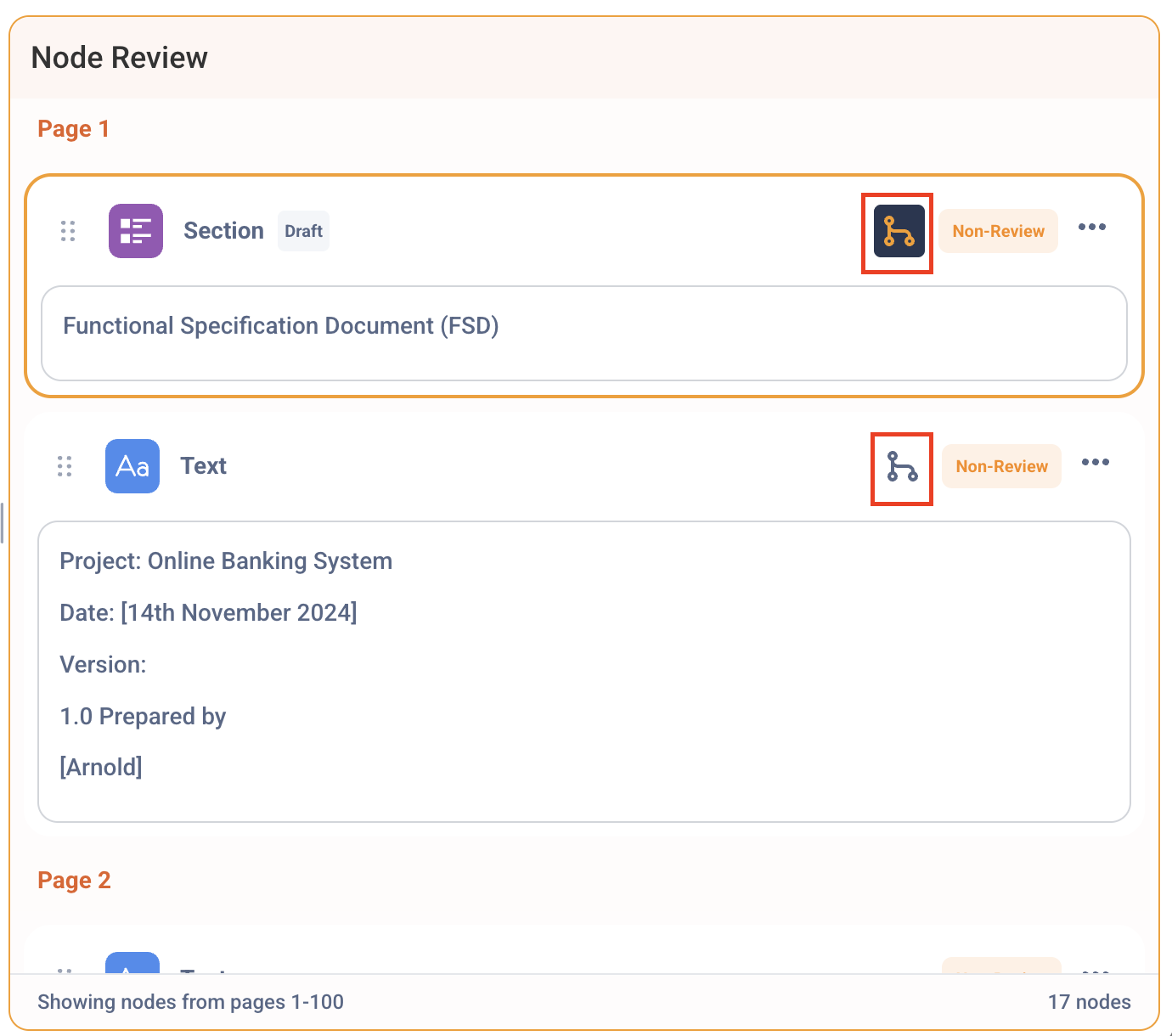
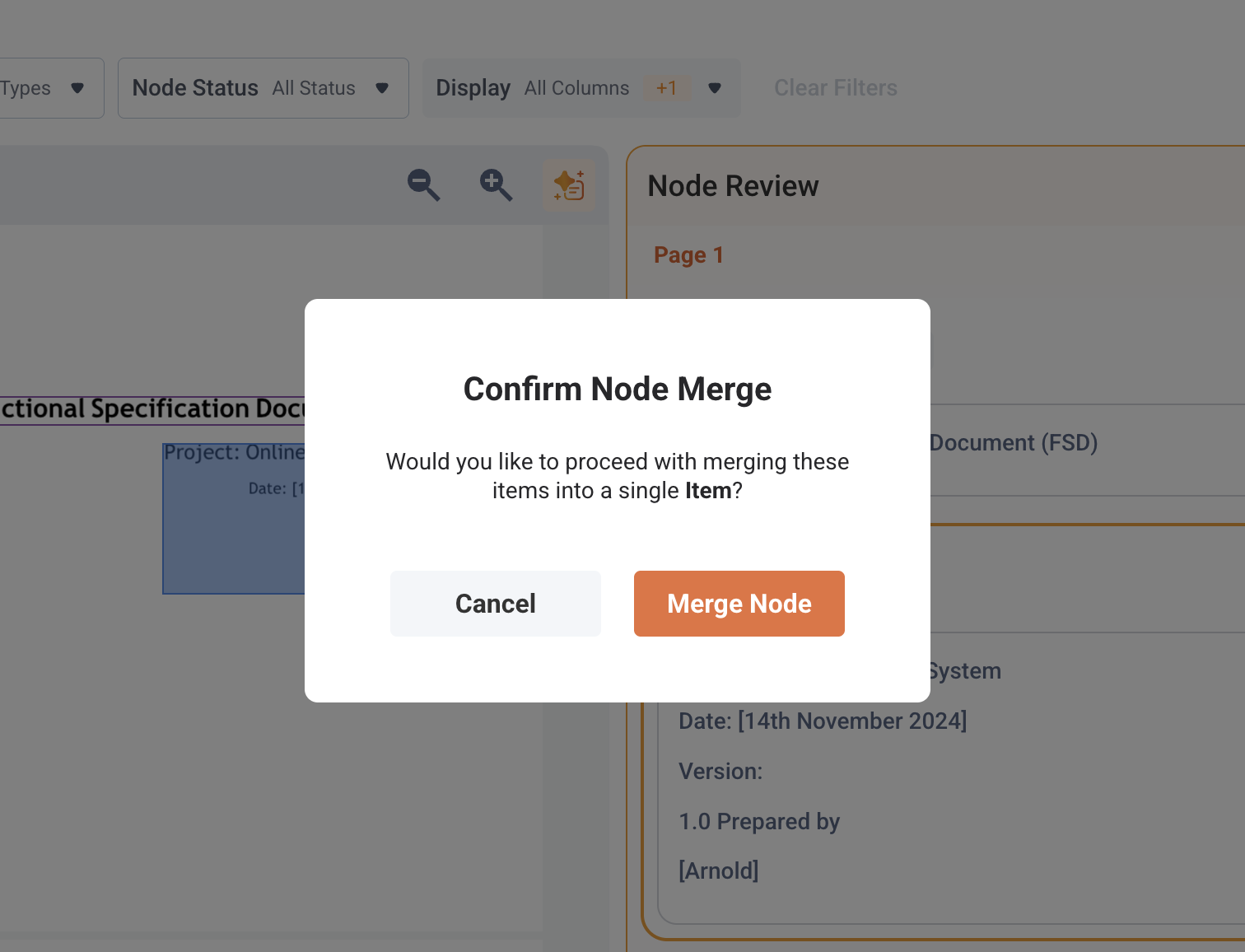
Users will be prompted to confirm their choice. Click Merge Node to confirm or Cancel to cancel.
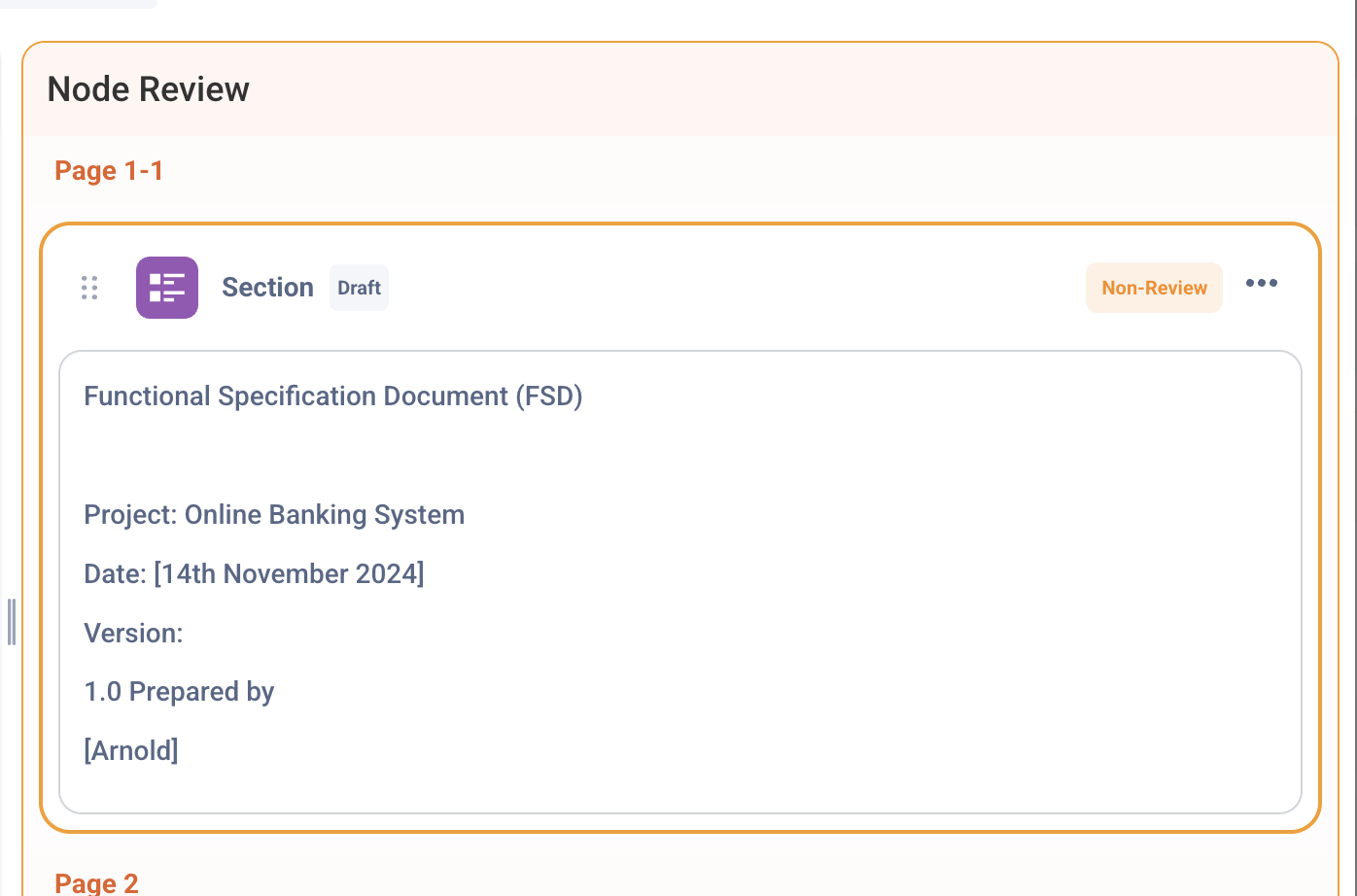
The nodes will be merged into a single node, and the page label will show the combined page range.
Add/Edit Node
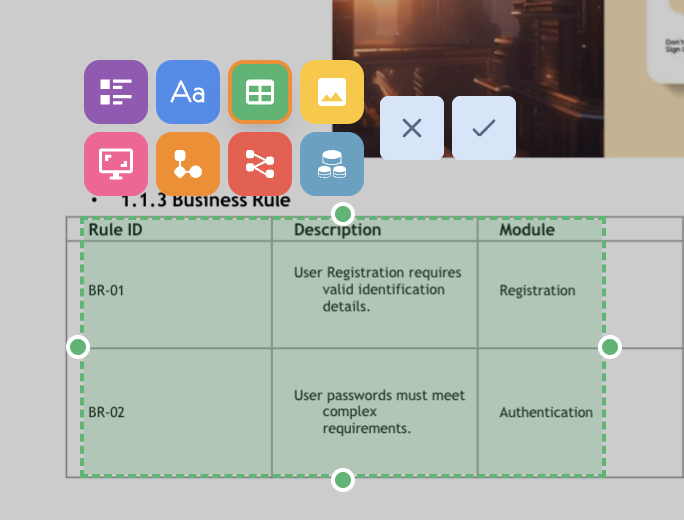
Add/Edit Node can be accessed by clicking on the Add/Edit Node button in the toolbar of the Document Preview. Generates a node from a selected area of the page. This is useful when content has been missed or detected incorrectly.
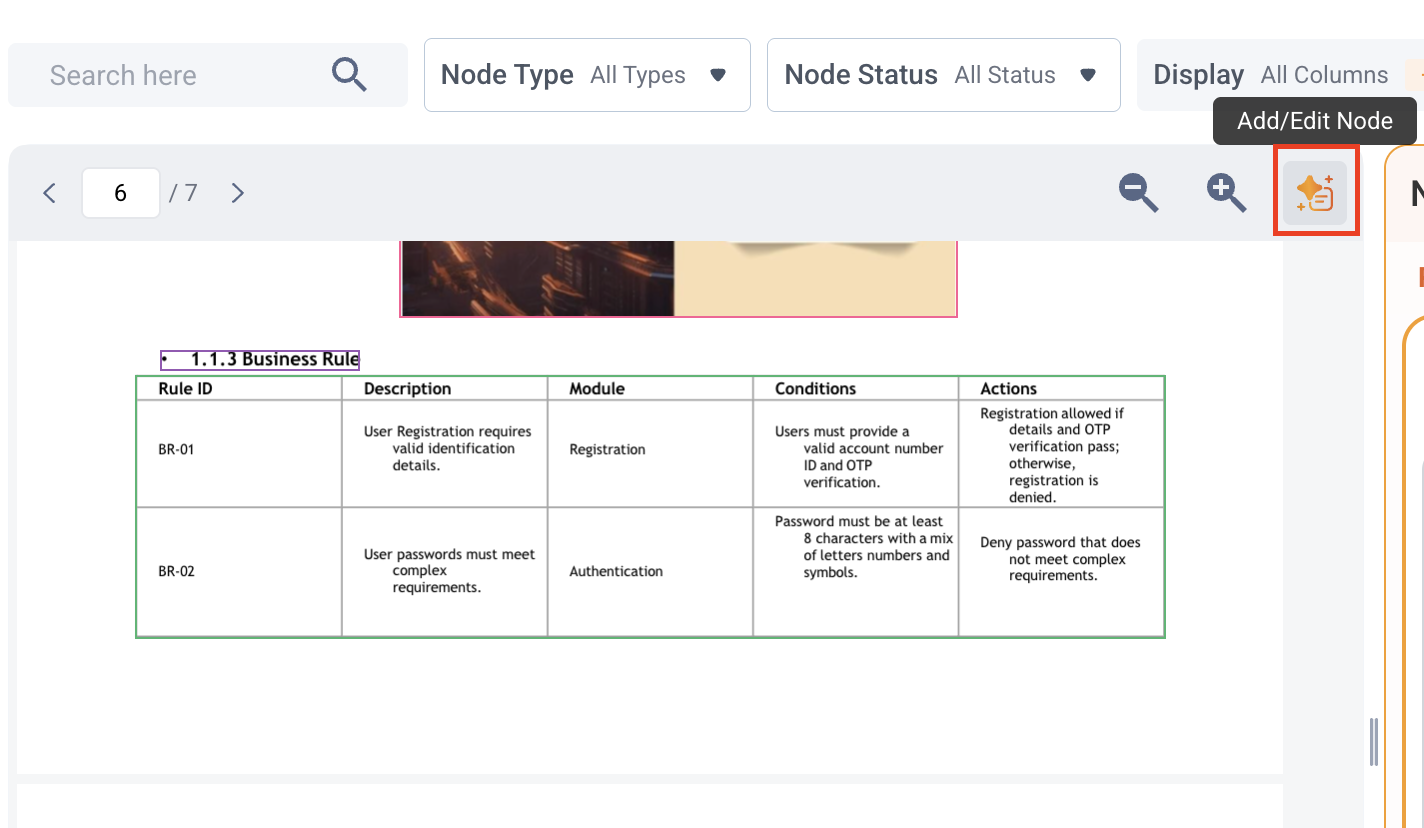
- Draw a selection box over the content on the page. Drag the handles to resize the selection.
- Select the node type from the icons (e.g. Section, Text, Table, Image).
- Click on the check icon to confirm or the X icon to cancel.
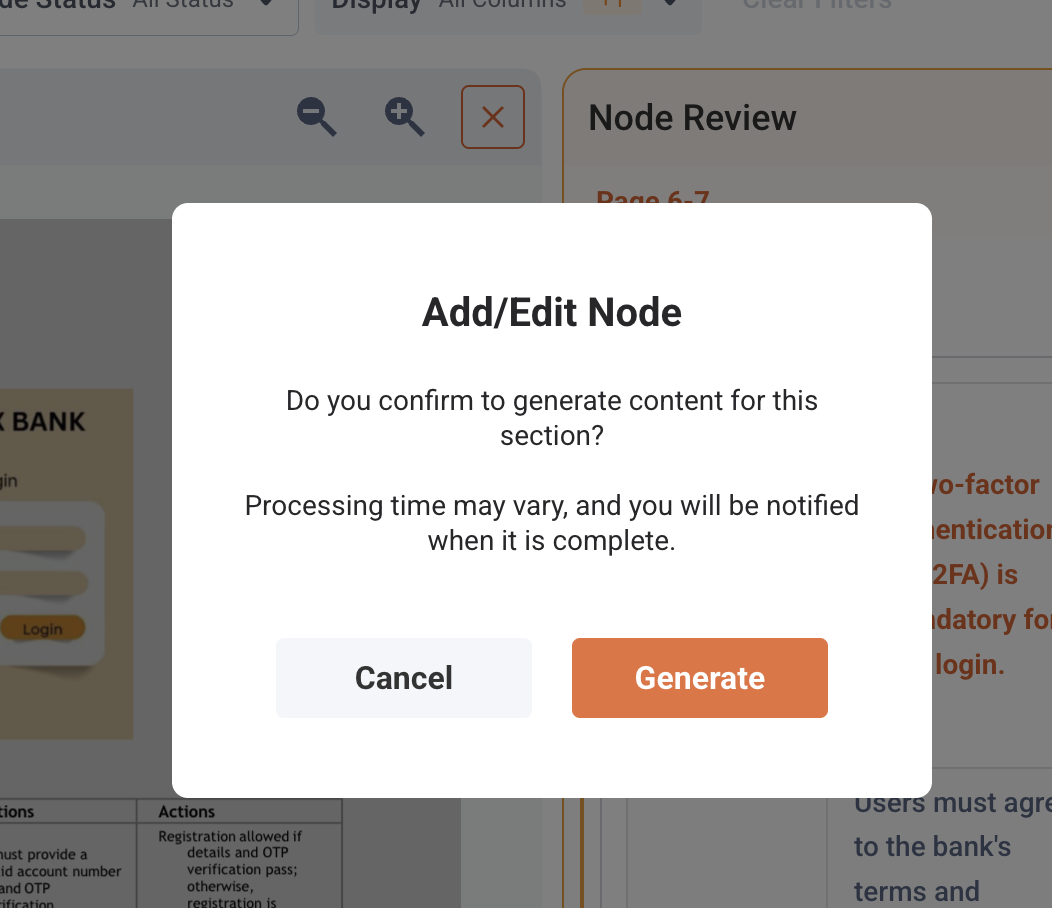
Users will be prompted to confirm their choice. Click Generate to confirm or Cancel to cancel. Processing time may vary, and users will be notified when it is complete.
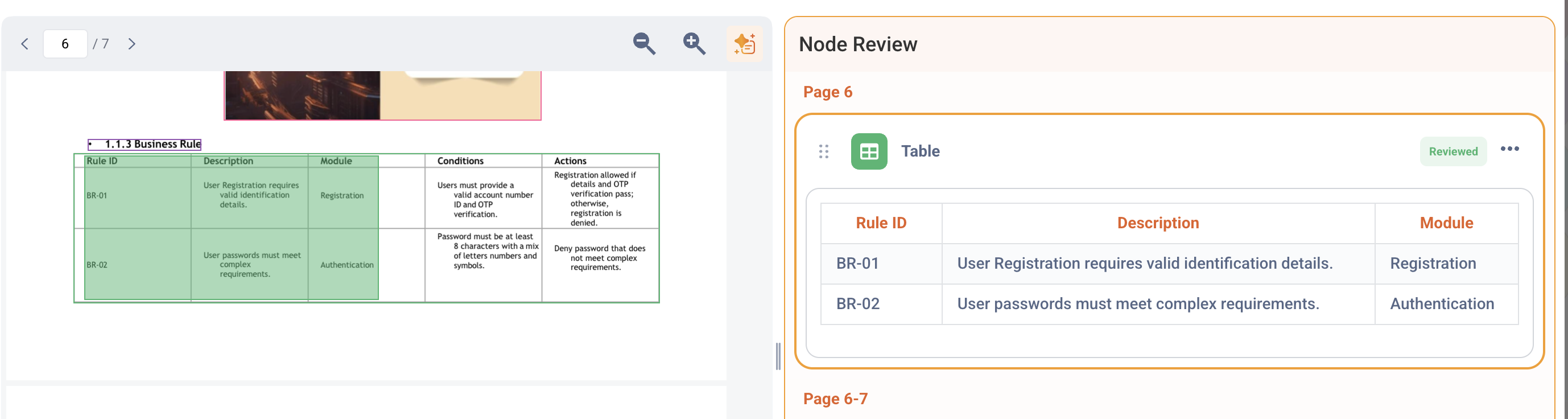
Once complete, the generated node will appear in Node Review. Make sure the generated content matches the page. The selection box determines what is generated, so any columns or rows outside of it will not be included.
Delete Node
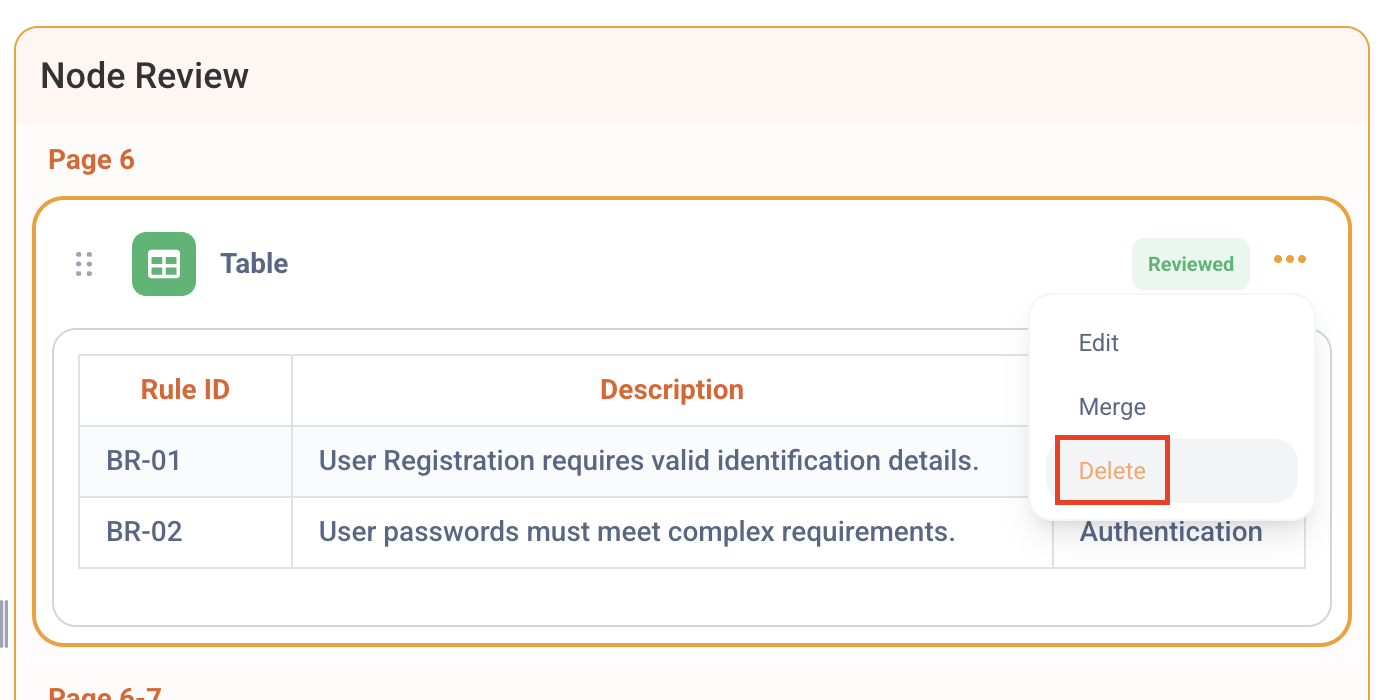
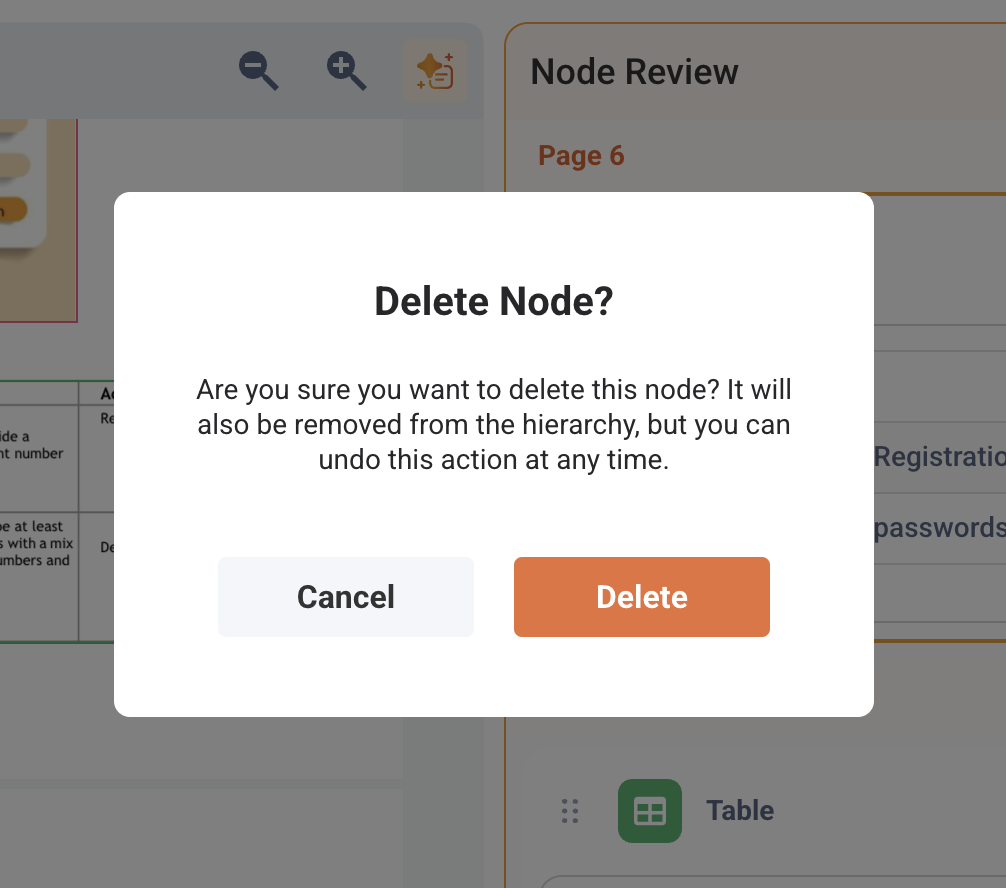
Delete can be accessed by clicking on the three-dots menu on a node in Node Review. Deletes the selected node and removes it from the hierarchy. Users will be prompted to confirm their choice.
Reorder Node
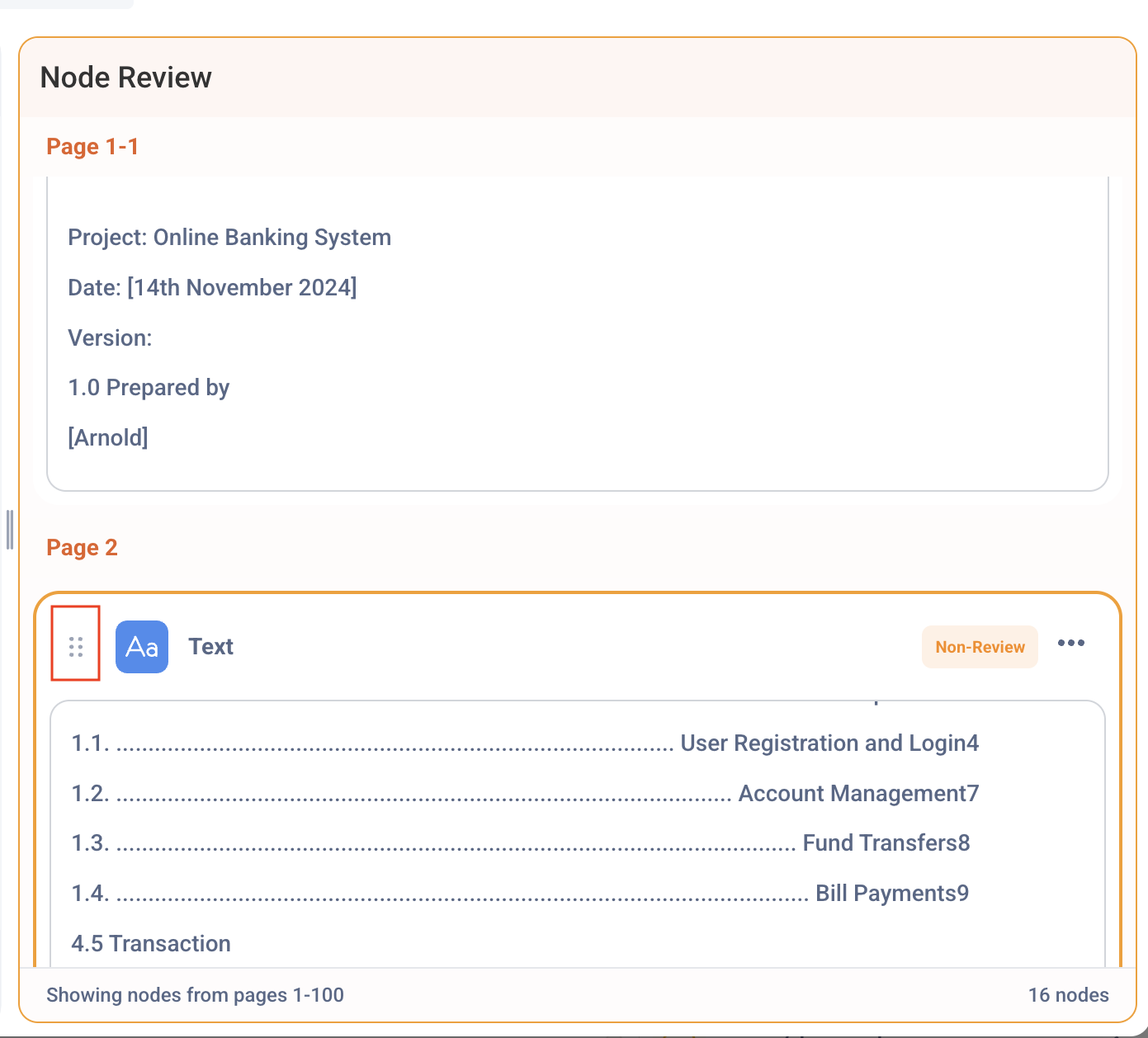
Reorder can be accessed by using the drag handle (six dots) on the left side of a node in Node Review. Allows the user to change the position of the selected node. Click and hold the drag handle, move the node to the desired position, then release.
Update
Update can be accessed by clicking on the Update button at the top right of the Review Content window. Submits the changes made to the nodes and has the file reprocessed with those changes. Click Update after editing, merging, adding, or deleting nodes.