Source
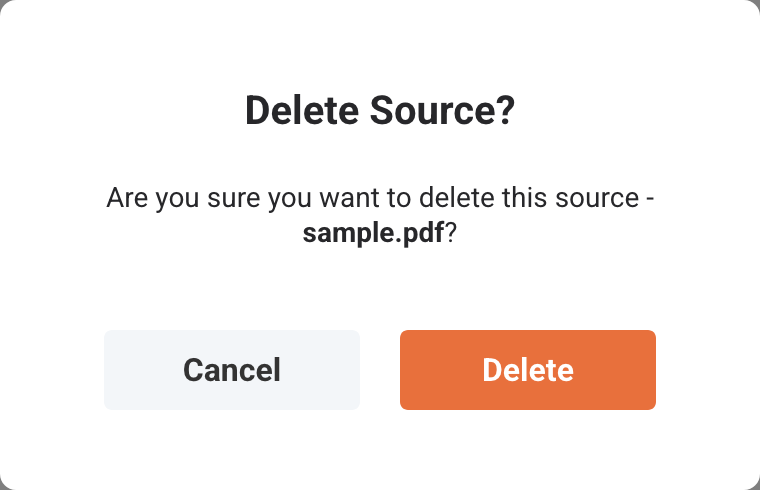
Source can be found in the panel located on the left-hand side of the screen. Users can upload and import external documents to be used for AGIS Chat in the current workspace.
Private Files
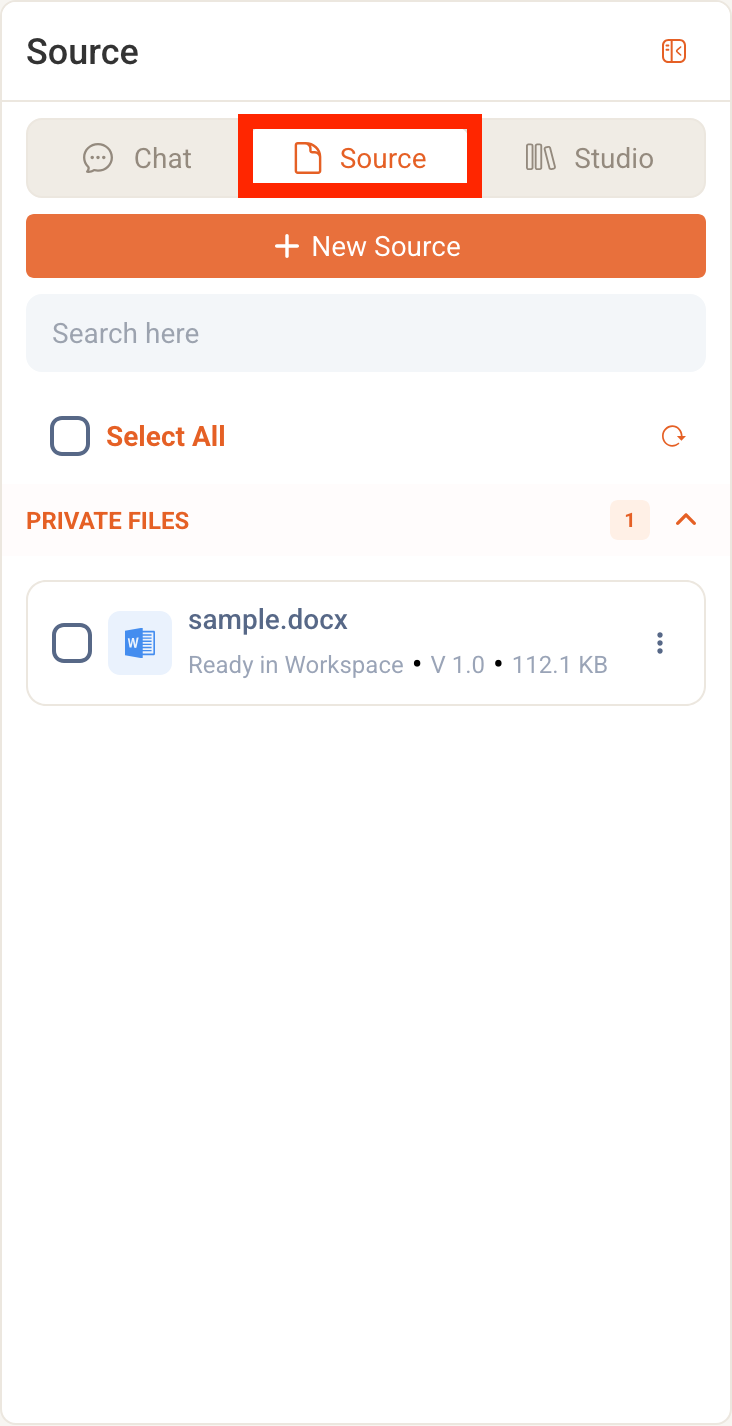
Documents that have been uploaded or imported will appear under Private Files. Clicking on a document will display the selected document's detailed information.
Cancel Process
Cancel Process can be accessed by clicking on the three-dots menu on a document that has the Uploading, 2/2 Extracting, or Submit to Knowledge Center status.
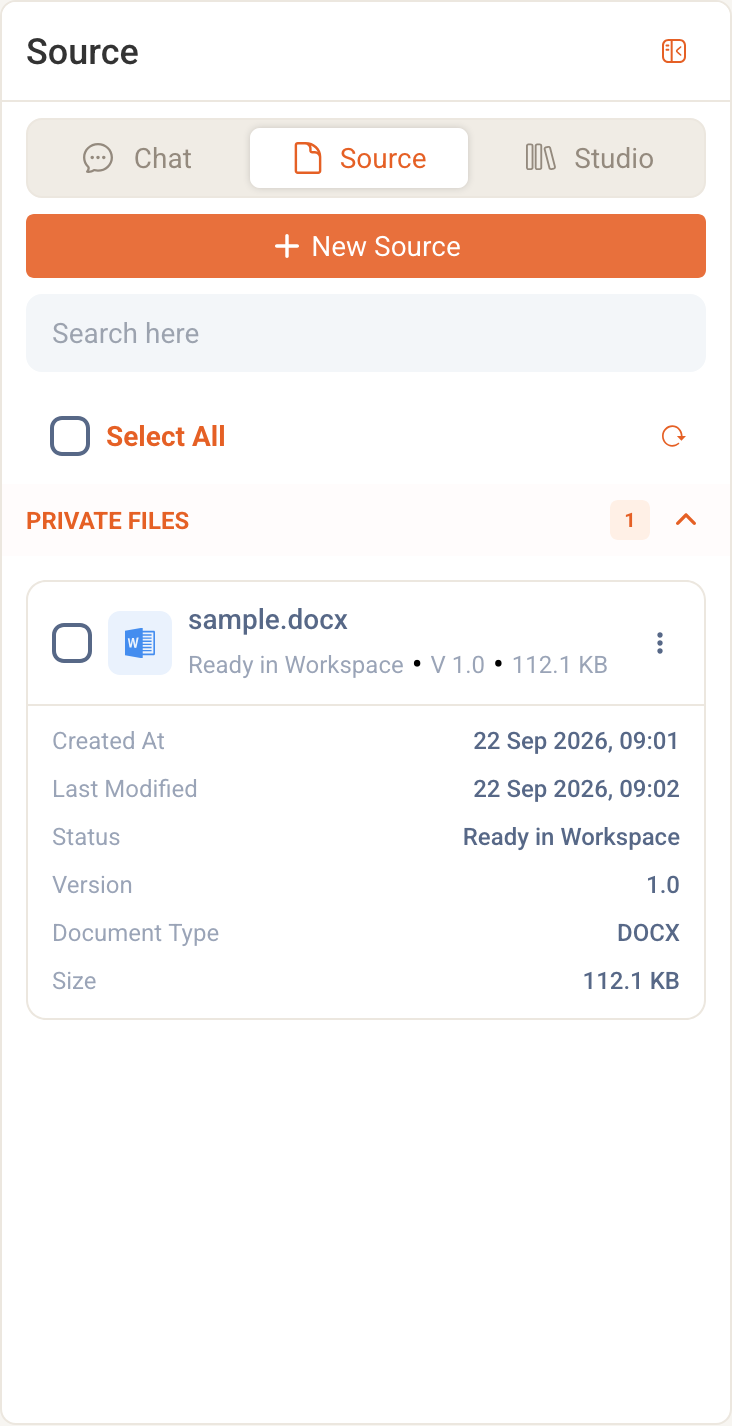
Cancels the ongoing process for a selected document.
Users will be prompted to confirm their choice.

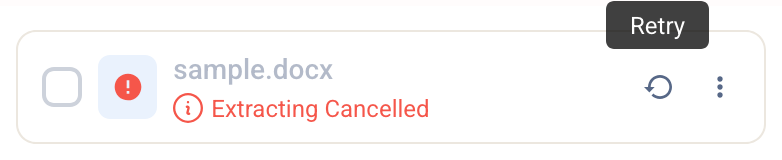
Retry
A retry icon will appear next to the three-dots menu on a document that has the Failed or Cancelled status.
Retries the upload, extraction, or submission of a failed or cancelled document.
Submit to Knowledge Base
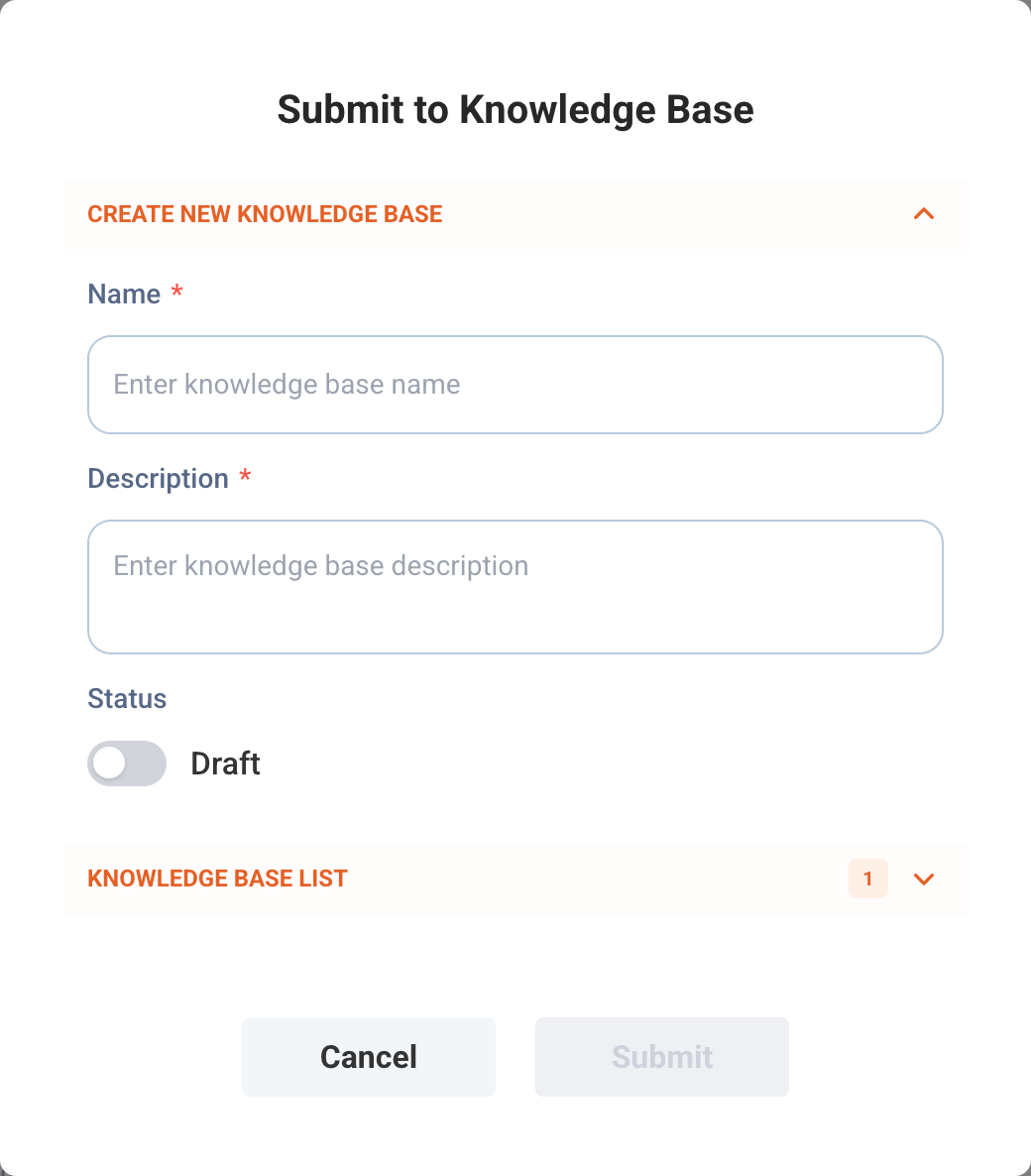
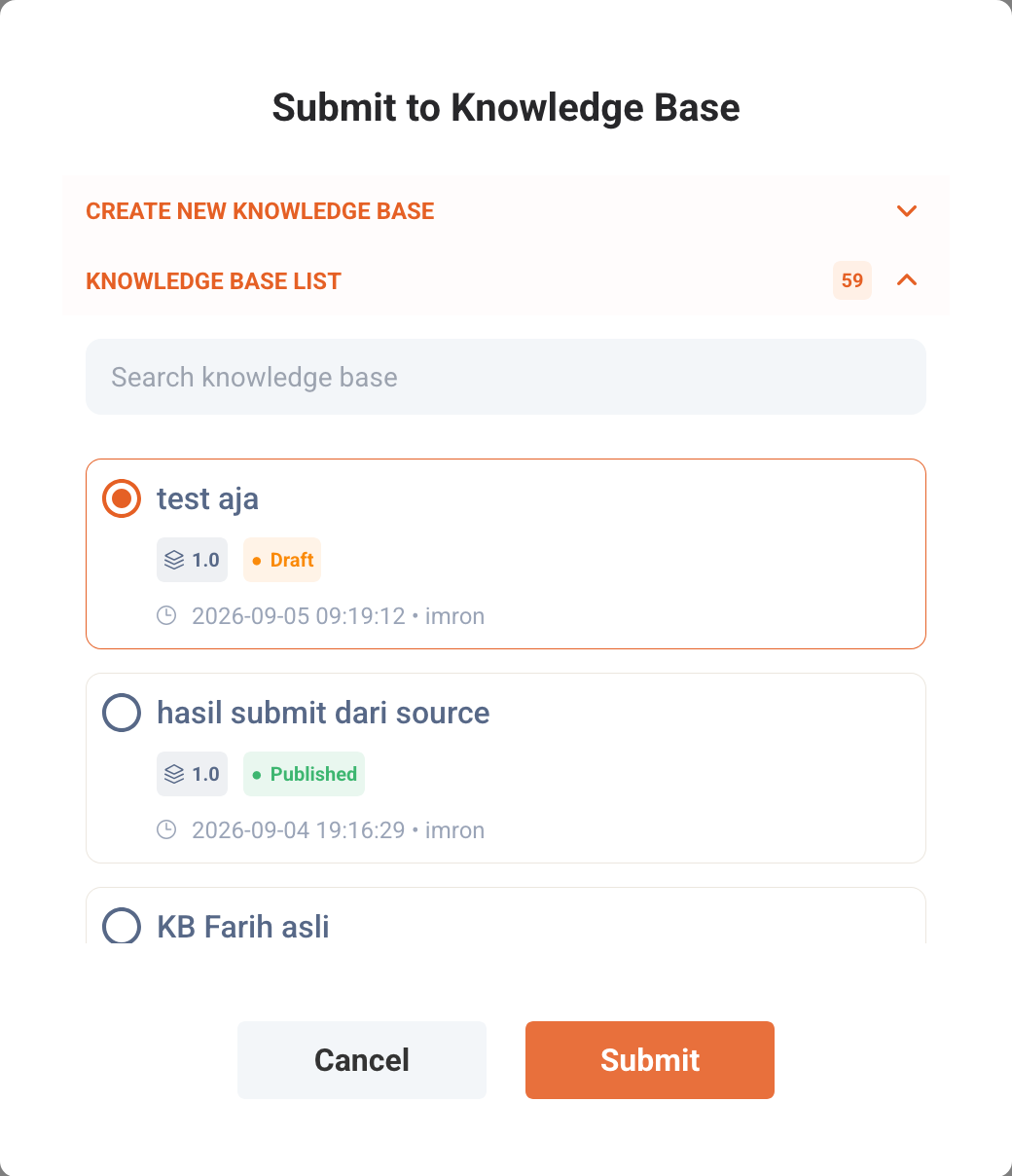
Submit to Knowledge Base can be accessed by clicking on the three-dots menu on a document that has the Ready in Workspace status.
Adds the selected document into a Knowledge Base.
Users can create a new Knowledge Base, or add the selected document into an existing Knowledge Base.
Submit to API test
Submit to API test can be accessed by clicking on the three-dots menu on a document that has the Ready in Workspace status.
Adds the selected document into an API Test collection as a dataset. Use it for an API definition (OpenAPI, WSDL or Postman file), a data file or a log that your API tests need.
In the Submit to API Test Dataset dialog, either pick an existing collection from COLLECTION LIST, or open CREATE NEW COLLECTION to create one and submit the file together. Submit stays disabled until you pick a collection or fill in the new-collection fields.
| File type | Becomes |
|---|---|
.csv, .json | A Rows dataset (one iteration per row) |
.xlsx, .xls, .log, .txt | A Document dataset |
| OpenAPI, WSDL or Postman file | A document you can read as an API definition |
The API Test Datasets tab has no upload button. Files always come from Source. To let the chat agents generate tests from an API definition, submit the file here first, then use Read as definition on the collection's Datasets tab. See Generate tests with chat.
Rename
Rename can be accessed by clicking on the three-dots menu on a document that has the Ready in Workspace status.
Allows the user to rename the selected document.
Click on the save icon to confirm renaming of the file or the X icon to cancel.

Delete Document
Delete Document can be accessed by clicking on the three-dots menu on a document that doesn't have an ongoing process or on a document that has the Failed status.
Deletes the document from the user's Private Files listing.
Users will be prompted to confirm their choice.