External Docs
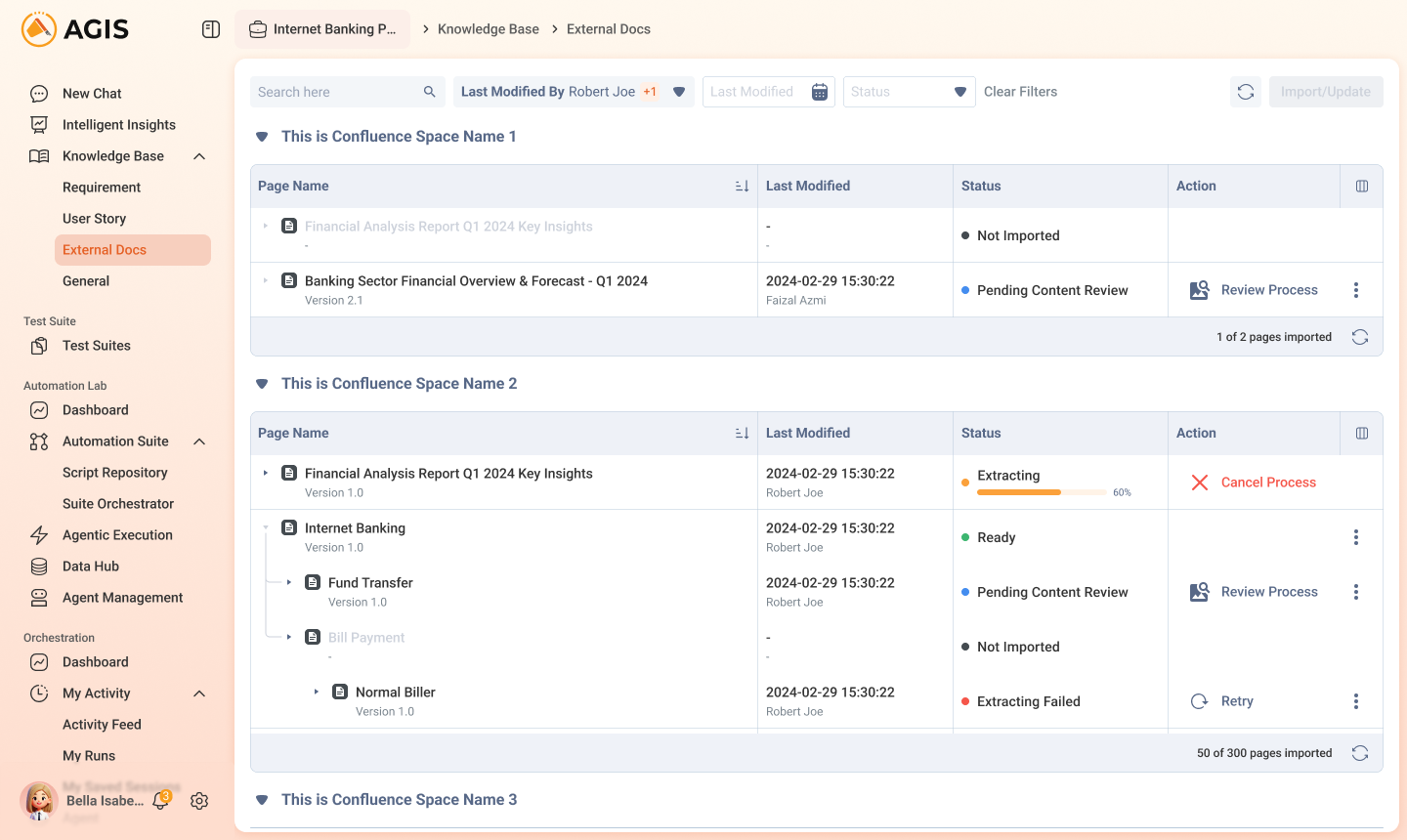
External Docs can be found in the AGIS Classic Mode, under Knowledge Base. To access External Docs, the View External Docs permission is required.
The content shown in External Docs depends on the set Source System Type of API Configurations in the current workspace.
External Docs requires the source system type to have a Confluence, Confluence Cloud (Confluence, Confluence Cloud, Jira + Confluence, Jira Cloud + Confluence Cloud) or ADO Wiki (Azure DevOps) source type configured.
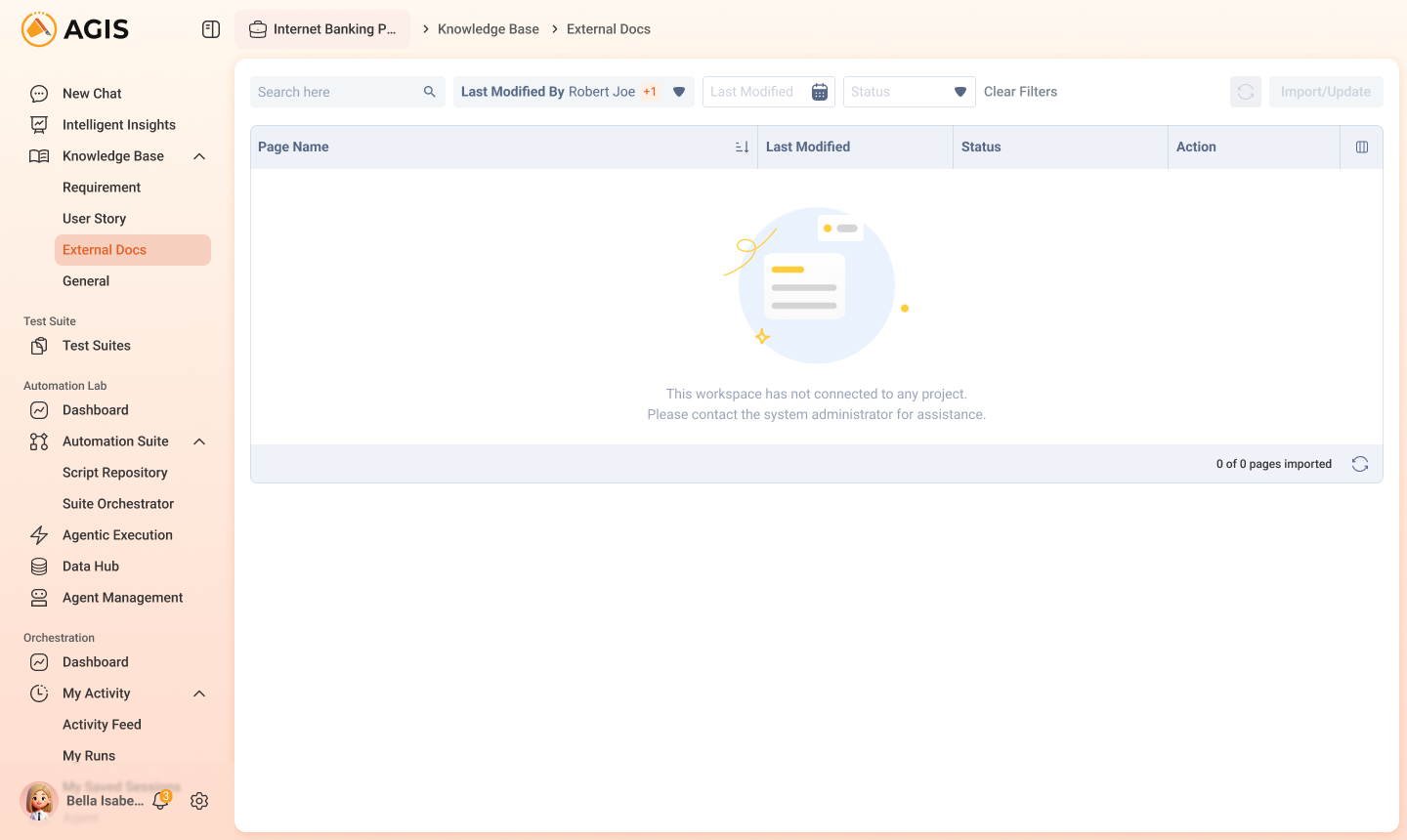
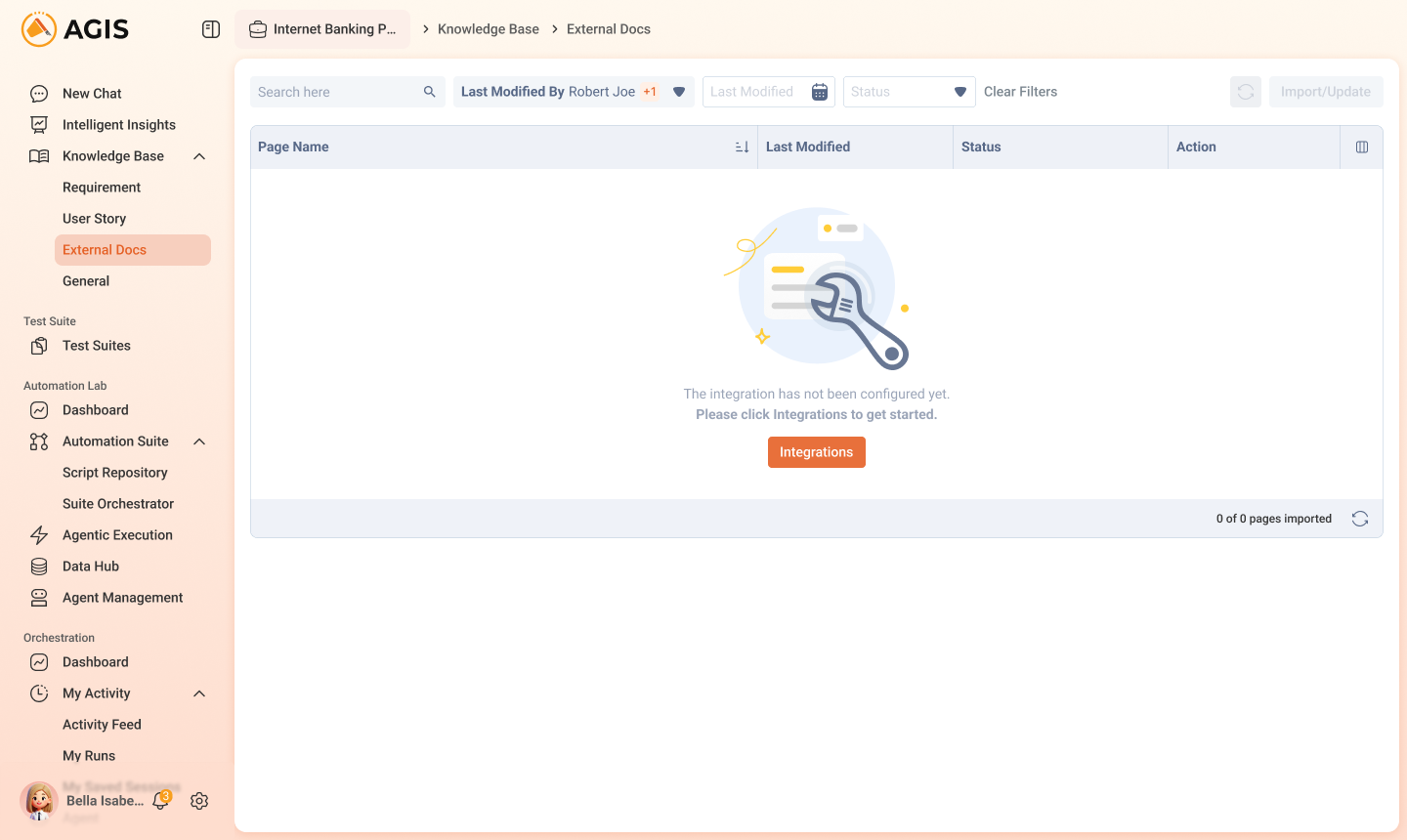
If no integration has been set up for Confluence, Conflunce Cloud, or ADO Wiki, then this message will be shown:
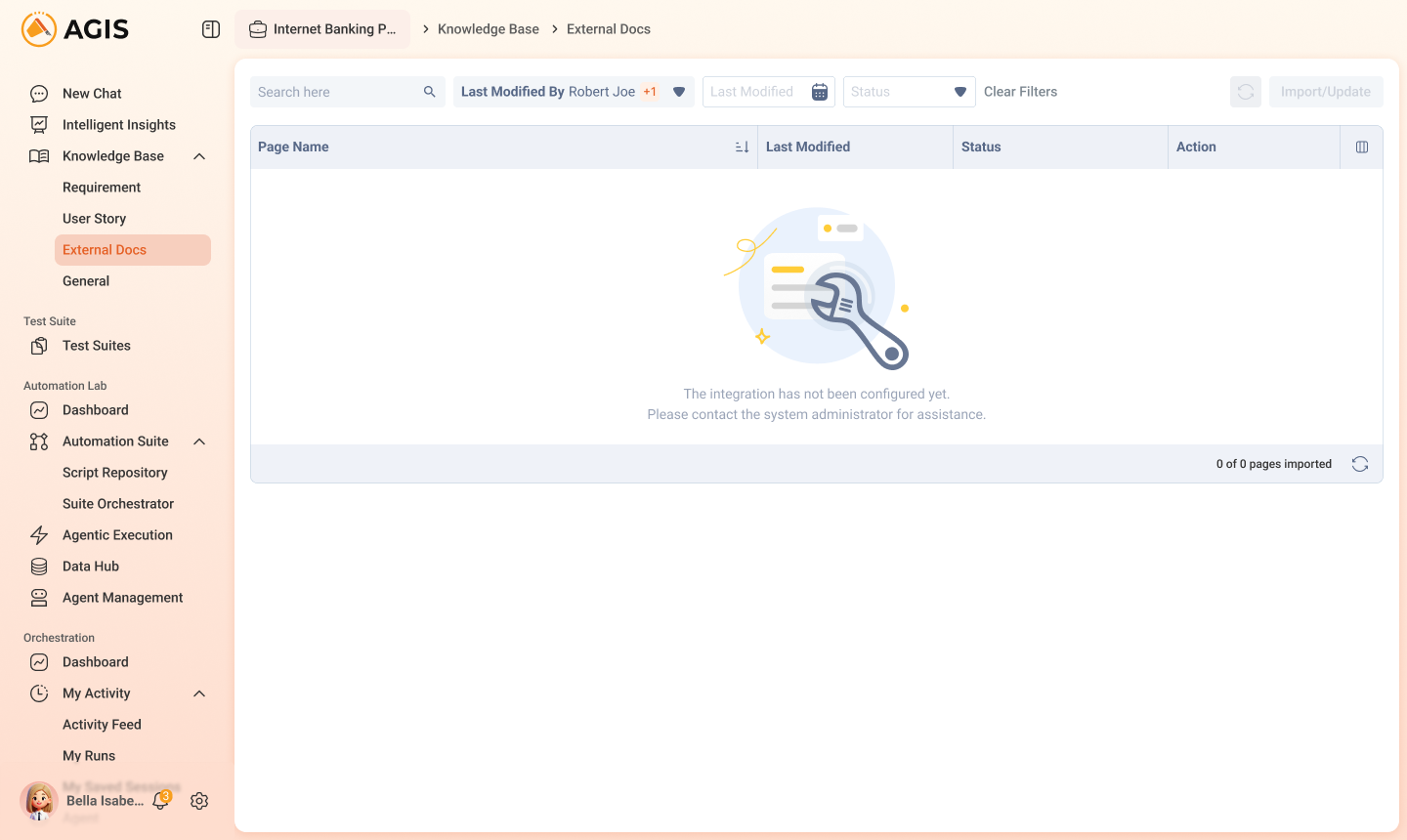
Admins can configure the connection by going to Integrations.
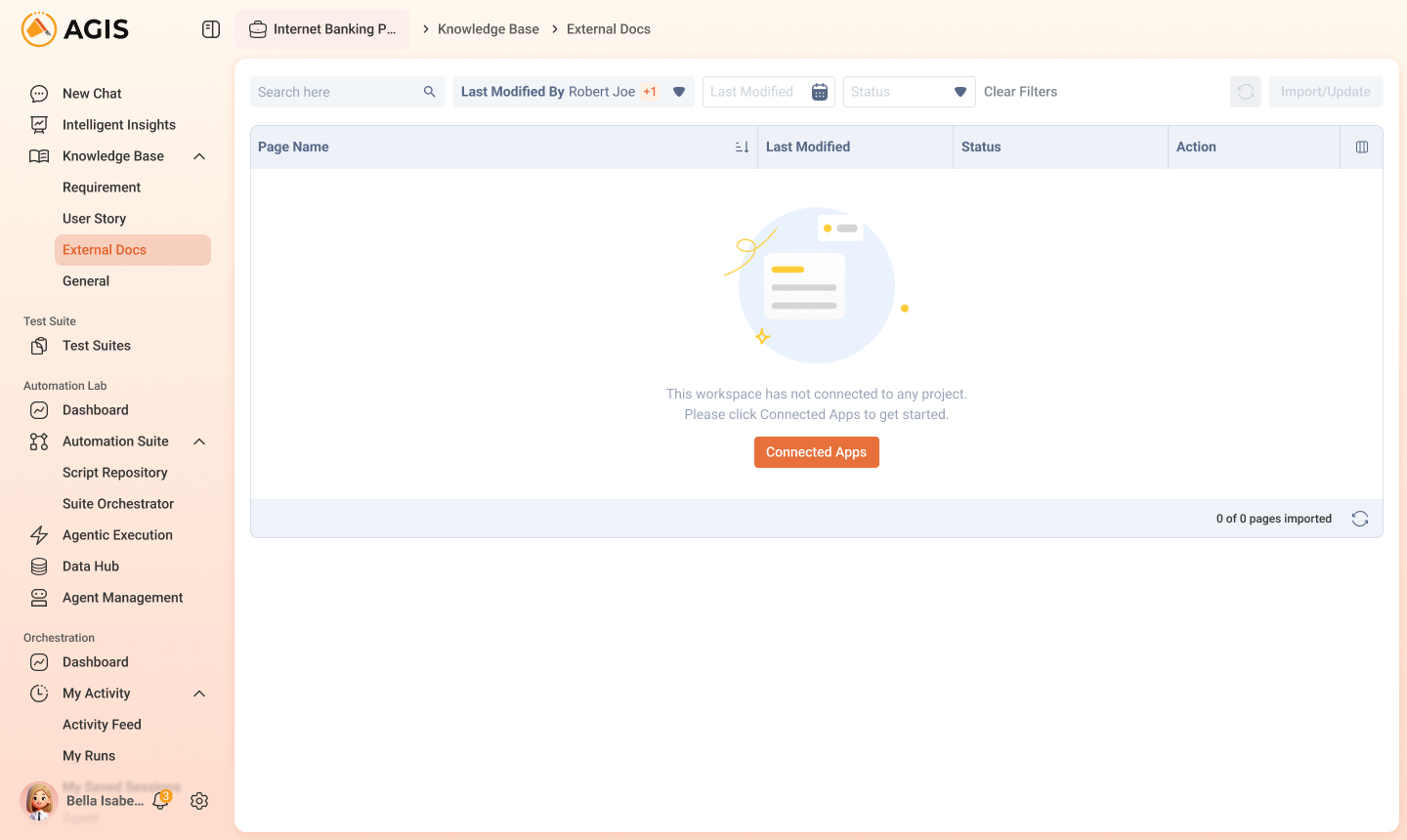
If the workspace is connected to Confluence, Confluence Cloud, or ADO Wiki, but no Space (Confluence and Confluence Cloud), and project for ADO Wiki has been selected, then this message will be shown:
Admins can finish setup by going to Workspace Management for the current workspace and selecting a Space (Confluence and Confluence Cloud) or project (ADO Wiki).
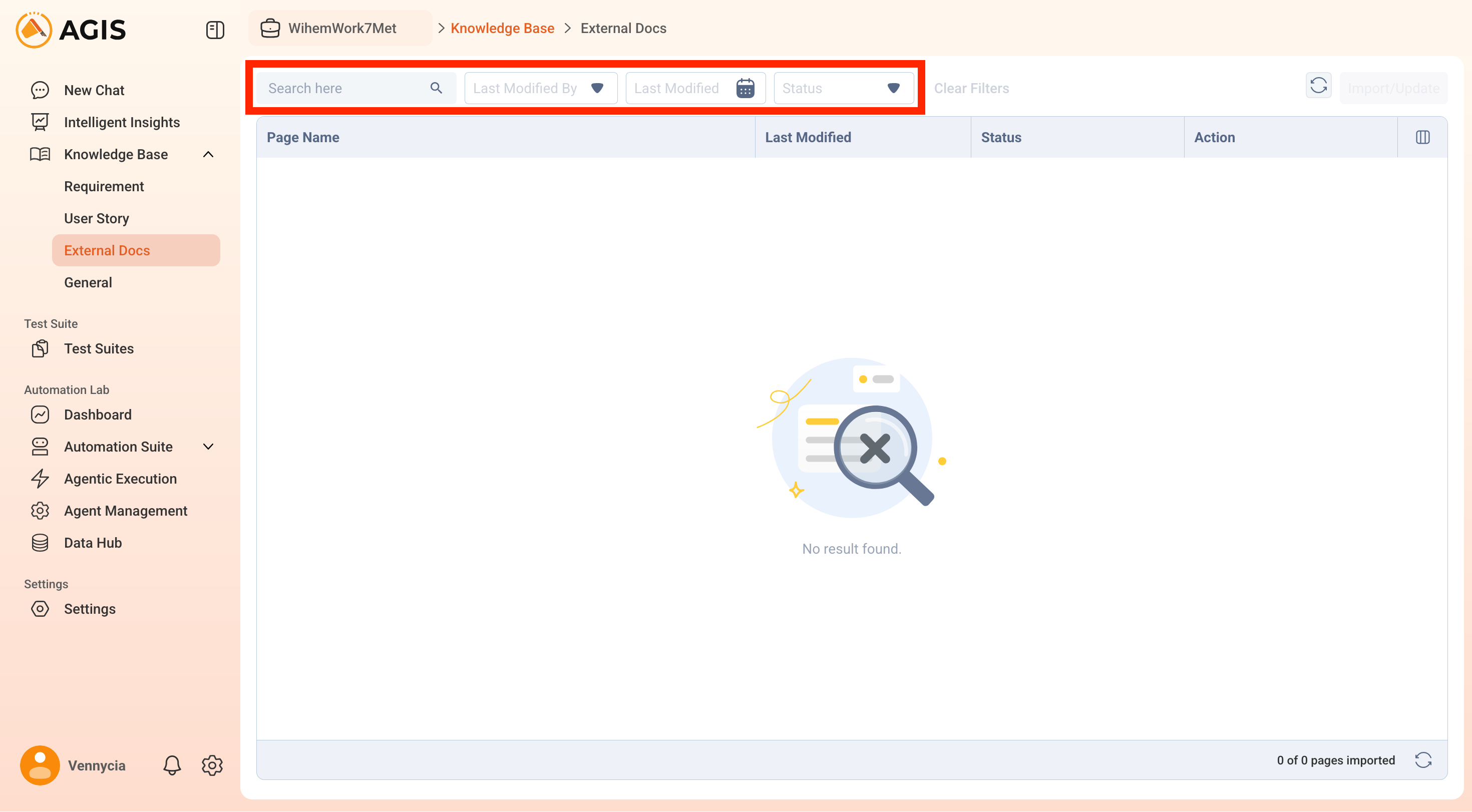
Search and Filtering
External Docs features search and filtering controls. Users will be able to do keyword-based lookup and filtering based on last modified by, last modified, and status.
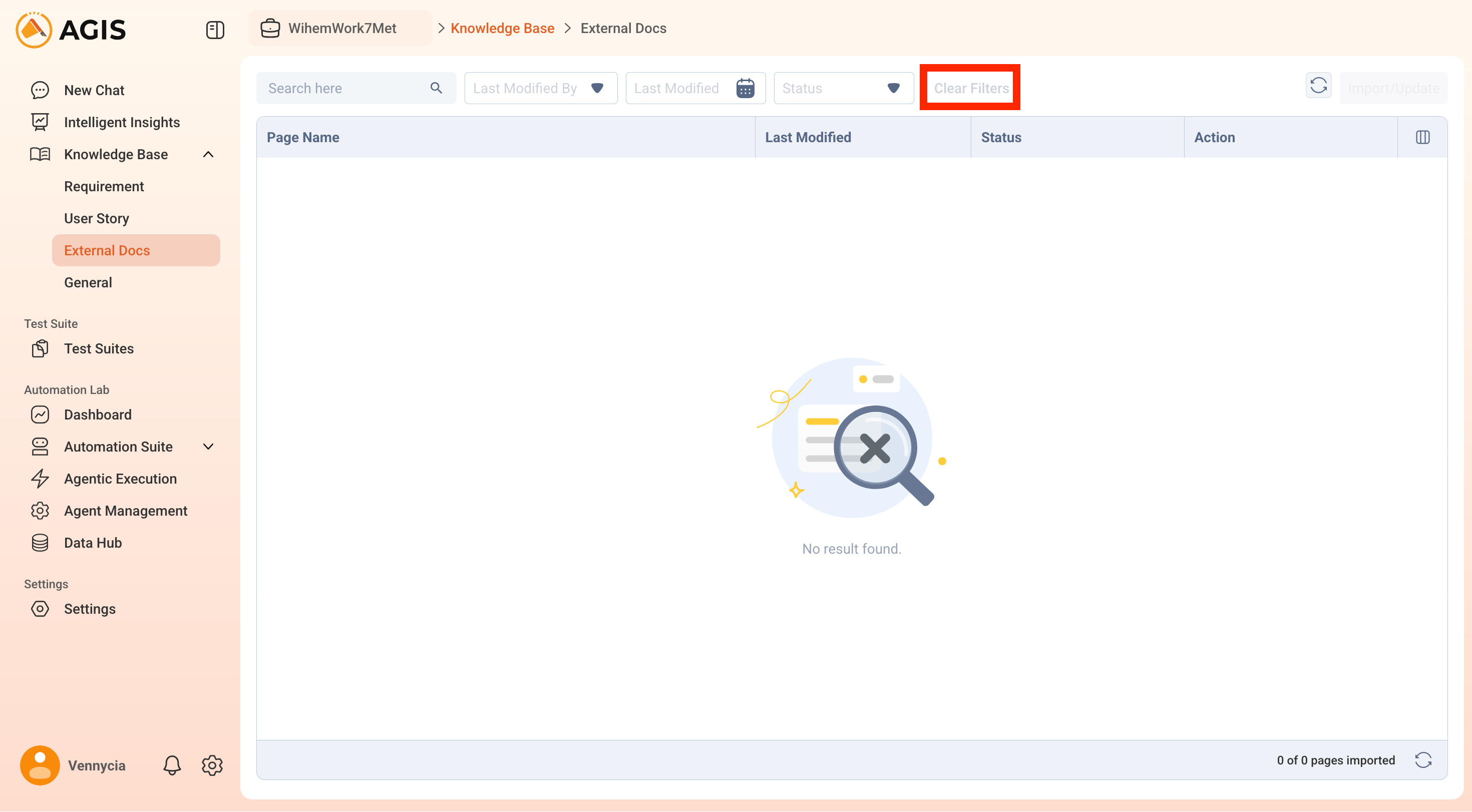
Clear Filters will clear any search done and filters applied.
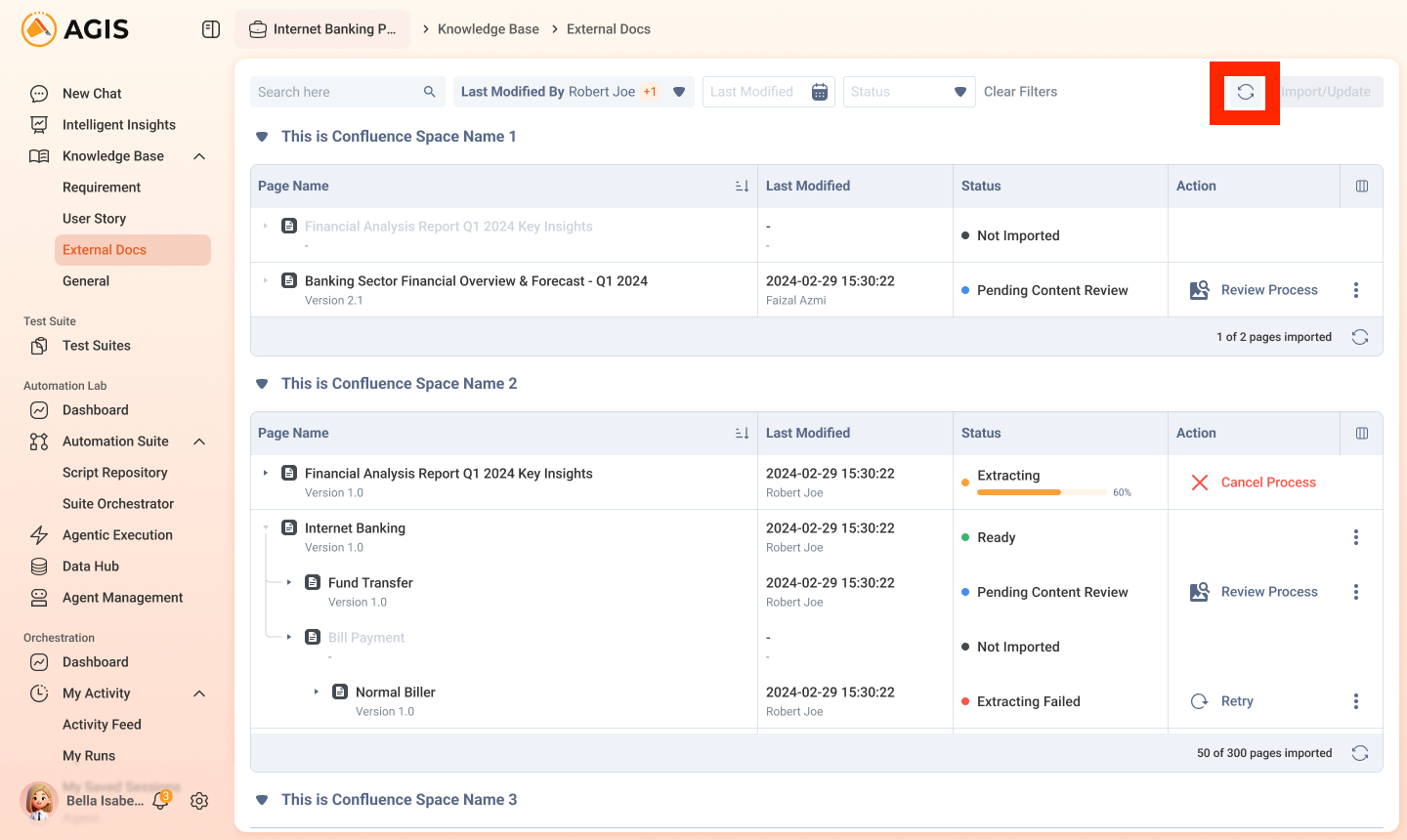
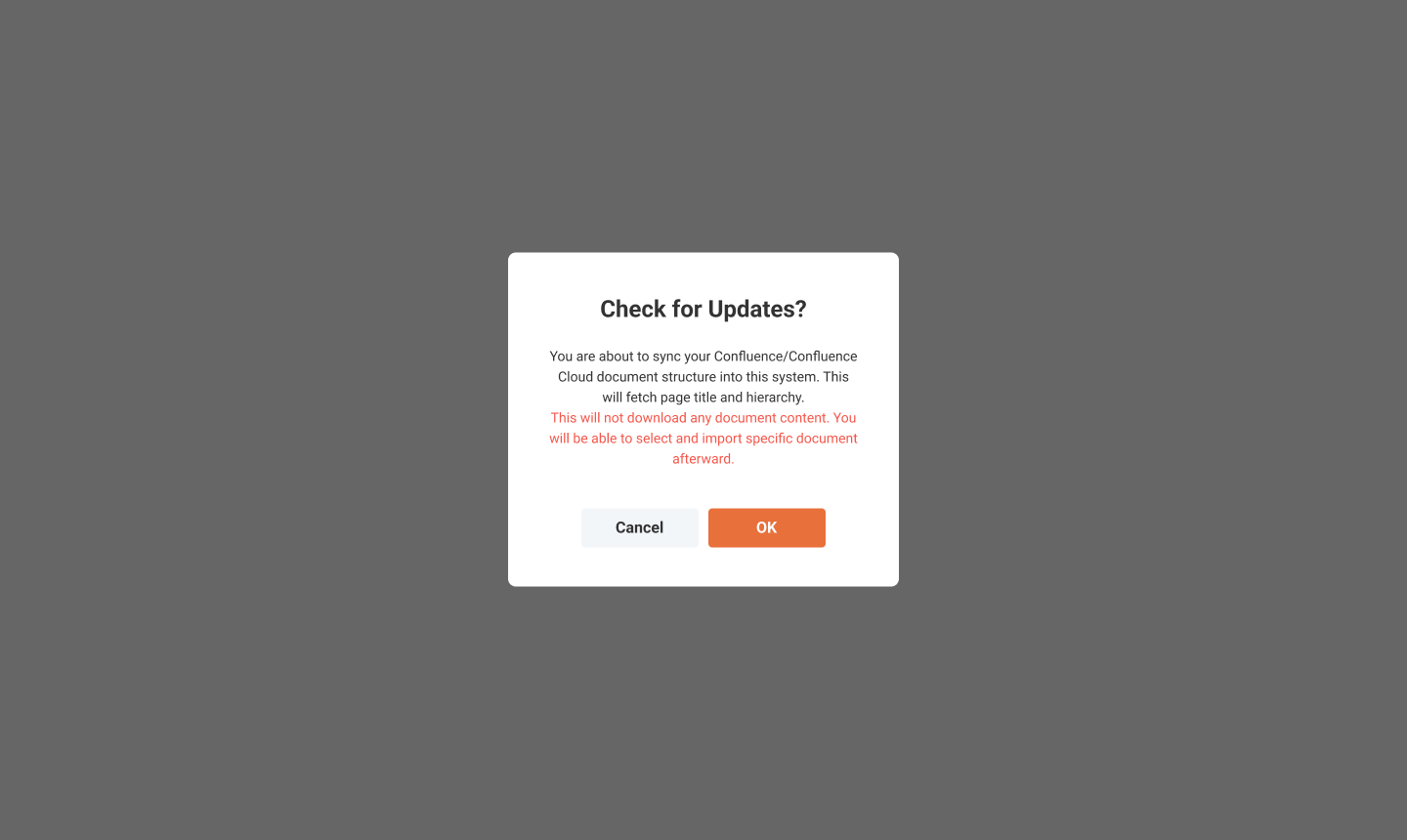
Check for Updates
On the right-side of the screen, a sync button can be found. Clicking on the button will synchronize the current workspace with its external source.
Import/Update
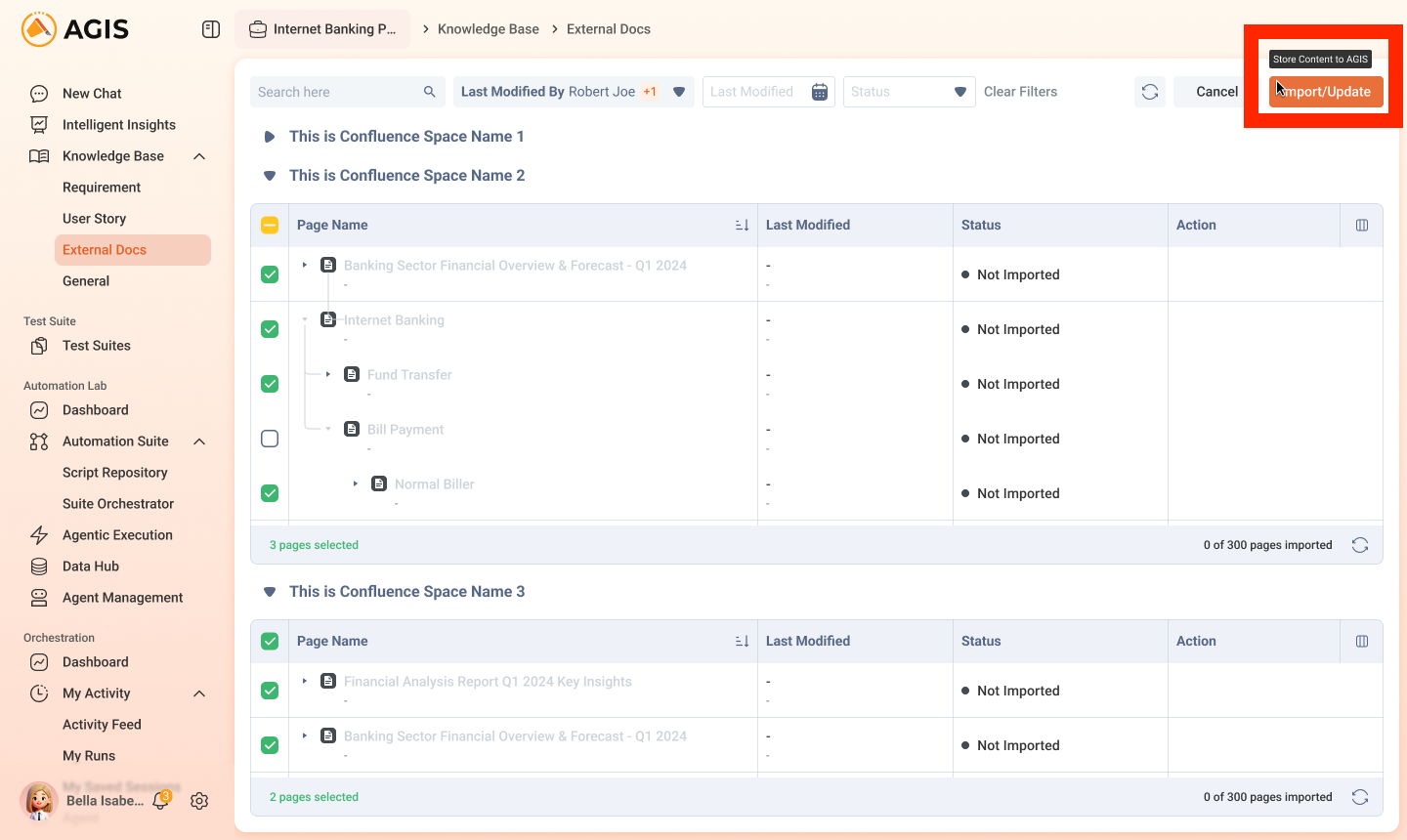
Before importing or updating documents, users must first Check for Updates. Afterwards, users may select one or more documents by marking the checkbox beside each document, then import the selected documents.
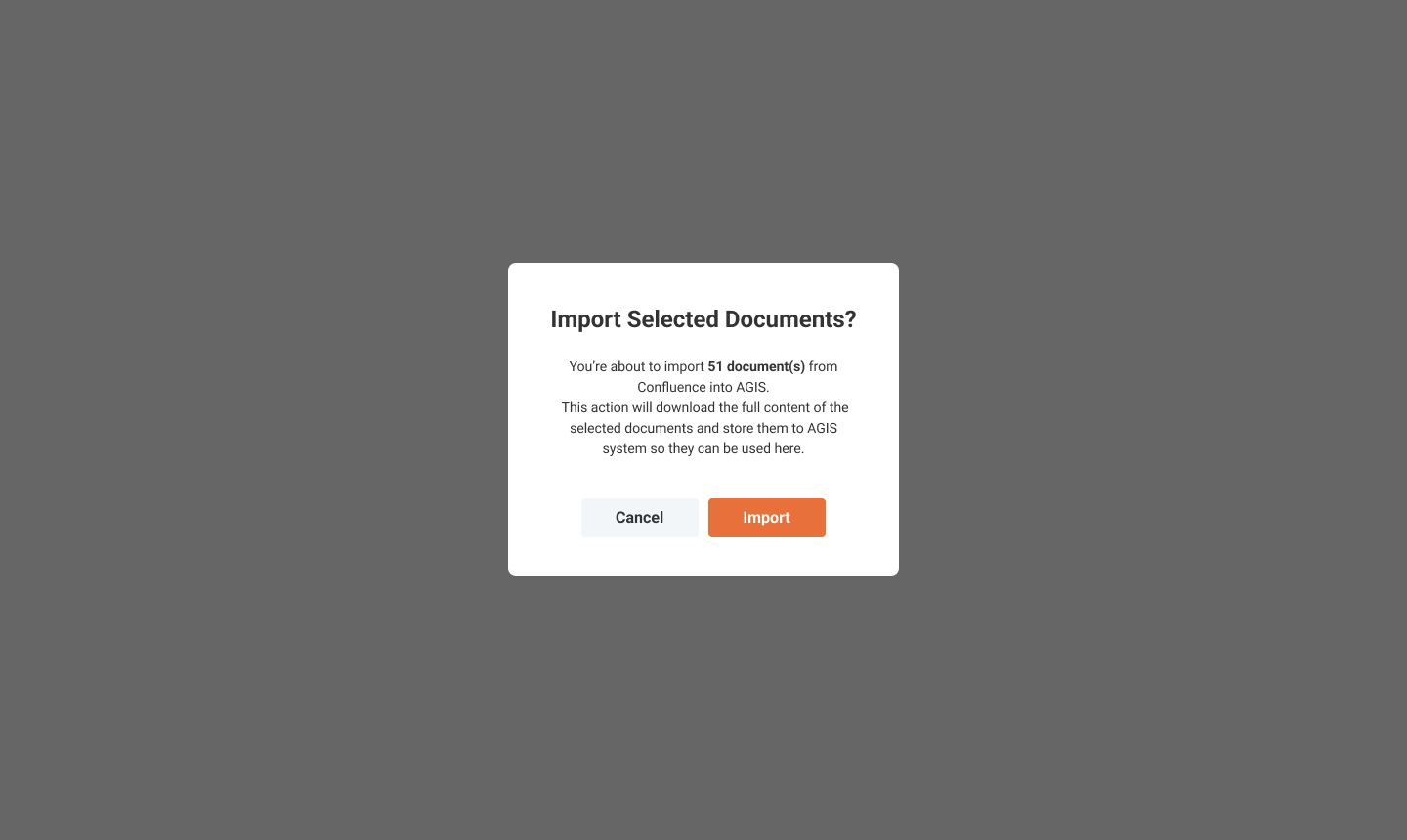
If a selected document has already been previously imported, then it will be updated instead.
