Test Suite
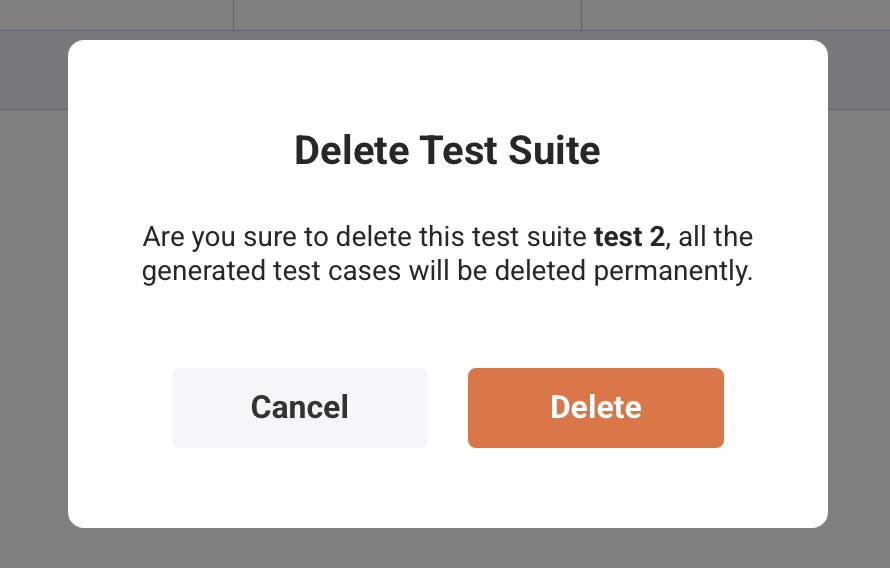
User can view the Test Suite page by clicking the Test Suites button on the left sidebar. In this page, user can View, Create, View Details, View Process Flow, Download Test Suite, Download Process Flow, Download Test Cases, Export, Rename, or Delete a particular test suite.
Create a Test Suite
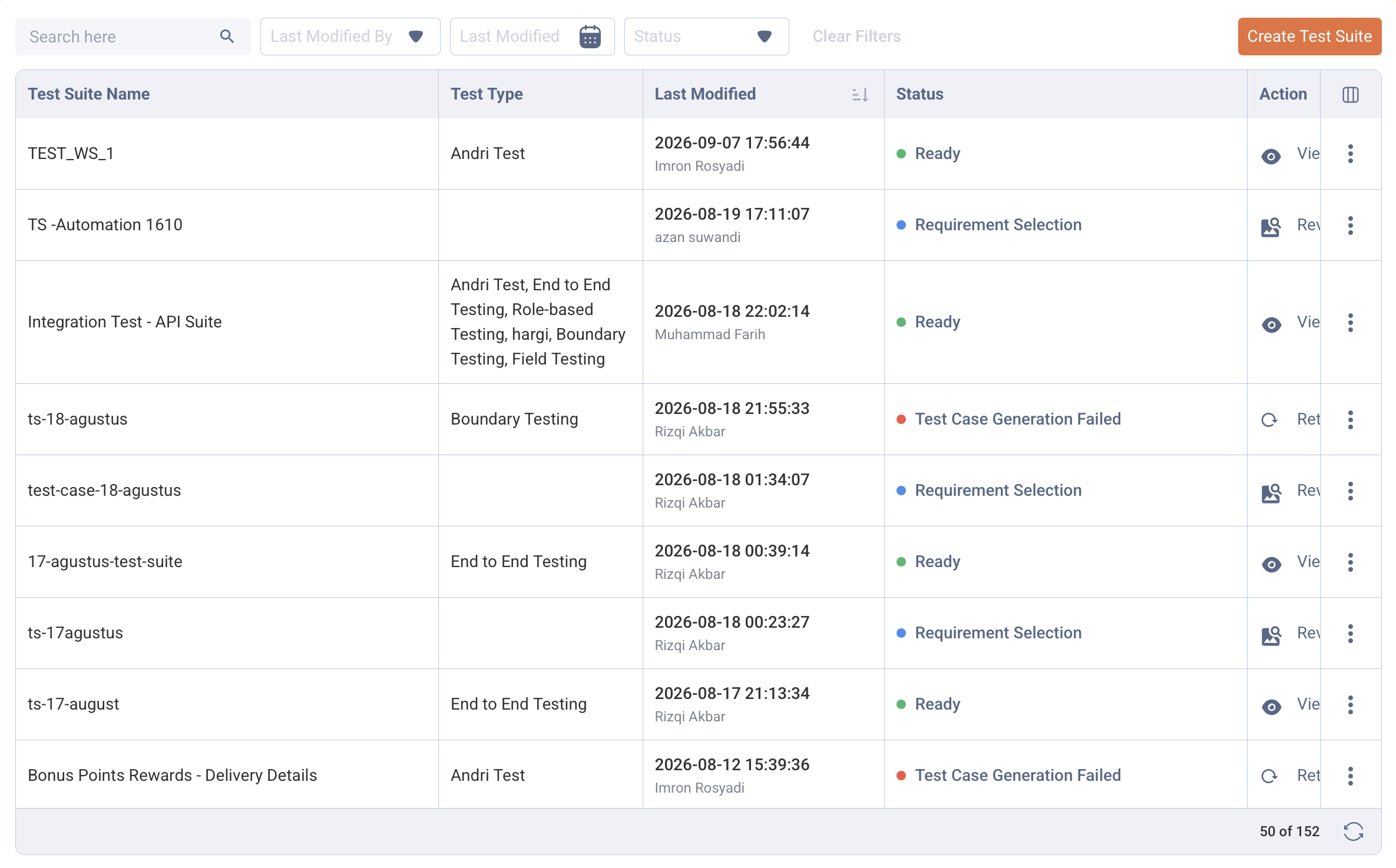
User can create a new test suite by clicking the Create Test Suite button
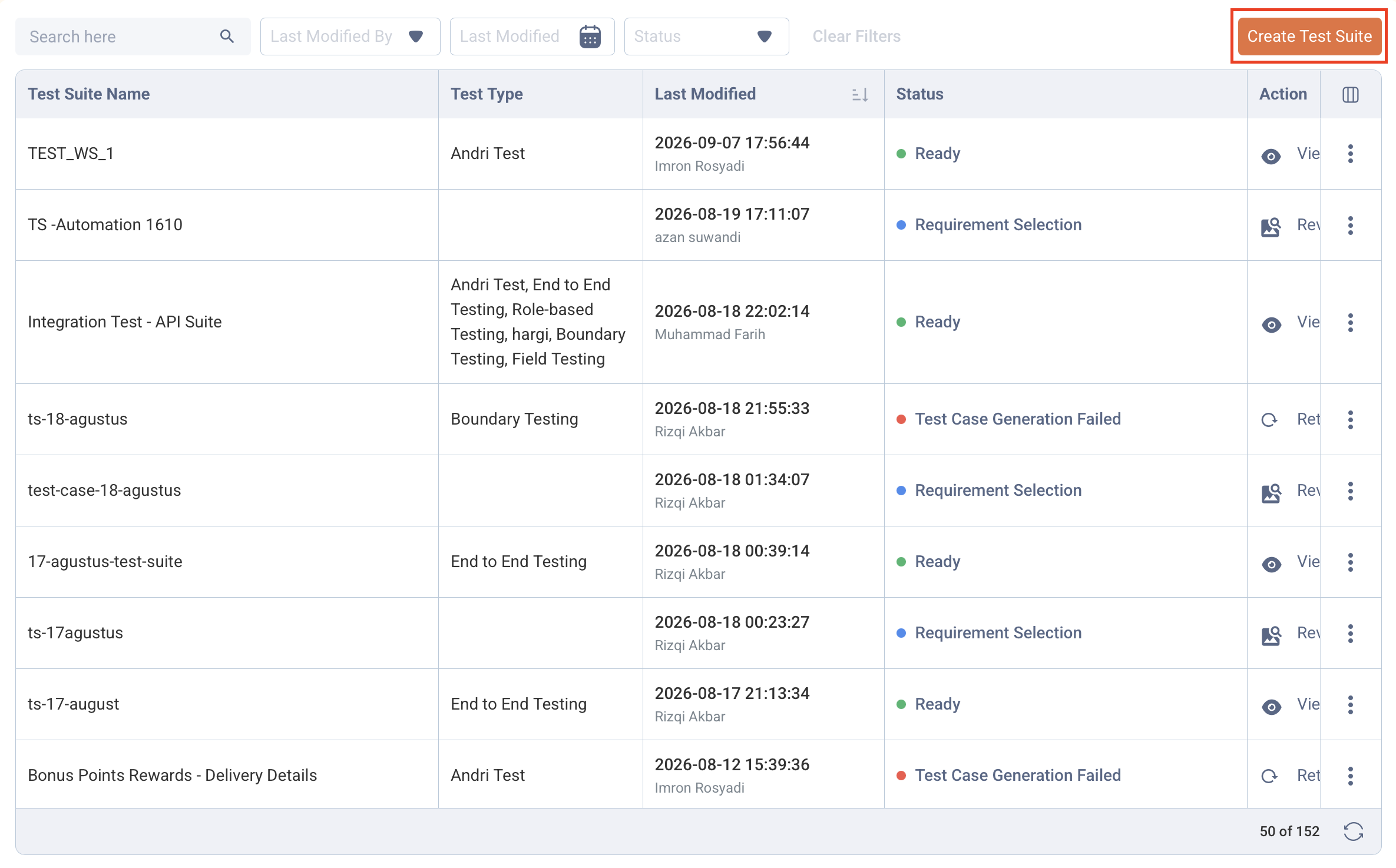
it will then show a modal, user needs to input a Test Suite Name and choose the language before clicking Ok,
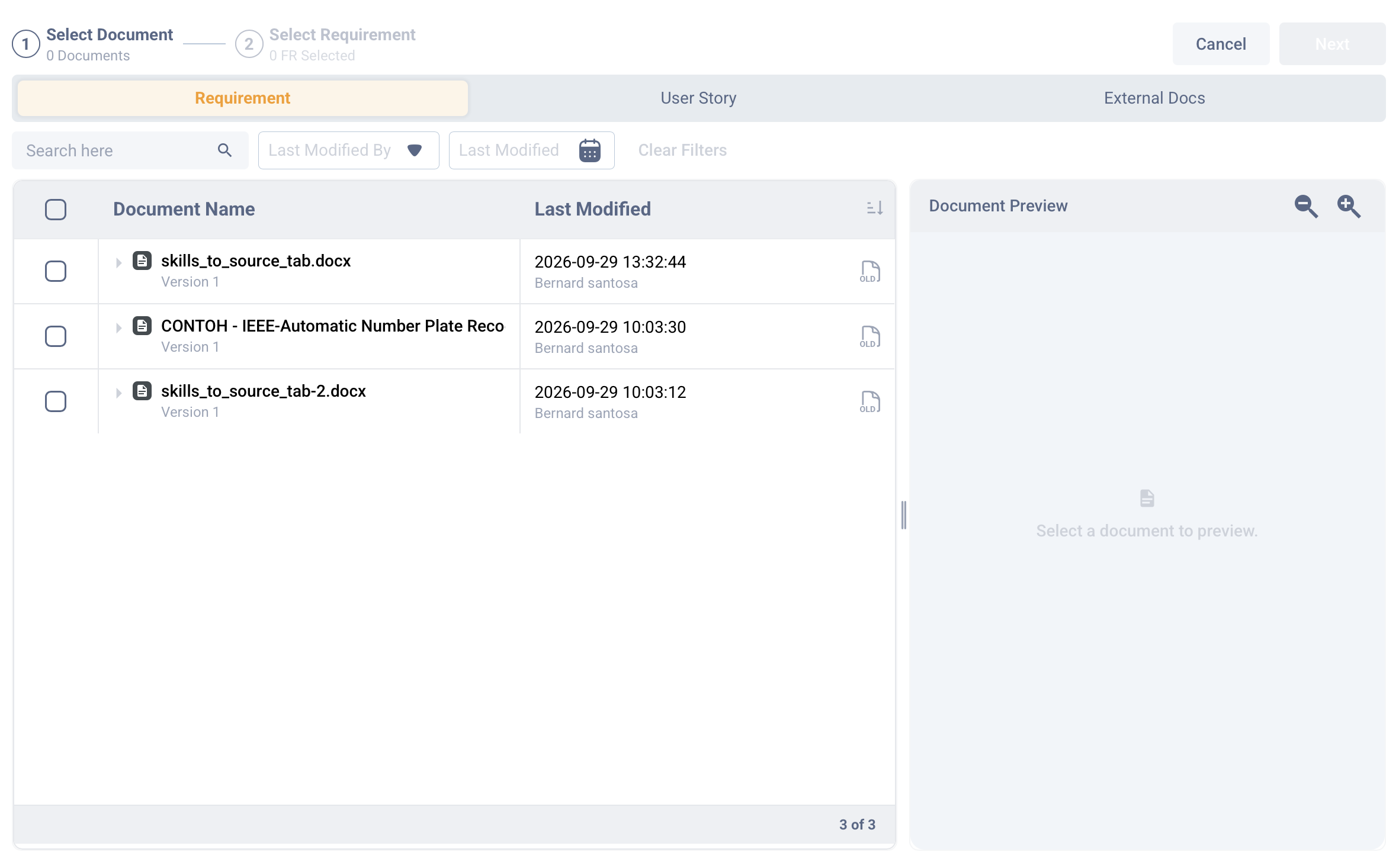
Afterwards, user needs to select the documents for the test suite. User can choose between Requirement, User Story, and External Docs.
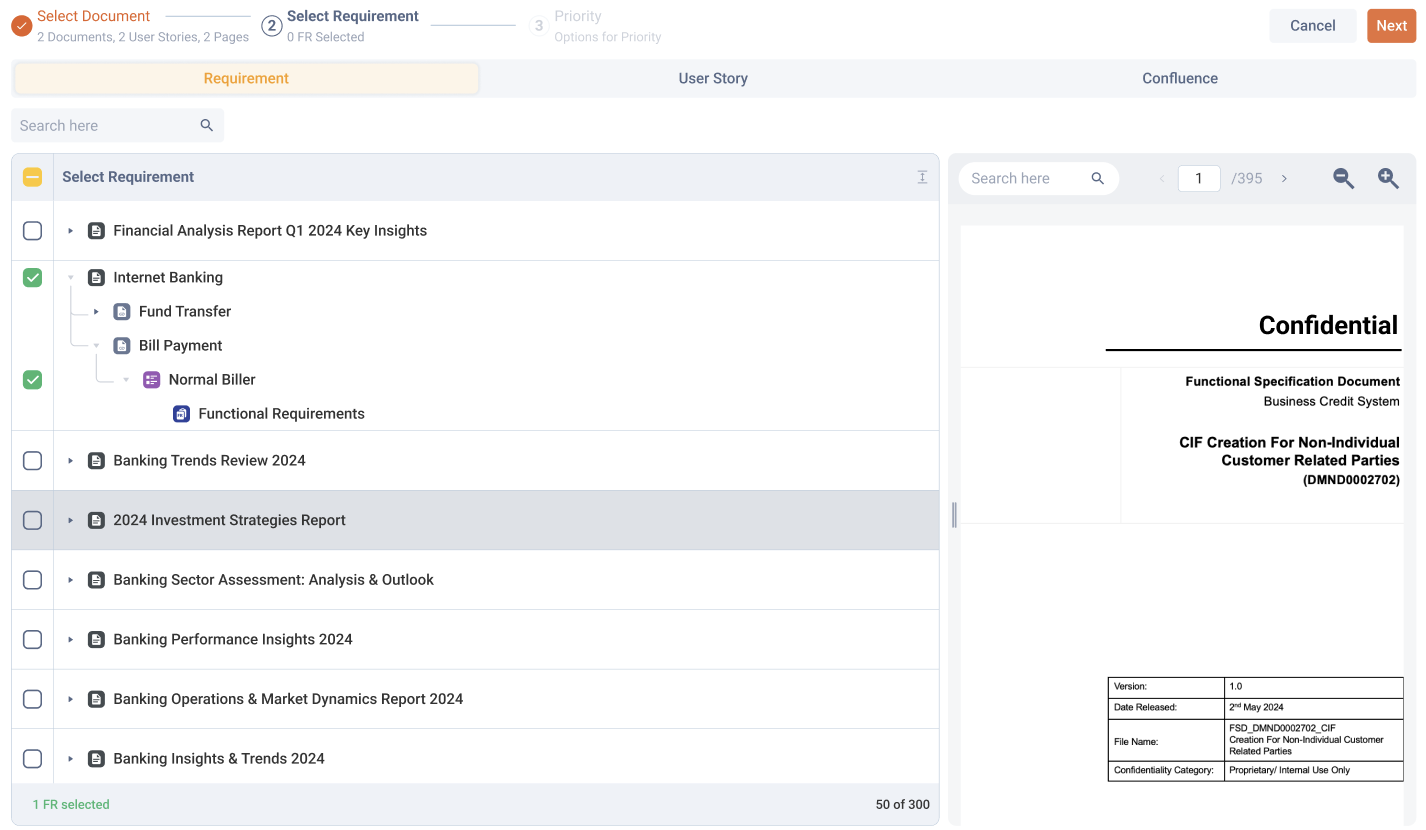
By clicking Next on the right hand side of the screen, user can then select the FR (Functional Requirements). User will then be able to submit by clicking the Submit button.
After clicking submit, user will need to choose the test type first.
After the test suite is created, the status will be updated to Pending Process Flow Review where user can Review Process to review the process flow generated by AGIS. See Process Flow Review below for more info.
Process Flow Review
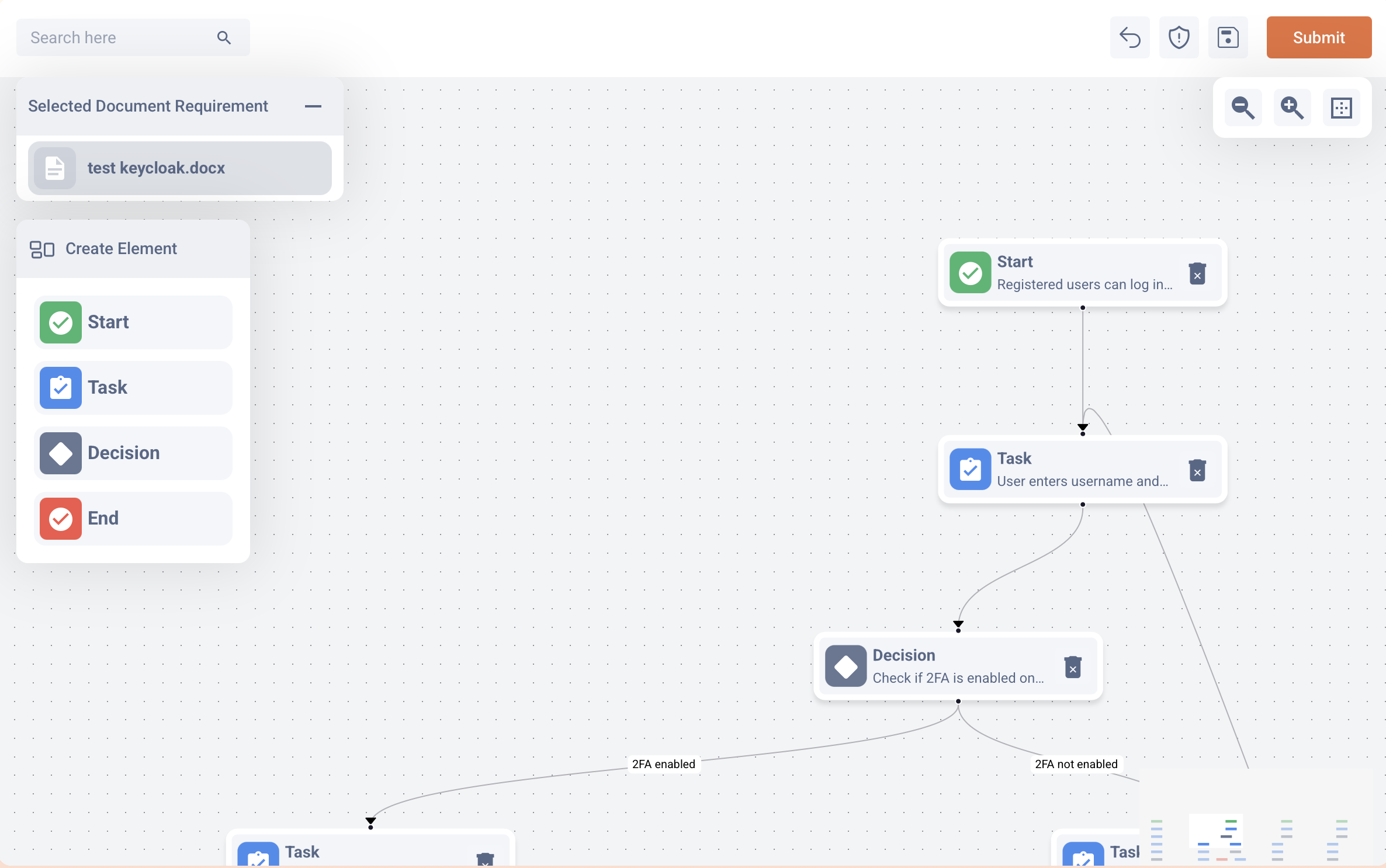
User can review and edit the process flow generated by AGIS. To access this page, user can go from two ways, one is from Review Process after submitting a new test suite or from choosing Process Flow on the Three Dots menu icon after a test suite is ready.
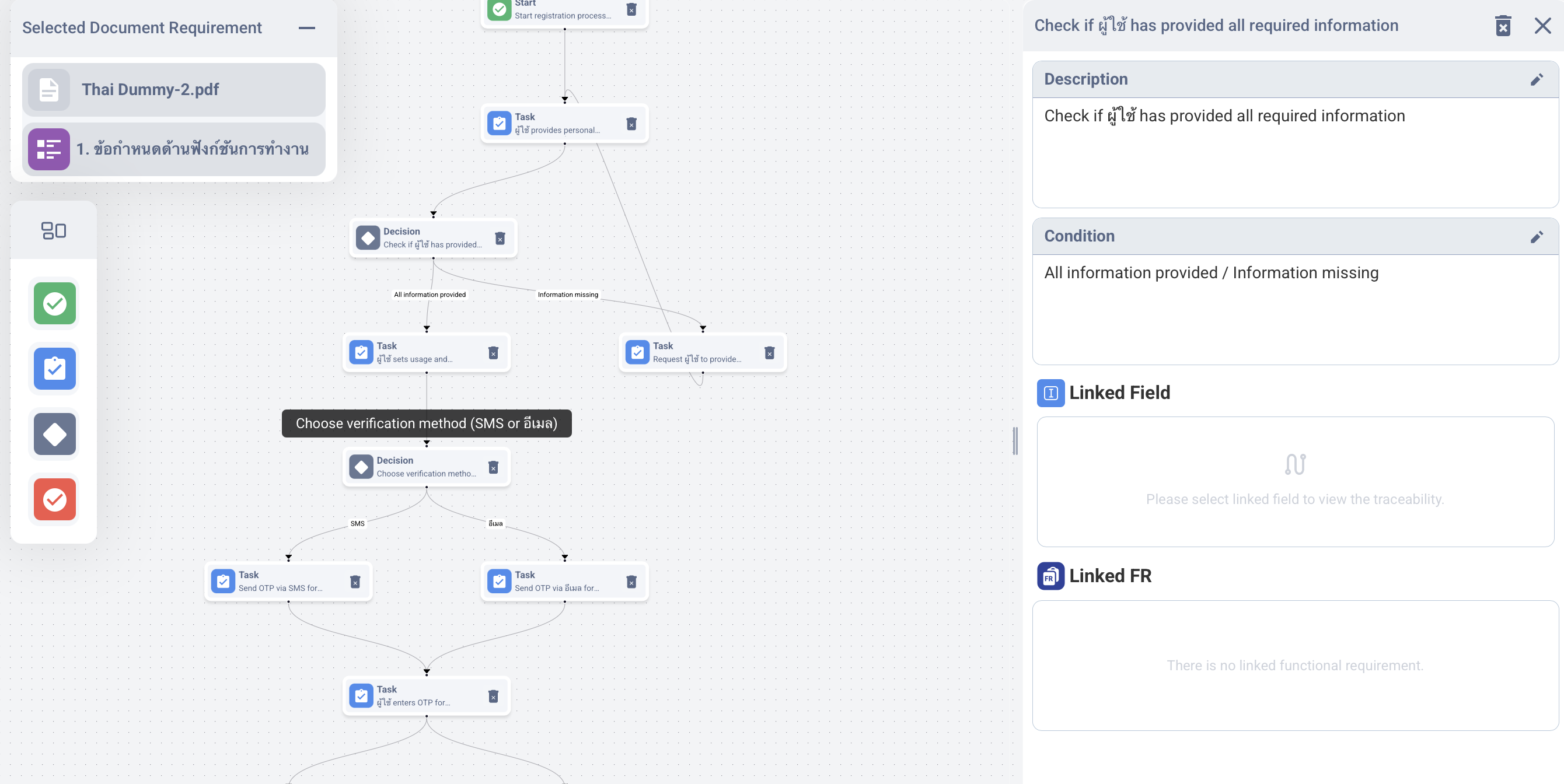
View Node Panel
By clicking a specific node, user can view it's Description, Linked FR, and Linked Field on the right hand side of the screen. User can also edit the Description or Output (if it's a Decision or Task node) by clicking the pen icon.
Create Node Element
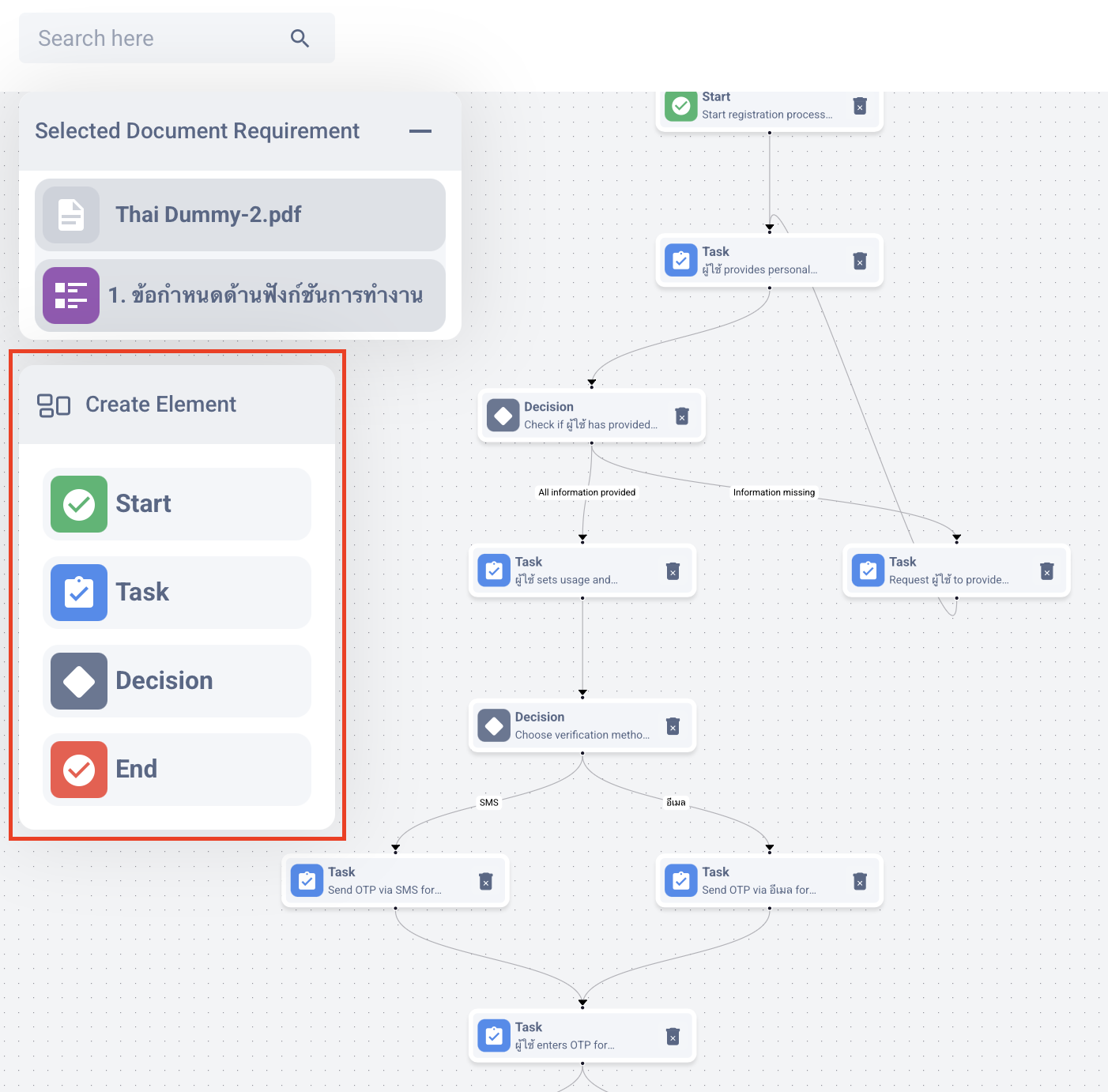
User can create a Start, Decision, Task, or End node by hovering toward the node element panel on the left hand side of the screen. user can click the element to add it onto the canvas and move the node, user can also drag the arrows from one node to another.
View Details
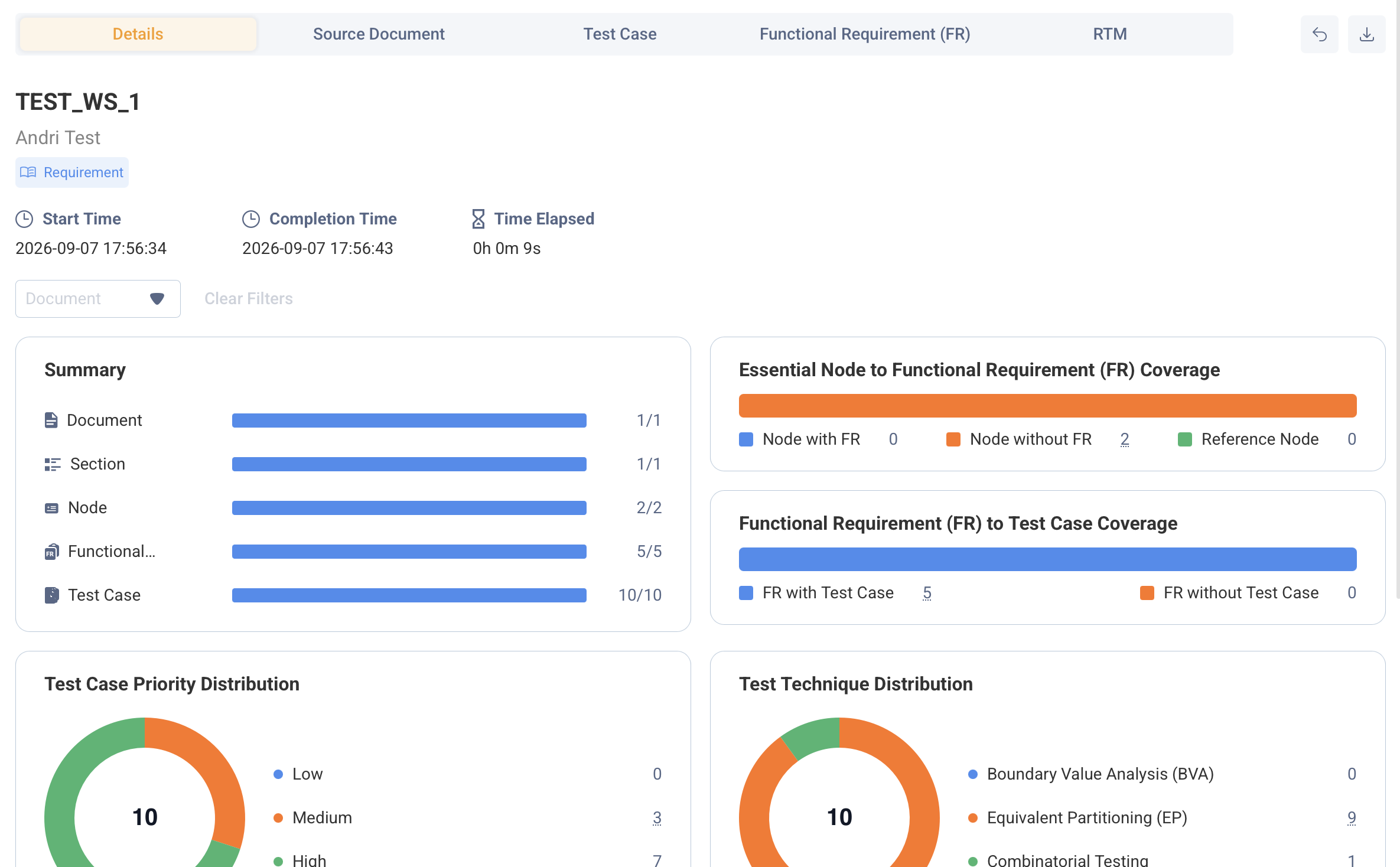
In this page, user can view the document's details, Source Document, Test Cases, Functional Requirements, and RTM.
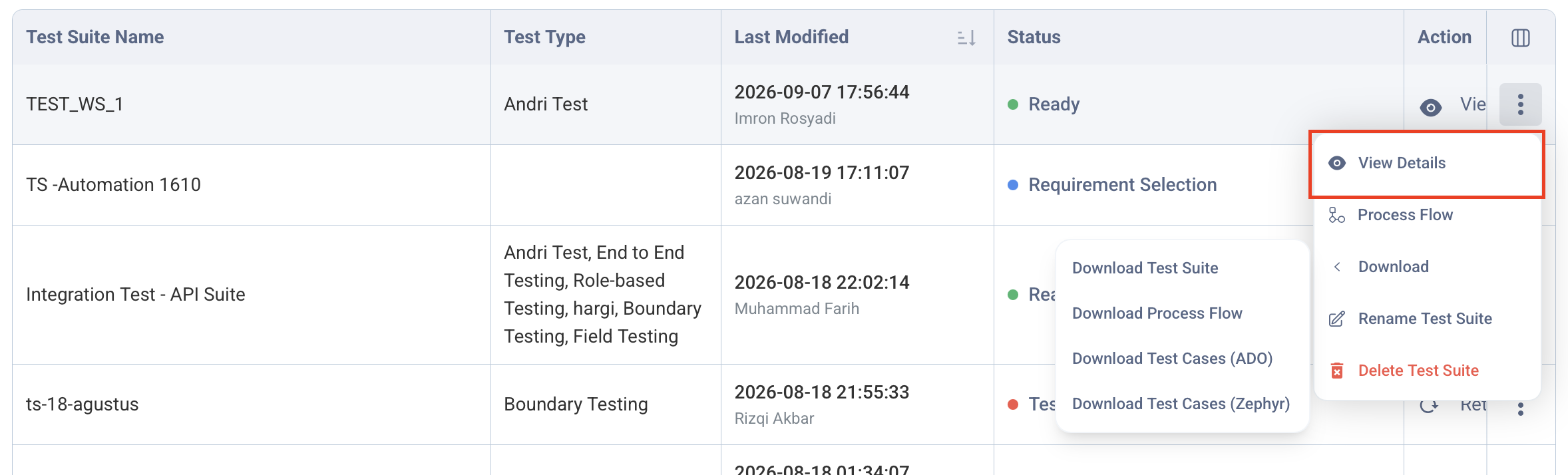
To open, user will need to click the Three Dots icon on the table listing and choose View Details.
The header also has a Download icon to download the whole test suite and an Export to Jira/Zephyr on Source Document, Test Case, and Functional Requirement tab.
| Tab | What is shown |
|---|---|
| Details | Summary, Start Time, Completion Time and Time Elapsed, plus charts for Test Type, Test Case Priority and Test Technique distribution, and System Module Coverage. |
| Source Document | The source documents with their extracted content, next to the related requirements and process flow. View only. |
| Test Case | Test Case ID, Test Case Description, Pre-Conditions, Test Steps, Test Data, Expected Result, Type, Priority, Test Technique, Requirement ID, Linked FR, Linked Test Scenario, Linked Jira Key and Linked Document Section. |
| Functional Requirement (FR) | FR ID, FR Type, FR Description, Requirement ID and Linked Test Scenario. |
| RTM | The traceability matrix, linking each document and section to its FRs and test cases: Document Name, Section Name, FR ID, FR Description, Requirement ID, Test Case ID and Test Case Description. |
Details
A tab that shows an overview of the test suite, user can view the test suite's name, test type, and a badge showing the source. There are also Start Time, Completion Time, Time Elapsed for the generation run. User can also filter by document.
| Chart | What it shows |
|---|---|
| Summary | Used/total counts for Document, Section, Node, Paragraph, Functional Requirement (FR) and Test Case. Hover a bar for the percentage. |
| System Module Coverage | How many Systems, Modules, Screens, Reports and Fields the test suite covers, out of the total. |
| Essential Node to Functional Requirement (FR) Coverage | Essential nodes split into Node with FR, Node without FR and Reference Node. The Node without FR count opens a pop-up listing those nodes. |
| Functional Requirement (FR) to Test Case Coverage | FR with Test Case vs FR without Test Case. |
| Paragraph to Functional Requirement (FR) Coverage | Paragraph with FR vs Paragraph without FR. |
| Test Case Priority Distribution | Test cases by priority. |
| Test Technique Distribution | Test cases by test technique. |
| Test Type Distribution | Positive vs Negative test cases. |
Source Document
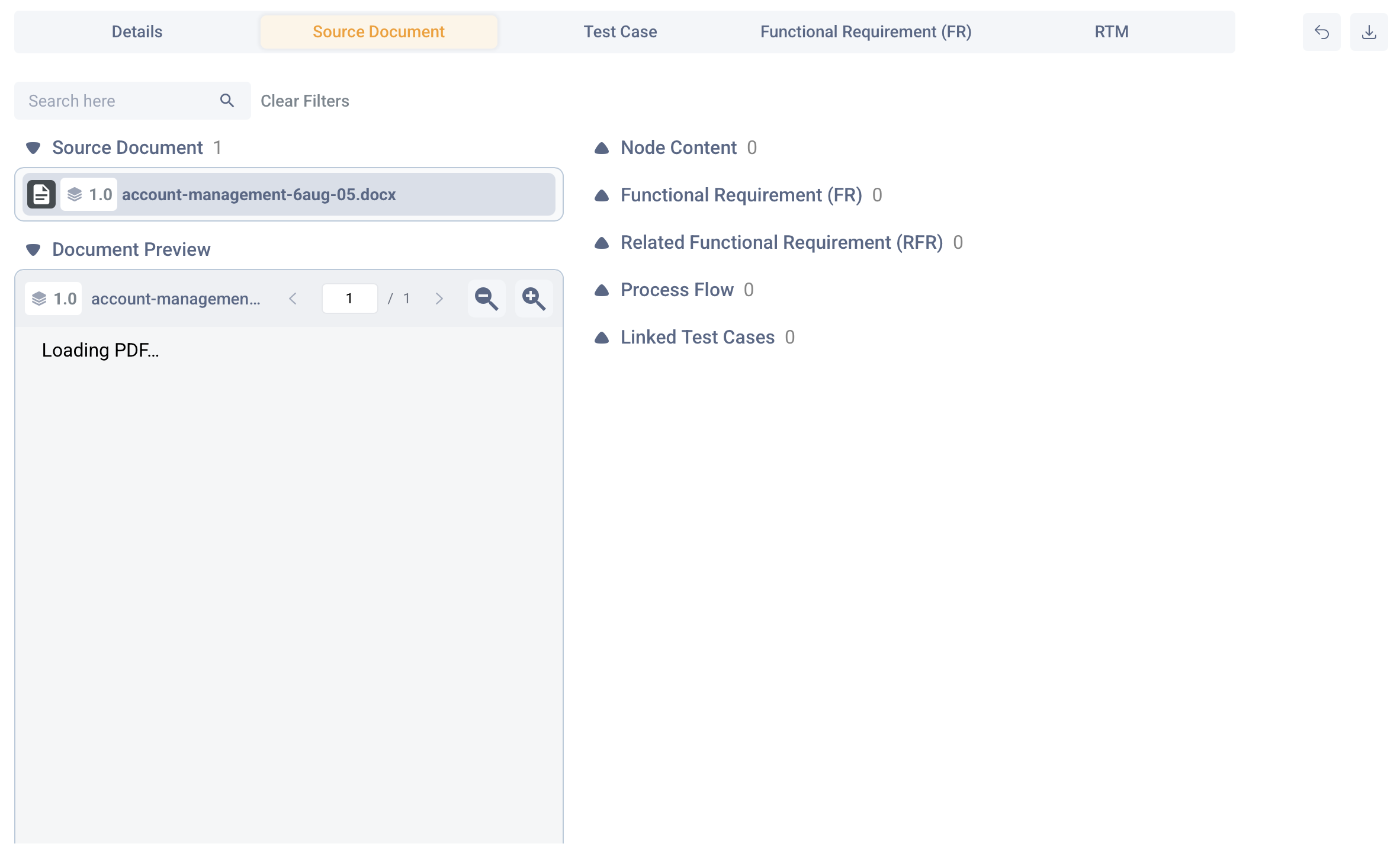
A read-only view for tracing document content to its FRs, process flow and test cases.
The left side shows the documents and a preview. The right side has panels that update to match what user click.
| Panel | What it shows |
|---|---|
| Source Document | The documents used in this test suite, with their version and any linked attachments. Click a document to preview it. |
| Document Preview | The selected document. Only the content used by this test suite is highlighted. Click a highlighted area to load it into the panels on the right. |
| Node Content | The content of the selected node, with its type (for example, Section, Text, Table, Image or Screen UI) and an Essential or Non-Essential badge. |
| Functional Requirement (FR) | The FRs extracted from the selected node, with FR ID, FR Description and Requirement ID. Click an FR ID to select it. |
| Related Functional Requirement (RFR) | Requirements related to the selected FR, with RFR ID, RFR Description, Requirement ID, Section & Document Name and Linked FR. |
| System Module | The systems, modules, screens and fields found in the selected node. Choose a level, then click a name to see where it sits in the hierarchy. Requires the Review System Module permission. Not available for BPMN test suites. |
| Process Flow | A view-only process flow for the section of the selected FR, with a section picker, zoom and realign tools, and a minimap. Click a step to see its Description, Output (for a task) or Condition (for a decision), and Linked FR. Requires the Review Process Flow permission. |
| Linked Test Cases | The test cases generated from the selected FR, with Test Case ID, Test Case Description, Pre-Conditions, Test Steps, Test Data, Expected Result, Type, Test Technique, Requirement ID and Section & Document Name. |
Test Case
A tab that shows every generated test cases. User can search and filter by Document, Section, Positive/Negative, Priority, and Test Technique Used.
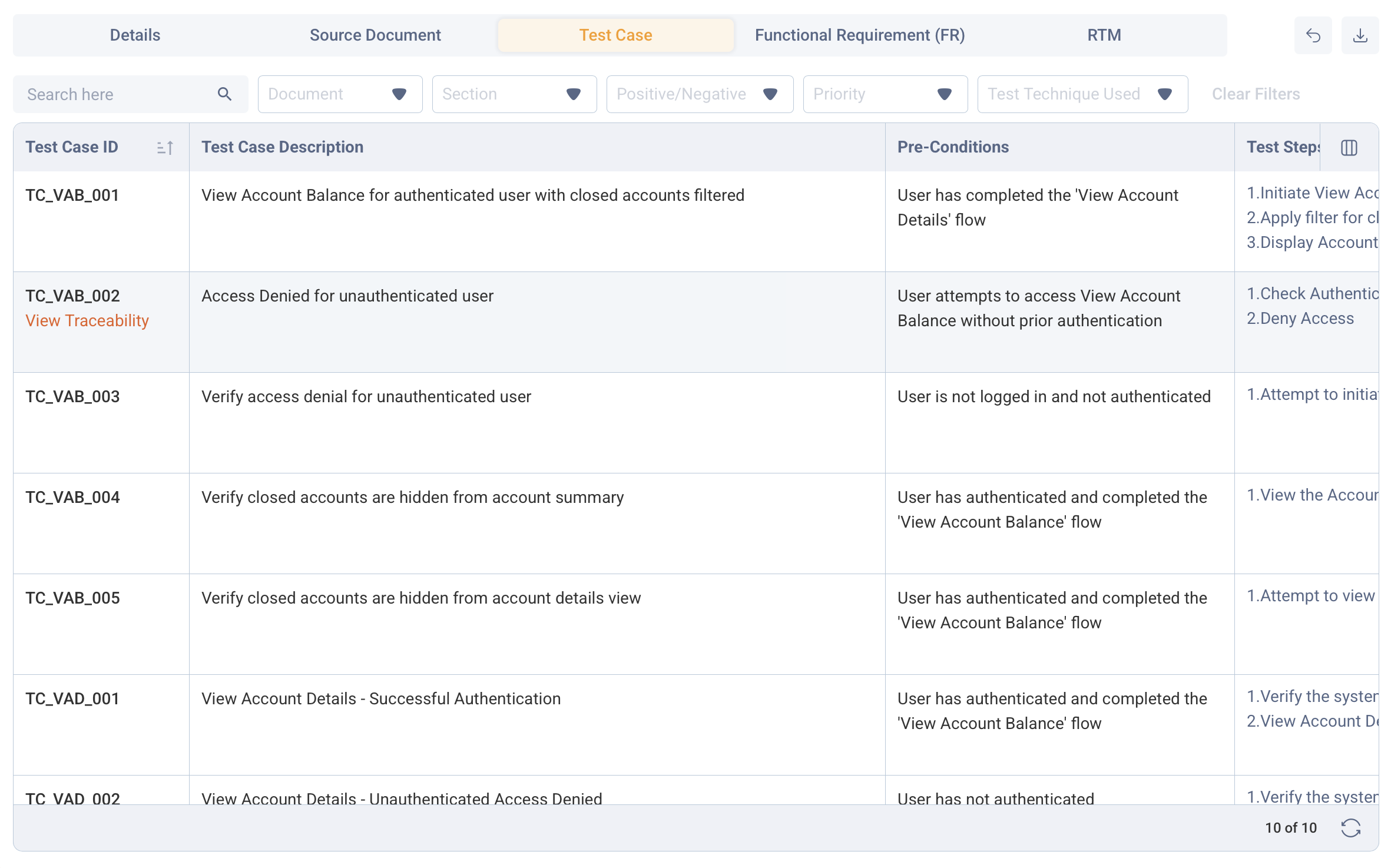
The table listing shows:
| Column | Description |
|---|---|
| Test Case ID | The ID of the test case. Hover over the row and click View Traceability to see the requirements, system modules and process flow it was generated from. |
| Test Case Description | What the test case checks. |
| Pre-Conditions | What must be in place before user run the test. |
| Test Steps | The steps to perform, in order. |
| Test Data | The data to use in the test steps. |
| Expected Result | The expected outcome of the test. |
| Type | Positive (checks valid behaviour) or Negative (checks invalid input or error handling). |
| Priority | The priority of the test case. |
| Test Technique | The test design technique AGIS used to create the test case. |
| Matching Test Case ID | Only for workspaces connected to Jira with Xray. Existing test cases in the Test Repository that match this test case, shown as links. The column header shows when the last analysis ran. This column is filled in when user use Compare with Jira. |
| Requirement ID | The requirement IDs from the source document that the test case covers. |
| Section & Document Name | The section and document the test case was generated from. For test suites created from user stories, this column is called JIRA Key. |
| Linked Jira Key | Only for test suites created from user stories. The Jira key linked to the test case. |
View Traceability
By hovering on a test case, user can view it's traceability. It will open a panel that has three tabs.
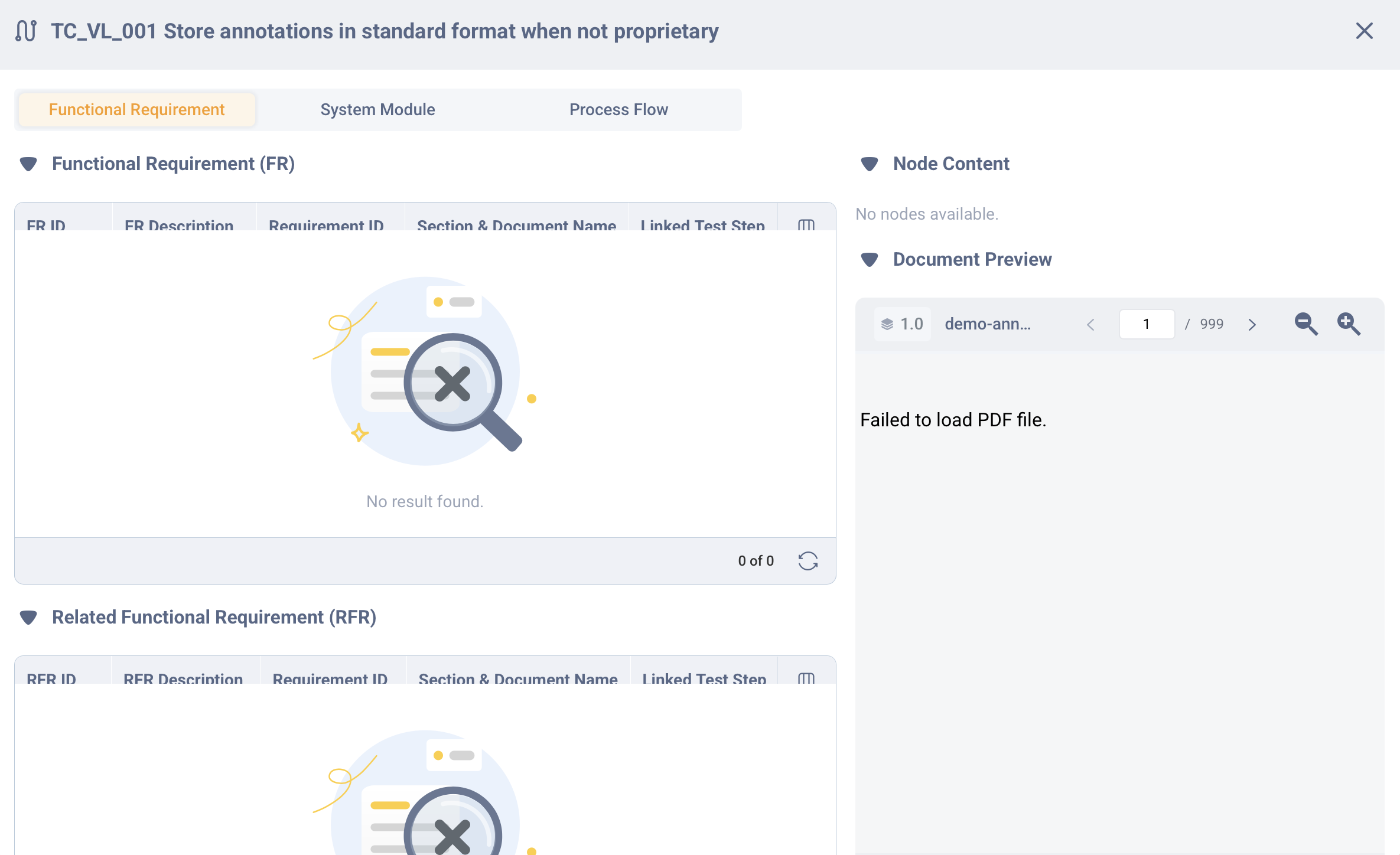
| Tabs | What it Shows |
|---|---|
| Functional Requirement | FR and RFR tables. |
| System Module | the system/module/screen/field the test case covers. |
| Process Flow | the process flow and its Linked Test Cases. |
Functional Requirement
A tab that shows every FR in the test suite. User can search and filter by Document, Section, FR Type, and Linked TC.
If there are any Functional Requirement without a test case, it will show a banner/warning above the table listing. (eg. X Functional Requirement (FR) without Test Cases (TC) detected.)
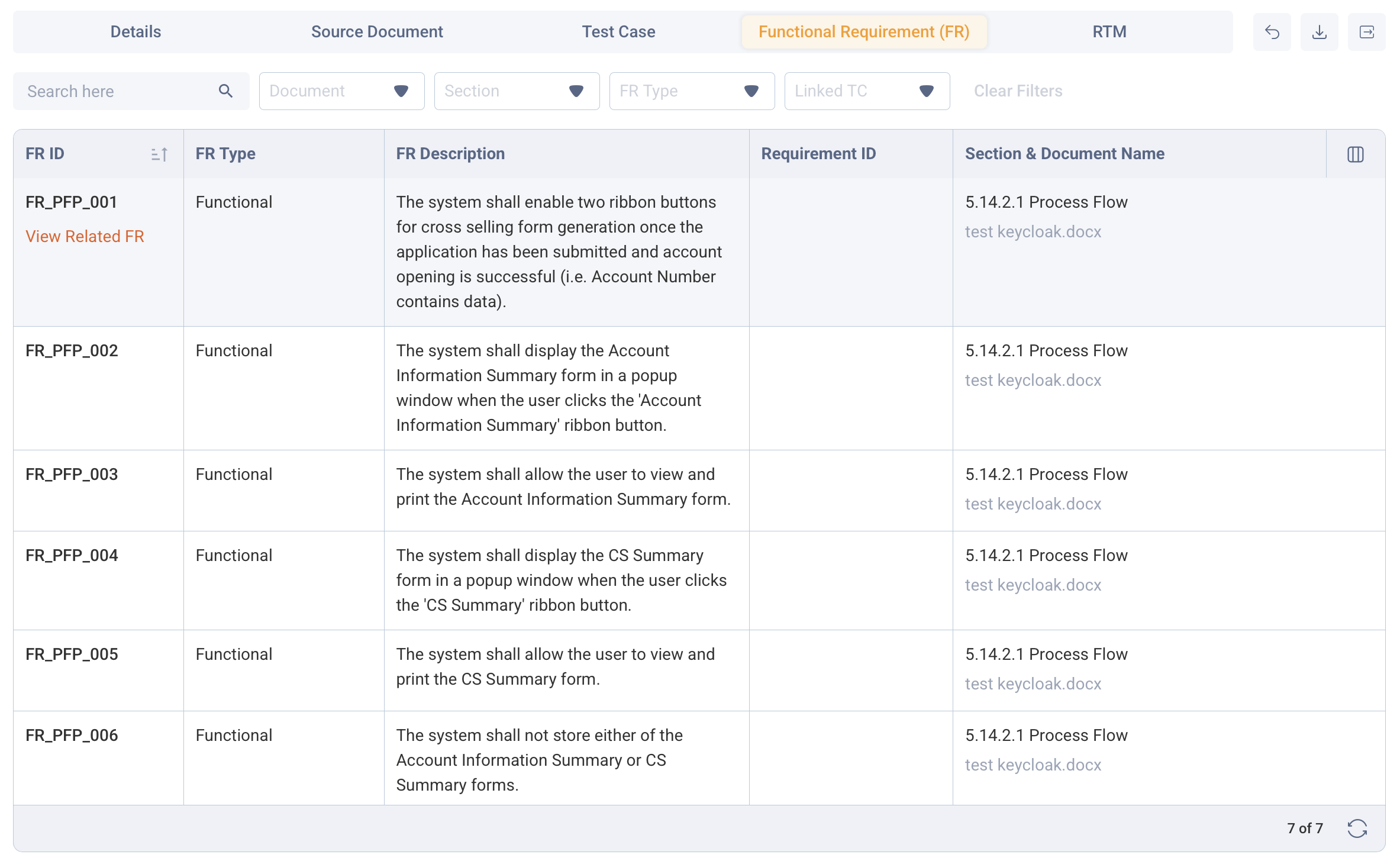
The table listing shows:
| Column | Description |
|---|---|
| FR ID | The ID of the functional requirement. A warning icon with the tooltip FR has no Linked TC means no test case covers this FR. Hover over the row and click View Related FR to see its related requirements. |
| FR Type | The type of functional requirement. |
| FR Description | The requirement text. |
| Requirement ID | The requirement ID from the source document. |
| Section & Document Name | The section and document the FR was extracted from. For test suites created from user stories, this column is called JIRA Key. |
Related FR
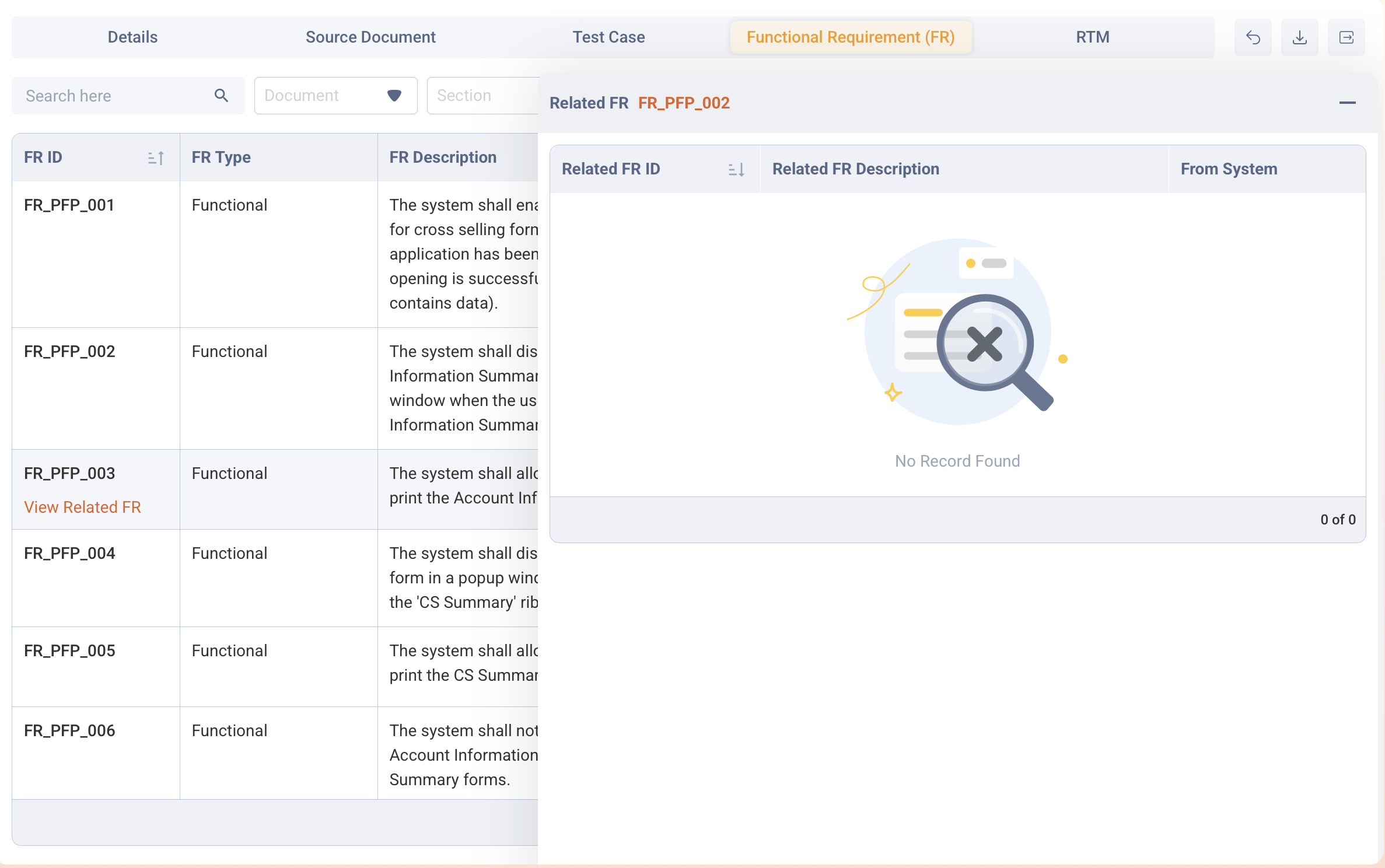
By hovering on a FR, user can view it's related FR. It will open a side panel that shows a table listing that has Related FR ID, Related FR Description, From System, To System, Integration Scenario, and Relevancy %.
RTM
A tab that shows the Requirements Traceability Matrix, which test cases cover each requirement. User can search and filter by Document, Section, FR ID, Requirement ID, and Test Case ID.
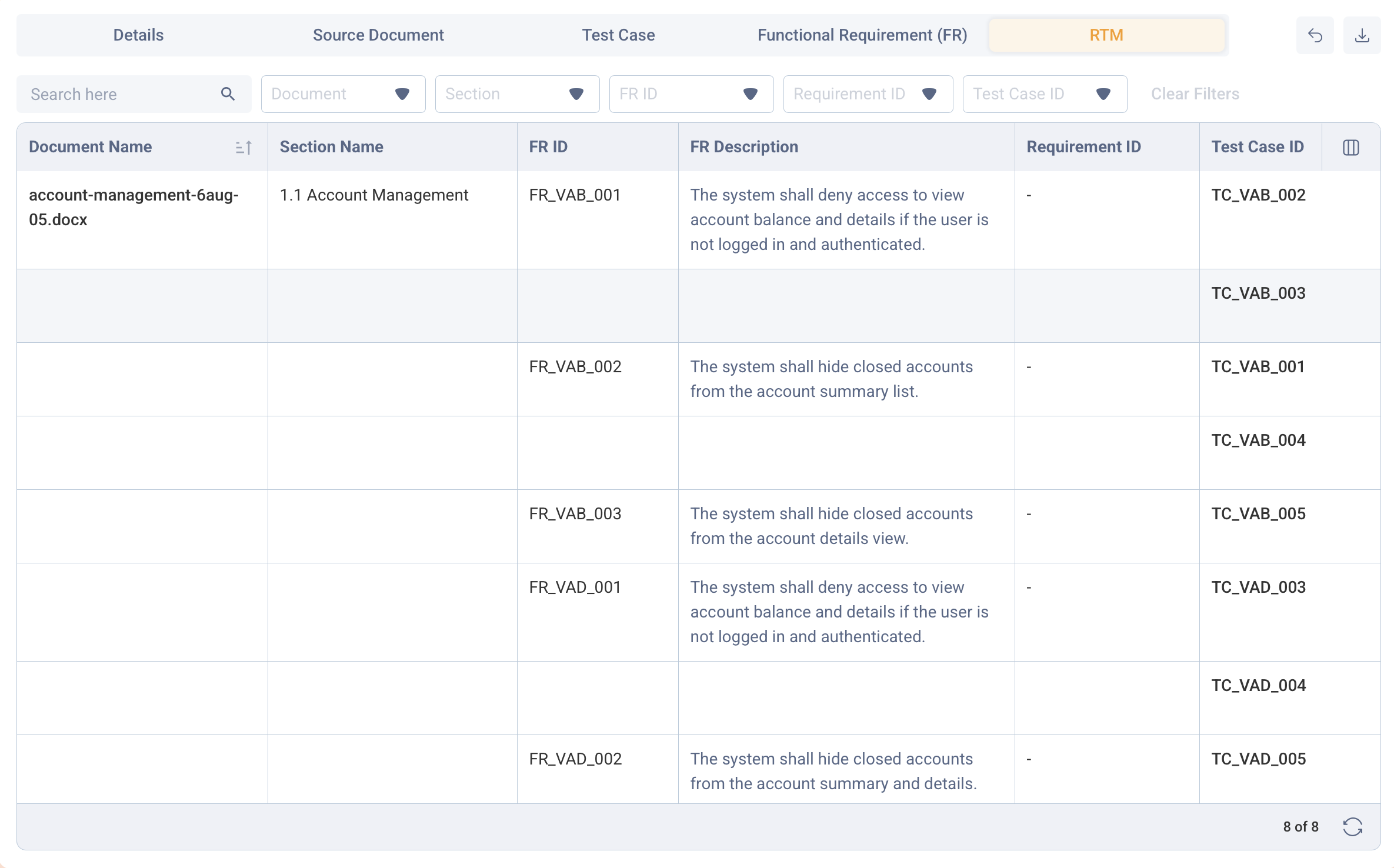
The table listing shows:
| Column | Description |
|---|---|
| Document Name | The source document. |
| Section Name | The section of the source document. |
| FR ID | A functional requirement extracted from that section. |
| FR Description | The requirement text. |
| Requirement ID | The requirement ID from the source document. |
| Test Case ID | A test case that covers the FR. |
| Test Case Description | What the test case checks. |
Download/Export
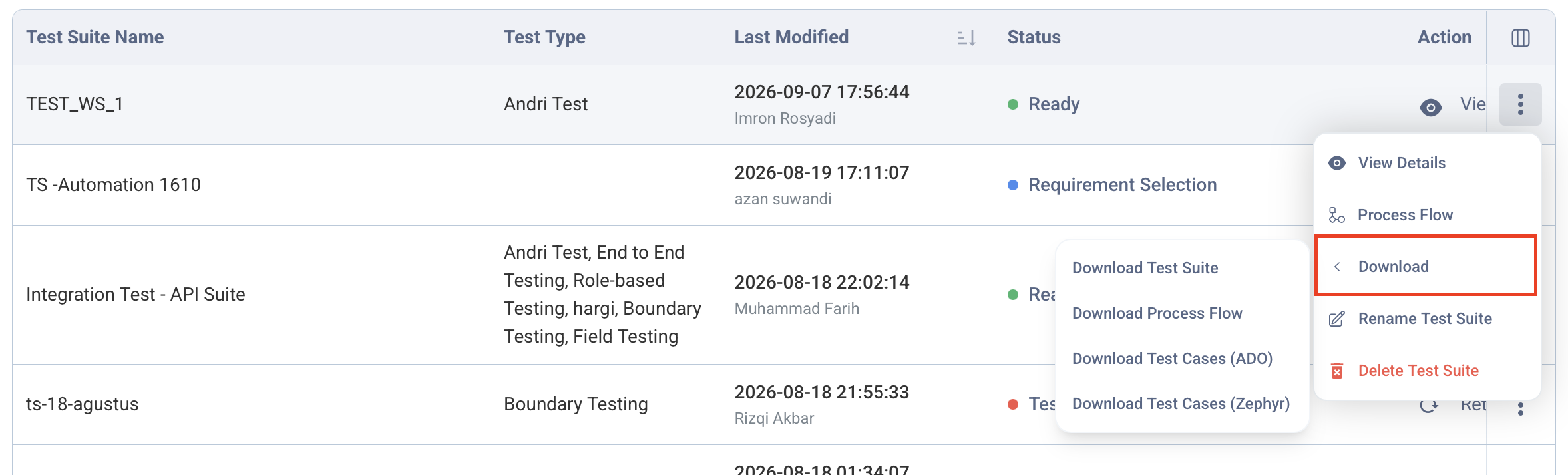
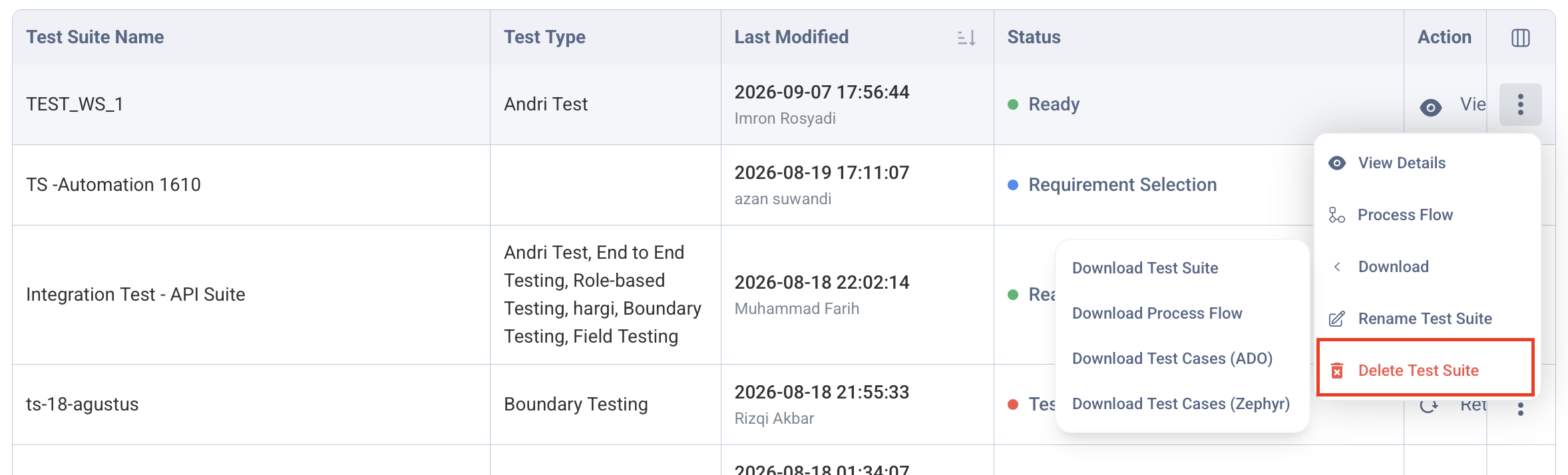
User can Download a Test Suite, Process Flow, Test Cases (ADO), and Test Cases (Zephyr) by clicking on the Three Dots icon and choosing Download. For Test Cases specifically, user needs to choose area path first in the modal before clicking Ok.
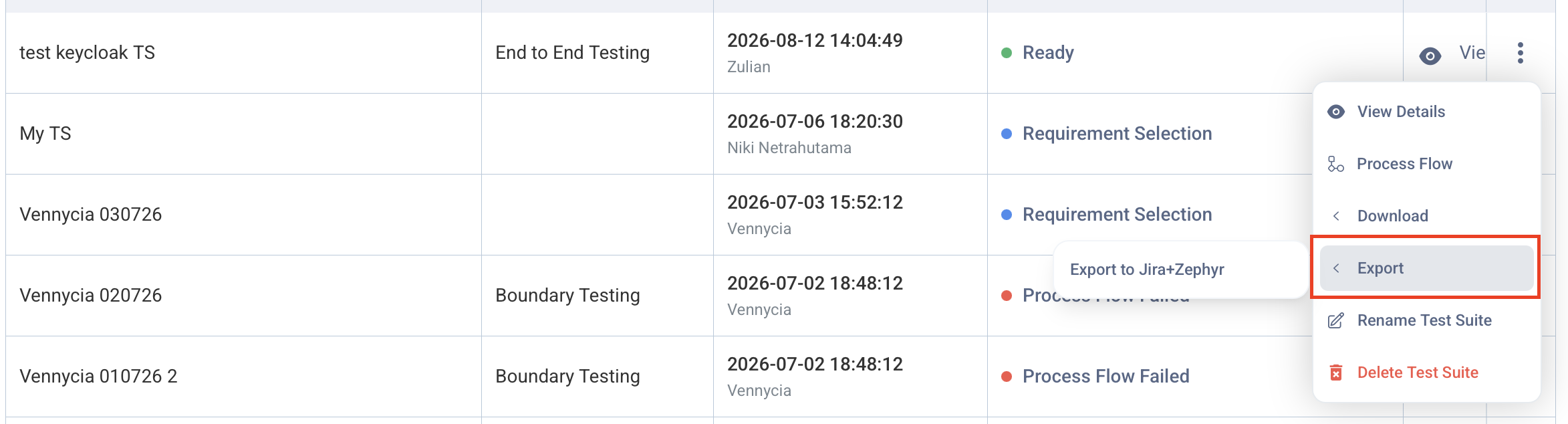
User can also Export the test suite by clicking on the Three Dots icon and choosing Export.
Rename Test Suite
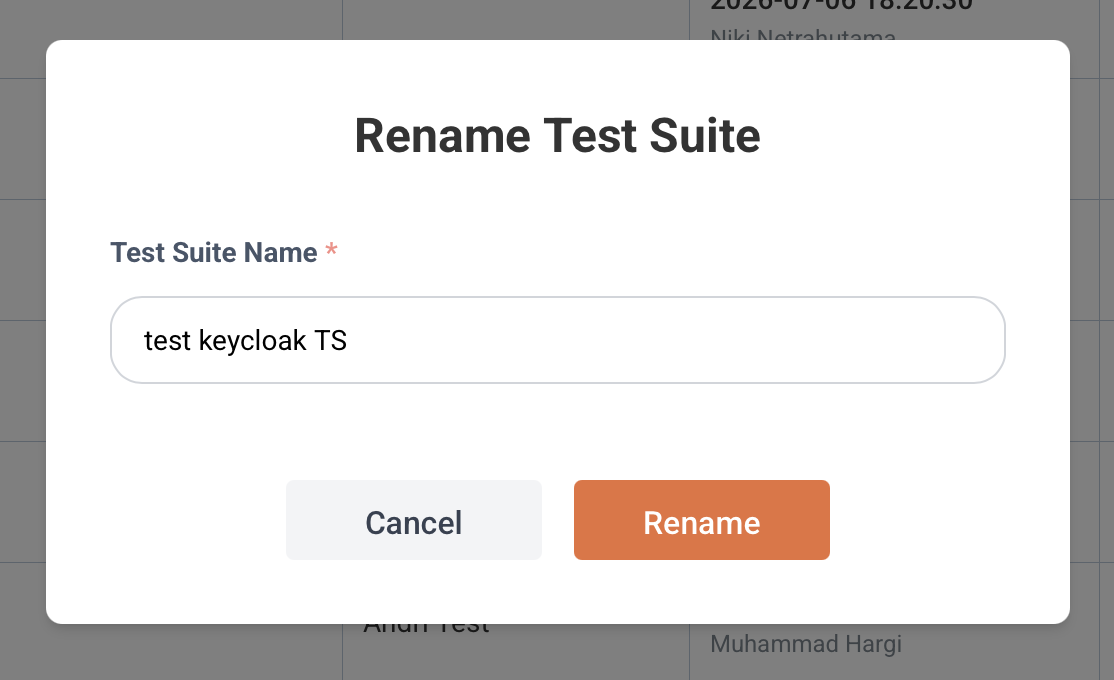
User can Rename a test suite by clicking on the Three Dots icon and choosing Rename Test Suite.
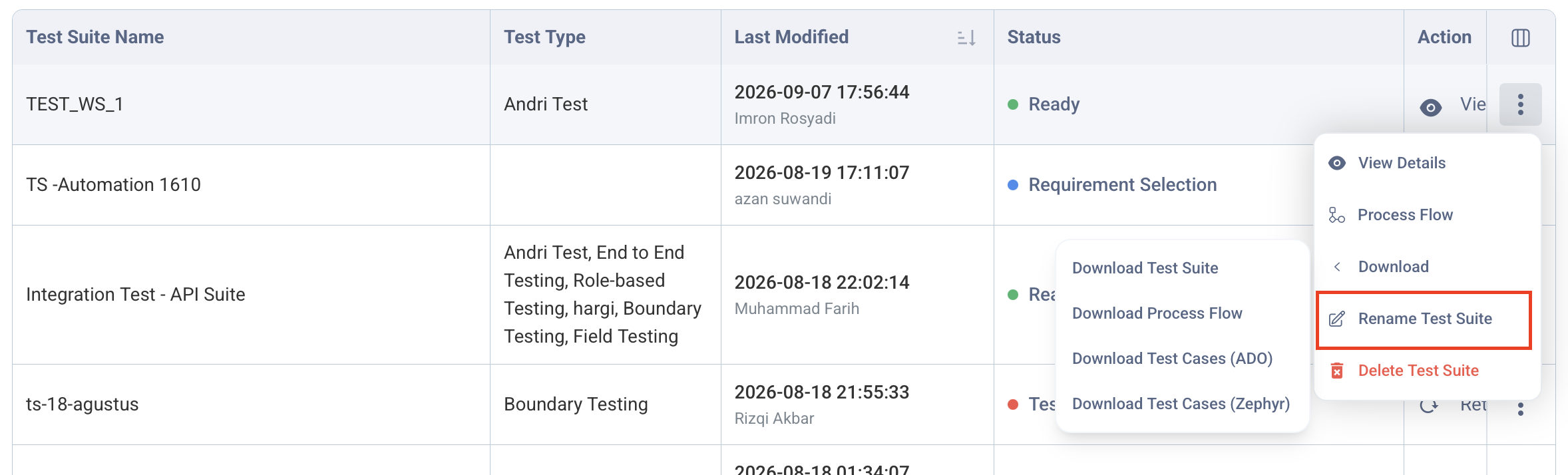
it will then show a modal and user can change the name before clicking Rename.
Delete Test Suite
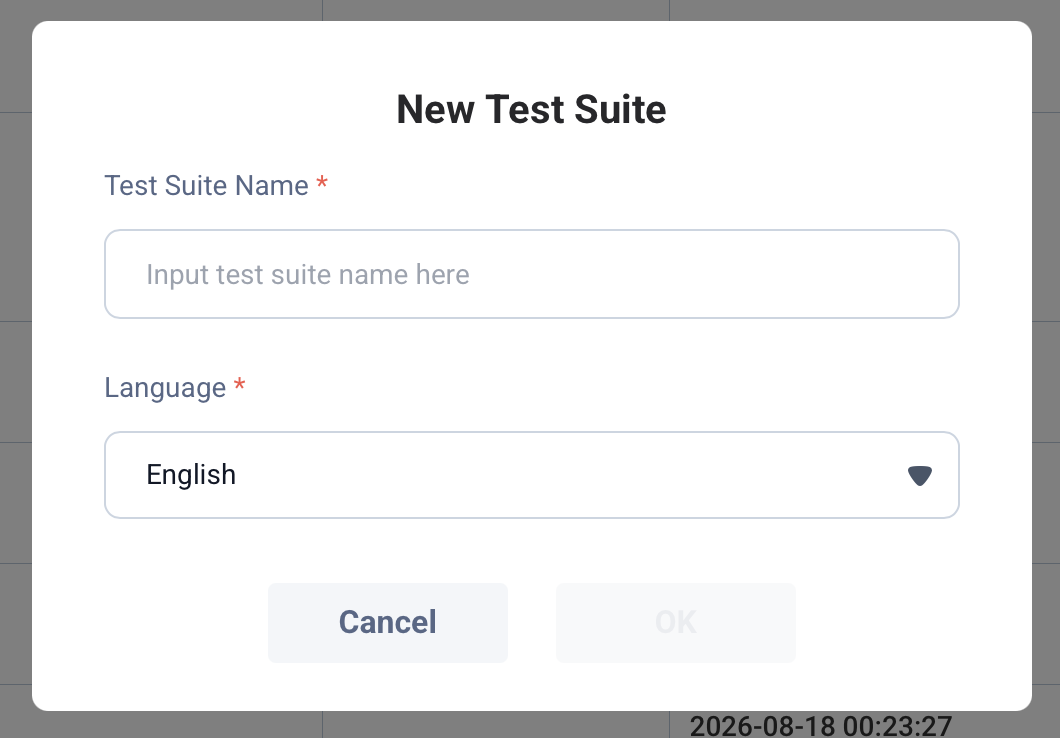
User can Delete a test suite by clicking on the Three Dots icon and choosing Delete Test Suite.
it will then show a modal and user can click Delete.