Link Attachment
Click the ⋮ icon at the end of a row, then select Link Attachment to manage attachments linked to that document.
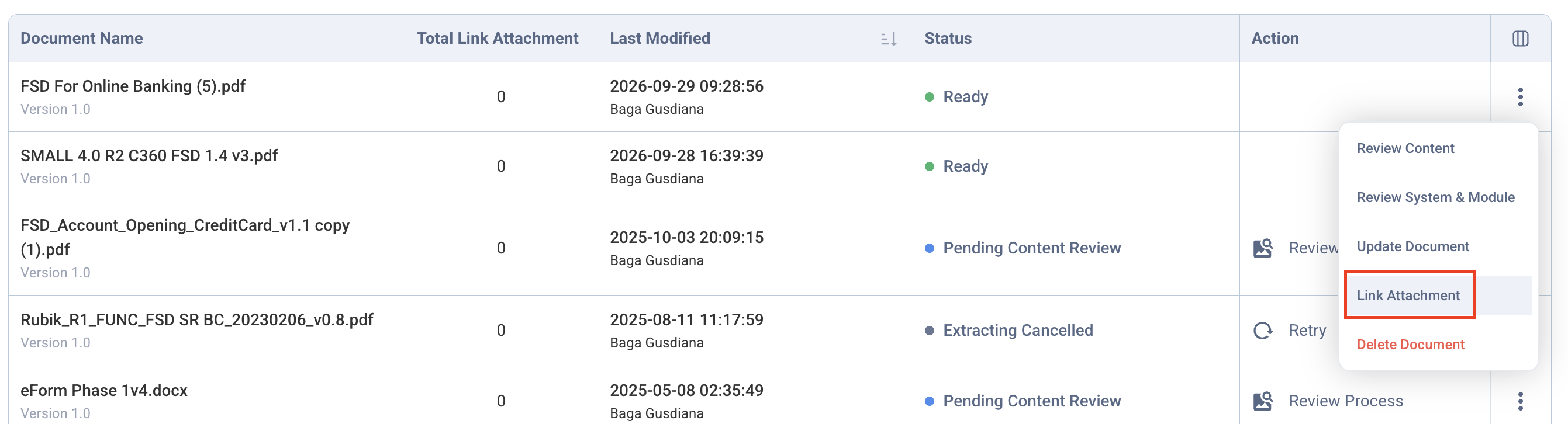
This opens the Link Attachment page for the document.
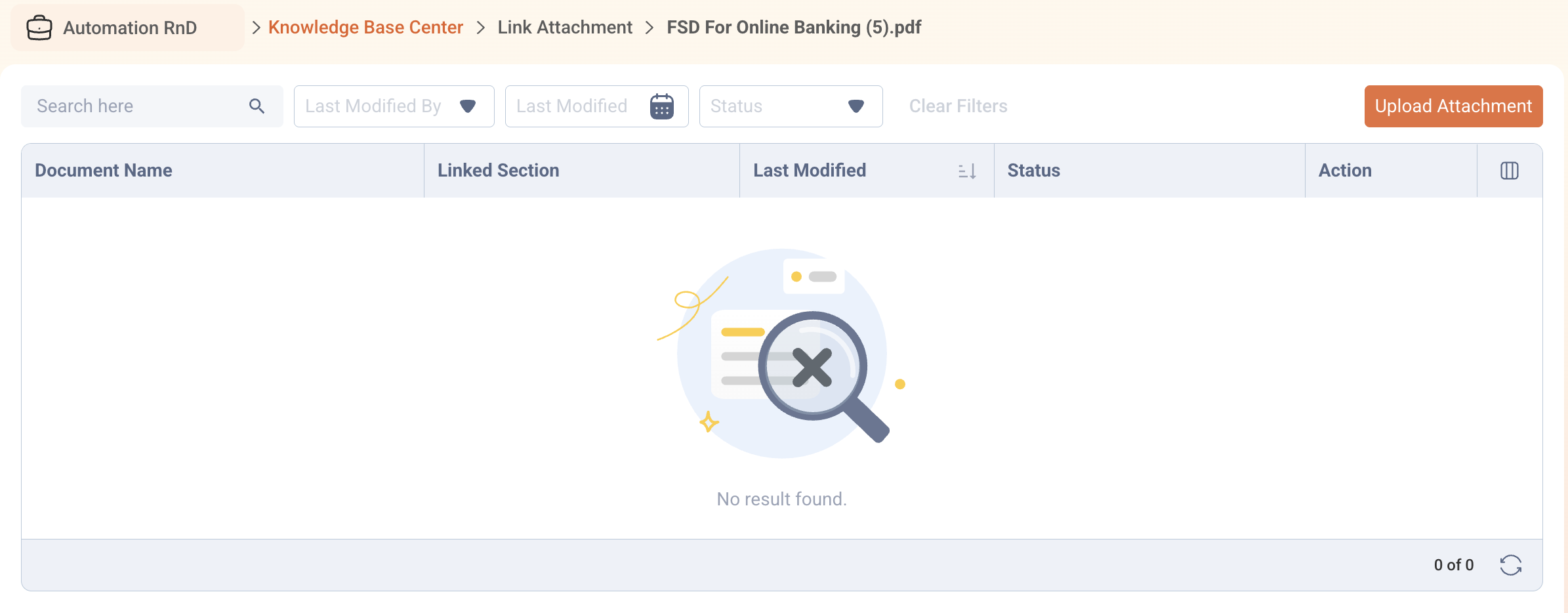
At the top of the page you can:
- Search here — search linked attachments.
- Last Modified By — filter by who last modified the attachment.
- Last Modified — filter by a date/date range.
- Status — filter by status.
- Clear Filters — reset all applied filters.
- Upload Attachment — upload a new attachment.
The table shows:
| Column | Description |
|---|---|
| Document Name | The attachment's file name |
| Linked Section | Which section of the document the attachment is linked to |
| Last Modified | Date/time of the last change, and who made it |
| Status | The attachment's current status |
| Action | Available actions for the attachment |
Upload Attachment
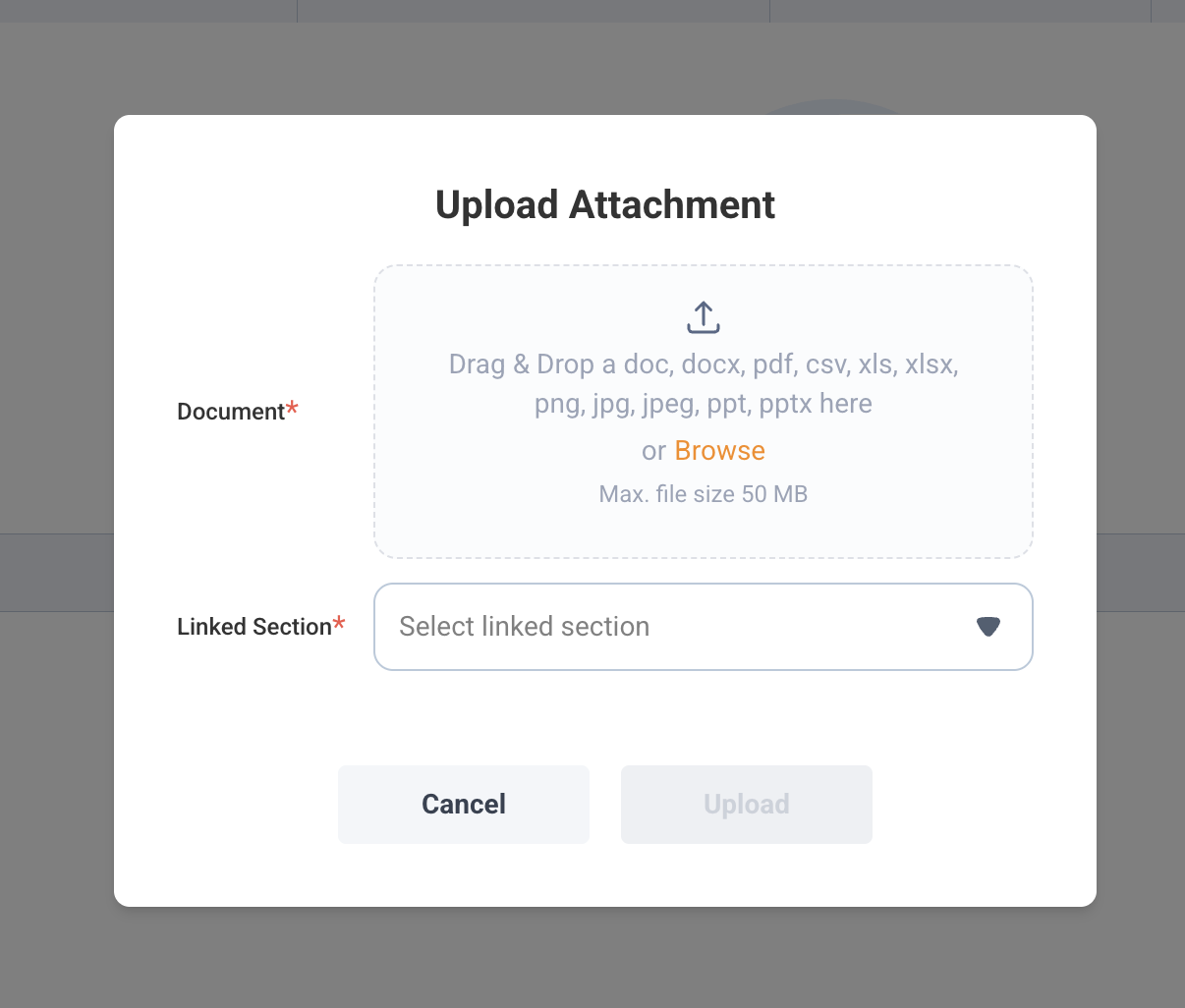
Click Upload Attachment to open the Upload Attachment dialog.

-
Drag and drop a .doc, .docx, .pdf, .csv, .xls, .xlsx, .png, .jpg, .jpeg, .ppt, or .pptx file into the upload area, or click Browse to select one (required). Maximum file size is 50 MB.
-
Select a Linked Section from the dropdown (required).
-
Click Upload to add the attachment, or Cancel to discard it.
