Data Hub
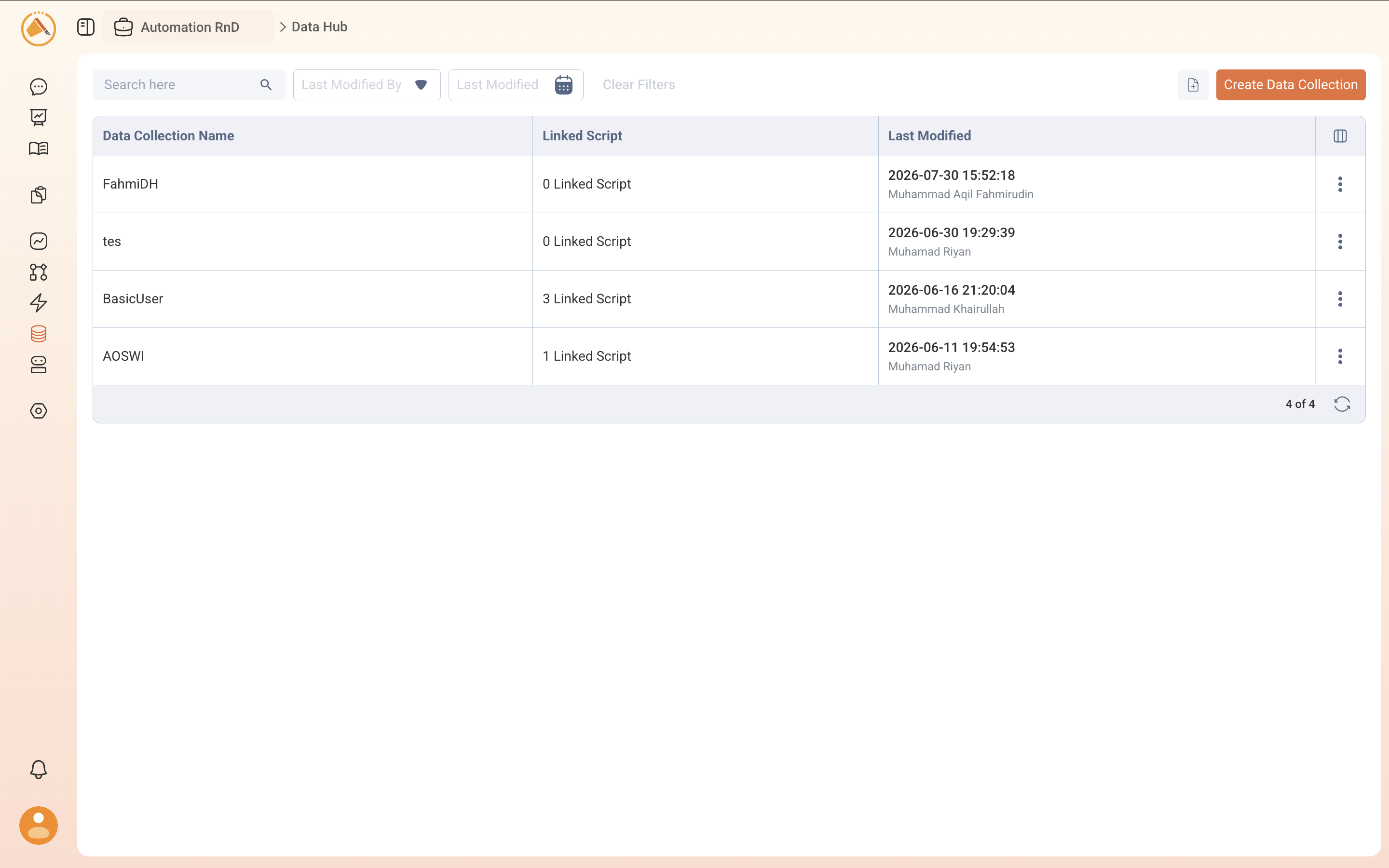
Data Hub stores data collections: tables of datasets that scripts can use.
Data collection list
| Column | Description |
|---|---|
| Data Collection Name | Name of the collection. |
| Linked Script | Number of scripts using the collection |
| Last Modified | Last modified time and the user who modified it. |
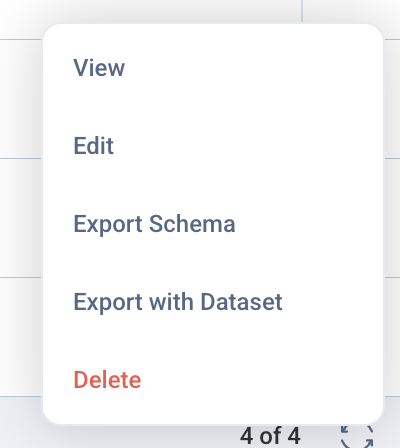
Row menu:
| Action | Description |
|---|---|
| View | Open the collection in read-only mode. |
| Edit | Open the collection for editing. |
| Export Schema | Download a CSV with the column headers only. |
| Export with Dataset | Download a CSV with the column headers and all datasets. |
| Delete | Delete the collection. |
Create a data collection
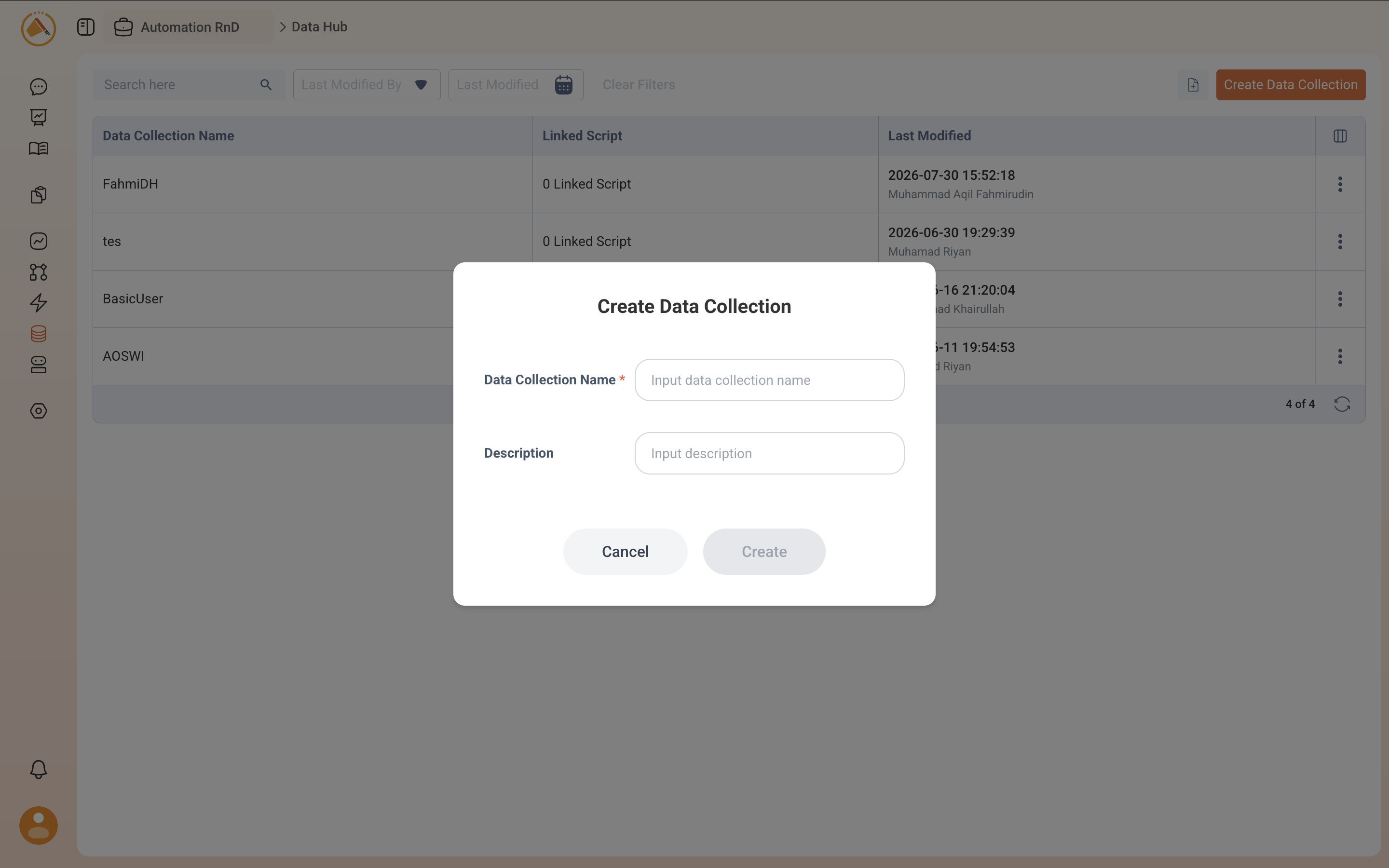
- Click Create Data Collection.
- Enter a Data Collection Name (required) and an optional Description.
- Click Create. A dialog will pop up afterwards.
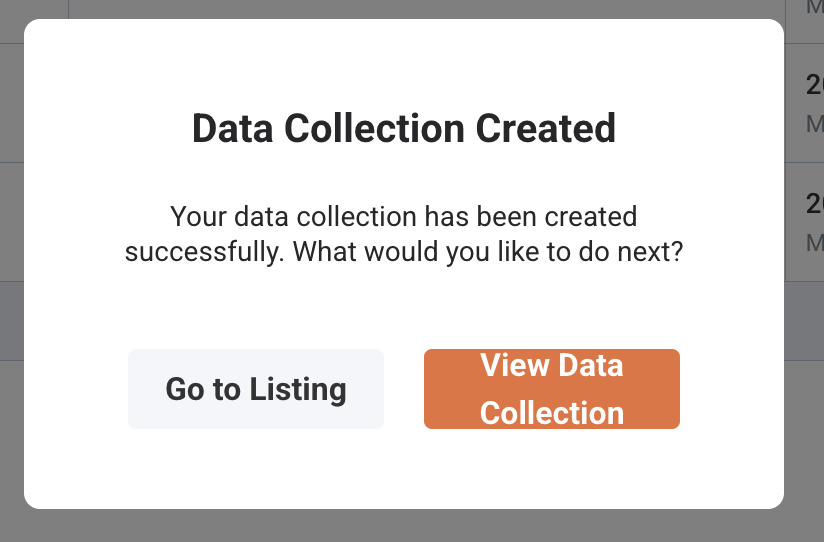
- Click View Data Collection to edit dataset.
- Click Go to Listing return to data hub page.
Import a data collection
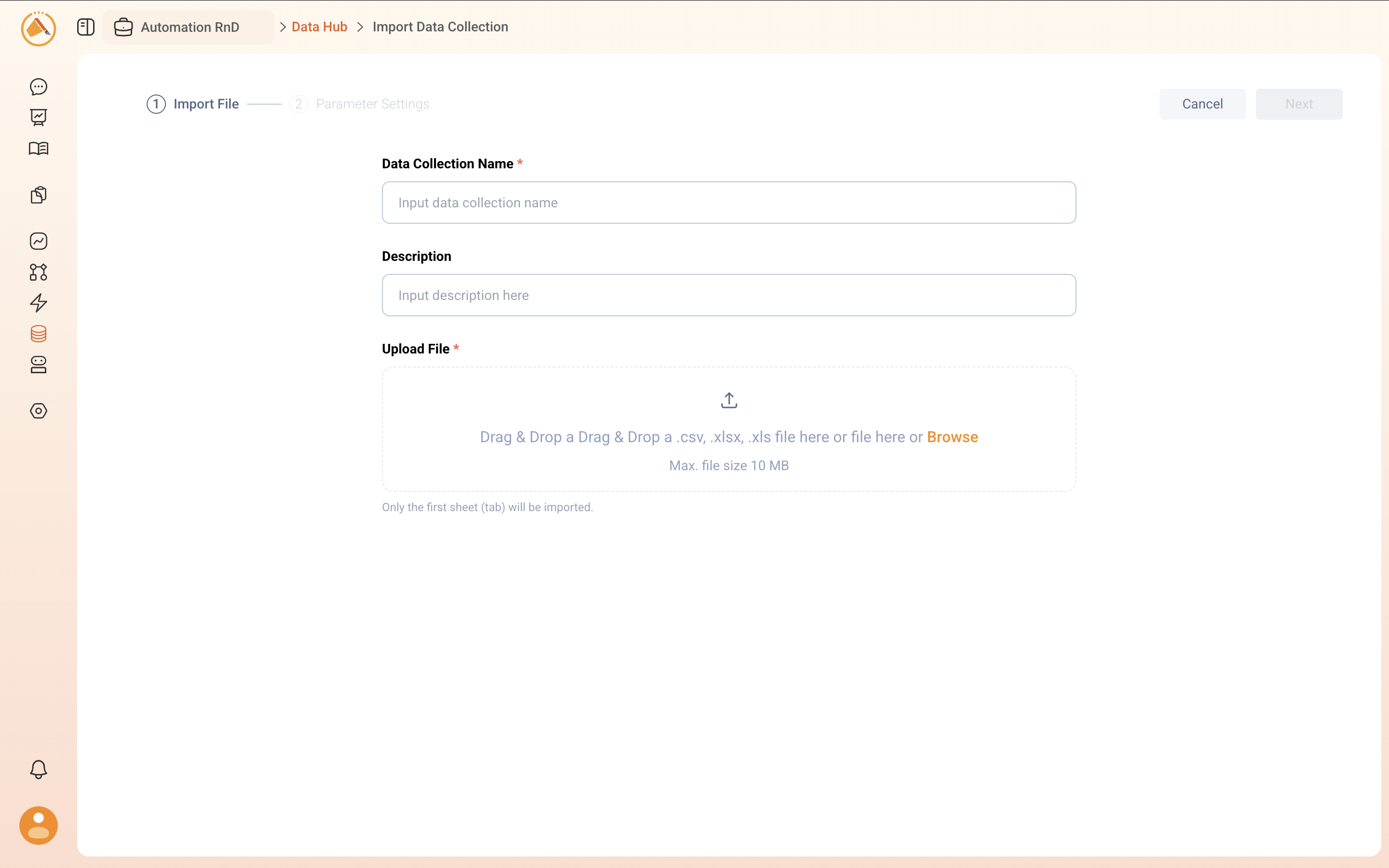
Create a collection from an existing file, consists of two steps: Import File and Parameter Settings.
Step 1: Import File
| Field | Required | Description |
|---|---|---|
| Data Collection Name | Yes | Name of the new collection. |
| Description | No | Optional description. |
| Upload File | Yes | Drag and drop or Browse for a .csv, .xlsx or .xls file. Max size 10 MB. |
Step 2: Parameter Settings
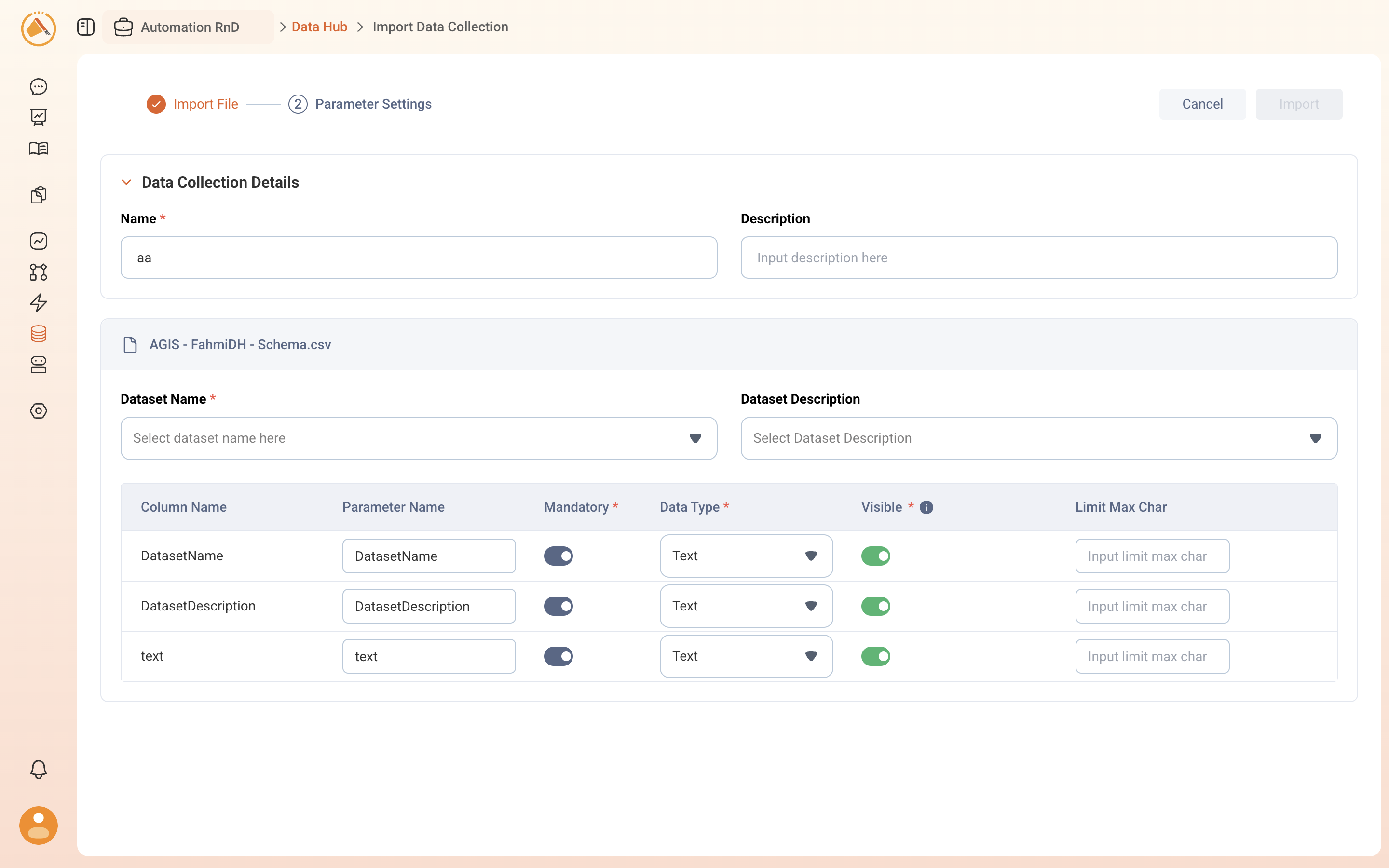
Review the collection details, then map the file's columns.
- Dataset Name (required): select the column that holds each dataset's name.
- Dataset Description: select the column that holds each dataset's description.
Then configure each column:
| Setting | Description |
|---|---|
| Column Name | Header from the imported file. |
| Parameter Name | Name used to reference the value in scripts. Defaults to the column name. |
| Mandatory | Whether a value is required. |
| Data Type | Type of the value. |
| Visible | Whether the column is shown. |
| Limit Max Char | Optional maximum character length. |
Click Import to create the collection.
View Collection
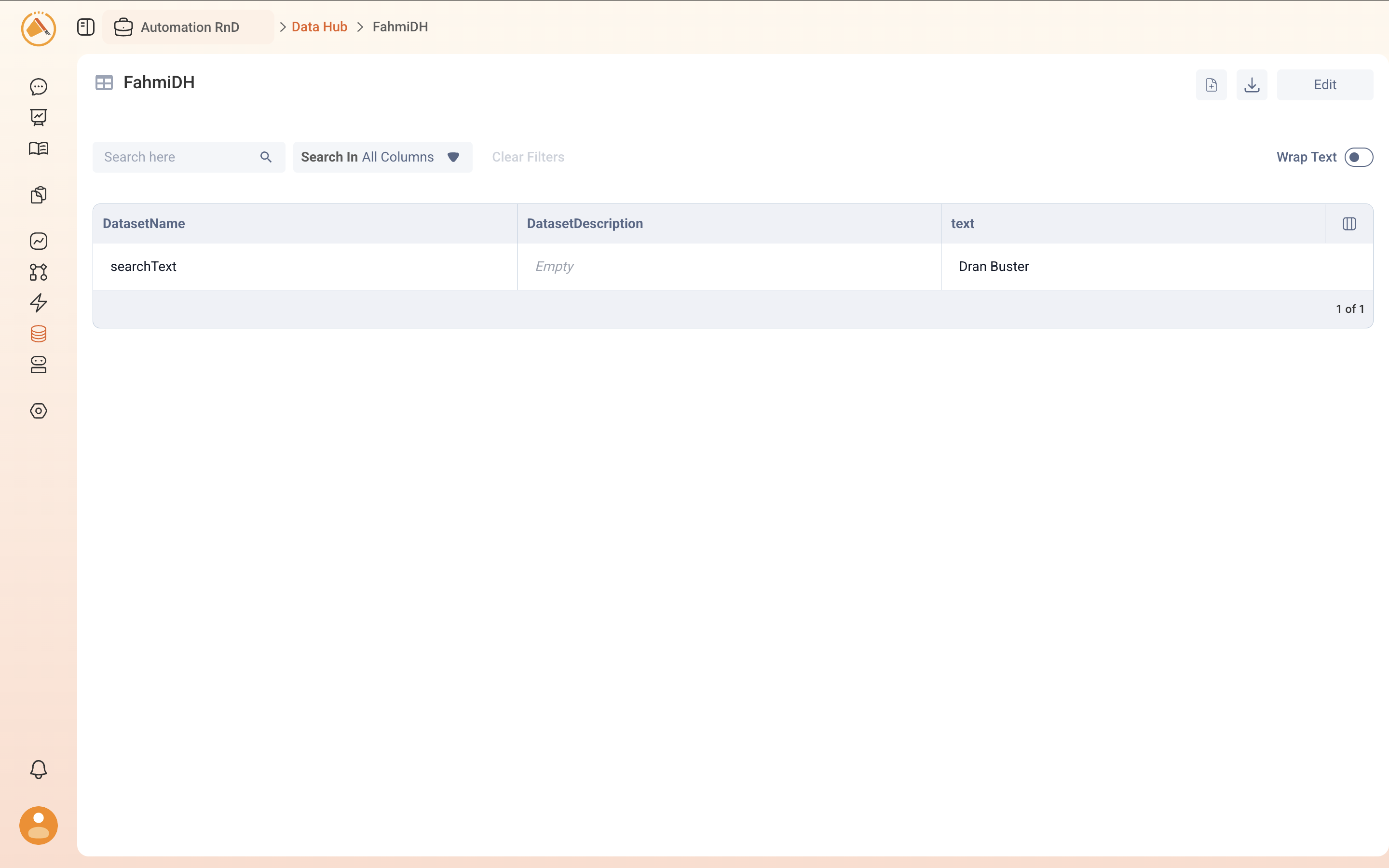
The collection page shows its datasets in a table:
- Search all columns or a selected column, and Clear Filters.
- Wrap Text toggle for long values.
- Column picker to show or hide columns.
- Header actions: Import (file icon), Export (download icon), and Edit.
Click on Edit button to open edit mode.
Edit Collection
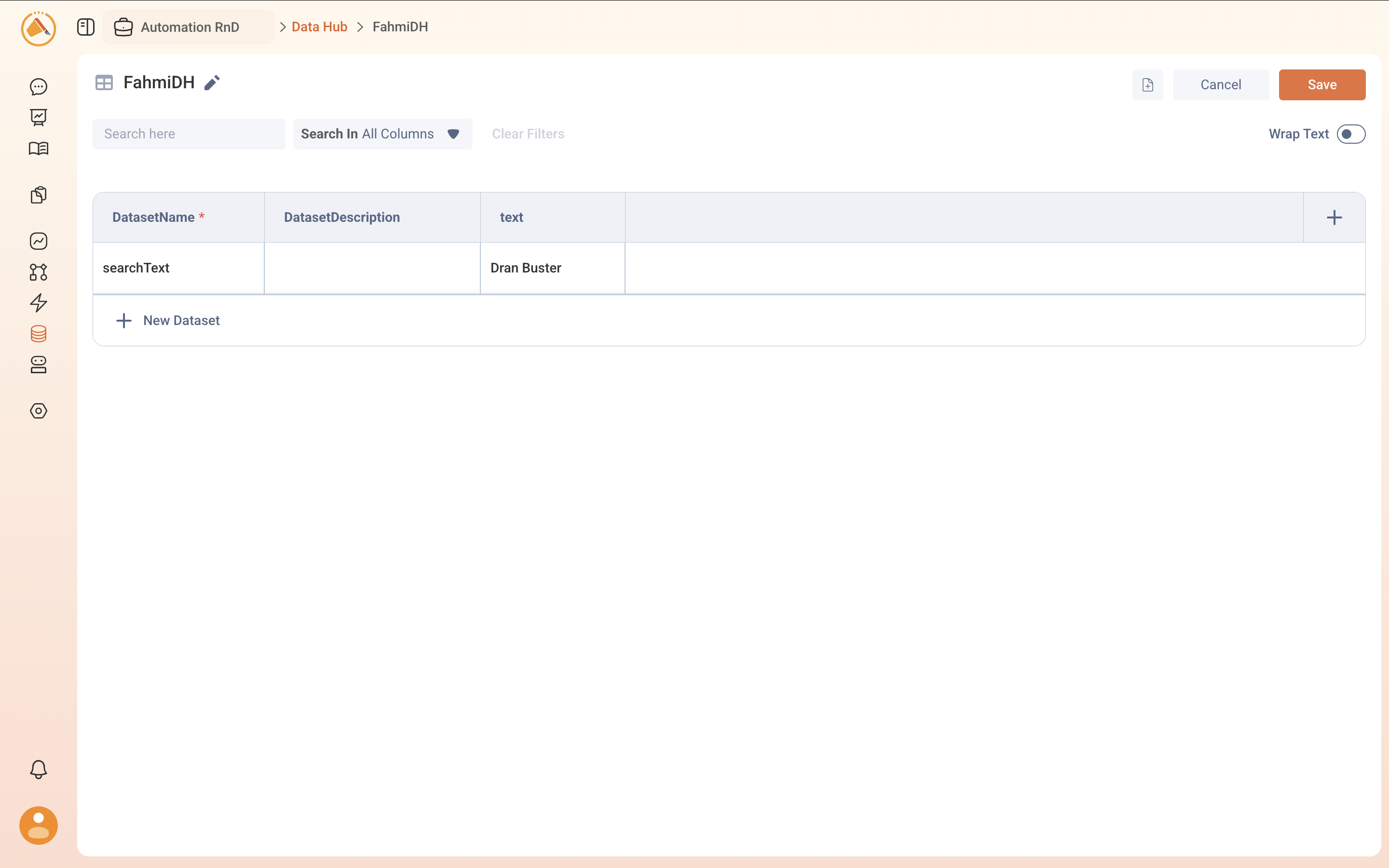
- Rename the collection with the pencil icon next to its title.
- Edit values directly in the table cells.
DatasetNameis required. - Click + in the header to add a column. Opens the Add Parameter panel. Enter parameter name, mandatory field, and data type.
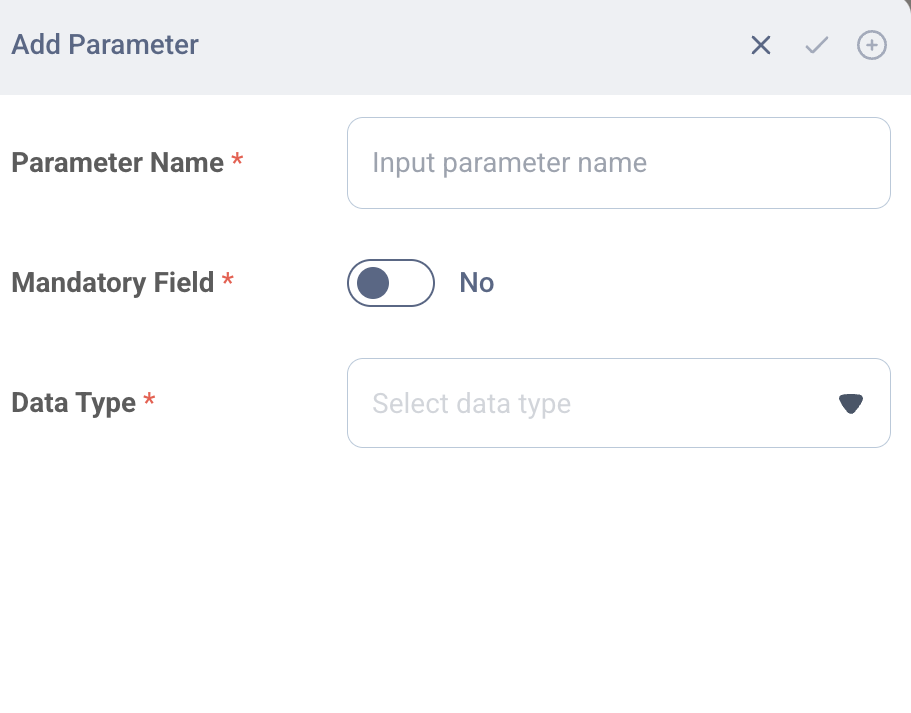
- Click New Dataset to add a row.
- Click Save to apply changes, or Cancel to discard them.
