Agentic Execution
Agentic Execution runs an automation suite using agent. The agent executes scripts across iterations, and the platform records every action with results and screenshots.
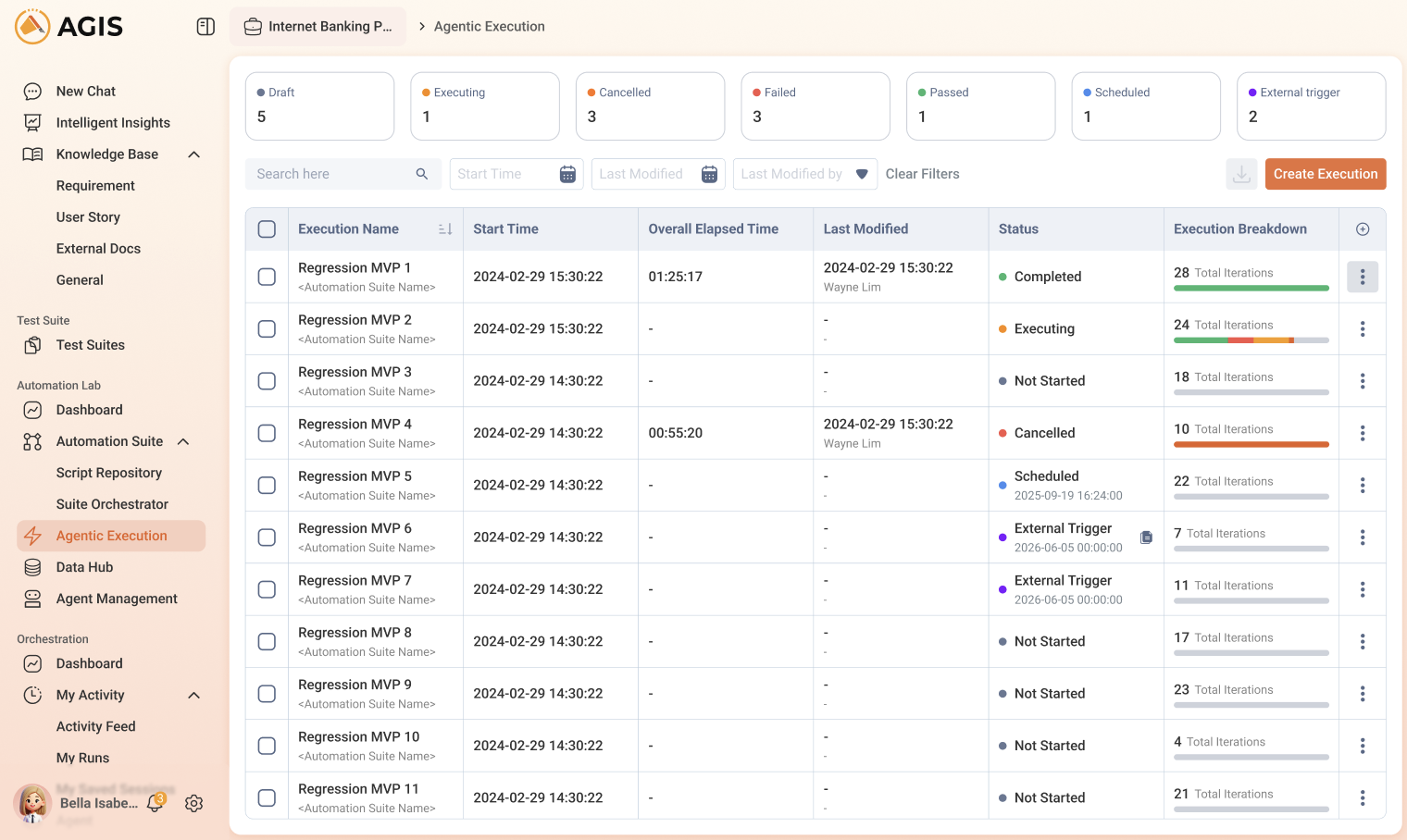
Executions Table
| Column | Description |
|---|---|
| Execution Name | The name of the execution. |
| Start Time | The date and time when the execution started. |
| Overall Elapsed Time | The total time taken by the execution. |
| Last Modified | The date and time when the execution was last updated. |
| Status | The current status of the execution. |
| Execution Breakdown | Displays the total number of iterations and their status using a progress bar. |
Use the column icon to show or hide columns.
Filters
Search by name, Start Time, Last Modified, Last Modified By, or click a card to filter the table by status.
| Status | Meaning |
|---|---|
| Draft | Created but not run. |
| Executing | Currently running. |
| Cancelled | Stopped before completion. |
| Failed | Finished with a failure. |
| Passed | Finished with all iterations passing. |
| Scheduled | Waiting for a scheduled time. |
| External trigger | Starts from an external call. |
Row actions
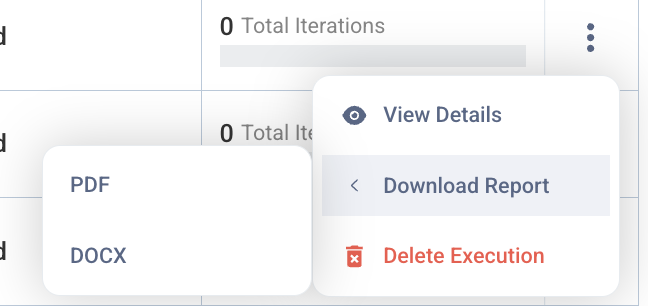
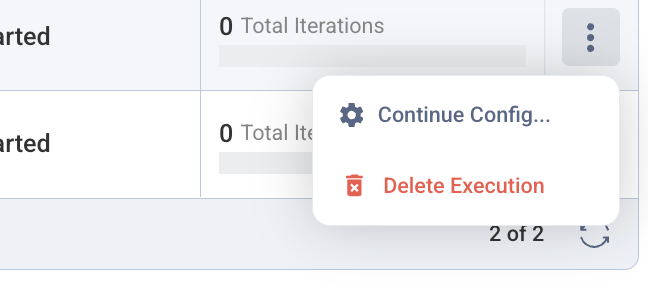
| Action | Description |
|---|---|
| View Details | Open the execution detail page. |
| Download Report | Export the execution report as PDF or DOCX. |
| Delete Execution | Permanently remove the execution. |
| Continue Config | To continue creating execution (Draft). |
Use Create Execution to set up a new run.
Create New Execution
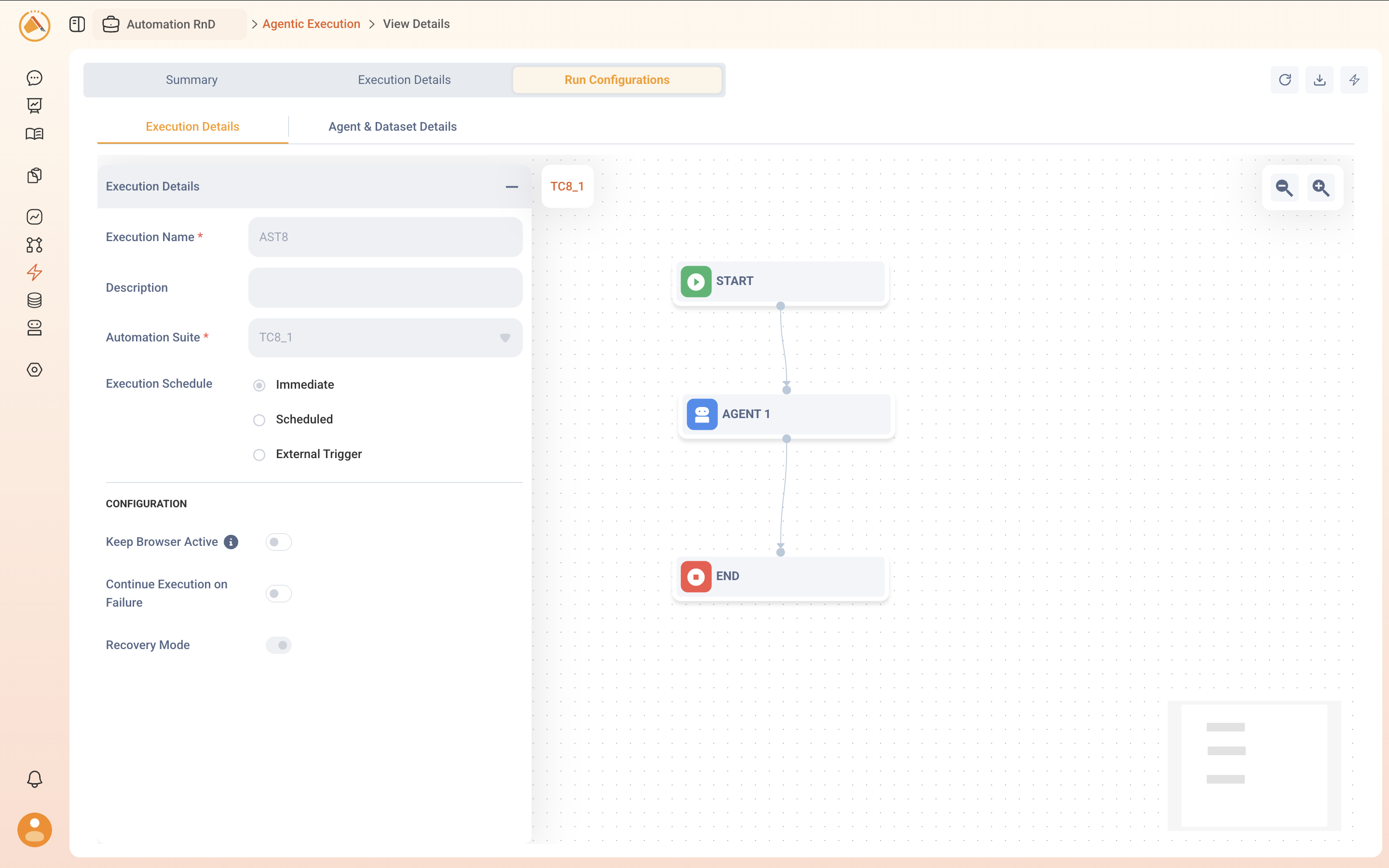
- Create Execution: name it, pick a suite, and set the schedule and options.
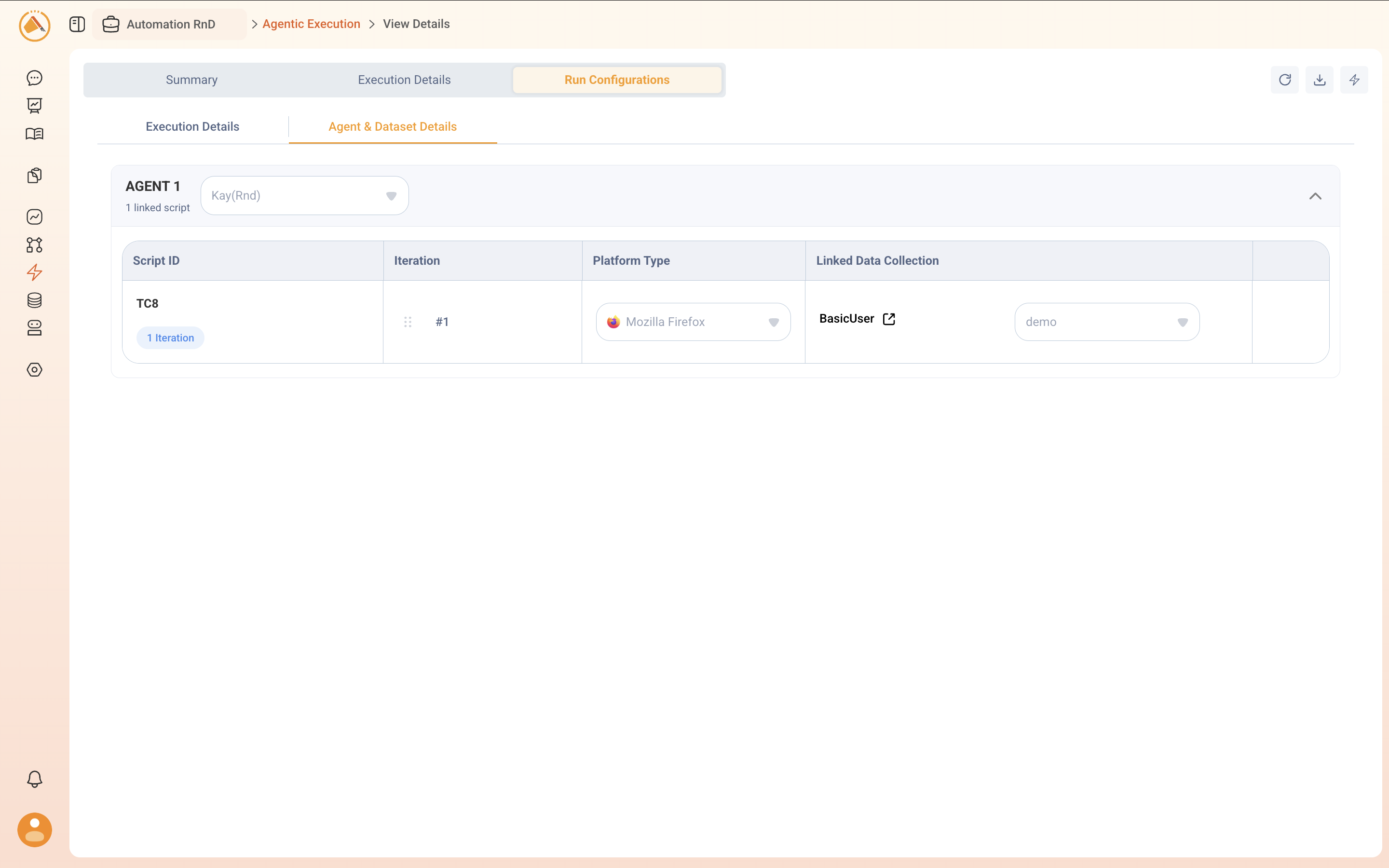
- Select Agent & Dataset: assign an agent, a browser, and test data for each script iteration.
At the top right, you can use the controls to:
- Cancel: Discard and return to the list.
- Reset: Reset the form.
- Save: Save the execution as a draft.
- Next / Execute: Go to step 2, then start the run.
Step 1: Create Execution
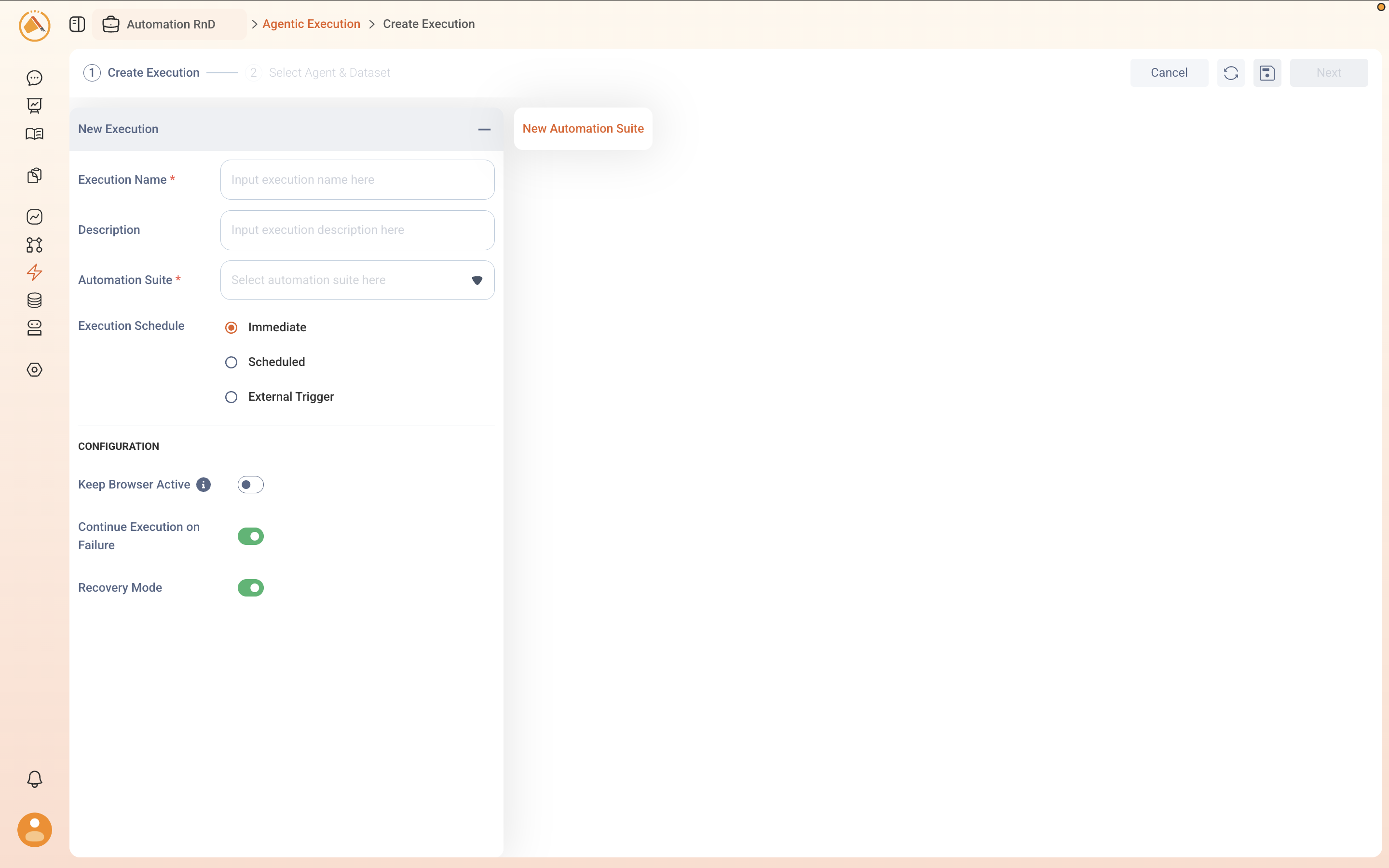
| Field | Description |
|---|---|
| Execution Name | Name of execution. Required. |
| Description | Description of execution. Optional. |
| Automation Suite | The suite that was run. Required. |
| Execution Schedule | Immediate, Scheduled, or External Trigger. |
| Keep Browser Active | Keeps the browser open between runs. |
| Continue Execution on Failure | Keeps running after a failed step or iteration. |
| Recovery Mode | Enables self-recovery of scripts. |
A flow diagram visualizes the run, with zoom controls.
Step 2: Select Agent & Dataset
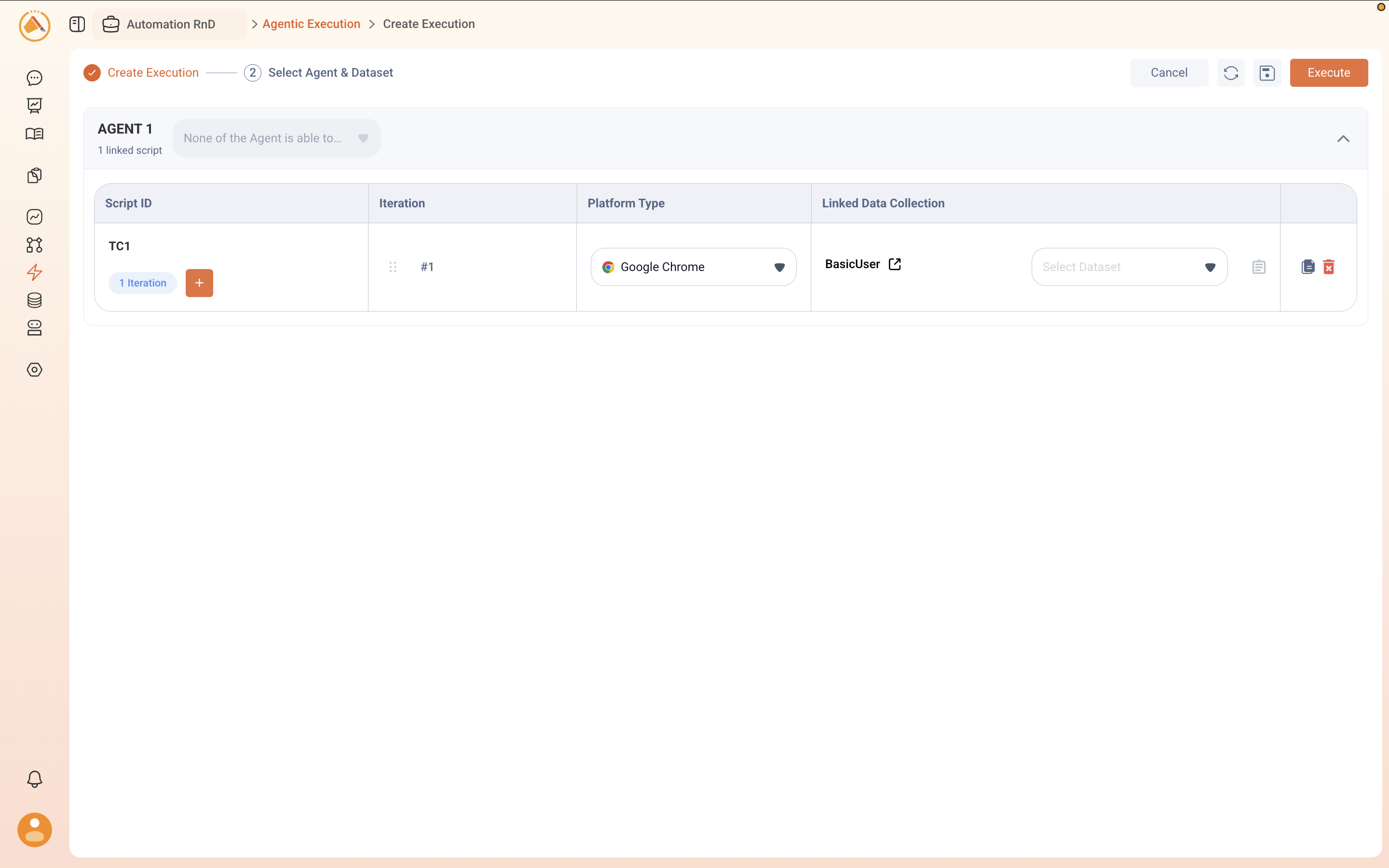
Per agent, a table maps each Script ID and Iteration to a Platform Type and a Linked Data Collection.
- Choose an agent. If no agent is available to run the scripts, then it will be unable to run execution.
- Add iterations with the + button next to a script. Each iteration is one run of that script.
- Choose a platform for each iteration.
- Select a dataset under Linked Data Collection.
- Use the row icons to duplicate or delete an iteration.
- Click Execute to start the run.
Execution Detail
Three tabs and at the top right there is: Reload, Download Report as PDF or DOCX, and Execute Again button.
Summary
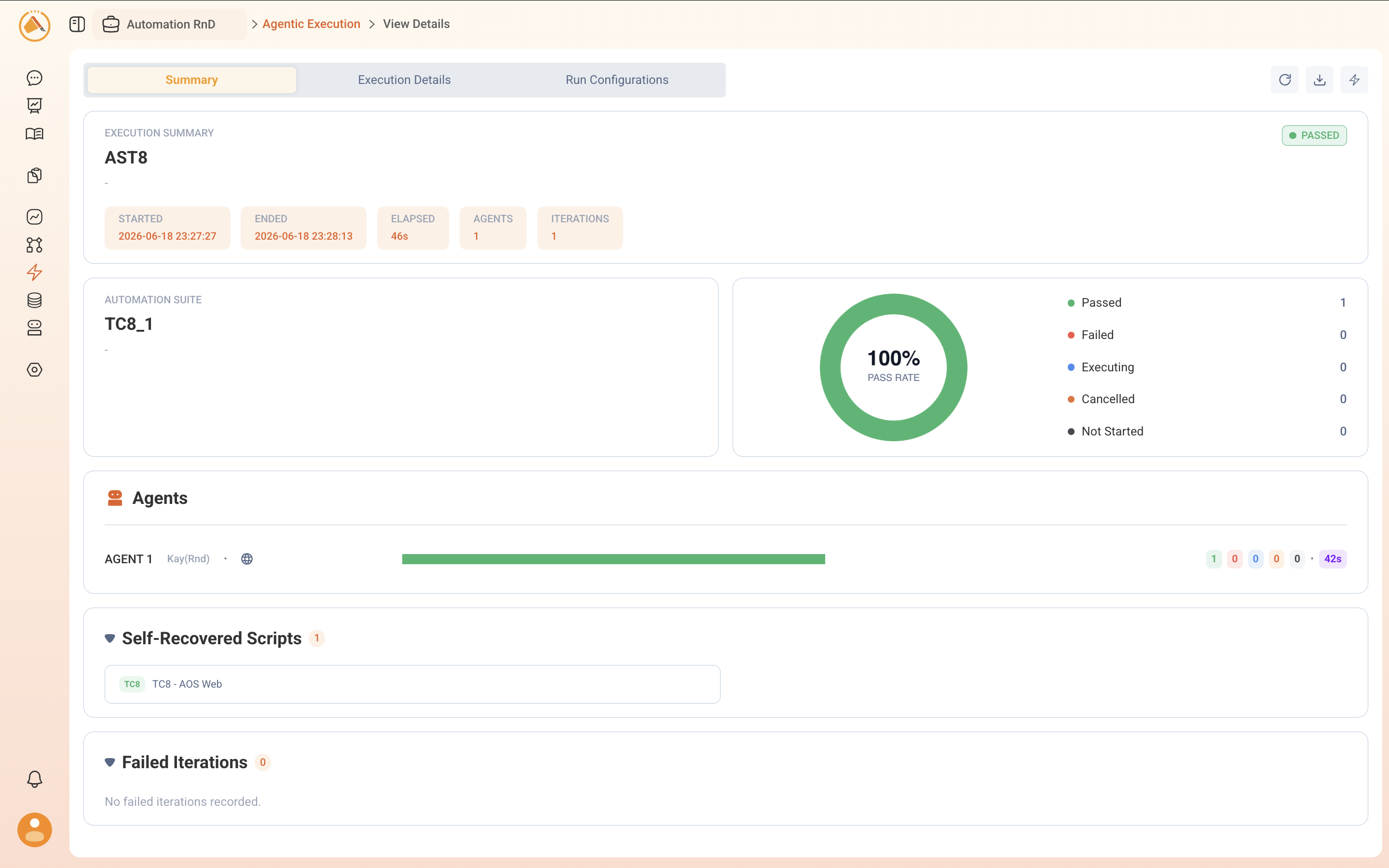
- Execution Summary: name, status badge, started, ended, elapsed, agent count, iteration count.
- Automation Suite: the suite that was run.
- Pass Rate: donut chart with counts for Passed, Failed, Executing, Cancelled, and Not Started.
- Agents: one row per agent with a progress bar, status counts, and duration.
- Self-Recovered Scripts: scripts that hit an issue and recovered automatically.
- Failed Iterations: failed iterations, or "No failed iterations recorded."
Execution Details
Browse results by selecting:
Execution > Agent > Script > Iteration
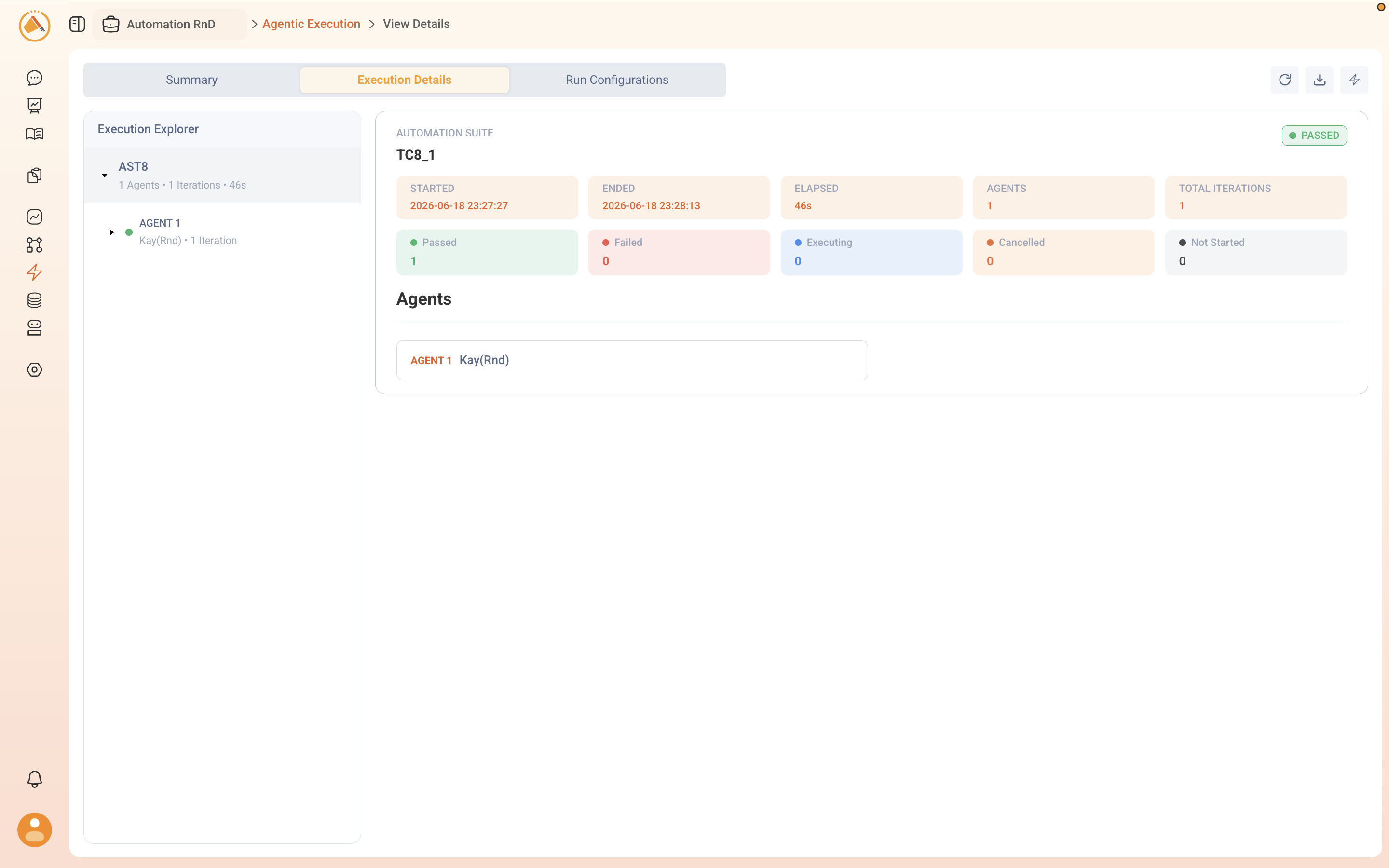
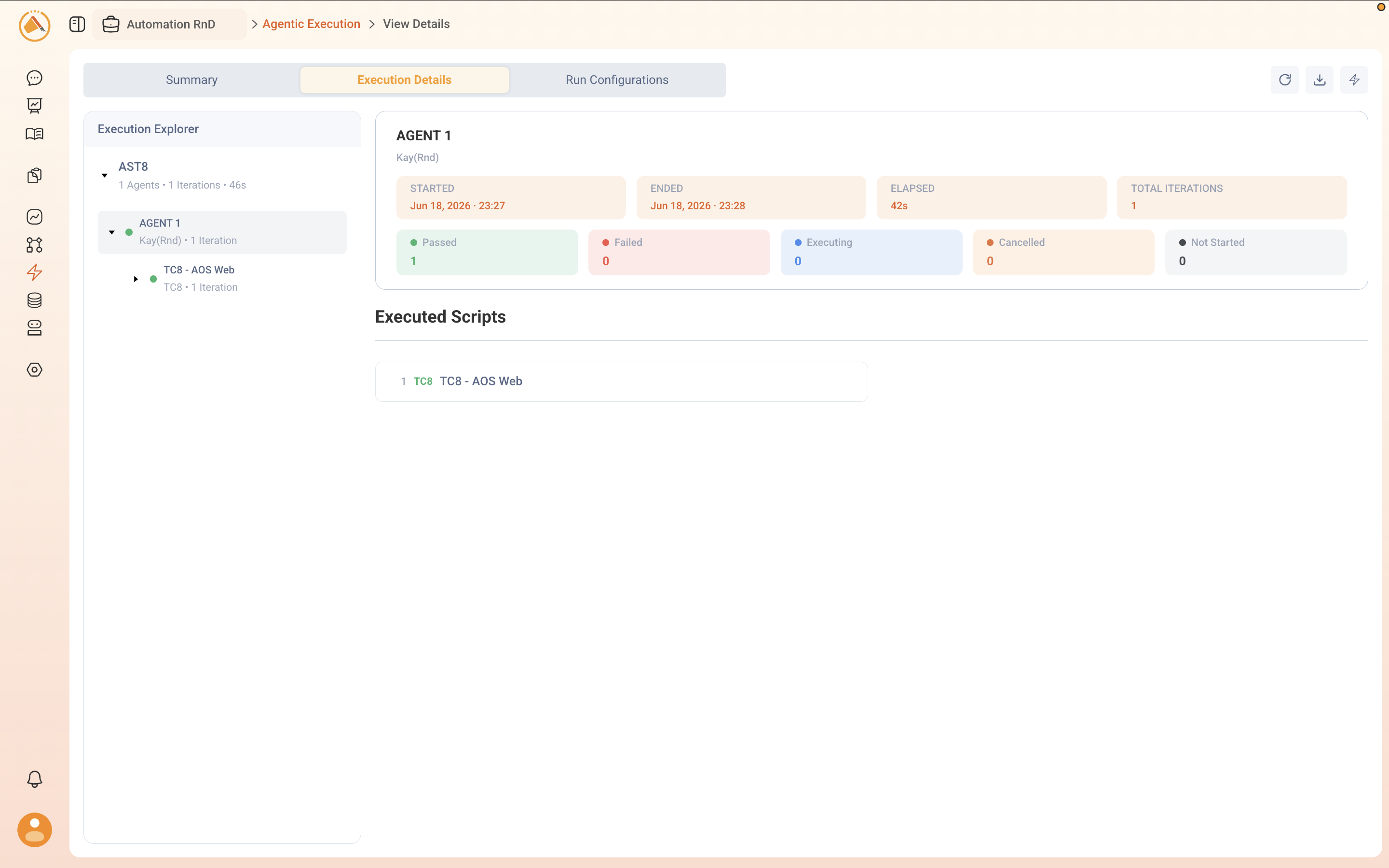
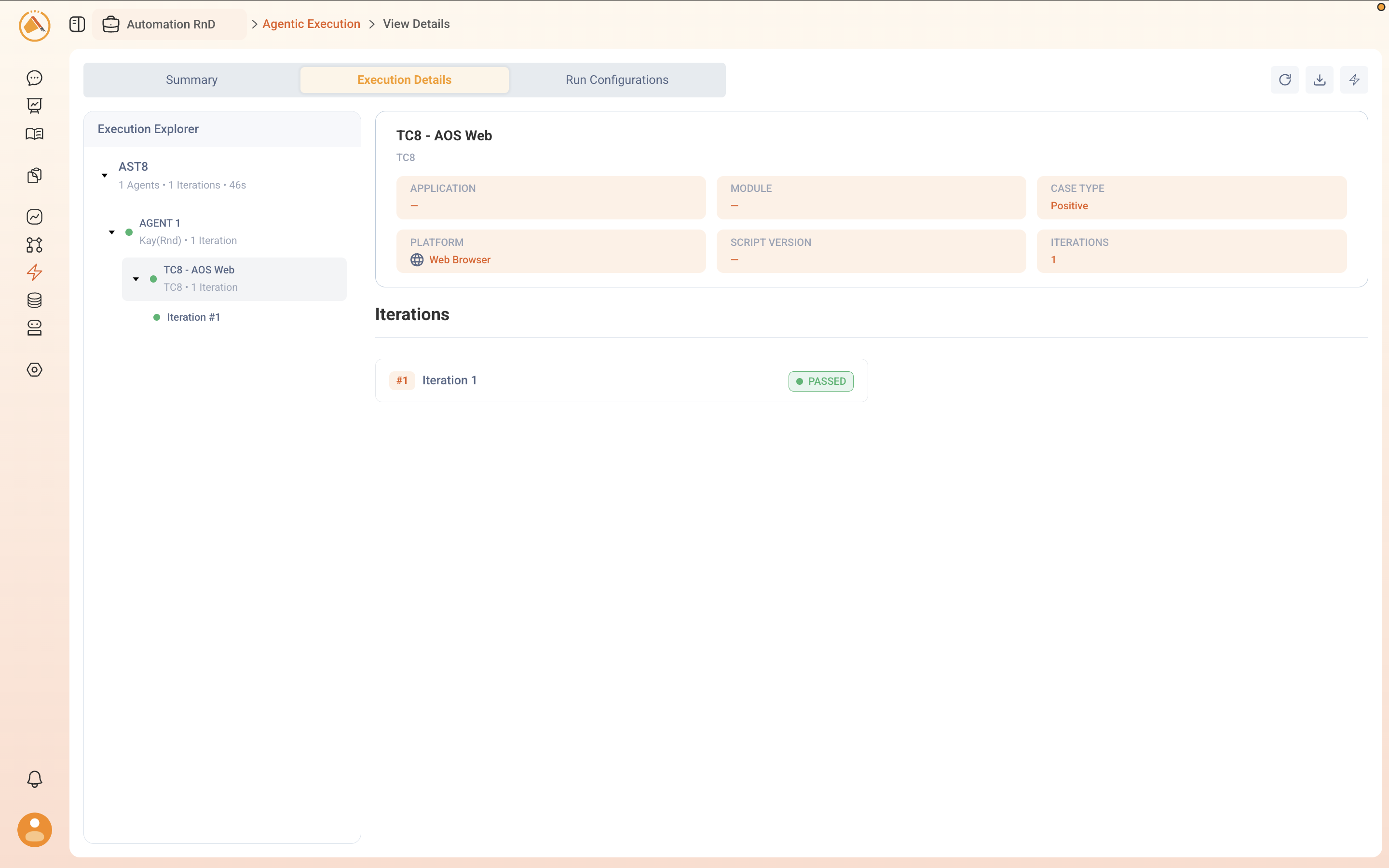
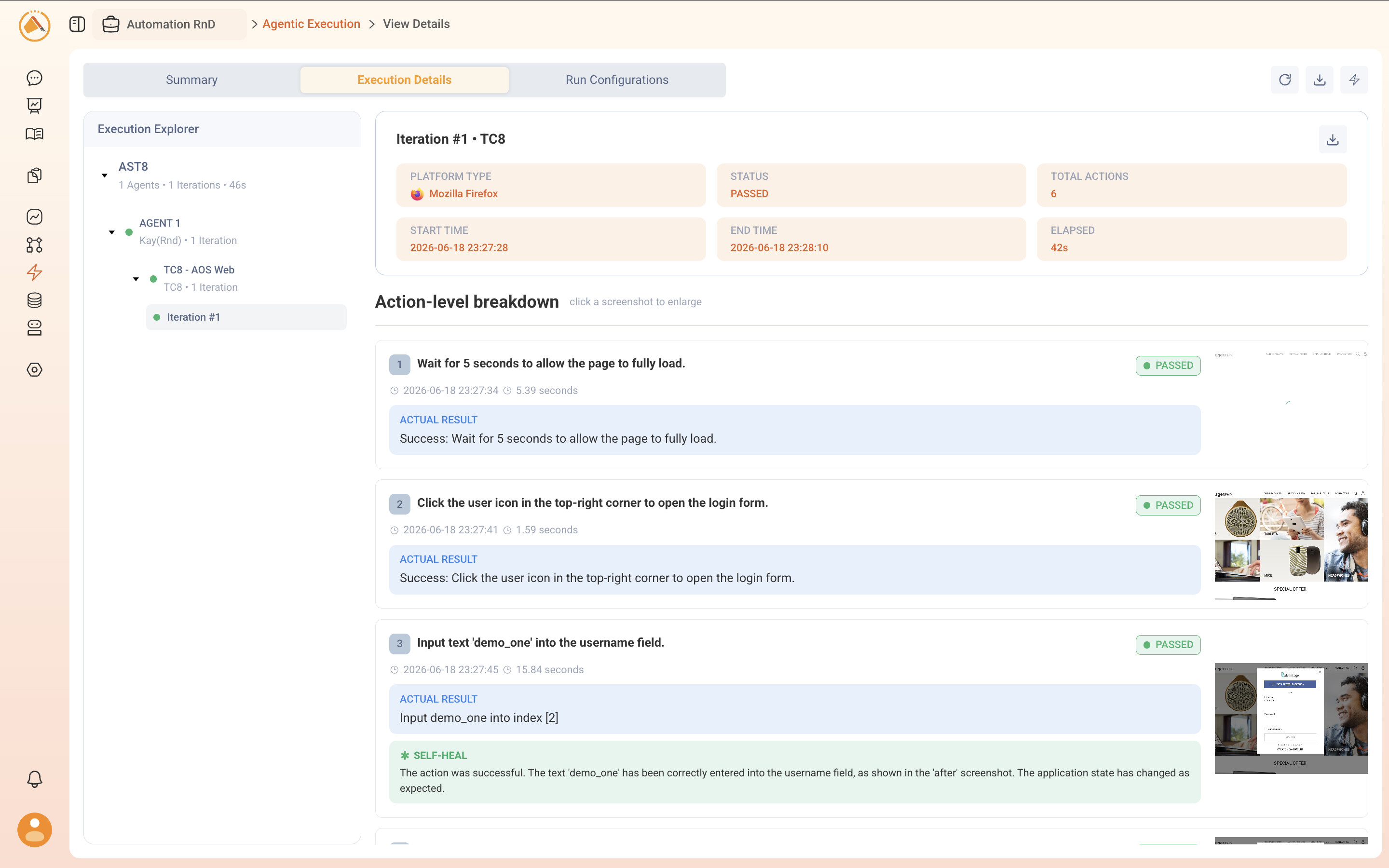
Iteration panel shows action-level breakdown, for each step, the instruction, status, timestamp, duration, actual result, and a screenshot.
Run Configurations
Read-only view of how the execution was set up.