Selecting a Model
The Model panel lets you choose which LLM provider and model to use for a chat, and adjust a few generation settings before asking your question.
Open the Model Panel
Click the model pill below the Ask AGIS input (it shows the currently selected model, e.g. AGIS Catalyst).
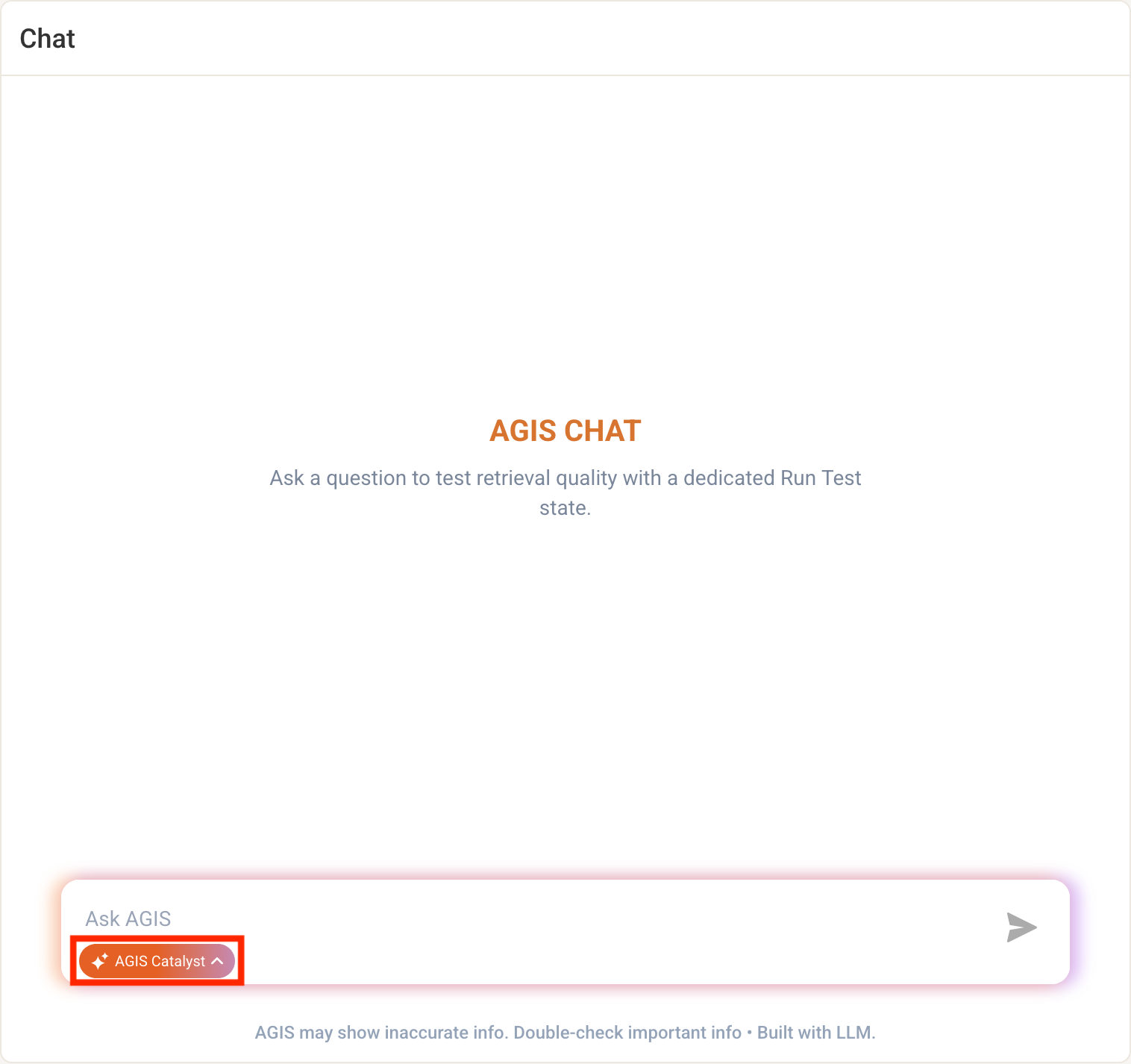
This opens the Model panel on the left side of the chat.
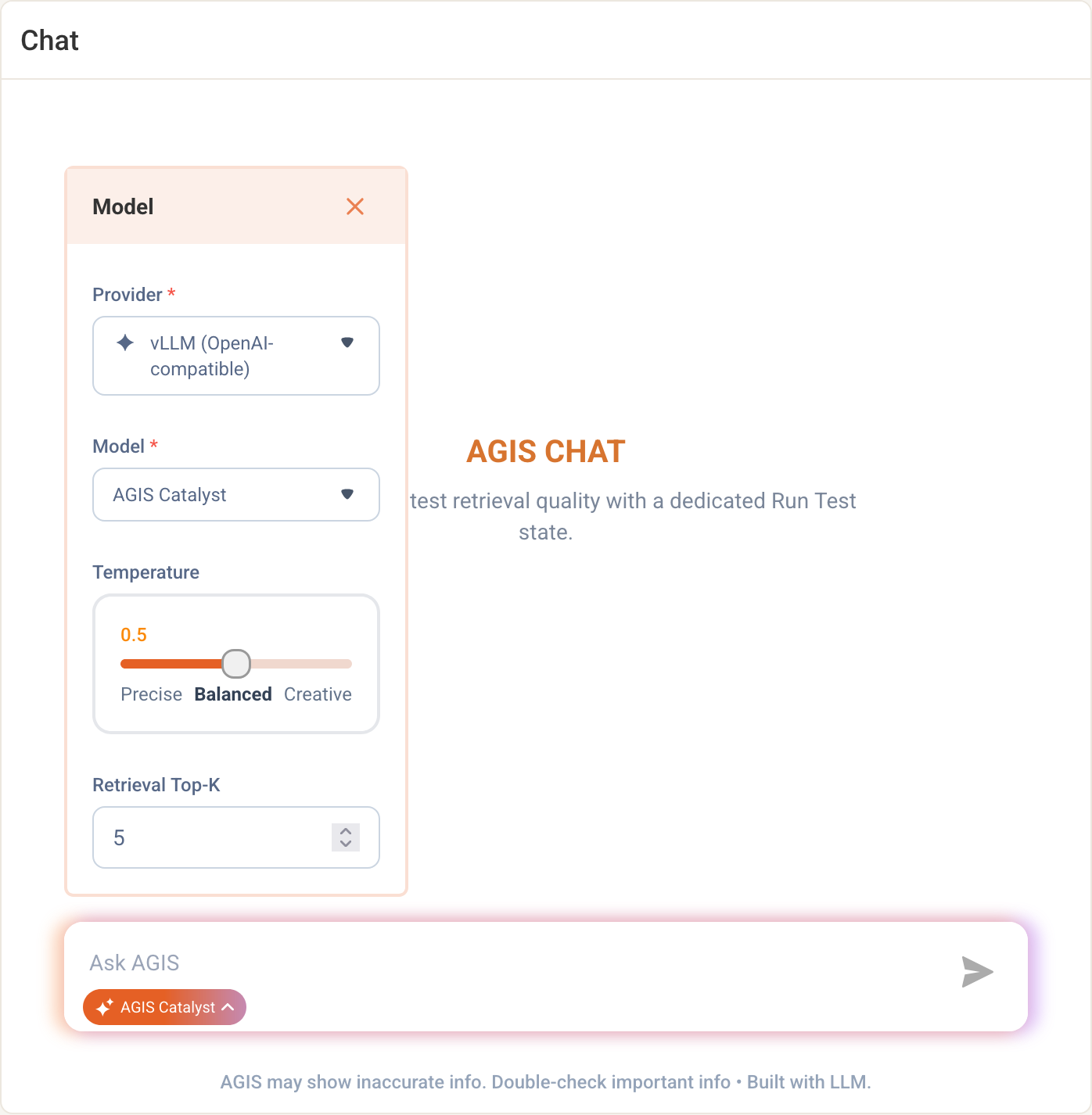
Configure the Model
The Model panel has the following fields:
| Field | Required | Description |
|---|---|---|
| Provider | Yes | The LLM provider to use, e.g. vLLM (OpenAI-compatible) |
| Model | Yes | The specific model from the selected provider, e.g. AGIS Catalyst |
| Temperature | No | A slider from Precise to Creative, with a numeric value |
| Retrieval Top-K | No | A numeric input |
Steps:
- Select a Provider from the dropdown.
- Select a Model from the dropdown — the options depend on the chosen provider.
- (Optional) Adjust the Temperature slider to change how precise or creative the model's responses are.
- (Optional) Set the Retrieval Top-K value.
- Click the X button at the top of the panel to close it. The selected model appears on the model pill below the Ask AGIS input after you send a message.
