Chat Actions
The chat header has an options menu that lets you export the conversation as a document or download its log.
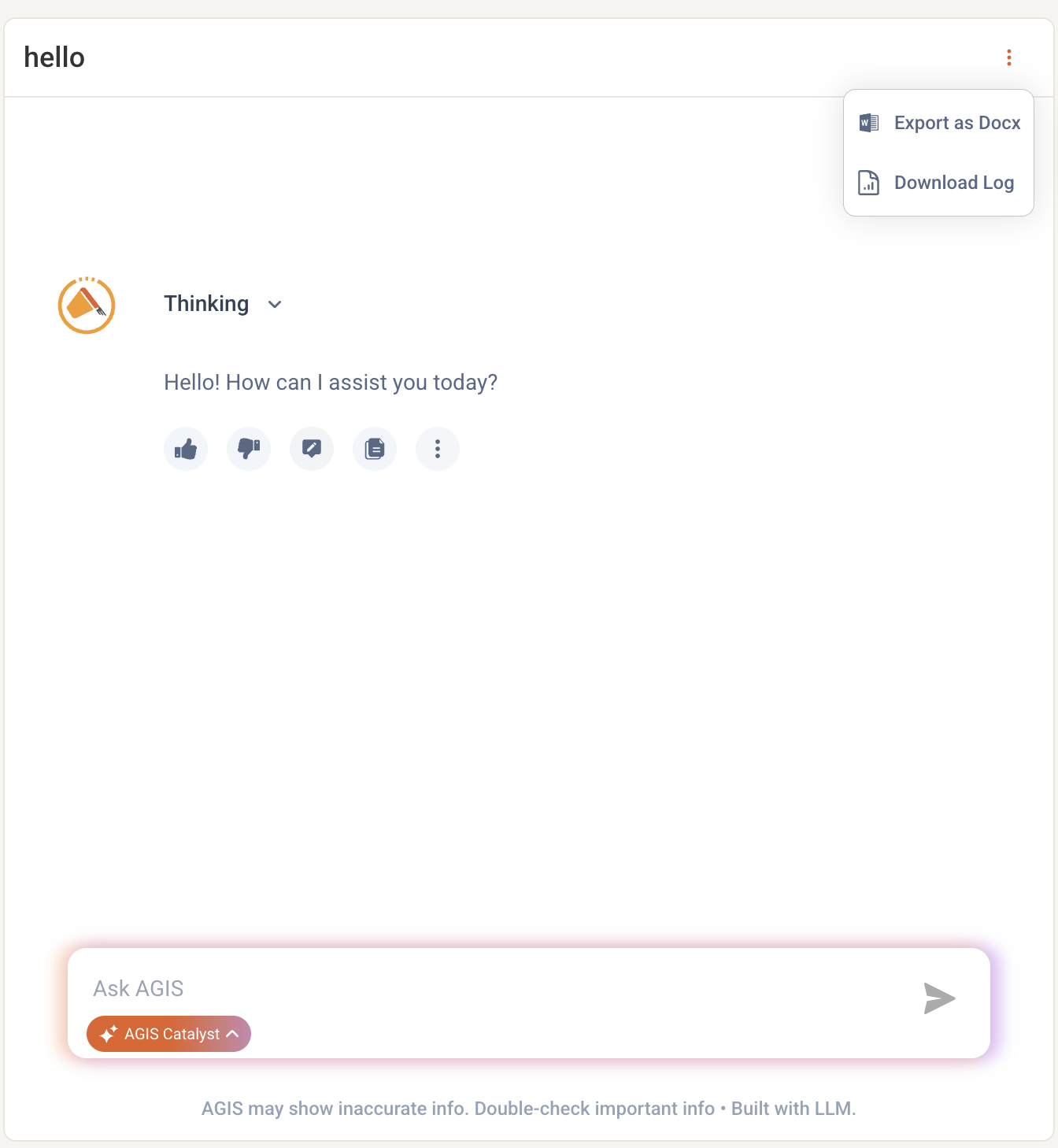
Open the Chat Actions Menu
- Open a chat conversation. The chat title is shown in the header at the top.
- Click the
⋮on the right side of the header. - A menu appears with two actions:
- Export as Docx
- Download Log
Export as Docx
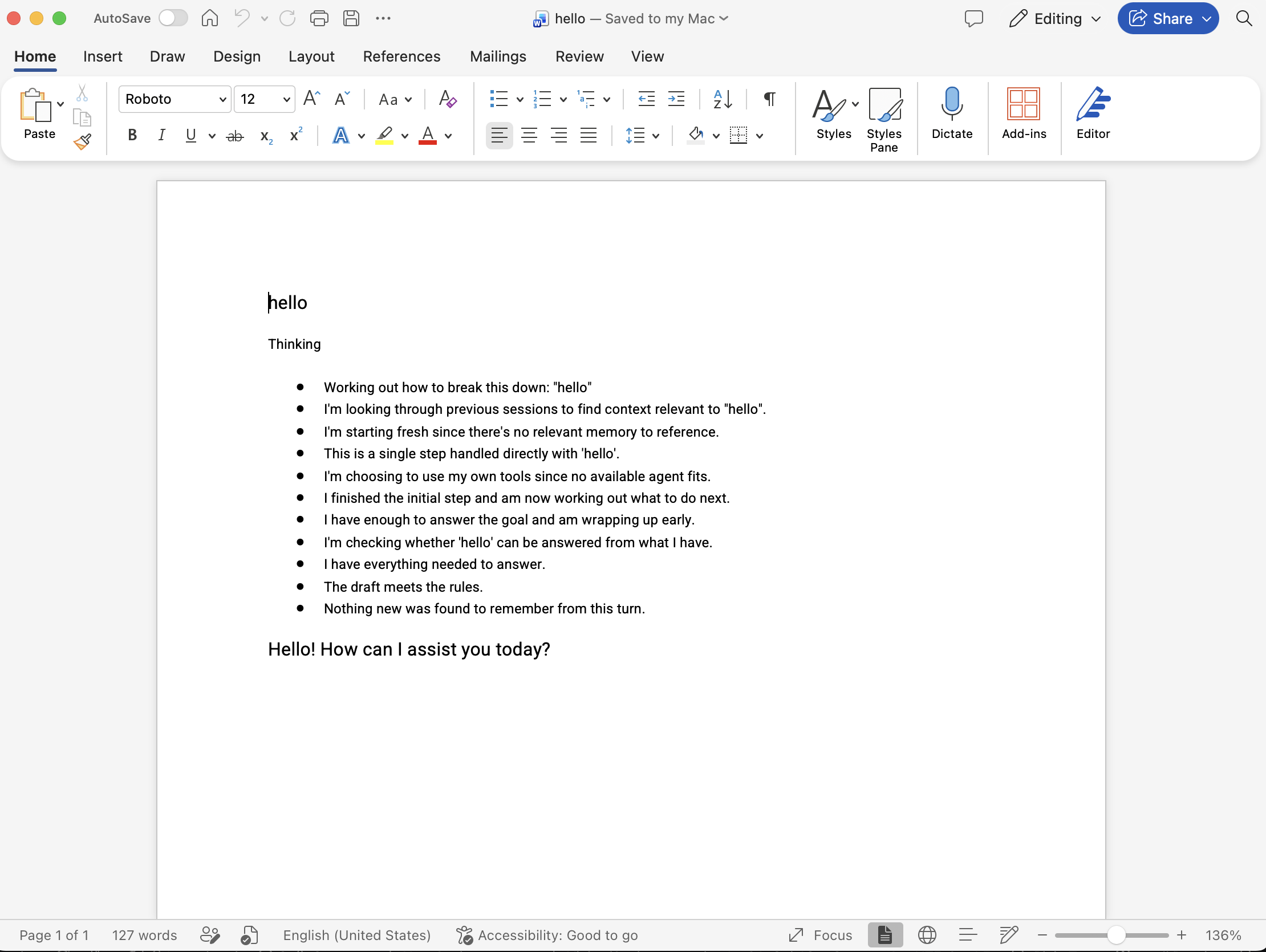
Use Export as Docx to export the chat conversation as a Word document (.docx).
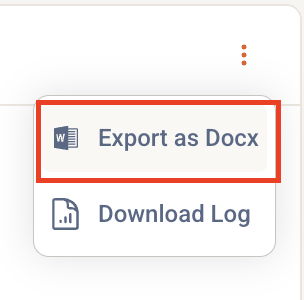
- Click the
⋮in the chat header. - Select Export as Docx.
Download Log
Use Download Log to download the chat log as a JSON file.
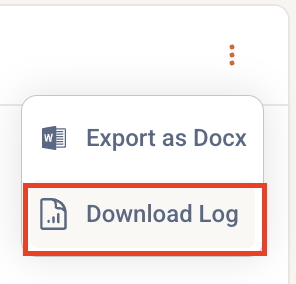
- Click the
⋮in the chat header. - Select Download Log.
tip
To generate and manage API tests from chat, see API Test Generation.
