Add and Edit User
Add User
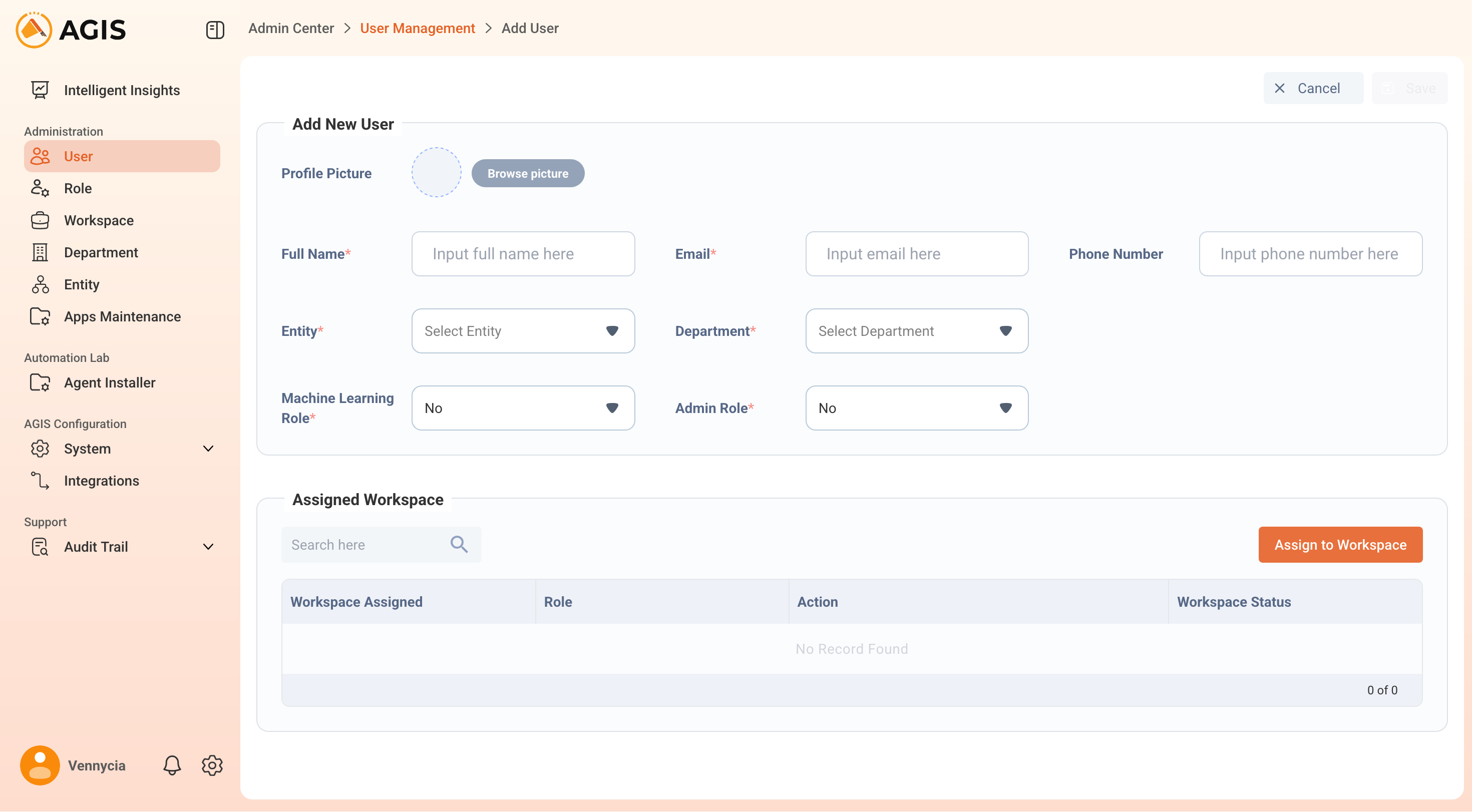
Adding a new user can be done by clicking on the Add User button.
Users must have an Admin role with the Add User permission to add a new user.
Full Name, Email, Entity, Department, Machine Learning Role, and Admin Role are required and must be filled in.
Profile Picture and Phone Number are optional fields.
Click Save to confirm addition of the new user.
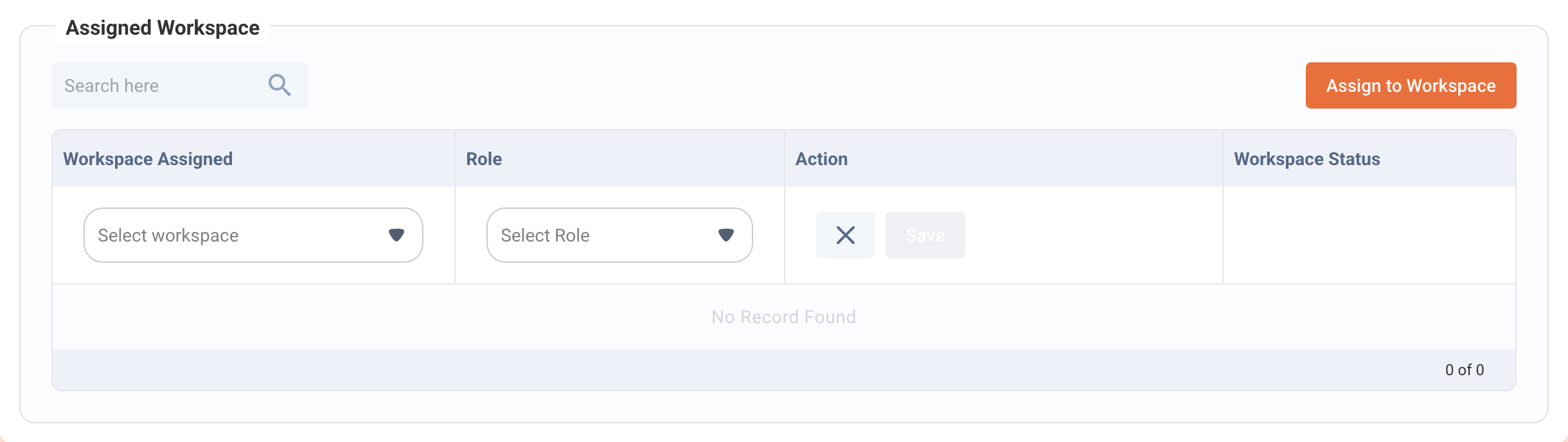
Assigned Workspace
When adding a new user, workspace(s) can be assigned to the new user, with the ability to assign a different role and permission access per workspace. A single user can belong to or have multiple workspaces simultaneously, and their roles or permission access are scoped exclusively to the specified workspace.
Invited Users
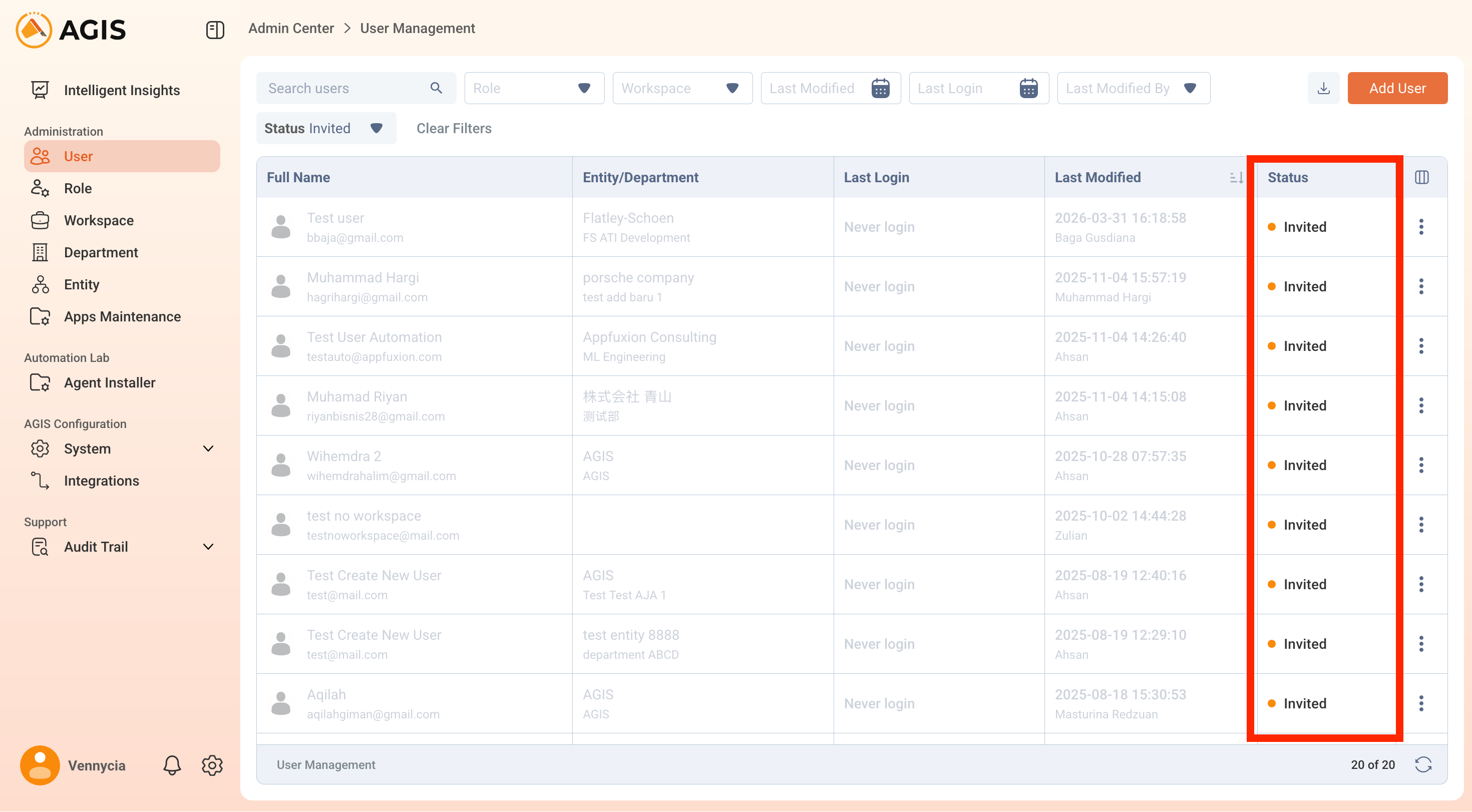
Adding a new user will change their status to Invited.
The specified user will receive a first-time login invitation via the email address entered in Add User.
To activate their account, the user must follow the steps in the invitation.
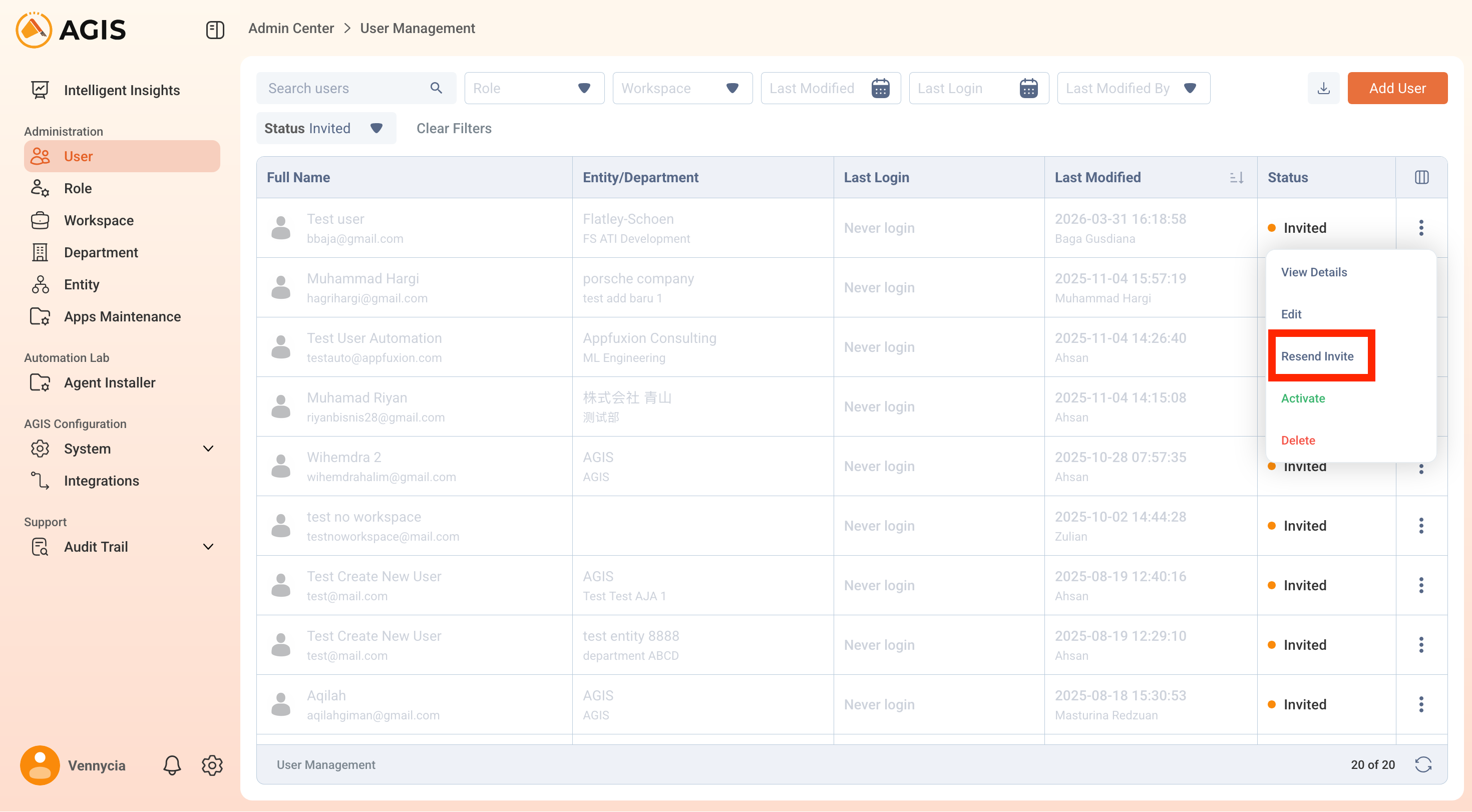
Resend Invite
Resend Invite can be accessed by clicking on the three-dots menu of a user with the Invited status.
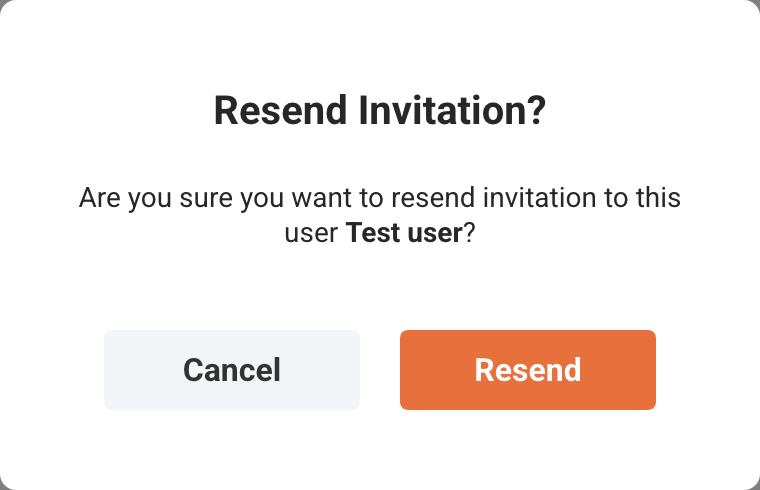
Resends an invitation to the specified user's email.
Users will be prompted to confirm their choice.
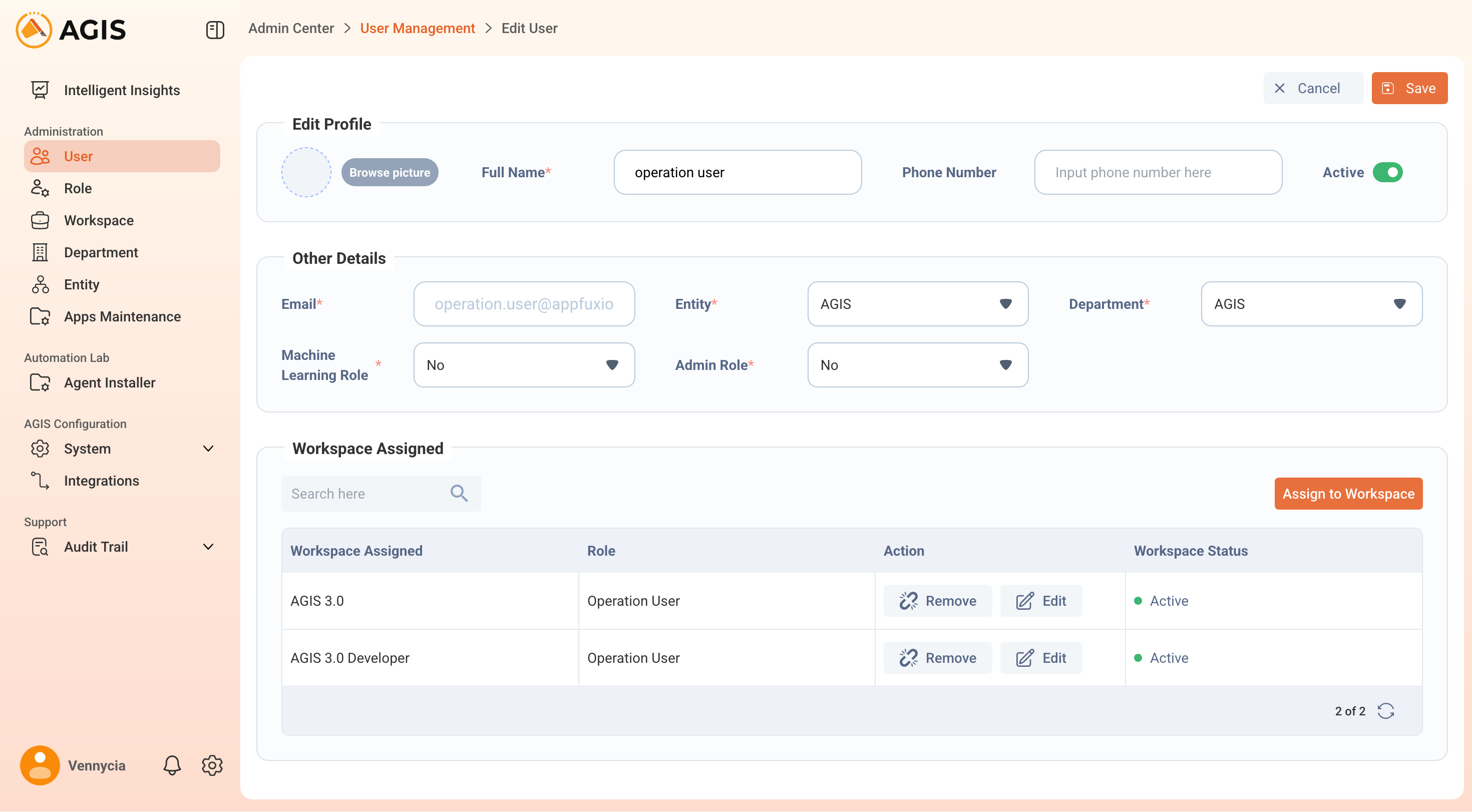
Edit
Edit can be accessed by clicking on the three-dots menu of a user. Users must have an Admin role with the Edit User permission to edit an existing user. Allows the editing of an existing user. Click Save to keep the changes that have been made.