Add Workspace
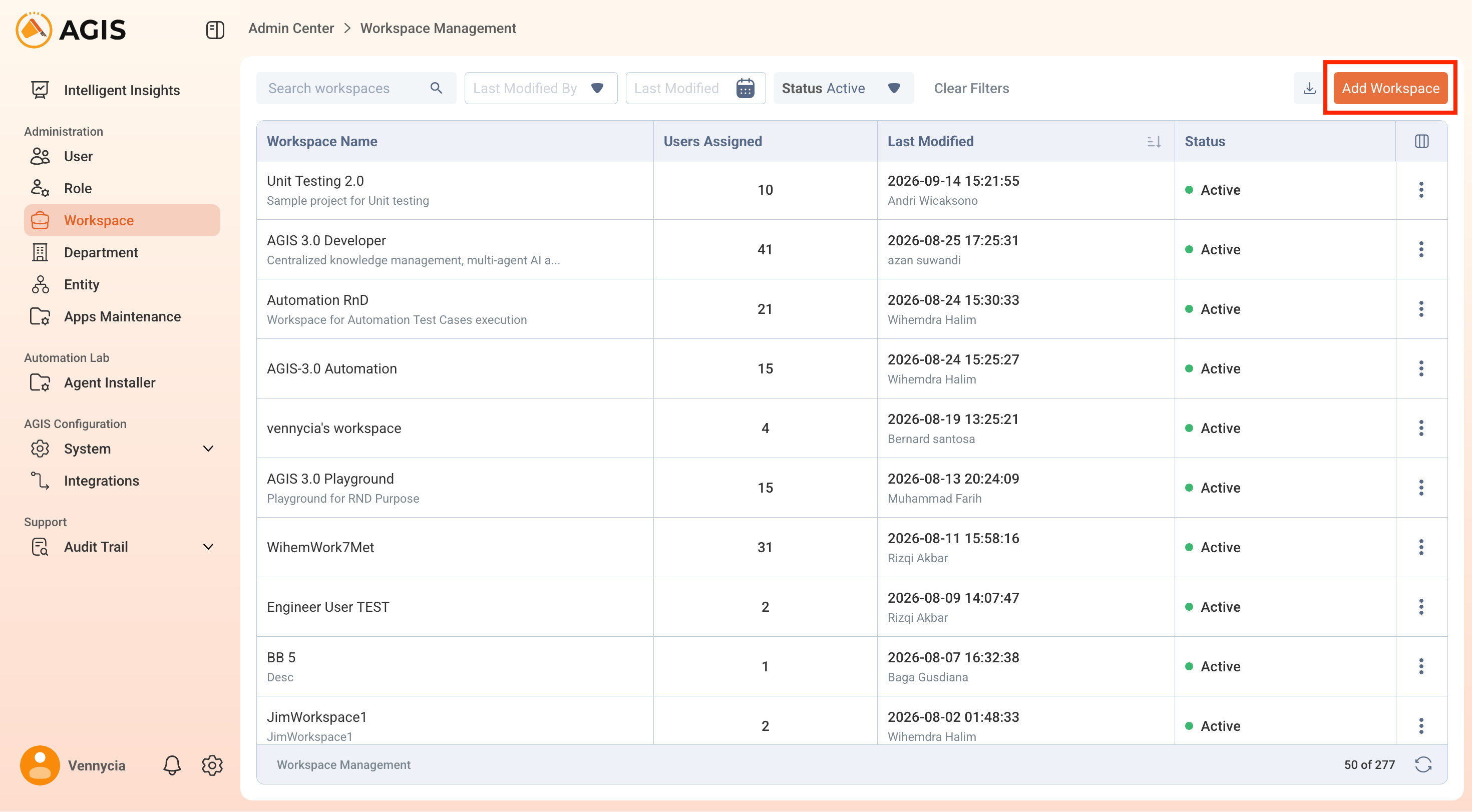
Click Add Workspace on the Workspace List page to open the Add New Workspace form.
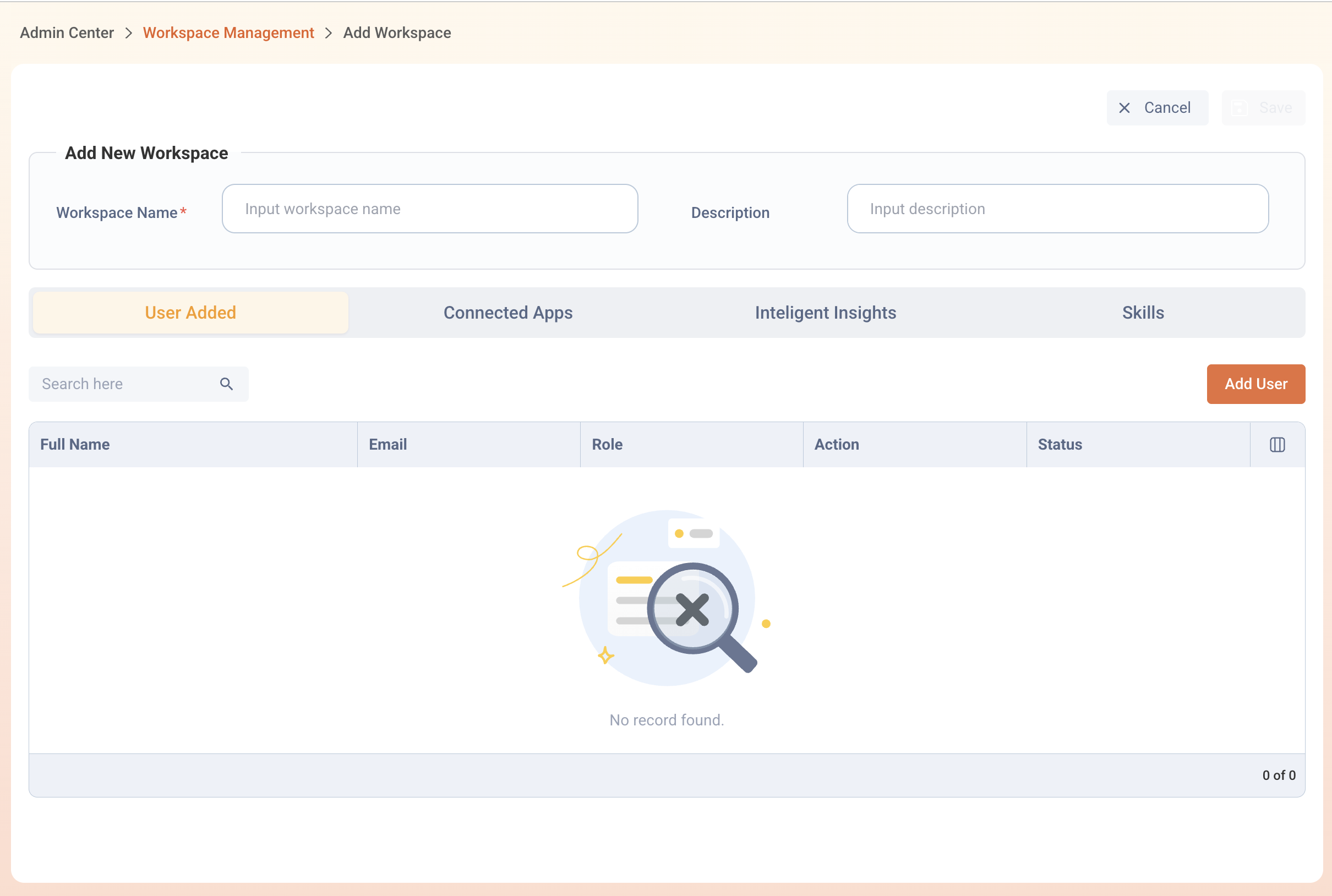
- Enter a Workspace Name (required).
- (Optional) Enter a Description.
- Configure the workspace using the four tabs below: User Added, Connected Apps, Intelligent Insights, and Skills.
- Click Save to create the workspace, or Cancel to discard it.
User Added
Manage which users belong to this workspace.
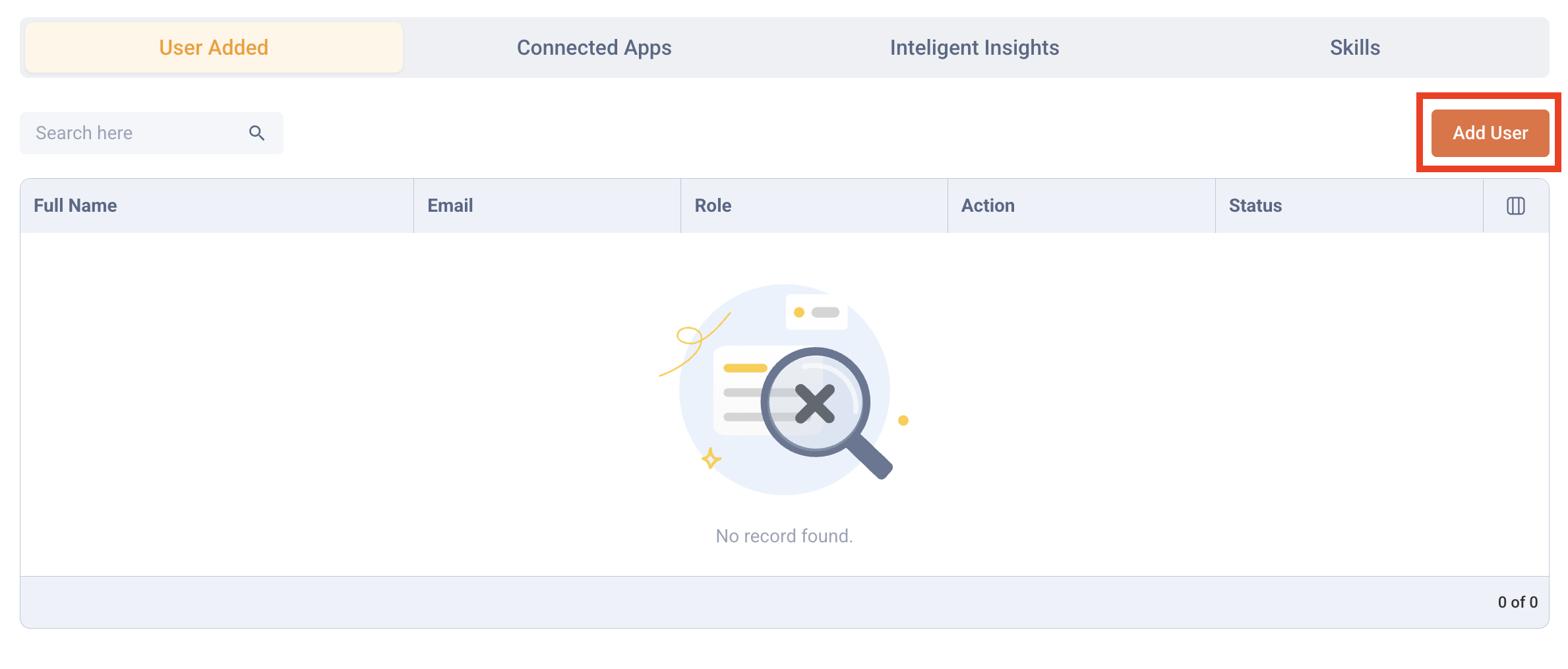
- Search here — search users already added to the workspace.
- Add User — add a new user to the workspace.
- The table shows Full Name, Email, Role, Action, and Status for each added user.
Clicking Add User opens an inline row where you can:

- Select a user from Select Name.
- Select a role from Select role.
- Click Save to add the user to the workspace, or Clear Filter (✕) to cancel.
Connected Apps
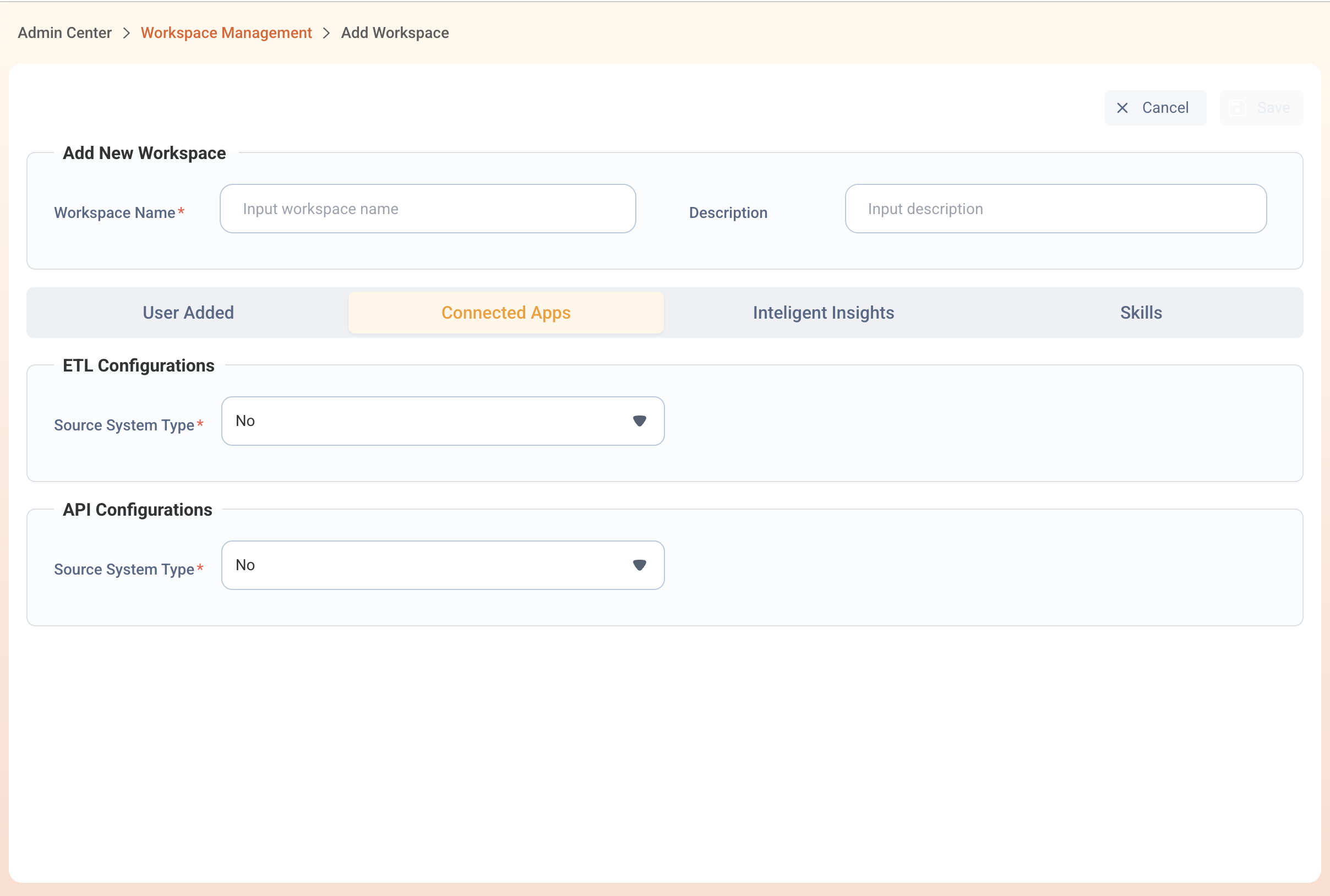
Configure connected data sources for the workspace.
| Section | Field | Description |
|---|---|---|
| ETL Configurations | Source System Type | Whether an ETL source system is connected (defaults to No) |
| API Configurations | Source System Type | Whether an API source system is connected (defaults to No) |
Intelligent Insights
Configure the status-level thresholds used by Intelligent Insights for this workspace.
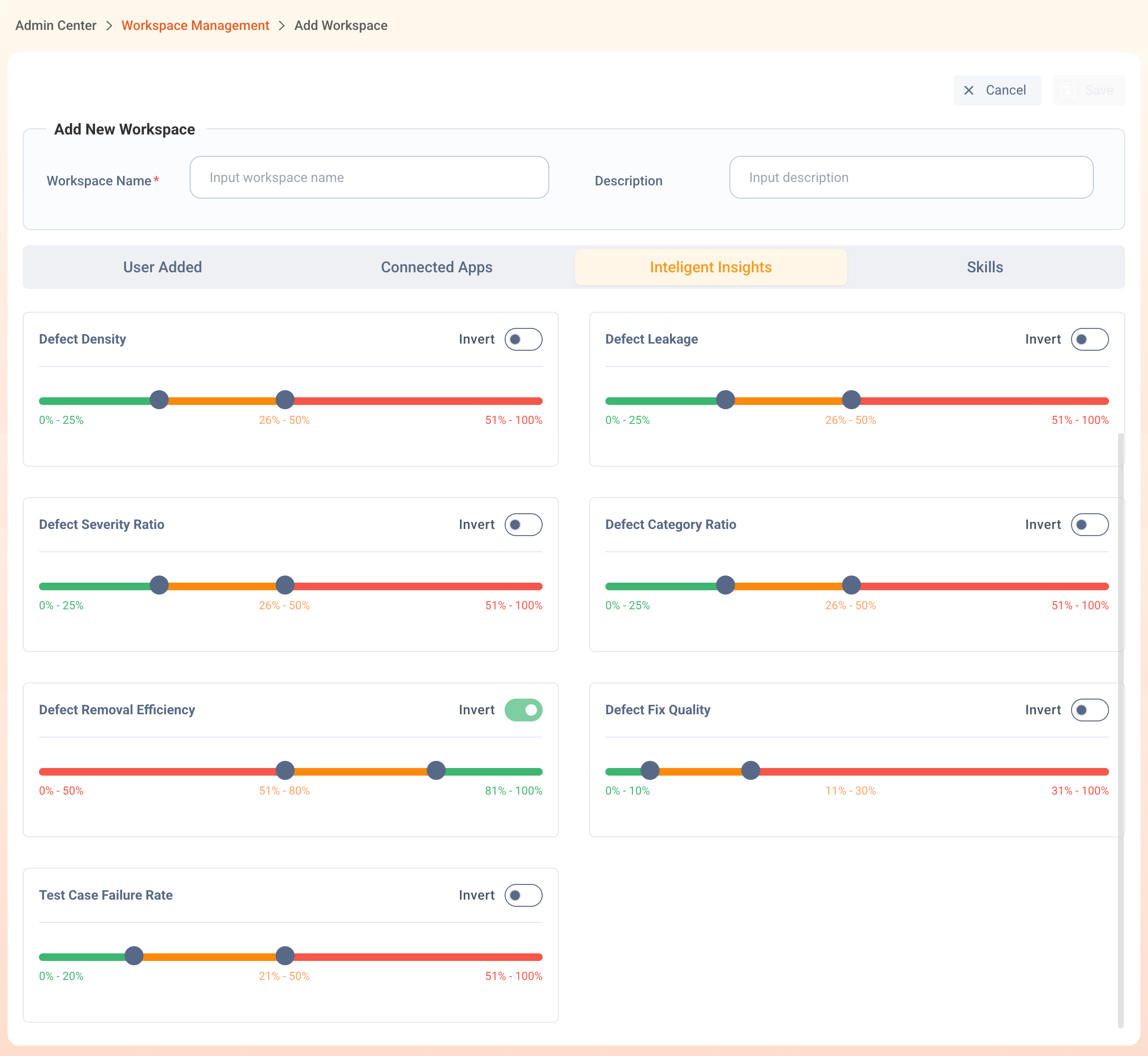
Each metric card (e.g. Defect Density, Defect Leakage, Defect Severity Ratio, Defect Category Ratio, Defect Removal Efficiency, Defect Fix Quality, Test Case Failure Rate) has:
- A slider with two handles that split the metric's percentage range into three status bands — green (good), orange (warning), and red (critical). Drag the handles to adjust the band boundaries.
- An Invert toggle. By default, low percentages are green and high percentages are red. Turning Invert on flips this — low percentages become red and high percentages become green — which is useful for metrics where a higher value is actually better (e.g. Defect Removal Efficiency).
Skills
Manage the skill documents available to this workspace.
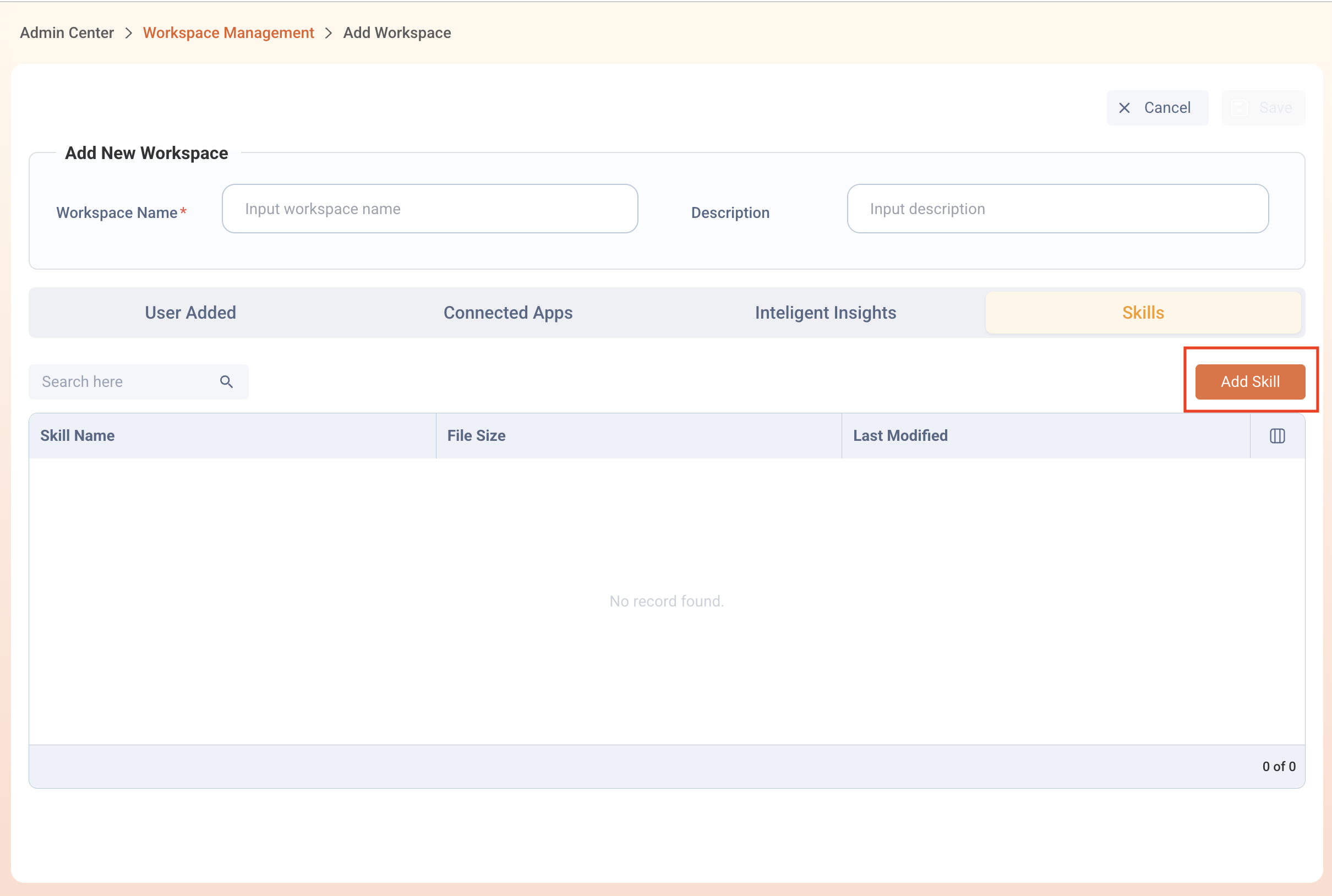
- Search here — search existing skills.
- Add Skill — upload a new skill document.
- The table shows Skill Name, File Size, and Last Modified for each skill.
Clicking Add Skill opens the Upload Skill dialog:
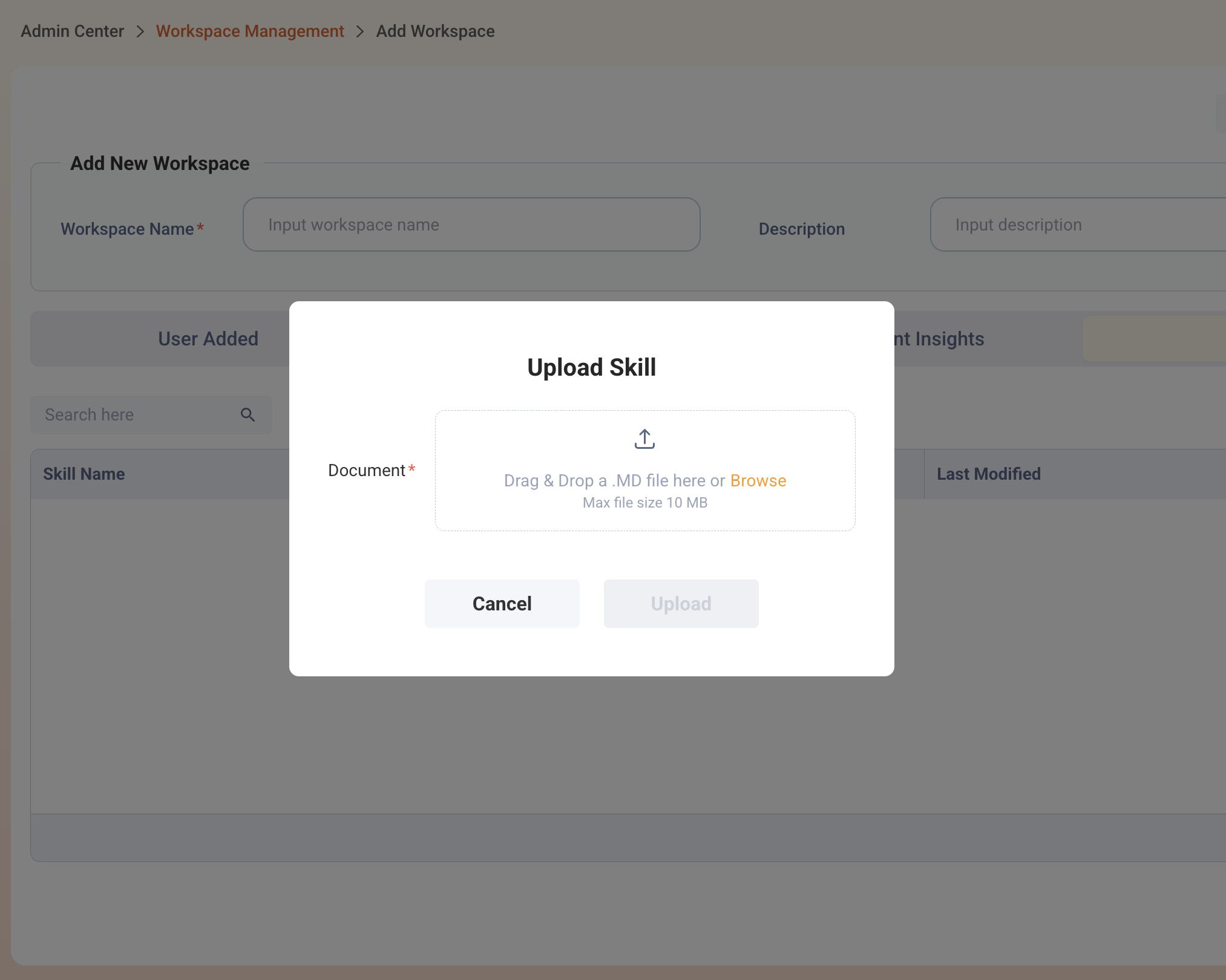
- Drag and drop a .MD file into the upload area, or click Browse to select one. Maximum file size is 10 MB.
- Click Upload to add the skill, or Cancel to discard it.
