User Profile
User Profile lets the user view or update the user's Full Name, Phone Number, and Profile Picture. The page also allows the user to view other details such as Email, Entity, Department, Machine Learning role, Admin Role, and Workspaces the user are assigned to.
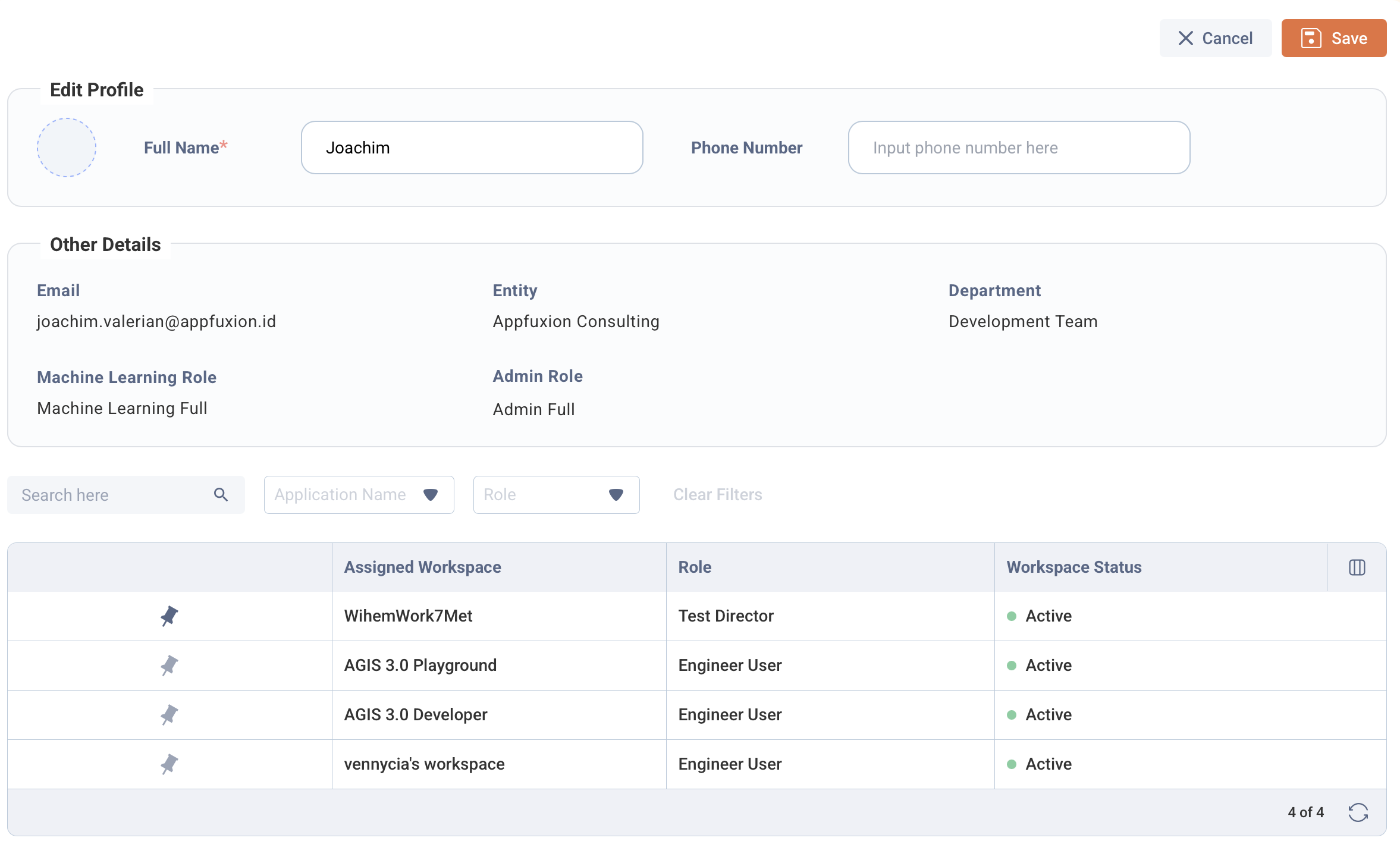
View User Profile
To open User Profile, user needs to click their name or profile picture on bottom side of the left sidebar.
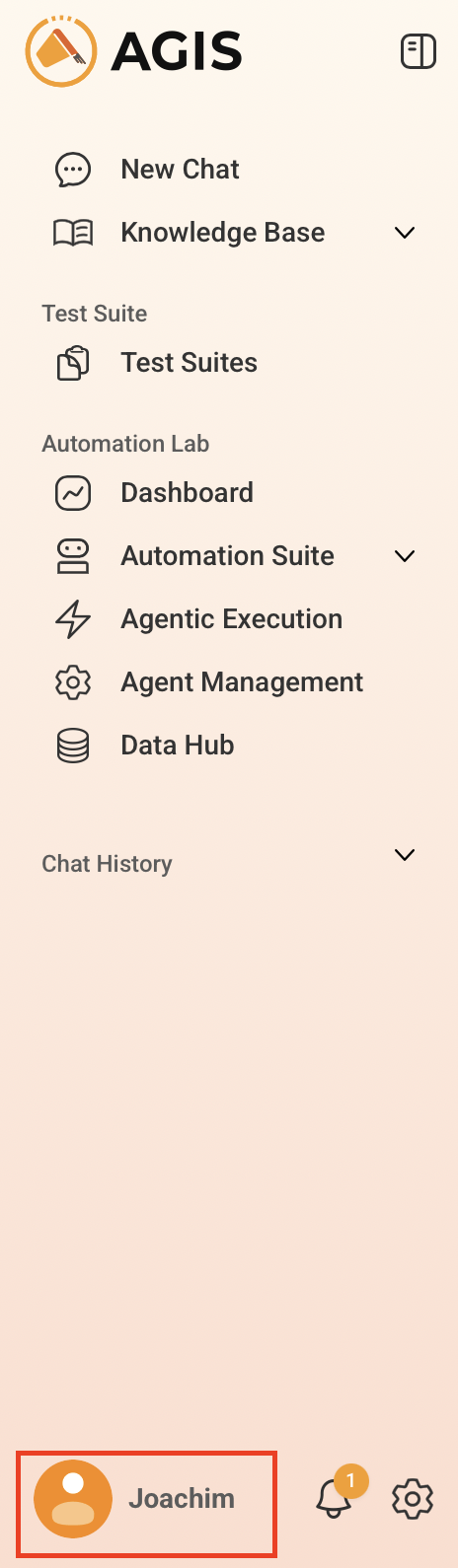
It will then shows a menu where user can click the User Profile button.
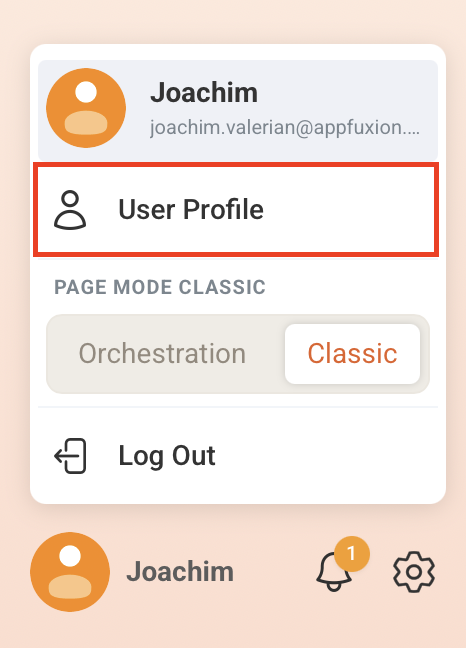
Edit User Profile
| Field | Required | Description |
|---|---|---|
| Profile Picture | No | Click the picture to change it. See Change Profile Picture. |
| Full Name | Yes | name as shown in AGIS. Up to 50 characters. |
| Phone Number | No | Digits only, up to 15. If the number isn't valid, the message "Please input a valid phone number" appears. |
When done click the Save button to apply all of the changes.
Change Profile Picture

- Click the current profile picture
- Choose
Upload Photoon the pop up menu. - Pick the picture.
- Click
Updateto save the changes. - Click the
Savebutton on the page to apply the changes.
Assigned Workspaces
User can view the workspaces they are assigned to on the table listing as well as pin a workspace, user can also search or filter for a specific workspace.
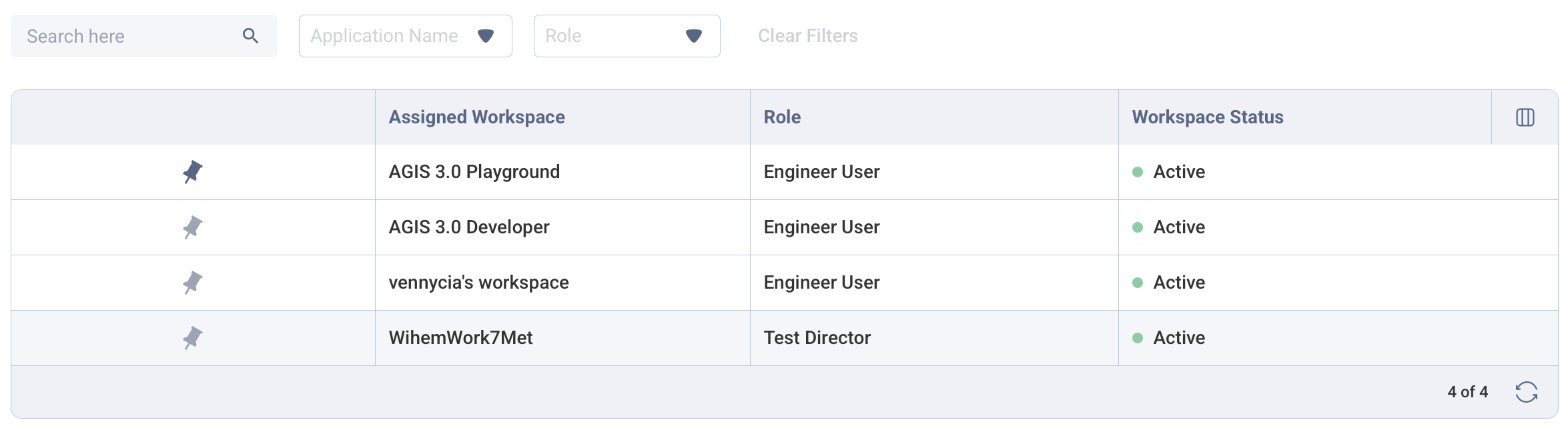
| Column | Description |
|---|---|
Pin icon | Pins the workspace. |
| Assigned Workspace | The workspace name. |
| Role | user's role in that workspace. |
| Workspace Status | Active or Inactive. |
